Conviso MCP Server

Introduction
The Conviso MCP Server is a connector that exposes Conviso Platform data and actions to an LLM through the Model Context Protocol (MCP). MCP lets external services register named capabilities (tools) so an MCP-compatible client — Claude Desktop, Claude Code CLI, Cursor, or any other — can ask the model to fetch live, authoritative security context and perform operations, instead of relying on cached knowledge.
The server ships 44 tools in two families:
- Read tools (33) — list and inspect companies, projects, assets, vulnerabilities, tickets, requirements and their project activities, applications, scan histories, SBOM / supply-chain components, AI-Pentest artifacts and executions, threat-model artifacts, plus security metrics, object-to-company lookup and deep links.
- Write tools (11) — a generic, allowlisted mutation engine (
list_mutations→describe_mutation→execute_mutation) plus curated shortcuts for the most common writes (change issue status, create vulnerabilities / projects / assets / tickets, run DAST, trigger an AI-Pentest).
Everything the server can do is bounded by the Conviso Platform API Key you provide — the data returned and the operations allowed match that key's permissions. Write operations (except ticket creation) also honor the company's MCP write policy in Conviso Platform.
Quick install
Pick your client below and add the server, supplying your API key as CONVISO_API_KEY. Most examples run the published Node package with npx — no clone or build required. All setups below expose the same read and write tools.
Read and write. The server acts only within the permissions of the API key you provide.
- Claude Code
- Claude Desktop
- Cursor
- VS Code
- Codex
- Gemini
- Docker
Register the server once and it's available in every project:
claude mcp add -s user -e CONVISO_API_KEY=<your_api_key> conviso-mcp -- npx -y @convisoappsec/mcp
Check it with claude mcp list (or run /mcp inside a session). Swap -s user for -s project to scope it to the current repo (.mcp.json).
Easiest: open Settings → Extensions → Explore extensions, search Conviso MCP Server, click Install, then Configure and paste your API key. Full walkthrough: Marketplace steps.
Manual: edit claude_desktop_config.json (Settings → Developer → Edit Config):
{
  "mcpServers": {
    "conviso-mcp": {
      "command": "npx",
      "args": ["-y", "@convisoappsec/mcp"],
      "env": { "CONVISO_API_KEY": "your_api_key_here" }
    }
  }
}
Add to .cursor/mcp.json (current project) or ~/.cursor/mcp.json (all projects):
{
  "mcpServers": {
    "conviso-mcp": {
      "command": "npx",
      "args": ["-y", "@convisoappsec/mcp"],
      "env": { "CONVISO_API_KEY": "your_api_key_here" }
    }
  }
}
Then enable conviso-mcp under Settings → MCP.
Add to .vscode/mcp.json — note the servers key and the type field:
{
  "servers": {
    "conviso-mcp": {
      "type": "stdio",
      "command": "npx",
      "args": ["-y", "@convisoappsec/mcp"],
      "env": { "CONVISO_API_KEY": "your_api_key_here" }
    }
  }
}
Or add it straight from the terminal:
code --add-mcp '{"name":"conviso-mcp","command":"npx","args":["-y","@convisoappsec/mcp"],"env":{"CONVISO_API_KEY":"your_api_key_here"}}'
Add to ~/.codex/config.toml:
[mcp_servers.conviso-mcp]
command = "npx"
args = ["-y", "@convisoappsec/mcp"]
env = { CONVISO_API_KEY = "your_api_key_here" }
Add to ~/.gemini/settings.json (all projects) or .gemini/settings.json (current project):
{
  "mcpServers": {
    "conviso-mcp": {
      "command": "npx",
      "args": ["-y", "@convisoappsec/mcp"],
      "env": { "CONVISO_API_KEY": "your_api_key_here" }
    }
  }
}
Or from the terminal:
gemini mcp add -e CONVISO_API_KEY=<your_api_key> conviso-mcp npx -y @convisoappsec/mcp
Works in Gemini CLI and Gemini Code Assist (agent mode). Verify with /mcp list. For HTTP transport, run the server with PORT=3000 and use "httpUrl": "http://localhost:3000" instead of command.
Run the Node image (build it first: docker build -t conviso-mcp-node-image node/):
{
  "mcpServers": {
    "conviso-mcp": {
      "command": "docker",
      "args": [
        "run", "-i", "--rm", "--init",
        "-e", "CONVISO_API_KEY=your_api_key_here",
        "conviso-mcp-node-image"
      ]
    }
  }
}
Restart or reload your client after adding the entry. The tabs use the stdio transport; for Claude Cowork/Projects or remote hosting, use HTTP (Connector) mode below.
What you can do
| Domain | Read | Write |
|---|---|---|
| Companies | List, inspect (plan, integrations, branding) | — |
| Vulnerabilities / Issues | List (rich filters), full technical detail, severity overview, per-asset and per-project views | Change status, create/update (source-code, web, network), reassign, mark analyzed, bulk status, bulk delete |
| Projects | List (filters), inspect detailed planning and allocation data, list project types and statuses | Create (with requirements and assets), update, change status, bulk status, bulk delete |
| Assets | List (filters), inspect | Create, update, run Conviso DAST |
| Tickets | List, inspect | Create |
| Requirements / Checklists | List by scope, inspect, list per project, list instantiated project activities | Create/update, attach to projects |
| Applications | List, inspect (with linked assets) | Create, update, add/remove assets |
| Scans | Execution history, coverage counts | (read-only) |
| Supply chain / SBOM | List components (license, versions, issues by severity) | (read-only) |
| AI-Pentest | List artifacts, inspect scope & executions, execution results | Create/update artifact, trigger execution, cancel, retest |
| Threat Modeling | List artifacts, inspect versions | Create artifact/version, update, generate requirements |
| Utilities, metrics & links | Resolve a company from an existing object, MTTR over time, risk-score history, deep links, today's date | — |
Tools reference
Read tools
| Domain | Tool | Description |
|---|---|---|
| General | get_companies | List companies accessible with the API key (search = name contains, label_eq = exact match). |
| General | get_company_info | Company detail: plan, integrations, branding metadata. |
| General | get_company_id_from_object | Resolve the owning company from an issue, asset, project, AI-Pentest artifact/execution, or threat-model artifact ID before a write. |
| Vulnerabilities | get_issues | List vulnerabilities with rich filtering and sorting; use asset_id or project_id to scope the results. |
| Vulnerabilities | get_issue | Full technical detail for one issue; optional vulnerable code snippet and raw HTTP request/response. |
| Vulnerabilities | get_top_vulnerabilities | Counts grouped by severity (risk overview), with optional filters. |
| Projects | get_projects | List security projects for a company, with filters and sorting. |
| Projects | get_project | Detailed project data: planning dates, effort, goals, scope, assigned users and teams, allocated hours, assets, requirement progress and project type. |
| Projects | get_project_types | List project types and find the type_id required by create_project; supports label search. |
| Projects | get_project_statuses | List valid project statuses (id, label, isInitial). |
| Assets | get_assets | List assets for a company, with rich filtering and sorting. |
| Assets | get_asset | Detail for a specific asset. |
| Tickets | get_tickets | List tickets (paginated) with search and TicketSearch params. |
| Tickets | get_ticket | One ticket: status, priority, impact, assignee. |
| Requirements | get_requirements | List requirements/checklists for a scope (company). |
| Requirements | get_requirement | One requirement/checklist by id. |
| Requirements | get_project_requirements | Requirements attached to a specific project. |
| Requirements | get_project_requirement_activities | Instantiated activities for a project requirement, including status, assignees and history count. |
| Applications | get_applications | List applications (name, url, riskScore, assetsCount). |
| Applications | get_application | One application, including its linked assets. |
| Scans | get_scan_histories | Scan executions (status, integration, duration, vuln counts). |
| Scans | get_asset_scans_count | Scan-coverage counts (assets with / without scans). |
| Supply chain | get_sbom_components | SBOM components: version, technology, package manager, license, issues by severity. |
| AI-Pentest | get_pentest_artifacts | List AI-Pentest artifacts (label, type, scheduling, latest execution). |
| AI-Pentest | get_pentest_artifact | One artifact, including scope and its executions. |
| AI-Pentest | get_pentest_execution | Execution result: status, vuln count, severity breakdown, retest progress. |
| Threat Modeling | get_threat_model_artifacts | List threat-model artifacts (label, scope, latest version). |
| Threat Modeling | get_threat_model_artifact | One artifact, including its versions (diagrams, notes, scope). |
| Metrics | get_mttr_over_time | MTTR aggregated over a date range; severity/status/asset filters. |
| Metrics | get_overall_risk_score_history | Historical risk scores for trend analysis. |
| Utilities | create_project_url | Deep link to a project in the Platform. |
| Utilities | create_issue_url | Deep link to a specific issue. |
| Utilities | get_today_date | Current date — useful to compute relative ranges ("last 30 days"). |
Write tools
| Group | Tool | Description |
|---|---|---|
| Engine | list_mutations | Discover the permitted write operations (name, description, category, destructive flag). |
| Engine | describe_mutation | Full input schema for one mutation (fields, required, enums, nested inputs) + default return fields. |
| Engine | execute_mutation | Run any allowlisted mutation by name with a generic input object. |
| Shortcut | change_issue_status | Change an issue/vulnerability status. |
| Shortcut | create_source_code_vulnerability | Create a manual source-code (SAST-style) vulnerability on an asset. |
| Shortcut | create_project | Create a project, optionally associating requirements and assets. Use get_project_types to find the required type_id. |
| Shortcut | create_asset | Create an asset. |
| Shortcut | create_ticket | Open a ticket. |
| Shortcut | run_dast | Start a Conviso DAST scan on an asset. |
| Shortcut | trigger_pentest | Trigger an AI-Pentest execution from an existing artifact. |
| Shortcut | create_pentest_artifact | Create an AI-Pentest artifact (the scope/config a pentest runs against). |
Prerequisites
- Conviso Platform API Key — create it under Profile > API Keys.
- An MCP-compatible client: Claude Desktop, Claude Code CLI, Cursor, or any client supporting stdio/HTTP MCP servers.
- Node.js 20.10+ or Docker.
Generate the key in the Conviso Platform under Profile > API Keys and copy it — you'll pass it to the server as the CONVISO_API_KEY value in the steps below.
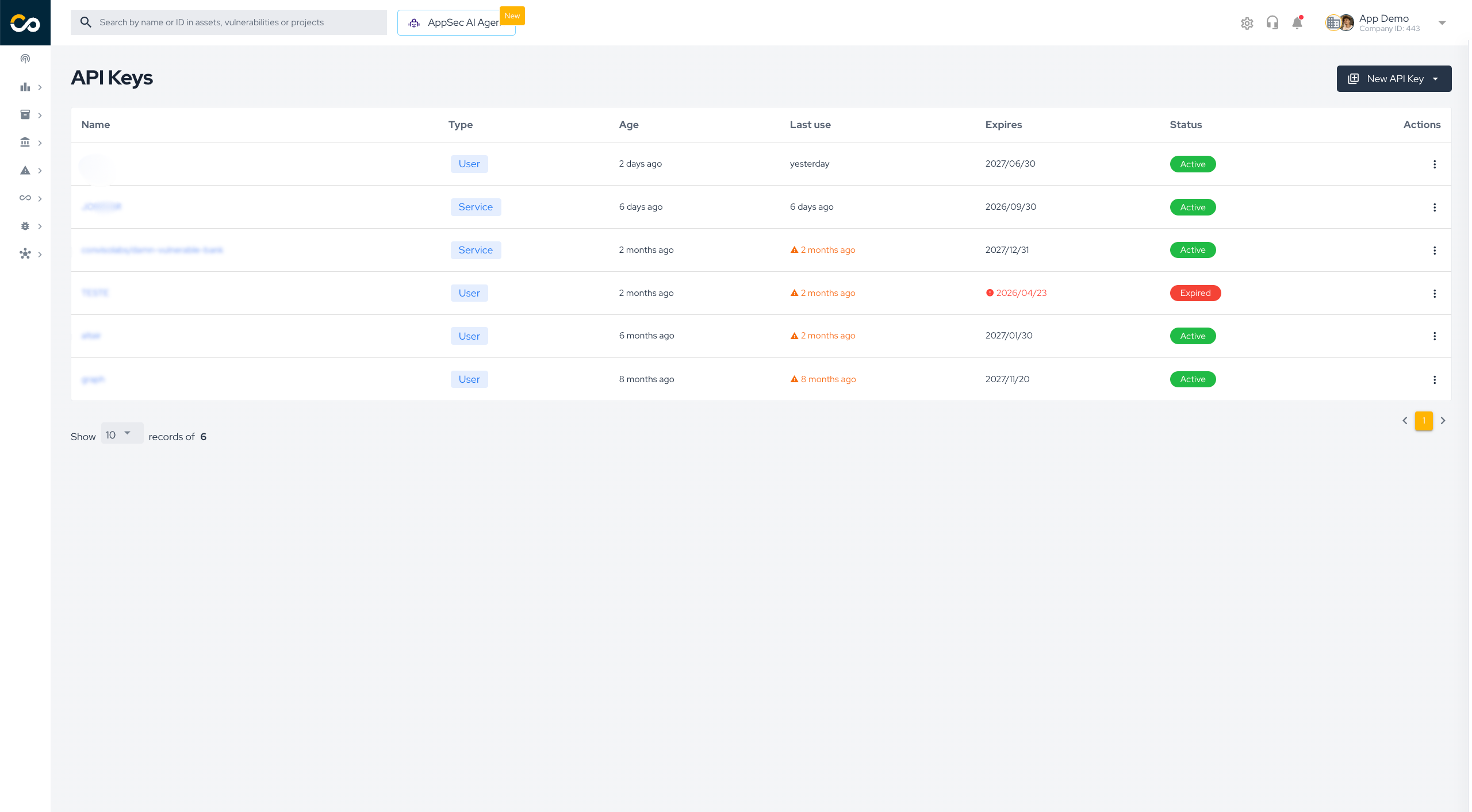
Create a dedicated API key for the MCP server and set an expiration date. Grant it only the permissions the workflow needs, and never commit it to version control.
Tips for better prompts
- Provide the company ID once you know it — it unlocks most tools. If you don't have it, start with "List my companies".
- For writes with only an object ID, let the model call
get_company_id_from_objectfirst instead of guessing the company ID. - Ask for links at the end of any vulnerability or project query — the model calls
create_issue_url/create_project_urlas a follow-up. - Combine context — the AI keeps conversation context, so "now get the details for the first one" works after a list.
- Request formats — ask for tables, bullet lists, or raw JSON ("format as a markdown table", "give me just the IDs").
Security and privacy
- The server operates strictly within the permissions of the provided API Key — for both reads and writes. Except for ticket creation, writes also require the company's MCP write policy to be enabled.
- Writes are allowlisted. Only the operations listed above are reachable; destructive ones (delete / bulk / cancel / remove) are flagged so the client prompts for confirmation.
get_issuewithreturn_vulnerable_data=truemay return exploit code, raw HTTP requests/responses, or secrets — use with care.- Create a dedicated key with an expiration date; do not reuse a personal API key, and scope it to the minimum permissions needed.
- Keep the API key out of version control — use environment variables or a secrets manager.
Privacy Policy
This connector communicates only with the Conviso Platform API (https://app.convisoappsec.com) using the API key you provide. It does not collect, store, or share your data with any third party — requests and responses stay between your MCP client and the Conviso Platform. Error logs go to stderr only.
Full privacy policy: iubenda.com/privacy-policy/55589285
Open source
The Conviso MCP Server is open source at github.com/convisoappsec/conviso-mcp. Contributions are welcome — bug reports, new tools, and improvements. See the repository's CONTRIBUTING.md to get started.
See also
- Conviso Skills — reusable operational playbooks for bulk actions (vulnerability triage, owner assignment, asset risk normalization) via
conviso-cli, with preview-first safety controls.
Support
If you need help, contact Conviso support: support@convisoappsec.com.

Contribute to the Docs
Found something outdated or missing? Help us improve the documentation with a quick suggestion or edit.
How to contributeResources
By exploring our content, you'll find resources that will enhance your understanding of the importance of a Security Application Program.
Conviso Blog: Explore our blog, which offers a collection of articles and posts covering a wide range of AppSec topics. The content on the blog is primarily in English.
Conviso's YouTube Channel: Access a wealth of informative videos covering various topics related to AppSec. Please note that the content is primarily in Portuguese.