CI/CD Pipeline Security Control with Security Gate
Overview
Security Gate is the control that lets you define vulnerability thresholds and use them to evaluate whether a build should proceed in CI/CD.
The feature combines two layers:
- Platform configuration and monitoring: define the rules, review executions, and inspect why a pipeline passed, failed, or generated a warning.
- AST enforcement in CI/CD: run the assertion command during the pipeline so the configured policy is enforced automatically.
This guide covers both parts.
Prerequisites
Before using Security Gate with Conviso AST, set your API key:
export CONVISO_API_KEY='your-api-key'
How Security Gate Works
At a high level, the flow is:
- Define the policy that will be used for an asset.
- Run the Security Gate assertion in CI/CD.
- Review the execution result in the Platform when needed.
Security Gate evaluates vulnerabilities that are still considered open risks, especially those in Identified, In Progress, and Awaiting Validation.
For status definitions, see Workflow Status.
Configuring Security Gate in the Platform
The Platform is the recommended place to manage Security Gate because policies take effect immediately and remain centralized.
There are two main configuration models:
- Global rule: default rule applied to all assets.
- Asset rule: override for a specific asset.
Global Rule Configuration
Use the global rule to define the default company-wide baseline.
- Navigate to Policies.
- Locate the Security Gate (Global) section.
- Configure each severity level with:
- Max Vulnerabilities Allowed
- Max Days to Fix
- Click Save Policies.
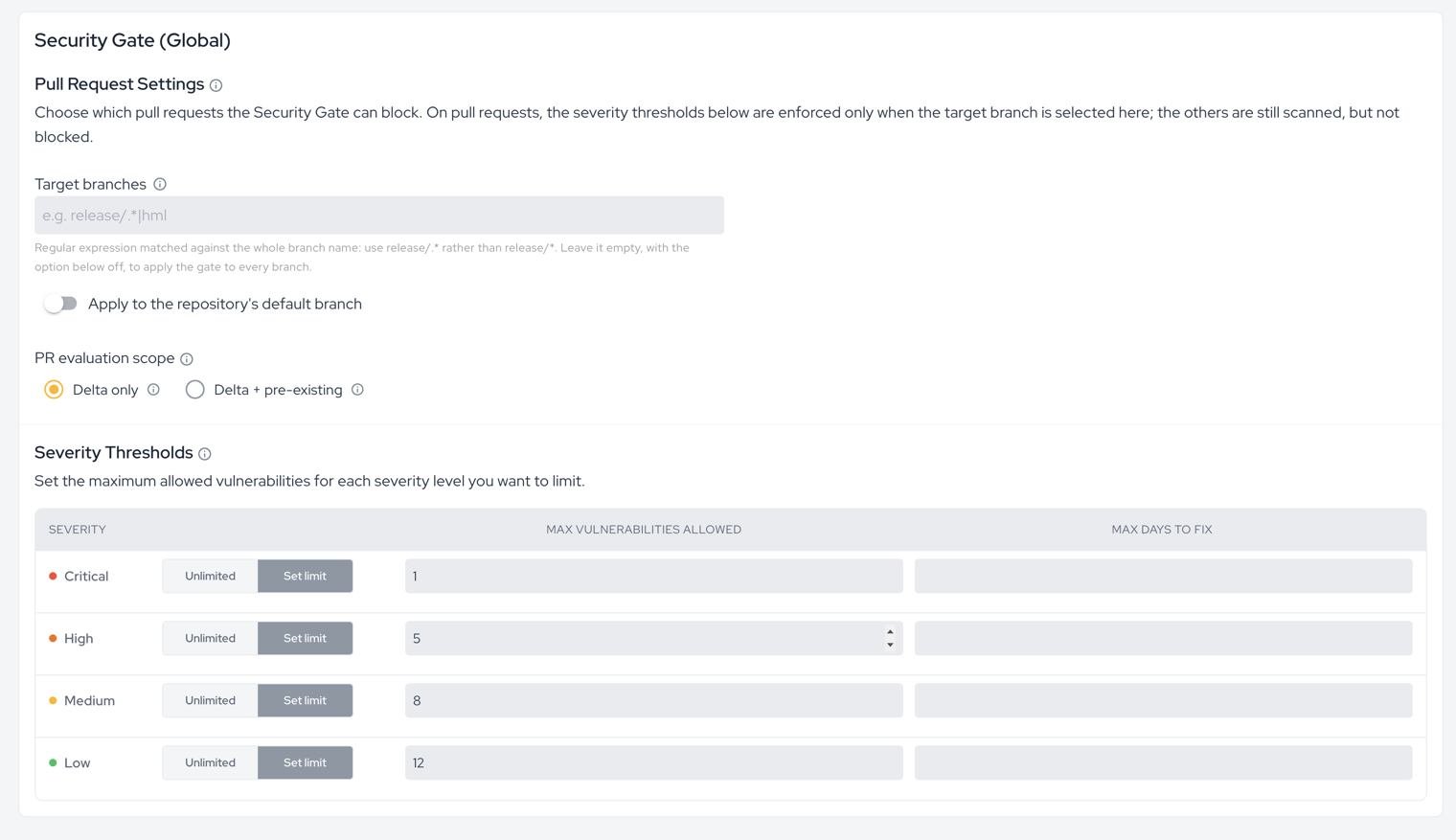
Practical interpretation:
- if the number of vulnerabilities stays within the allowed threshold, the rule can pass;
- if the count exceeds the threshold but none are overdue, the result may become
Warning; - if vulnerabilities exceed the allowed aging window, the result becomes
Failed.
Asset Rules
Use an asset rule when a specific asset needs different thresholds from the global baseline.
Common cases:
- legacy applications that need a gradual hardening path;
- critical assets that require stricter limits;
- special projects with different operational constraints.
To review the active rule for an asset:
- Navigate to Assets.
- Open the target asset.
- Go to the CI/CD tab.
- Review the Security Gate card.
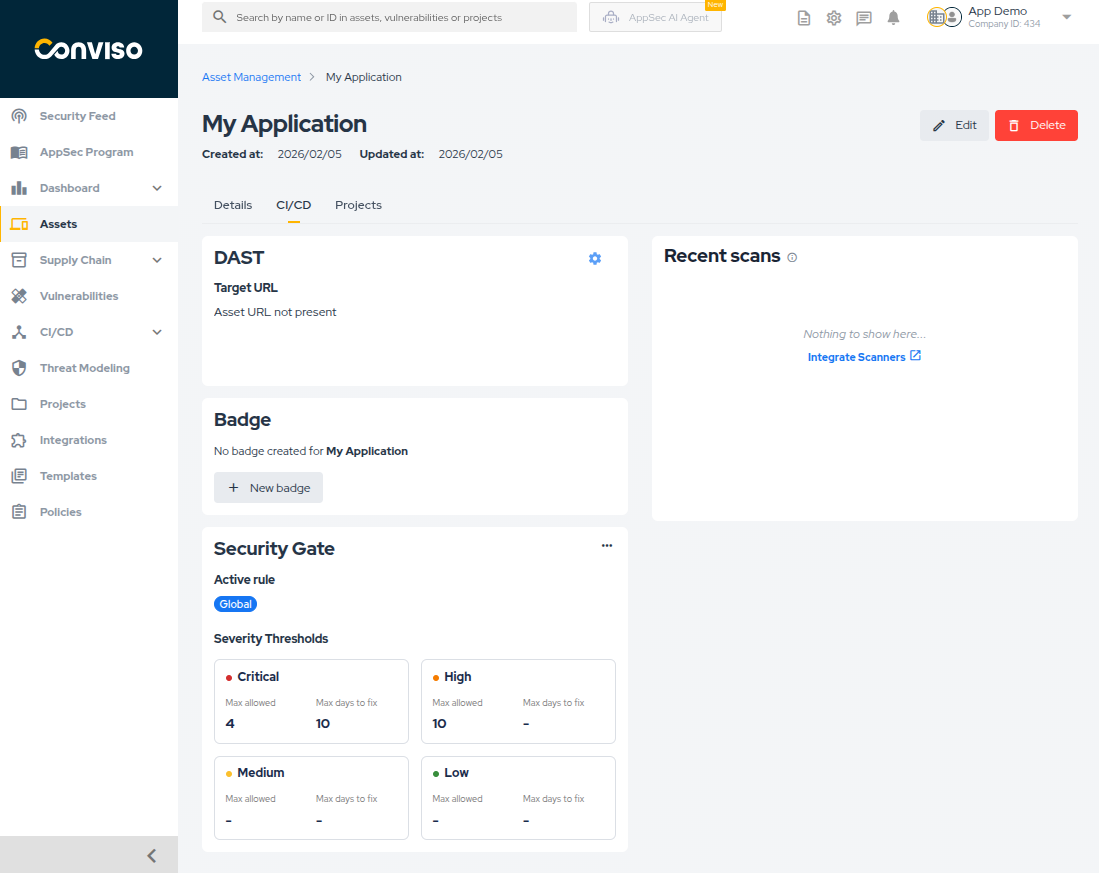
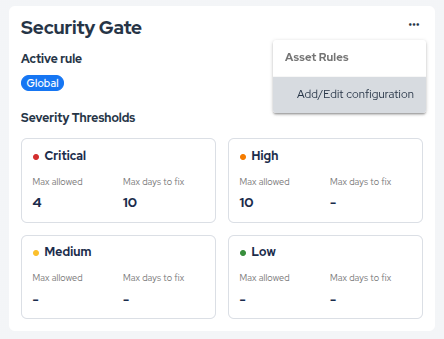
To create or edit an asset rule:
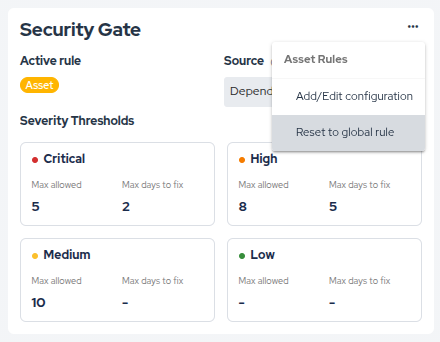
- Open the Security Gate card options menu.
- Select Add/Edit configuration.
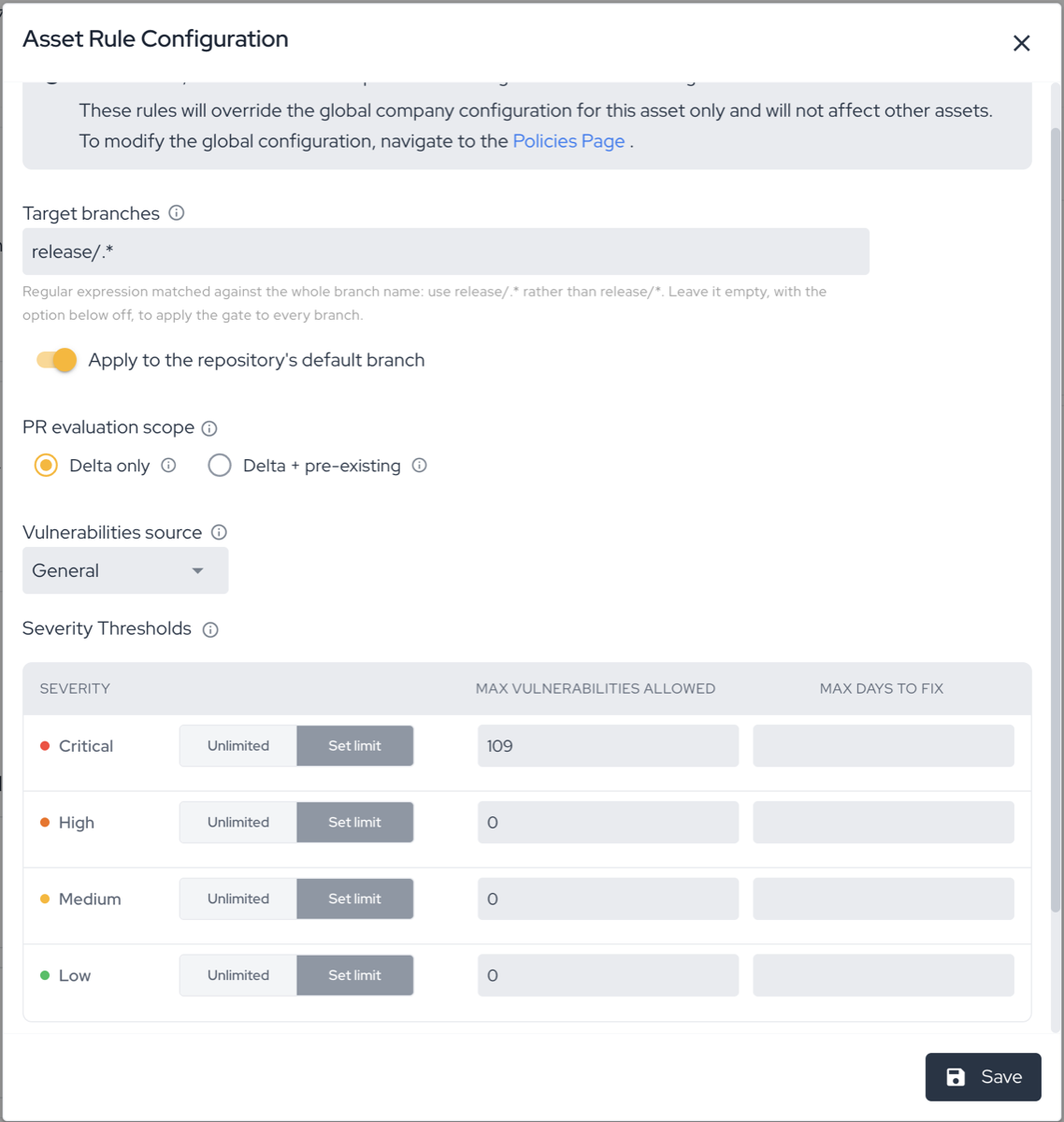
- Define the desired thresholds.
- Review the pending changes.
- Save the configuration.
An asset rule replaces the global rule entirely, including its pull request settings. Creating an asset rule requires configuring at least one vulnerabilities source: an asset rule with no rules would leave the asset without a Security Gate.
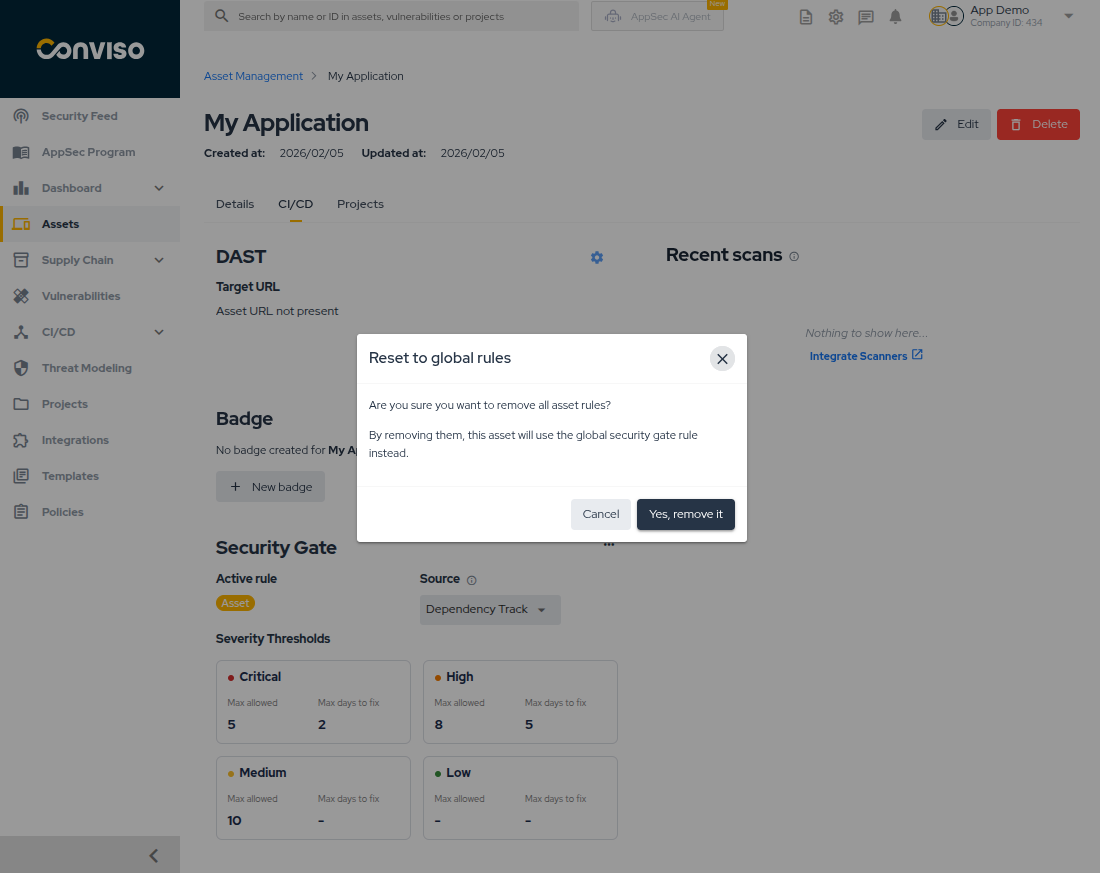
To remove the override and return to the global rule:
- Open the Security Gate card options menu.
- Select the reset option.
- Confirm the removal.
Pull Request Target Branches
By default, the Security Gate evaluates every pull request scanned by PR Scanning, whatever its target branch. You can limit it to the target branches that matter, such as release or production branches.
Pull requests into other branches are still scanned, and their findings are still reported on the pull request. Their check finishes as Neutral ("Security Gate not applied to this target branch") and does not block the merge.
Where to configure it:
- Global rule: in Policies, under Security Gate (Global) → Pull Request Settings.
- Asset rule: in the asset's Asset Rule Configuration dialog, under the same settings.
Both screens are shown in Global Rule Configuration and Asset Rules.
The settings:
- Target branches: a regular expression matched against the whole name of the pull request's target branch. Use
release/.*to matchrelease/1.0:release/*does not match it. Combine branches with|, for examplerelease/.*|hml. - Apply to the repository's default branch: gates pull requests into the asset's default branch. It adds to the pattern: with both set, the gate applies to branches that match the pattern and to the default branch.
How the settings combine:
| Target branches | Default branch option | The gate applies to |
|---|---|---|
| Empty | Off | Every target branch (default behavior) |
release/.*|hml | Off | Branches matching the pattern |
| Empty | On | The default branch only |
release/.*|hml | On | Branches matching the pattern, plus the default branch |
Points to keep in mind:
- The filter applies only to PR Scanning. Security Gate runs from the CLI, CI/CD pipelines and post-merge scans are not affected.
- An asset rule replaces the global rule entirely, including these settings. An asset that already has its own rule does not inherit the global target branches.
- With the default branch option on, an asset whose default branch is not known is gated on every target branch.
- If a pull request's target branch changes, it is scanned again for the new target branch, and its check follows the new target.
Monitoring Security Gate in the Web Interface
The Platform is also the main place to inspect Security Gate executions after the pipeline runs.
Execution List
Go to CI/CD > Security Gate to see the execution list across the company.
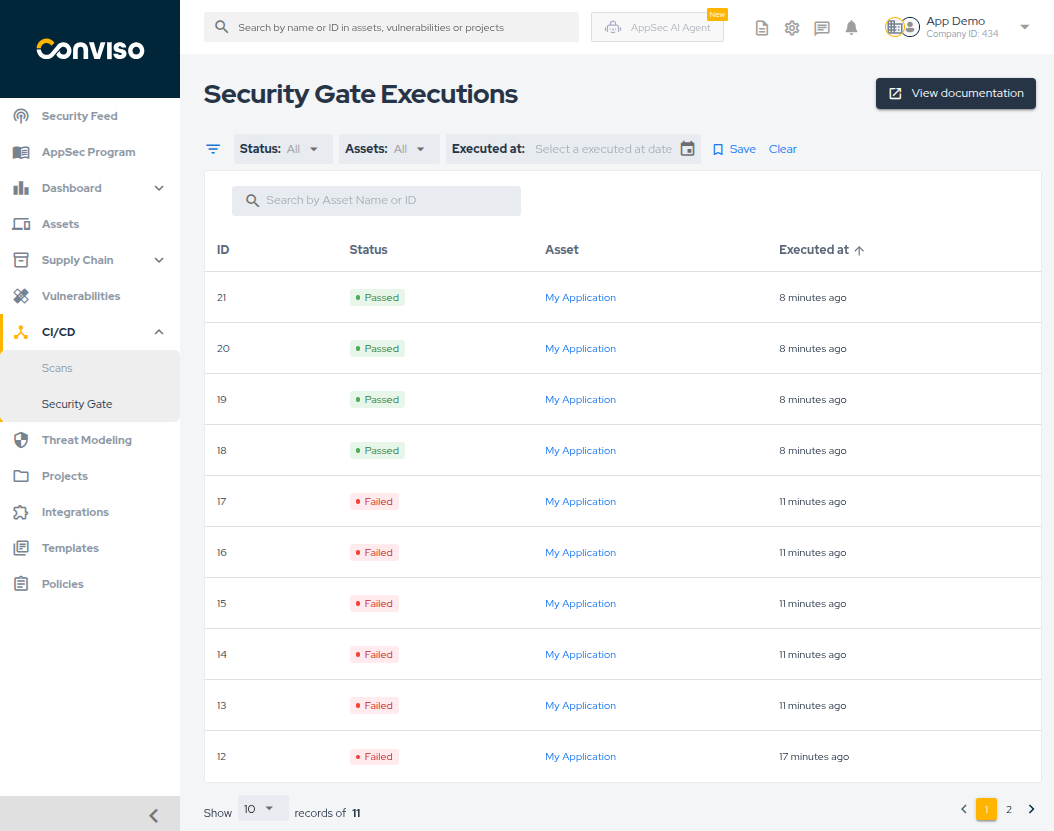
From this screen, you can:
- filter by status, asset, and execution date;
- search by execution ID or asset name;
- sort the list by ID, status, or execution time;
- save a default filter view.
Execution Statuses
Each execution is displayed with one of these statuses:
- Passed: the evaluated vulnerabilities are within the configured thresholds.
- Warning: the configured quantity threshold was exceeded, but there are no overdue vulnerabilities according to
Max Days to Fix. - Failed: at least one vulnerability exceeded the configured aging rule or another threshold that blocks the pipeline.
Execution Details
Click any execution to inspect the result in detail.
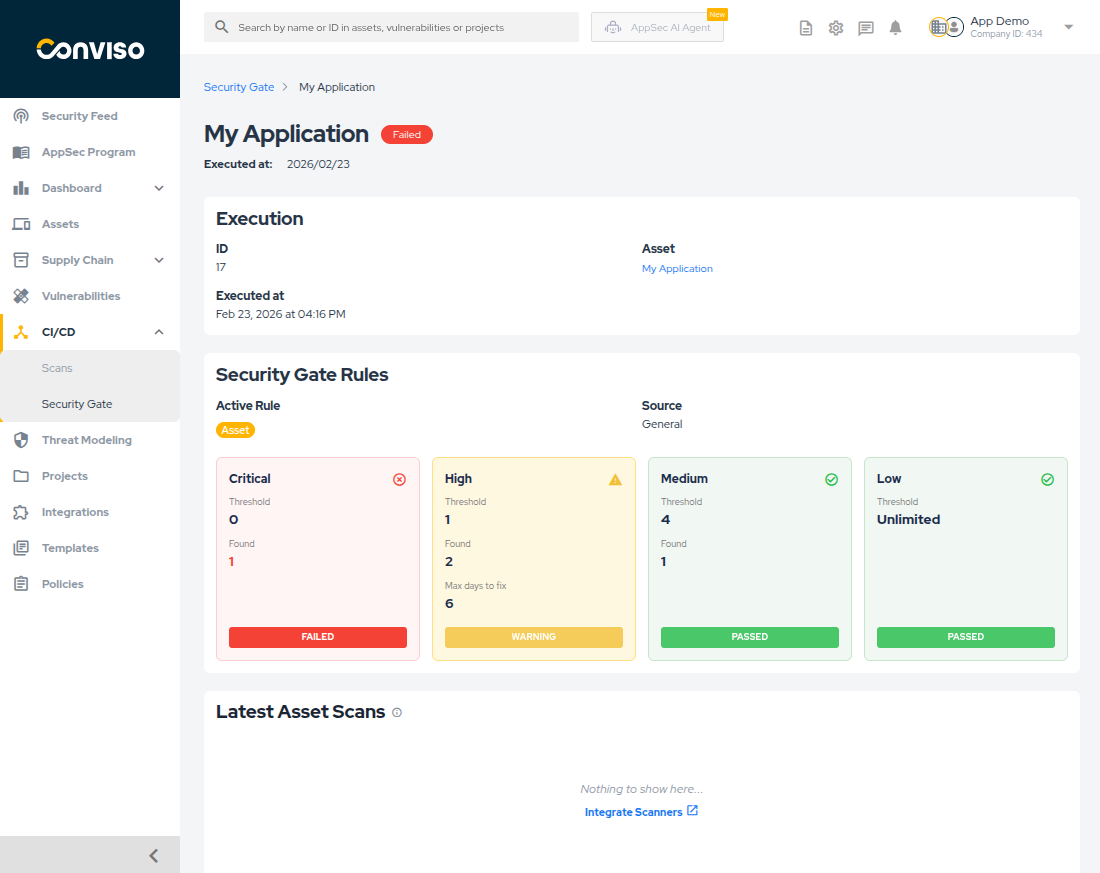
This view helps you confirm:
- which asset and execution time were evaluated;
- which rule type was applied:
GlobalAssetCustom
- what threshold was expected for each severity;
- how many vulnerabilities were found;
- how many were already expired based on the configured aging window;
- which recent scans provide context for the result.
Running Security Gate in CI/CD with AST
After the policy is defined, execute Security Gate in the pipeline with Conviso AST. It is a step of its own, run after the scan: a conviso ast run reports findings and exits 0, and this command is what decides whether the build proceeds.
The gate evaluates one branch — the checked-out one, or the one named with --branch-name. It reads a verdict and never creates an asset: when no asset matches the repository, it warns and exits 0, so set CONVISO_ASSET_ID to point at the right one.
conviso vulnerability assert-security-rules prints a deprecation banner and will be removed. It stays supported so a pipeline that gates on it keeps blocking while it migrates to the policy configured on the Platform.
Using Platform-based Configuration
If the policy is managed in the Platform, use:
conviso vulnerability assert-security-rules
This command fetches the active Security Gate rule for the asset, evaluates the vulnerabilities against it, and records the execution in the Platform.
Optional: export the full result as JSON
To persist the complete gate response (including all vulnerability fields returned by the API), use --output:
conviso vulnerability assert-security-rules --output gate-result.json
The JSON file contains the same payload used by the CLI, which is useful for CI artifacts, downstream automation, or debugging large SCA advisories that are summarized in the terminal output.
Using YAML-based Configuration
If you prefer to keep the rule in the repository, use:
conviso vulnerability assert-security-rules --rules-file 'FILE_NAME.yml'
This makes the pipeline apply the thresholds declared in the repository instead of the ones configured on the Platform.
Understanding CLI Results
After running the assertion command, the pipeline receives a success or failure result. Both configuration models print the same report; the first line names which policy was applied.
Platform-based Results
When the policy comes from the Platform, the CLI prints a severity summary for every run and, on failure, an enriched breakdown of the vulnerabilities that caused the gate to fail.
Success Response
If the rule is respected, the output is similar to:
💬 Running security gate with platform rules...
💬 Security Gate Result for Asset: my-api (ID: 42)
   Execution Date: 2026-06-10T14:32:11Z

   Severity Summary:
   ✅ CRITICAL: 0/0
   ✅ HIGH: 2/5
   ✅ MEDIUM: 1/10
   ⚪ LOW: N/A (not configured)

✅ Security gate PASSED.
Each severity line shows the current count versus the configured limit. Icons reflect the backend evaluation status when available (✅ pass, ⚠️ warning, ❌ fail).
Failure Response
If the rule is violated, the CLI still prints the severity summary and then lists up to 10 offending vulnerabilities inline:
💬 Running security gate with platform rules...
💬 Security Gate Result for Asset: my-api (ID: 42)
   Execution Date: 2026-06-10T14:32:11Z

   Severity Summary:
   ❌ CRITICAL: 1/0
   ✅ HIGH: 2/5
   ✅ MEDIUM: 1/10
   ⚪ LOW: N/A (not configured)

🔴 Security Gate FAILED — 3 vulnerabilities exceeded threshold

┌──────────────────────────────────────────────────────────────────────────────────────────────────┐
│ [CRITICAL] SQL Injection                                                                         │
│ File: app/models/user.rb:42                                                                      │
│                                                                                                  │
│ Unsanitized user input is passed directly to a query.                                            │
│ CVSS: 9.1                                                                                        │
│                                                                                                  │
│ Link:                                                                                            │
│ https://app.convisoappsec.com/spa/company/11/vulnerabilities/123?assetId=42                      │
└──────────────────────────────────────────────────────────────────────────────────────────────────┘

💡 Full vulnerability details: re-run with --output gate-result.json
Error: Security gate FAILED. Vulnerabilities exceed configured limits.
For each failing vulnerability, the CLI shows:
- severity and title;
- file path and line number, when available;
- a short description summary (markdown and code blocks are stripped; long SCA advisories are truncated for readability);
- CVSS score, when available;
- a direct link to open the vulnerability in the Conviso Platform.
When more than 10 vulnerabilities caused the failure, the CLI prints how many remain and provides an issuesUrl link to review the full filtered list in the Platform.
Use --output gate-result.json to save the complete API response, including full descriptions, instead of relying only on the terminal summary. When --output is provided, the CLI writes the JSON file before printing the failure details and updates the hint to point to the saved path.
The command exits with a non-zero status on failure, so the pipeline should be treated as blocked.
YAML-based Results
When you pass --rules-file, the report is the same as above — severity summary, failure breakdown, and --output — with the header naming the file the thresholds came from:
💬 Running security gate with rules from security-gate.yml...
💬 Security Gate Result for Asset: my-api (ID: 42)
   Execution Date: 2026-06-10T14:32:11Z
   Branch: main

   Severity Summary:
   ✅ CRITICAL: 0/0
   ❌ HIGH: 7/2
   ✅ MEDIUM: 1/10
   ⚪ LOW: N/A (not configured)
Only the limits come from the file: the vulnerabilities behind the verdict are the ones the Platform's own gate counts, on the same branch and with the same statuses, so both configuration models produce comparable numbers for the same asset.
An invalid rules file is an error, not a pass — the command says what is wrong with it and exits non-zero. The same applies when the Platform cannot be reached: a verdict that could not be obtained never reads as a success.
Programmatic Access via GraphQL
Custom integrations can trigger and inspect Security Gate runs through the securityGateRun query. The response includes threshold evaluation (reason), a link to the filtered vulnerability list (issuesUrl), and paginated details for vulnerabilities that caused a failure (failingVulnerabilities).
query SecurityGateRun($assetId: ID!) {
  securityGateRun(assetId: $assetId) {
    status
    executionDate
    issuesUrl
    asset {
      id
      name
    }
    reason {
      critical { limit count status }
      high { limit count status }
      medium { limit count status }
      low { limit count status }
    }
    failingVulnerabilities(pagination: { page: 1, perPage: 10 }) {
      collection {
        id
        title
        description
        severity
        cvssScore
        file
        line
        platformUrl
      }
      metadata {
        totalCount
      }
    }
  }
}
Notes:
failingVulnerabilitiesis populated when the gate status isFAIL. It lists vulnerabilities that exceeded quantity thresholds or the configuredmax_days_to_fixgrace period.- The default page size is
10. Usepaginationto fetch additional pages whenmetadata.totalCountis greater thanperPage. issuesUrlopens the Platform vulnerability list with filters that match the failing severities for the evaluated asset.platformUrlon each item is a deep link to the individual vulnerability.
Creating Security Gate Rules in YAML
Use YAML configuration when you want the policy to live in the repository as code.
If you prefer centralized administration, use the Platform configuration instead and keep YAML out of the repository.
Basic Example
The structure is based on one or more rules:
rules:
- from: any
  severity:
    critical:
      maximum: 0
    high:
      maximum: 5
    medium:
      maximum: 0
    low:
      maximum: 0
This example blocks the pipeline if the evaluated asset has more than 5 high vulnerabilities from any source.
If you want to validate only selected severities, omit the ones you do not want to enforce:
rules:
- from: any
  severity:
    critical:
      maximum: 0
    high:
      maximum: 5
Vulnerability Aging
You can also enforce how long vulnerabilities may remain open before they start blocking the pipeline:
rules:
- from: any
  severity:
    critical:
      maximum: 0
    high:
      maximum: 0
      max_days_to_fix: 10
    medium:
      maximum: 1
      max_days_to_fix: 30
    low:
      maximum: 5
      max_days_to_fix: 90
Interpretation:
criticalblocks immediately if at least one matching vulnerability exists;highblocks when a high vulnerability remains open for more than10days;mediumallows one open finding, but blocks when there are more than that and they exceed30days;lowallows up to five open findings before the configured aging condition becomes blocking.
Recommended Approach
For most teams, the most practical model is:
- manage the rule in the Platform;
- use asset overrides only when justified;
- run
conviso vulnerability assert-security-rulesin CI/CD; - on failure, review the inline vulnerability details in the pipeline log or export the full result with
--output; - investigate results in the web interface when you need the complete history or more than the first 10 failing vulnerabilities.
Use YAML rules when policy-as-code inside the repository is a stronger requirement than centralized administration.
Support
If you have any questions or need help using Conviso AST, please don't hesitate to contact our support team.
Contribute to the Docs
Found something outdated or missing? Help us improve the documentation with a quick suggestion or edit.
How to contributeResources
By exploring our content, you'll find resources that will enhance your understanding of the importance of a Security Application Program.
Conviso Blog: Explore our blog, which offers a collection of articles and posts covering a wide range of AppSec topics. The content on the blog is primarily in English.
Conviso's YouTube Channel: Access a wealth of informative videos covering various topics related to AppSec. Please note that the content is primarily in Portuguese.