Process
Overview
The Vulnerabilities area is the central workspace for reviewing findings, investigating evidence, following remediation progress, and updating vulnerability statuses.
This process page covers how teams typically work in that view:
- access the vulnerability list;
- filter and organize findings;
- inspect grouped occurrences;
- update statuses;
- follow remediation and validation.
Access the Vulnerability List
To access vulnerabilities:
- In the left navigation menu, click Vulnerabilities.
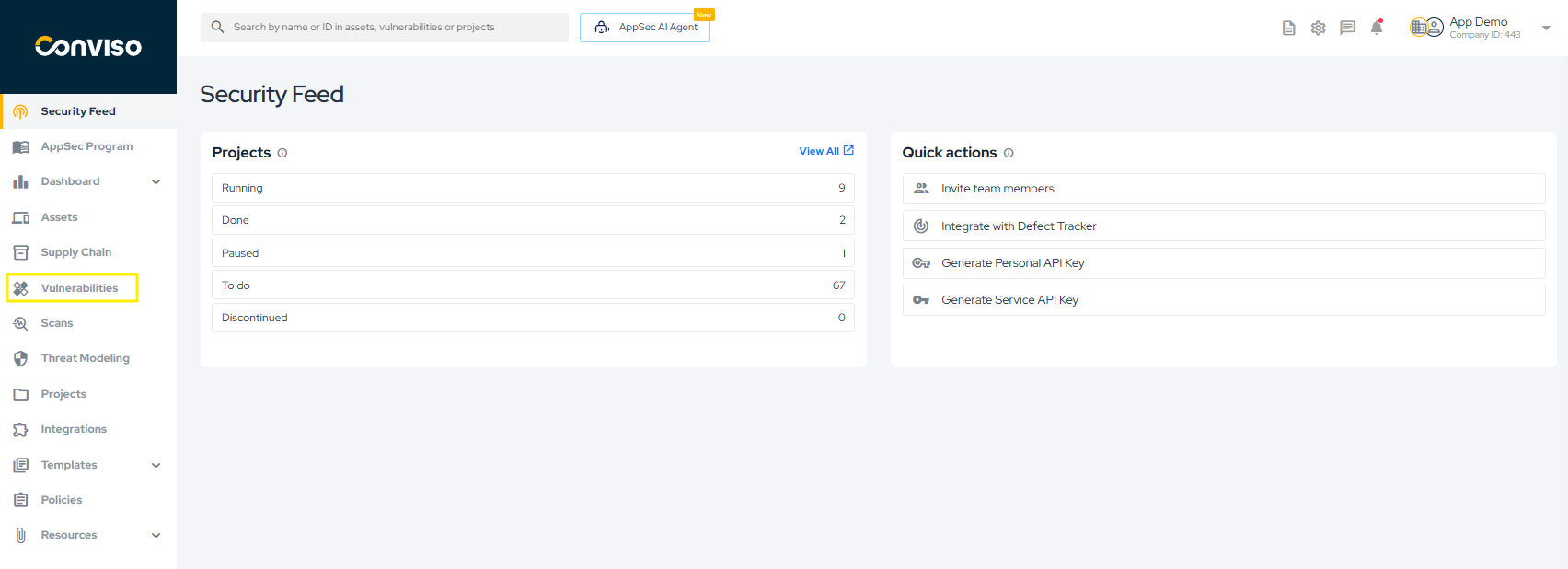
- The platform will display the vulnerability list for your company. Once accessed, the vulnerability view becomes the central hub for analysis, remediation tracking, and validation.
Once selected, all open vulnerabilities will be listed, including those with the statuses "Created," "Draft," "Identified," "In Progress," and "Awaiting Validation."
Default Visibility
By default, the vulnerability list displays all open vulnerabilities, including the following statuses:
- Created
- Identified
- In Progress
- Awaiting Validation
Statuses such as Fixed, Risk Accepted, and False Positive may appear depending on the selected filters.
Filter Vulnerabilities
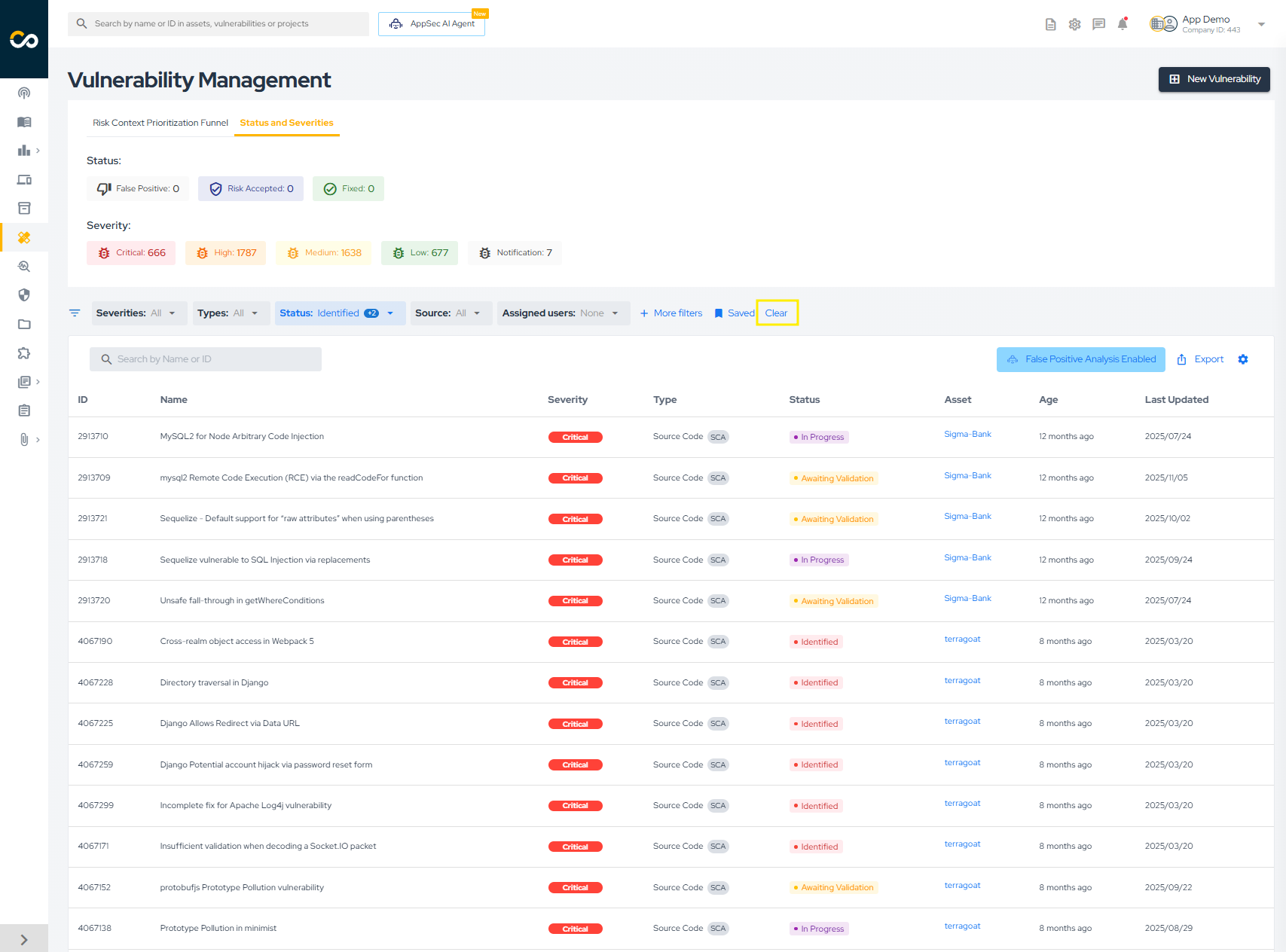
Clear Filters To view all vulnerabilities in your company, click Clear in the filters area.
Quick Filters
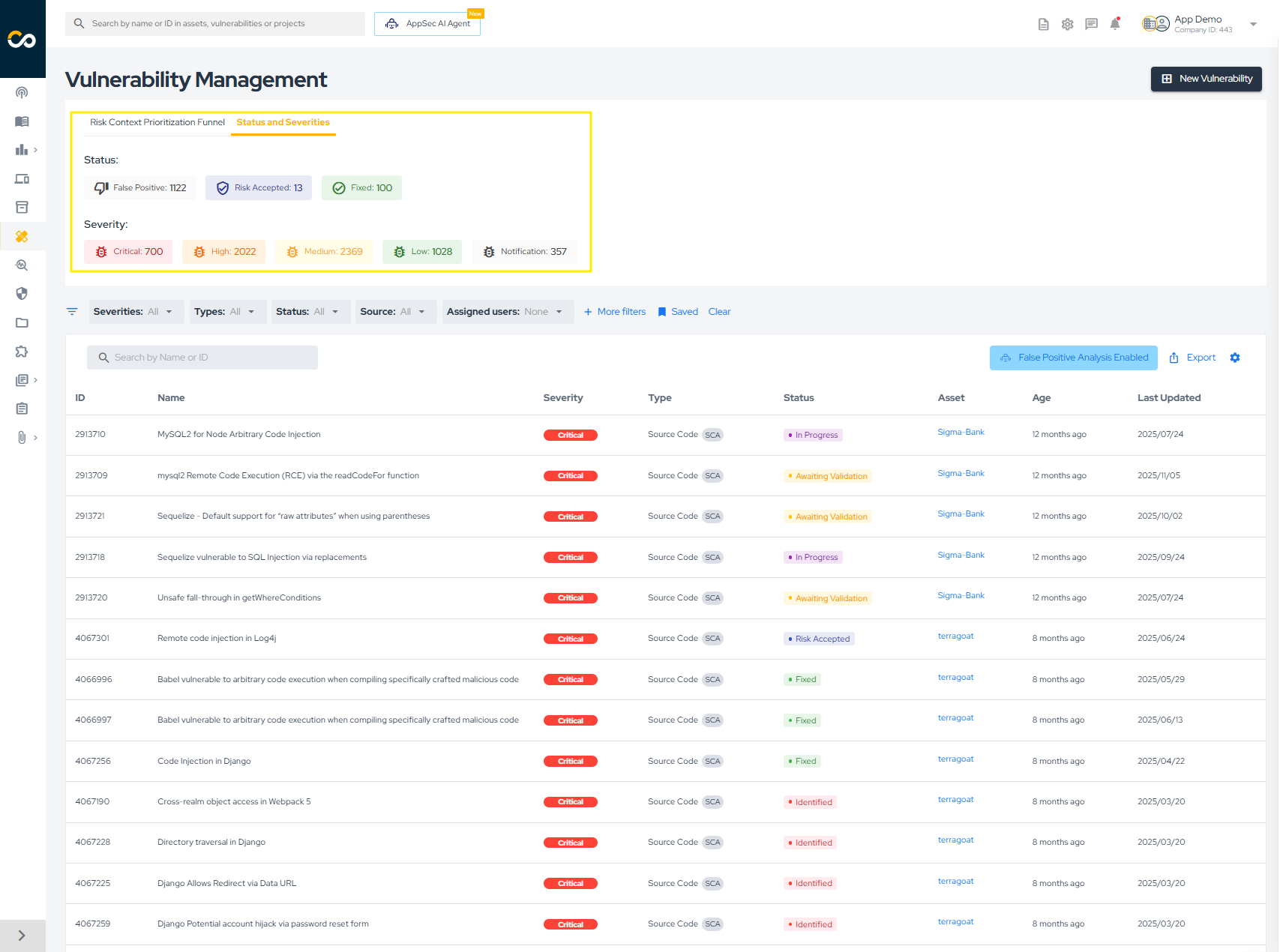
Quick filters allow rapid segmentation of vulnerabilities based on commonly used criteria such as severity, status, or source.
To apply specific filters, you have two options:
- Choose from the quick filter options highlighted below:
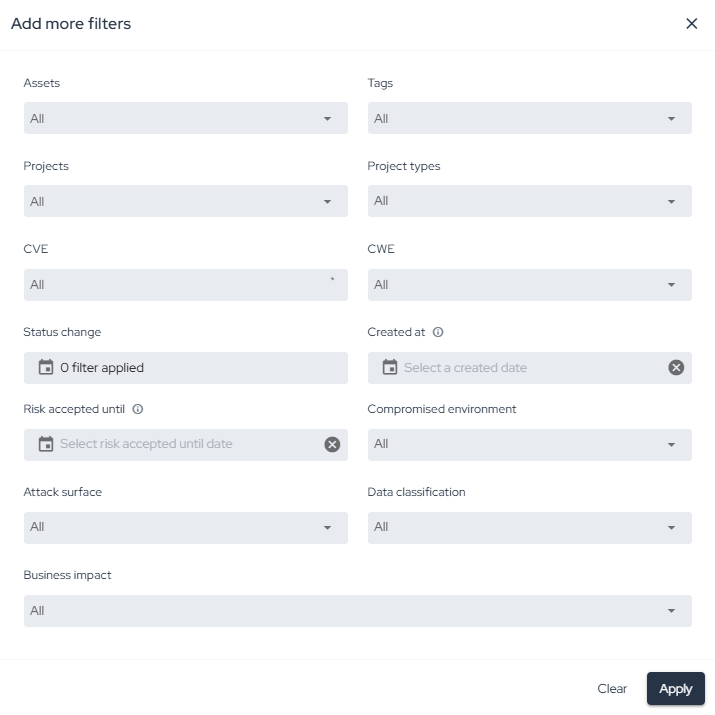
- Click "More filters" for a more detailed search:

Advanced Filters
Click More filters to apply detailed criteria, including:
- Asset
- Vulnerability type
- Source (SAST, DAST, SCA, Container, etc.)
- Status
- Severity
- Date ranges
All exports and views reflect the filters applied at the moment of action.
Review Vulnerability Details
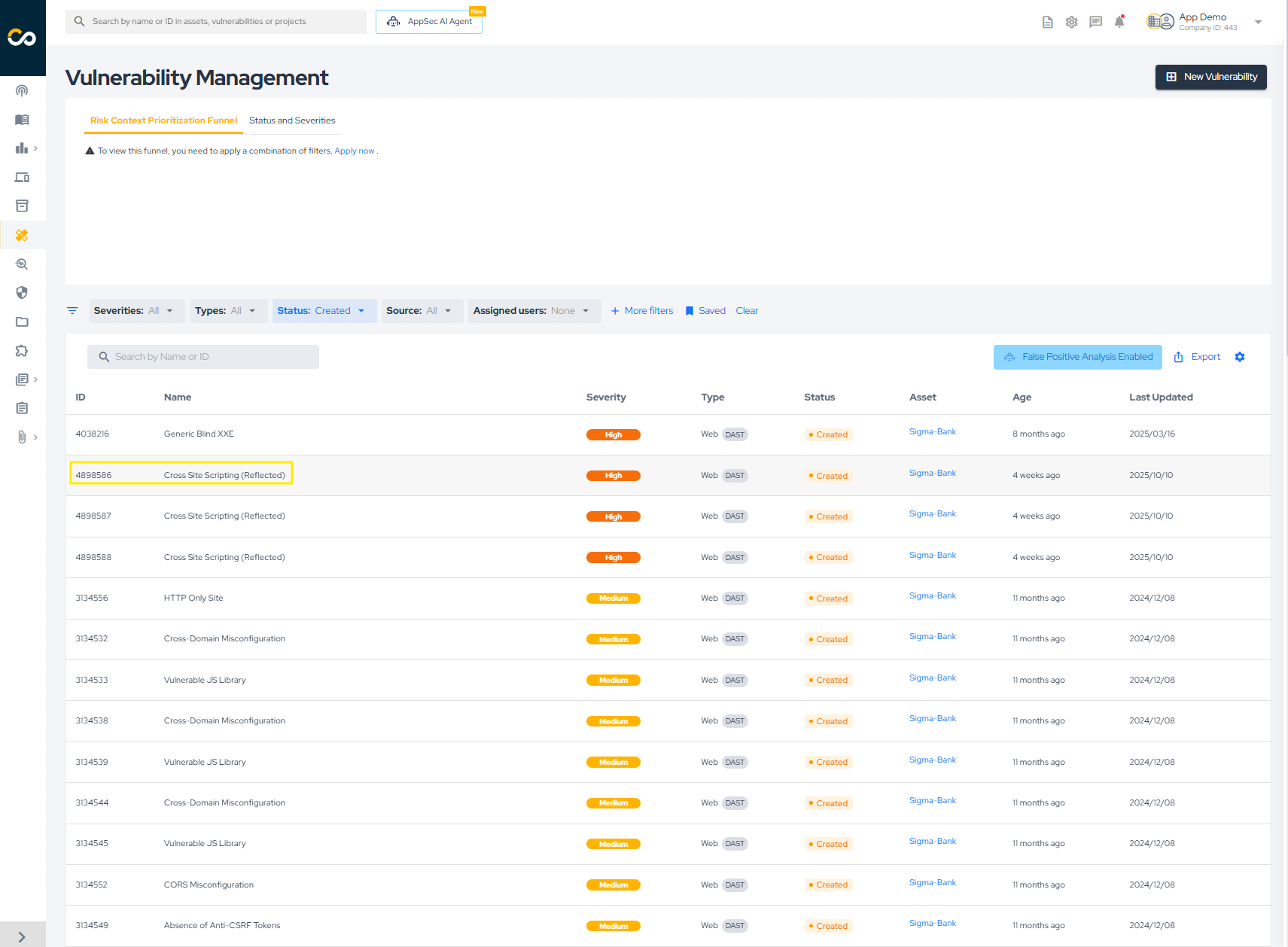
In the vulnerability list, issues are grouped by title, asset, and type. This makes it easier to review different occurrences of the same vulnerability in a single asset.
- Click on the vulnerability title:

-
The left column displays information shared by all occurrences of that vulnerability, such as title, type, description, solution, and references.
-
The occurrences table shows each instance found in the asset. You can select one or more rows for review or bulk actions.
-
The right-hand column displays details for the selected occurrence, including ID, severity, status, source, vulnerable file and lines, code snippet, timeline, and attachments.
Vulnerability Severity
Every vulnerability carries one of five severities: Critical, High, Medium, Low, and Notification (informational). Severity drives prioritization, the asset Risk Score, the Security Gate thresholds, and the Remediation SLA deadline.
A severity can come from three places: the tool that reported the finding (scanner, integration, or CLI), the Impact and Probability levels chosen when the vulnerability is registered manually, or a CVSS assessment attached to the vulnerability. When more than one is available, CVSS wins.
Manual Registration: Impact × Probability
Registering a vulnerability by hand does not mean typing a severity in. You pick two levels — Impact and Probability, each Low, Medium, or High — and the severity follows from the pair:
| Impact ↓ / Probability → | Low | Medium | High |
|---|---|---|---|
| Low | Notification | Low | Medium |
| Medium | Low | Medium | High |
| High | Medium | High | Critical |
Behind the table, each level scores 1 (Low), 2 (Medium), or 3 (High) and the two are multiplied; the product selects the band. So the matrix is symmetric — Low impact with High probability and High impact with Low probability both land on Medium.
Editing a vulnerability works the same way: change Impact or Probability and the severity is recomputed from the new pair.
CVSS Takes Precedence Over the Reported Severity
When a vulnerability carries a CVSS assessment, the platform derives the severity from the CVSS score and that derived value wins over the severity the tool sent — and over the one computed from Impact × Probability. This applies to every ingestion path: scanner integrations, the CLI, the API, and manual registration.
| CVSS score | Severity in Conviso Platform |
|---|---|
| 0.0 | Notification |
| 0.1 – 3.9 | Low |
| 4.0 – 6.9 | Medium |
| 7.0 – 8.9 | High |
| 9.0 – 10.0 | Critical |
These are the CVSS qualitative rating bands, which are the same in v3.1 and v4.0. CVSS calls the 0.0 band None; Notification is its counterpart in the platform.
Details worth knowing:
- The CVSS vector is the canonical input. When a tool sends both a vector and a score, the score is recomputed from the vector rather than trusted as received, so a tool that reports a score inconsistent with its own vector does not skew the severity. A tool that sends only a score (no vector) has that score used as-is.
- The most specific score expressed by the vector is used — Environmental when the vector carries Environmental metrics, Temporal when it carries only Temporal metrics, Base otherwise.
- Findings without a CVSS keep the severity that was assigned to them — by the tool, or by the Impact × Probability pair. Precedence only kicks in when a CVSS is present.
- While a CVSS is set, changing Impact or Probability no longer moves the severity — it is re-derived from the CVSS on every save. Clear the CVSS to put the matrix back in control; clearing it keeps the last derived severity instead of wiping it.
- The SLA deadline follows. Because the deadline is computed from severity, a CVSS that changes the severity also recomputes the deadline — anchored on the vulnerability's original creation date, not on the date the CVSS was added. See Remediation SLA.
The Severity Filters / Severity Mapping step of an integration is a different thing from precedence: it selects which findings are imported, based on the severity the tool reports. CVSS derivation happens afterwards, when the finding is created in the platform. So a finding is imported under the tool's own label and may then be displayed at a different severity.
Update Vulnerability Status
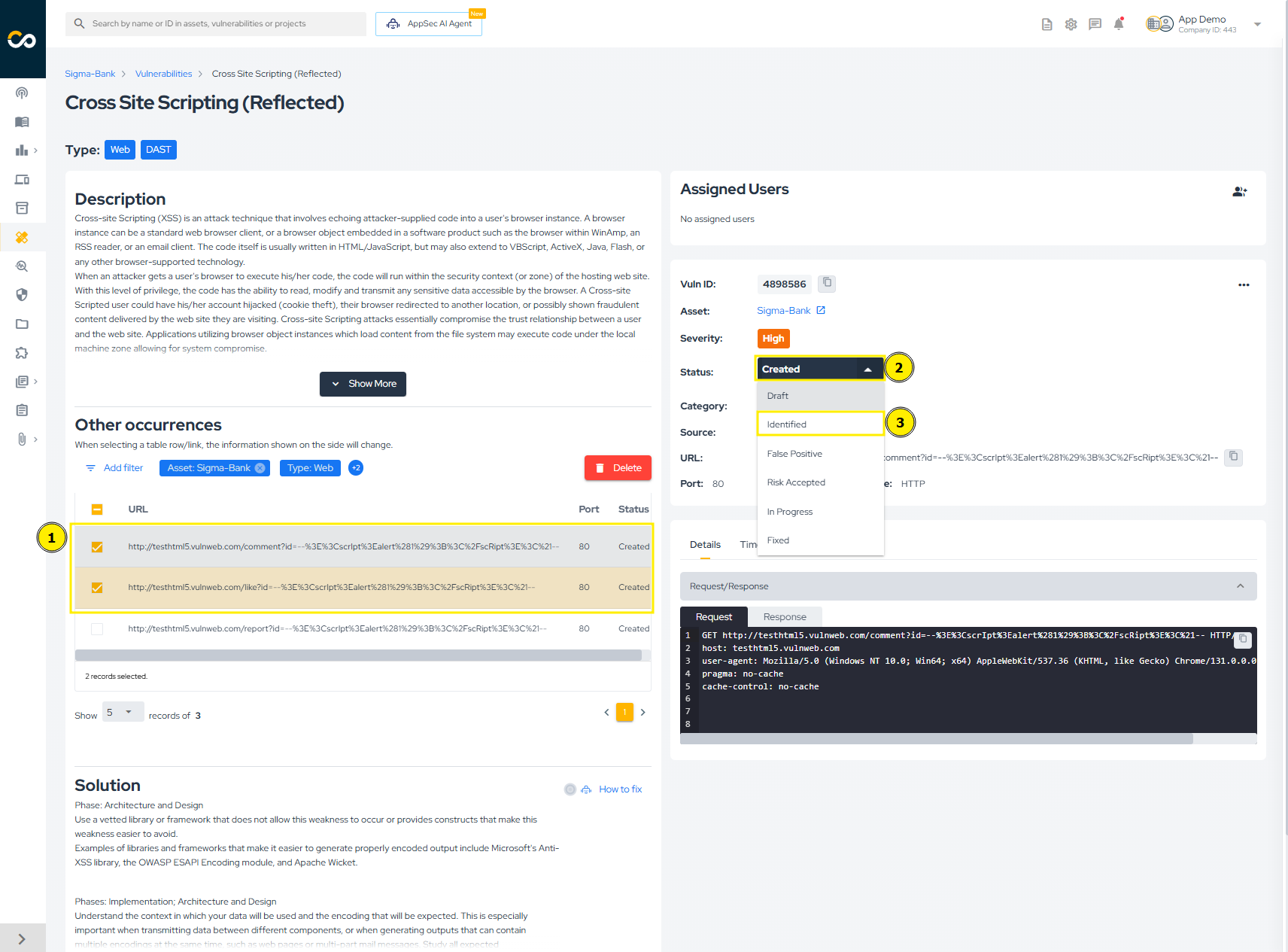
To update the status of a vulnerability, check how many lines are selected in the "Occurrences" table. In the image below, two vulnerabilities are selected (1). Then, click on the current status of the vulnerability (2) and select the new status (3):
A warning will appear to confirm the status change. Simply click "Confirm" to proceed:
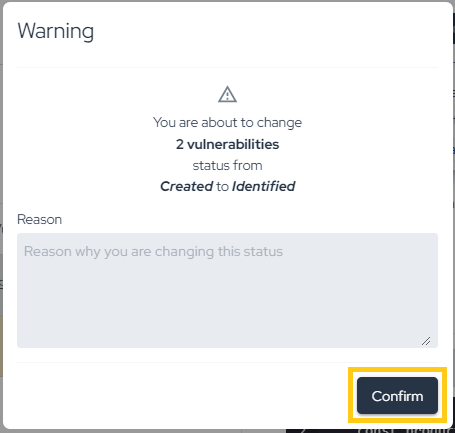
If more than one vulnerability is selected, the change will be processed in the background, which may take a few moments to complete (don't worry — if there is an error, you will be notified via email). If only one vulnerability is selected, the change will be immediate. You can see the time of all status changes by viewing the "Timeline," as shown below:
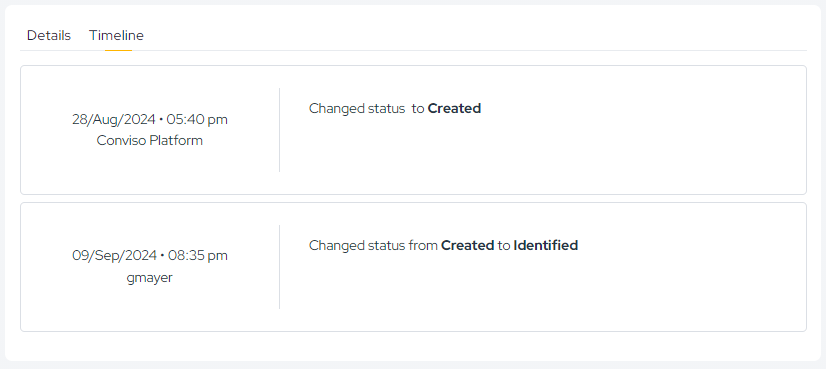
All changes are recorded in the Timeline, ensuring full auditability.
Follow Remediation
The remediation flow depends on the vulnerability source. For example:
- External Scanners (Checkmarx, Dependency Track, Fortify, SonarCloud, SonarQube): The vulnerability must be recognized as fixed by the scanner. On the next synchronization, the status will change to "Fixed" on the platform;
- DAST Vulnerabilities: After remediation, a new scan must be performed. If the vulnerability is no longer found, its status will automatically change to "Fixed" on the platform;
- Conviso AST Vulnerabilities: After remediation, run the scan again. Closing fixed vulnerabilities is the default behavior, so the status changes automatically to "Fixed";
- Manually Created Vulnerabilities: For manually created vulnerabilities (e.g., from Code Review or Pentest), the status change is not automatic. These must be manually updated to "Fixed" on the platform after being remediated.
Contribute to the Docs
Found something outdated or missing? Help us improve the documentation with a quick suggestion or edit.
How to contributeResources
By exploring our content, you'll find resources that will enhance your understanding of the importance of a Security Application Program.
Conviso Blog: Explore our blog, which offers a collection of articles and posts covering a wide range of AppSec topics. The content on the blog is primarily in English.
Conviso's YouTube Channel: Access a wealth of informative videos covering various topics related to AppSec. Please note that the content is primarily in Portuguese.