GitHub AST Orchestrator
The Conviso Platform GitHub AST Orchestrator runs Conviso AST from one GitHub repository (the orchestrator). Application repositories do not need a Conviso workflow.
When an eligible pull request is merged, Conviso calls GitHub Actions workflow_dispatch on the orchestrator and passes the target repository and branch. The workflow obtains a short-lived clone credential from the Platform (using your API key), checks out the target repository, runs conviso ast run, and sends findings to the mapped asset.
You do not store a GitHub Personal Access Token for cloning.
How it works
What Conviso checks before dispatching:
- The event is a pull request that was merged (
action: closedandmerged: true). - AST Scans is enabled on the GitHub connection that holds the repository.
- The repository is an imported asset that is enabled.
- The PR base branch matches the configured merge target (see Merge target branch below).
The Actions run always appears on the orchestrator repository (not on the application repository).
Execution costs: Jobs run on your GitHub Actions runners and consume your organization’s Actions minutes.
Before you begin
Work in this order: GitHub setup first, then Conviso Platform.
You need:
- A GitHub connection for the organization that holds the target repositories.
- At least one application repository imported as an asset and enabled.
- A dedicated orchestrator repository (or an empty repo you will use only for this). Example / template: convisoappsec/pipeline-orchestrator.
- Permission to create an Actions repository secret on the orchestrator.
- A Conviso API key for the same environment you will scan against (production or staging).
- The GitHub App must have access to the orchestrator and to every target repository you will scan. Prefer All repositories on the App installation.
Each GitHub connection has its own orchestrator settings, and Conviso dispatches the workflow with that connection's installation. Keep the orchestrator repository in the same installation as the target repositories, and configure an orchestrator on each connection whose repositories you want to scan.
| Term | Exact meaning |
|---|---|
| Orchestrator repository | GitHub repo that contains .github/workflows/ast.yml. Conviso triggers this repo only. |
| Target repository | Application repo imported as an asset. It must not rely on a local Conviso workflow for this flow. |
| Ref | Branch or tag of the orchestrator where GitHub loads ast.yml when Conviso calls workflow_dispatch. If you leave Ref empty in Conviso, dispatch defaults to main. |
| Merge target branch | The PR base branch on the target repo that is allowed to trigger a scan (for example main). See below. |
| Asset | Imported repository in Conviso (owner/repo) where findings are stored. |
Merge target branch
Conviso compares the merged PR’s base branch to:
- The asset’s configured AST / branch mapping, if set; otherwise
- The connection’s Branch pattern that runs the AST, if set; otherwise
- The connection’s Ref (
orchestrator_ref).
Branch patterns are regular expressions matched against the whole branch name, so main does not match maintenance.
| Configuration | What triggers a scan |
|---|---|
Asset branch = master, Ref = main | Only merges into master on that asset |
Asset branch empty, connection pattern = main|develop | Merges into main or develop on any asset of the connection without its own branch |
Asset branch empty, Ref = main | Only merges into main on that asset |
| Asset branch empty and Ref empty | No branch filter (any base branch can trigger). Prefer setting Ref explicitly. |
Ref is still the orchestrator branch that holds the workflow. It is reused as the default merge-target filter when the asset has no branch of its own. Those are two roles of the same field — do not confuse “where ast.yml lives” with “any branch on the target”.
Part 1 – GitHub setup
Step 1 – Create the orchestrator repository
- Create a GitHub repository (recommended name:
conviso-ast-orchestrator), or copy from convisoappsec/pipeline-orchestrator and keep only.github/workflows/ast.yml. - Choose the branch that will contain the workflow (almost always
main). That value is what you will set as Ref in Conviso.
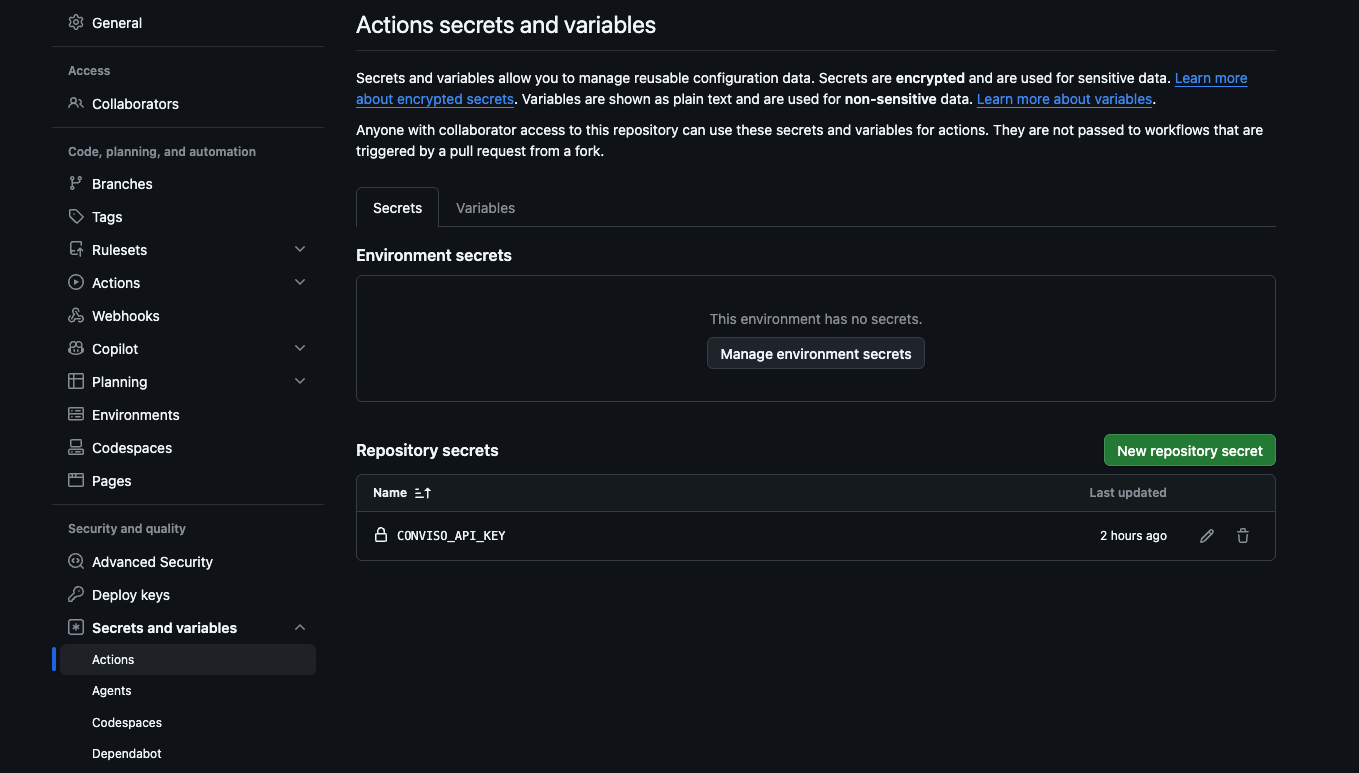
Step 2 – Create the CONVISO_API_KEY secret
In the orchestrator repository (not the target):
- Open Settings → Secrets and variables → Actions.
- Under Repository secrets, create:
| Name | Type | Required |
|---|---|---|
CONVISO_API_KEY | Repository secret | Yes |
Use the API key for the same Conviso environment as the Platform you configured (production vs staging).
Repository secret CONVISO_API_KEY under Settings → Secrets and variables → Actions.
You may add an Actions variable CONVISO_COMPANY_ID. The workflow uses it only when the company_id input is empty (typical for a manual Run workflow). When Conviso dispatches after a merge or Run AST, it sends company_id in the inputs, so the variable is not required for Platform-triggered runs.
Do not create a GitHub PAT for clone. The workflow calls conviso-ast-repository-token --provider github, and the Platform returns a GitHub App installation token scoped to the single target repository, with read-only contents access, valid for about one hour.
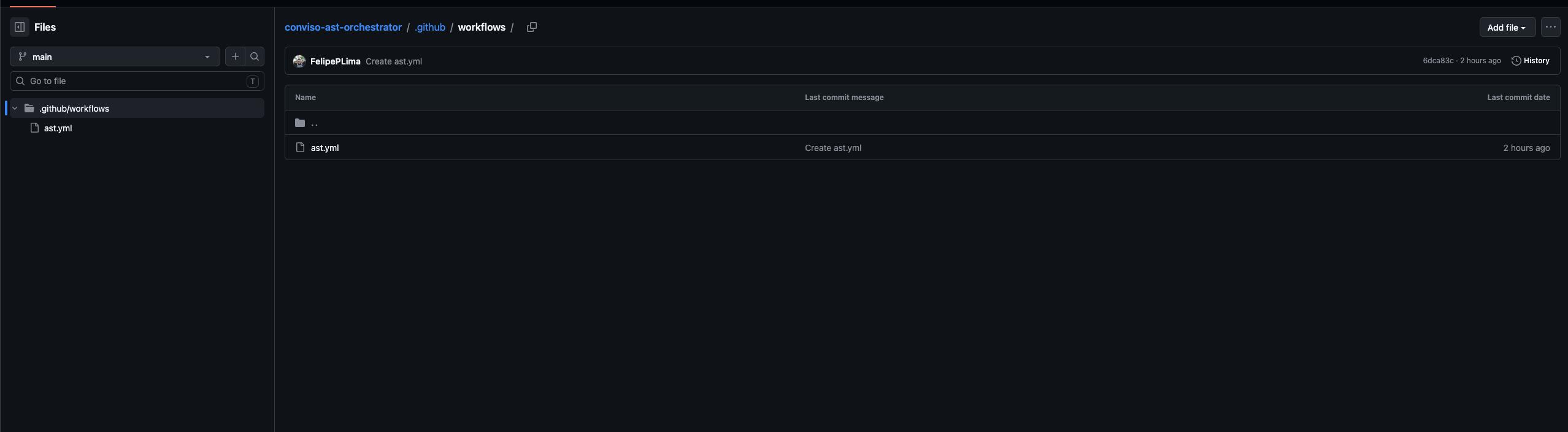
Step 3 – Add .github/workflows/ast.yml
GitHub Actions only loads workflows from .github/workflows/. A file at the repository root is ignored.
Public template: convisoappsec/pipeline-orchestrator
Workflow file: .github/workflows/ast.yml
On the orchestrator branch you will set as Ref (usually main):
- Create
.github/workflows/if needed. - Create
ast.ymlso the full path is exactly.github/workflows/ast.yml. - Paste the YAML below (or copy it from the example repo).
Orchestrator repository with .github/workflows/ast.yml on main.
name: AST Scan Orchestrator

on:
  workflow_dispatch:
    inputs:
      repo_full_name:
        description: "Repository to scan (owner/repo)"
        required: true
        type: string
      branch:
        description: "Branch to scan"
        required: true
        type: string
      commit_sha:
        description: "Merge commit SHA (post-merge)"
        required: false
        type: string
      pr_number:
        description: "Pull request number (post-merge)"
        required: false
        type: string
      api_url:
        description: "Conviso API URL"
        required: false
        type: string
        default: https://api.convisoappsec.com
      company_id:
        description: "Conviso company id"
        required: false
        type: string
      asset_id:
        description: "Conviso asset id"
        required: false
        type: string
      scan_run_id:
        description: "Scan run id from the platform"
        required: false
        type: string

jobs:
  run-ast-scan:
    runs-on: ubuntu-latest
    container:
      image: convisoappsec/convisoast:latest

    steps:
      - name: Get repository token
        id: repo_token
        env:
          CONVISO_API_KEY: ${{ secrets.CONVISO_API_KEY }}
          API_URL: ${{ inputs.api_url }}
          CONVISO_REPO_FULL_NAME: ${{ inputs.repo_full_name }}
          ASSET_ID: ${{ inputs.asset_id }}
          SCAN_RUN_ID: ${{ inputs.scan_run_id }}
        run: |
          set -euo pipefail
          export CONVISO_API_URL="${API_URL:-https://api.convisoappsec.com}"
          CONVISO_API_URL="${CONVISO_API_URL%/}"
          case "$CONVISO_API_URL" in
            https://app.convisoappsec.com)
              export CONVISO_API_URL="https://api.convisoappsec.com"
              ;;
            https://staging.convisoappsec.com)
              export CONVISO_API_URL="https://api.staging.convisoappsec.com"
              ;;
          esac
          case "${ASSET_ID:-}" in
            ""|none|0) unset CONVISO_ASSET_ID || true ;;
            *) export CONVISO_ASSET_ID="$ASSET_ID" ;;
          esac
          case "${SCAN_RUN_ID:-}" in
            ""|none|0) unset CONVISO_SCAN_RUN_ID || true ;;
            *) export CONVISO_SCAN_RUN_ID="$SCAN_RUN_ID" ;;
          esac
          TOKEN=$(conviso-ast-repository-token --provider github)
          echo "::add-mask::$TOKEN"
          echo "token=$TOKEN" >> "$GITHUB_OUTPUT"
          echo "base_url=$CONVISO_API_URL" >> "$GITHUB_OUTPUT"

      - name: Checkout target repository
        uses: actions/checkout@v6
        with:
          repository: ${{ inputs.repo_full_name }}
          ref: ${{ inputs.branch }}
          fetch-depth: 0
          token: ${{ steps.repo_token.outputs.token }}

      - name: Run Conviso AST
        env:
          CONVISO_API_KEY: ${{ secrets.CONVISO_API_KEY }}
          CONVISO_API_URL: ${{ steps.repo_token.outputs.base_url }}
          CONVISO_COMPANY_ID: ${{ inputs.company_id || vars.CONVISO_COMPANY_ID }}
          ASSET_ID: ${{ inputs.asset_id }}
          SCAN_RUN_ID: ${{ inputs.scan_run_id }}
          CONVISO_BRANCH: ${{ inputs.branch }}
          GIT_CONFIG_COUNT: "1"
          GIT_CONFIG_KEY_0: safe.directory
          GIT_CONFIG_VALUE_0: "*"
        run: |
          set -euo pipefail
          case "${ASSET_ID:-}" in
            ""|none|0) unset CONVISO_ASSET_ID || true ;;
            *) export CONVISO_ASSET_ID="$ASSET_ID" ;;
          esac
          case "${SCAN_RUN_ID:-}" in
            ""|none|0) unset CONVISO_SCAN_RUN_ID || true ;;
            *) export CONVISO_SCAN_RUN_ID="$SCAN_RUN_ID" ;;
          esac
          conviso ast run --repository-dir . --output /tmp/conviso-ast-session.zip

      - name: Upload session log
        if: always()
        uses: actions/upload-artifact@v4
        with:
          name: conviso-ast-session
          path: /tmp/conviso-ast-session.zip
          if-no-files-found: ignore
- Commit and push to that Ref branch.
- Path on disk:
.github/workflows/ast.ymlonly. - In Conviso, set the workflow field to the file name
ast.yml(not.github/workflows/ast.yml). Conviso normalizes a full path to the basename, but the UI expects the file name used by the GitHub Actions API. - This template checks out
inputs.branch(the PR base branch after merge). Conviso also sendscommit_shaandpr_numberfor correlation; the template above does not passcommit_shaintoactions/checkout.
Part 2 – Conviso Platform setup
Step 4 – Configure the orchestrator
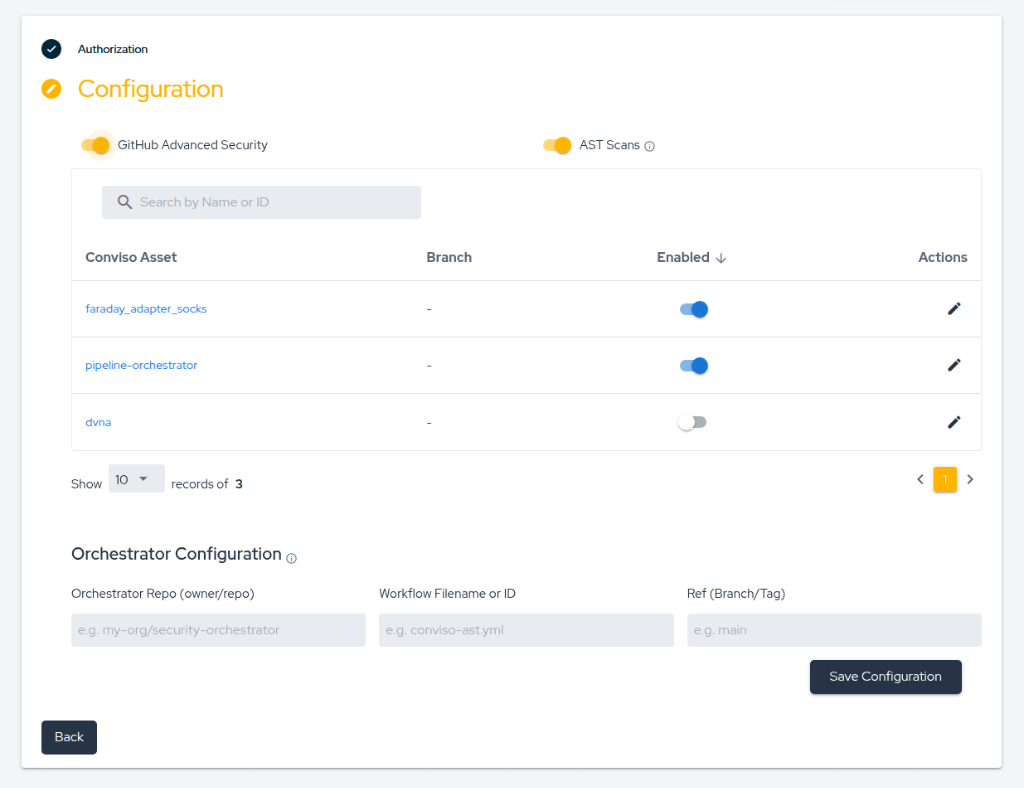
- Open Integrations → GitHub and click the pencil icon (Configure connection) on the connection that holds the target repositories.
- Turn AST Scans on.
(GitHub Advanced Security is a separate toggle. It is not required for the orchestrator merge flow described here.) - Fill Orchestrator Configuration:
- Orchestrator Repo —
owner/repoof the orchestrator. - Workflow Filename or ID —
ast.yml. - Ref — orchestrator branch/tag that contains
.github/workflows/ast.yml(e.g.main). If empty, Conviso dispatches with refmain.
- Orchestrator Repo —
- Save.
Step 5 – Assets and merge target
- Confirm each application repository is imported and enabled.
- Set the asset branch mapping when the merge target is not the same as Ref (example: Ref
mainon the orchestrator, merges intomasteron the asset → map the asset tomaster). - If the asset has no branch mapping, merges must go into the branch named by Ref (or any branch only if Ref is also empty — avoid that setup).
End-to-end flow (after setup)
- Developer merges a PR into the configured merge target on an imported, enabled asset.
- Conviso validates the event and configuration, then calls
workflow_dispatchonowner/orchestrator/ast.yml/ Ref. - Inputs include at least:
repo_full_name,branch(PR base),commit_sha,pr_number,api_url,company_id,asset_id(blank values may be omitted). - Job steps: issue repository token → checkout target at
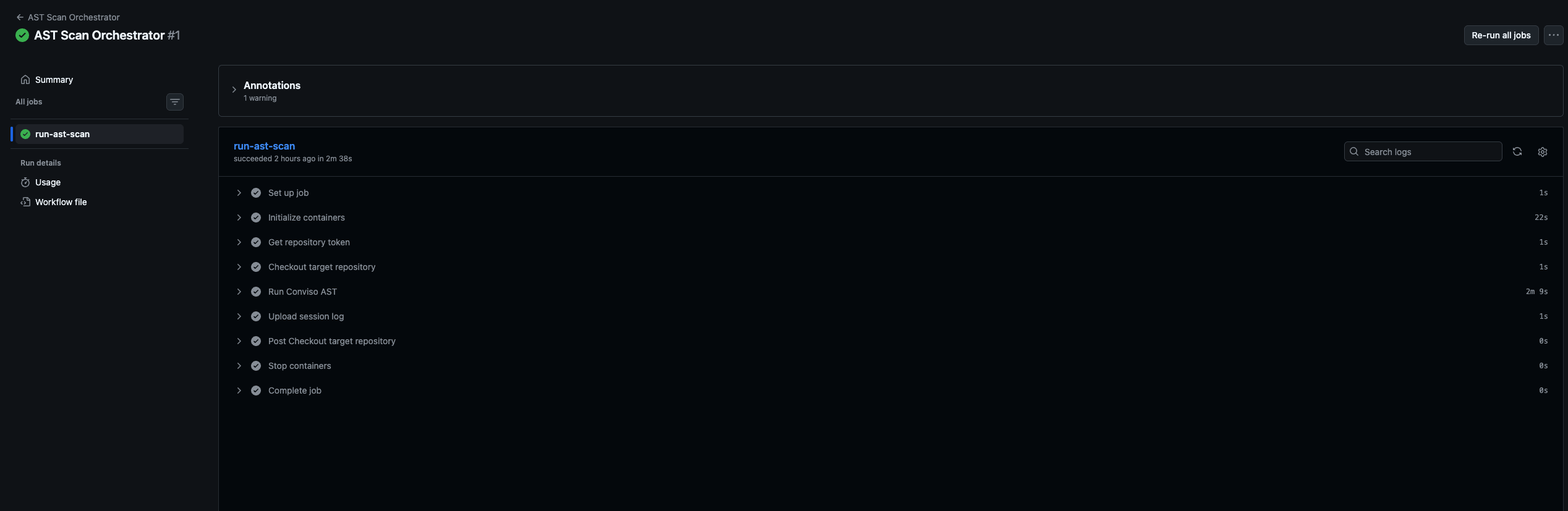
branch→ runconviso ast run→ upload session artifact. - Findings appear on the asset in Conviso Platform.
- In GitHub, open the orchestrator → Actions → AST Scan Orchestrator to inspect the run.
Validation checklist
| Check | Expected |
|---|---|
| Secret | CONVISO_API_KEY exists on the orchestrator |
| Path | .github/workflows/ast.yml is on the Ref branch |
| Conviso | Orchestrator owner/repo + ast.yml + Ref saved; AST Scans on |
| Asset | Target repo imported, enabled; merge target branch matches mapping or Ref |
| After merge | New run under orchestrator Actions; findings (or a clean result) on the asset |
Successful orchestrator run: Get repository token → Checkout → Run Conviso AST.
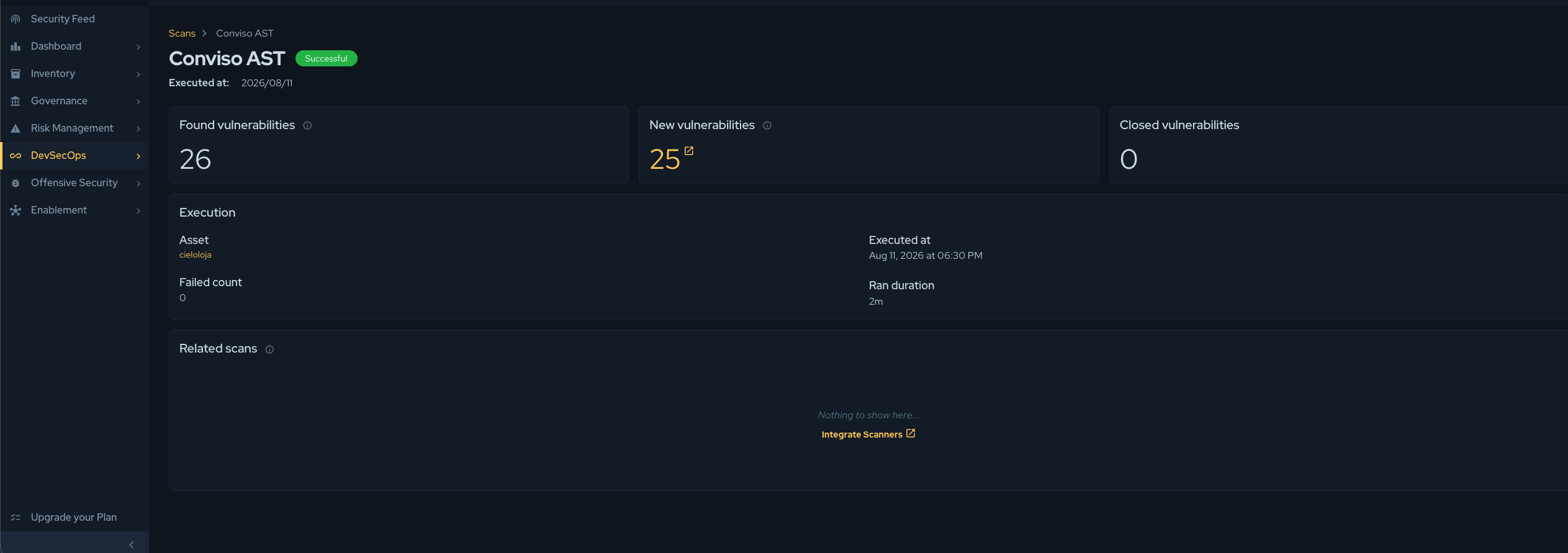
Scan result on the asset in Conviso Platform (Conviso AST).
Manual test (optional): on the orchestrator, Actions → AST Scan Orchestrator → Run workflow. Set repo_full_name and branch to an imported asset. Set api_url if you are not on production defaults. Set company_id or define CONVISO_COMPANY_ID.
Troubleshooting
| Symptom | Cause / fix |
|---|---|
| Merge done, no Actions run | AST Scans off; orchestrator fields incomplete; asset disabled or not imported; PR base branch ≠ asset branch / Ref; GitHub App cannot see the repos; orchestrator configured on another connection than the one that holds the target repository; Ref names a branch that does not exist in the orchestrator repository |
| Workflow never listed | File not under .github/workflows/, or not on the Ref branch Conviso uses |
| Token step fails (HTTP 4xx) | repo_full_name not an imported asset for that API key/company; wrong environment (CONVISO_API_KEY vs api_url) |
| Checkout 403 | GitHub App lacks access to the target repository |
Scanner missing CONVISO_COMPANY_ID | Manual run without company_id input and without variable CONVISO_COMPANY_ID |
| Wrong code scanned | Merge target / branch input mismatch; confirm you merged into the configured base branch |
Related guides
Contribute to the Docs
Found something outdated or missing? Help us improve the documentation with a quick suggestion or edit.
How to contributeResources
By exploring our content, you'll find resources that will enhance your understanding of the importance of a Security Application Program.
Conviso Blog: Explore our blog, which offers a collection of articles and posts covering a wide range of AppSec topics. The content on the blog is primarily in English.
Conviso's YouTube Channel: Access a wealth of informative videos covering various topics related to AppSec. Please note that the content is primarily in Portuguese.