Answer Controls & Attach Evidence
Overview
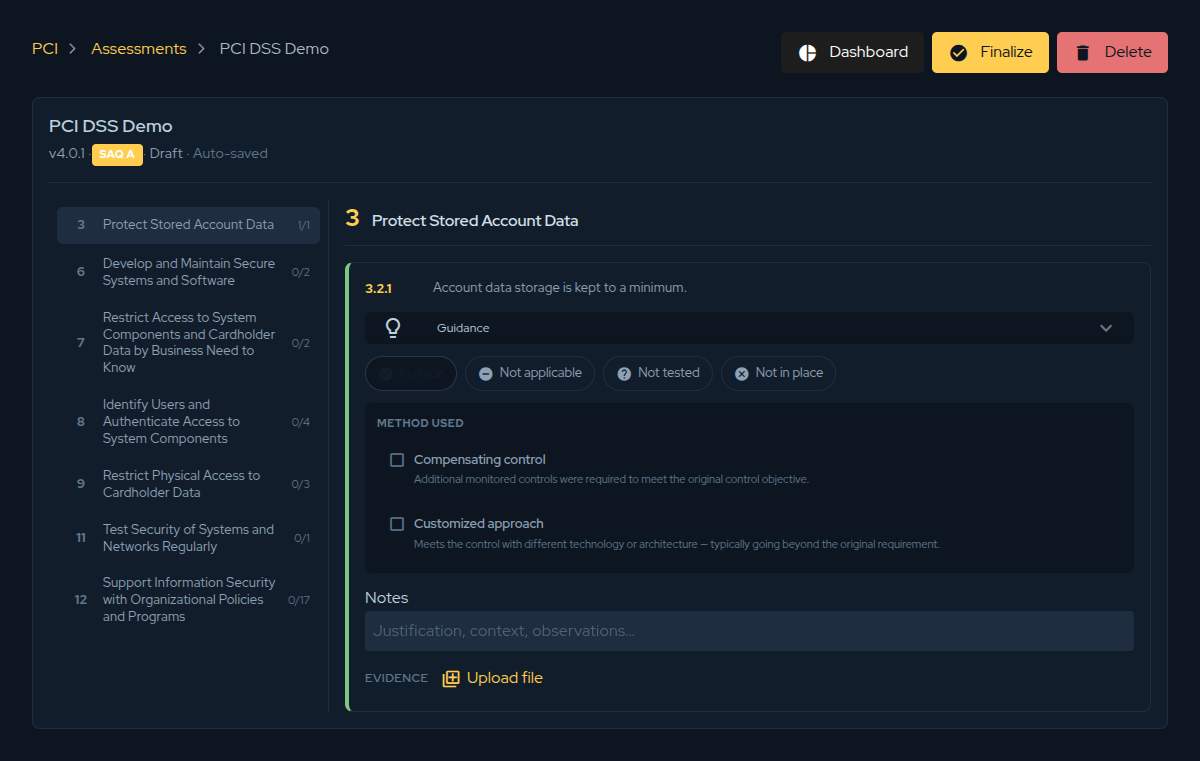
Opening an assessment shows the editor, which is where most of the work happens. The
left column lists the framework's requirements with a progress counter on each (for example
1/1), so you always know how much is left. The right column shows the controls of the
requirement you have selected. Every answer auto-saves as you make it — there is no
separate save step — so you can stop and resume at any time.
Setting a control's status
Each control is answered with exactly one compliance status. This is the answer that feeds every chart in the Gap Analysis, so it is worth being deliberate:
| Status | Use it when… |
|---|---|
| In place | The control is implemented and operating effectively. |
| Not applicable | The control genuinely does not apply to your scope. |
| Not tested | The control was not assessed in this round. |
| Not in place | The control is not met — this is counted as a gap. |
If a requirement is hard to interpret, expand Guidance on the control for help and for examples of acceptable evidence.
A justification is required whenever you answer Not applicable or Not tested — record why in the Notes field. This keeps the assessment defensible and is enforced before you can finalize.
Recording the method used
Sometimes a control is met through an alternative path rather than the literal requirement. When that happens, flag the method so an assessor understands your approach:
- Compensating control — additional monitored controls were put in place to meet the original control objective.
- Customized approach — the objective is met with different technology or architecture, typically going beyond the original requirement.
Notes and evidence
Two fields back up every answer:
- Notes — the justification, context, and observations for the control. Required for Not applicable and Not tested, and good practice everywhere else.
- Evidence — use Upload file to attach the supporting artefact (a screenshot, a policy, a configuration export) directly to the control, so it travels with the assessment.
Linking remediation projects
An assessment is only useful if the gaps get fixed. From the assessments list, use Link projects to associate one or more platform projects with the assessment and use them as the remediation plan. You can search existing projects, select several at once, or create a new one without leaving the dialog.
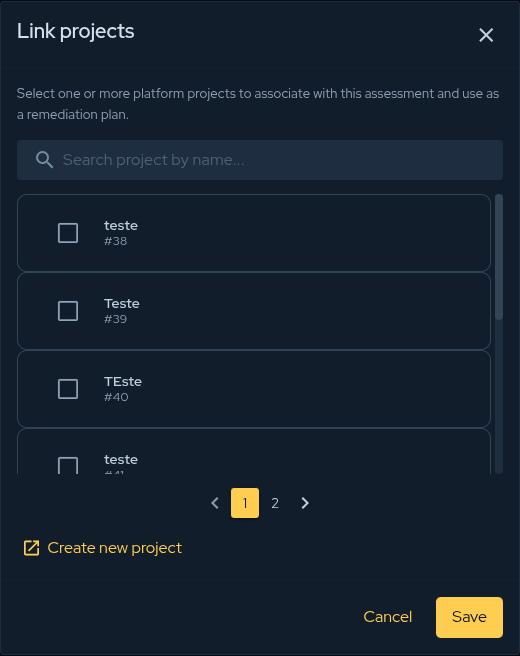
This ties your compliance gaps to tracked, ownable work in the rest of the platform.
Deleting an assessment
To remove an assessment entirely, open it and click Delete. Because this is irreversible,
the platform asks you to type DELETE to confirm before the action is enabled.
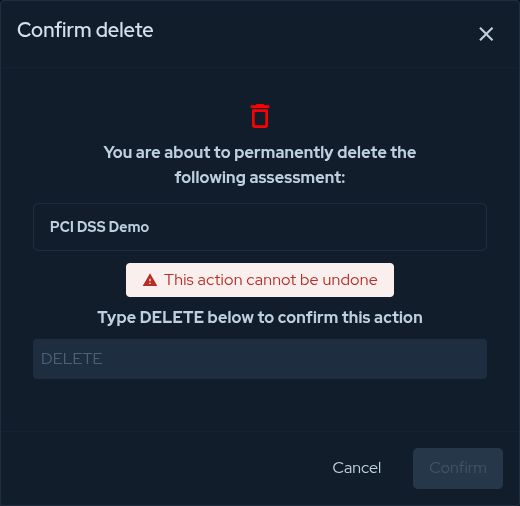
Deleting an assessment permanently removes its answers and evidence. If you only want to keep a finished assessment out of the way, finalize and archive it instead of deleting.
Contribute to the Docs
Found something outdated or missing? Help us improve the documentation with a quick suggestion or edit.
How to contributeResources
By exploring our content, you'll find resources that will enhance your understanding of the importance of a Security Application Program.
Conviso Blog: Explore our blog, which offers a collection of articles and posts covering a wide range of AppSec topics. The content on the blog is primarily in English.
Conviso's YouTube Channel: Access a wealth of informative videos covering various topics related to AppSec. Please note that the content is primarily in Portuguese.