ServiceNow Integration

Introduction
Integrating ServiceNow in Conviso Platform will let developers gain productivity while we do all the hard work by automating the whole vulnerability management triage process.
New vulnerabilities identified in Conviso Platform are created in real time directly in ServiceNow.
With our two-way integration capability, every status update from both solutions are automatically updated in order to reduce the toil and increase productivity.
Prerequisites
To set up the integration, you'll need the following information:
- A user with Admin permissions in ServiceNow.
- A user with Admin permissions in Conviso Platform.
- Your ServiceNow instance URL (e.g.,
https://your-instance.service-now.com). - OAuth 2.0 Application configured in ServiceNow with:
- Client ID
- Client Secret
- Redirect URL configured in ServiceNow
Usage
To seamlessly integrate Conviso Platform with ServiceNow, follow these step-by-step procedures:
1 - Configure OAuth Application in ServiceNow
2 - Configure the integration between Conviso Platform and ServiceNow
Configure OAuth Application in ServiceNow
Before starting the integration in Conviso Platform, you need to configure an OAuth 2.0 application in your ServiceNow instance.
Step 1 - Access your ServiceNow instance and navigate to Application Registries. You can find this by going to All > System OAuth > Application Registries:

Step 2 - Click the New button to create a new OAuth application. This will open the OAuth client application configuration form:
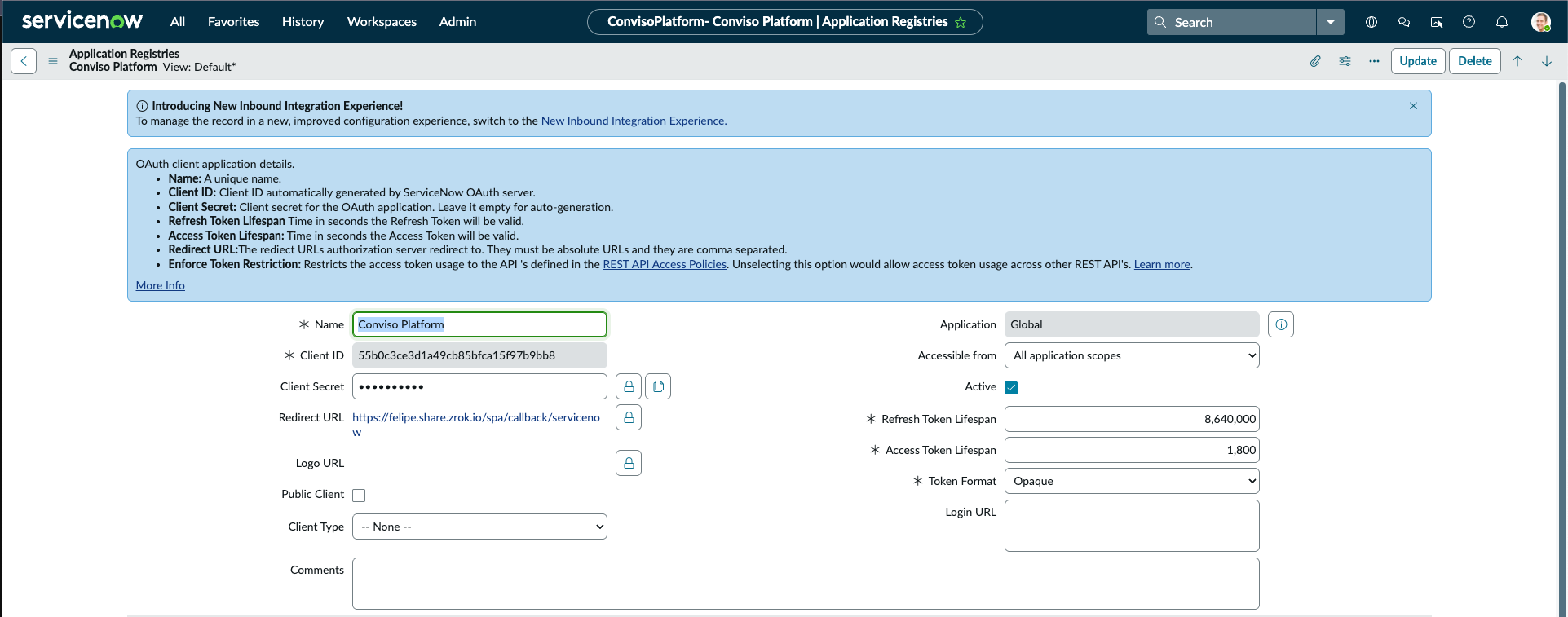
Step 3 - Fill in the OAuth client application details:
- Name: Enter a unique name (e.g., "Conviso Platform")
- Client ID: This will be automatically generated by ServiceNow OAuth server
- Client Secret: Leave it empty for auto-generation, or provide your own secret
- Redirect URL: Enter the redirect URL:
https://app.convisoappsec.com/spa/callback/servicenow - Refresh Token Lifespan: Time in seconds the Refresh Token will be valid (default: 8,640,000 seconds = 100 days)
- Access Token Lifespan: Time in seconds the Access Token will be valid (default: 1,800 seconds = 30 minutes)
- Active: Check this box to activate the application
Step 4 - Click Update to save the OAuth application configuration.
Step 5 - Copy the Client ID and Client Secret - you will need these in the next step when configuring the integration in Conviso Platform.
Configure the integration between Conviso Platform and ServiceNow
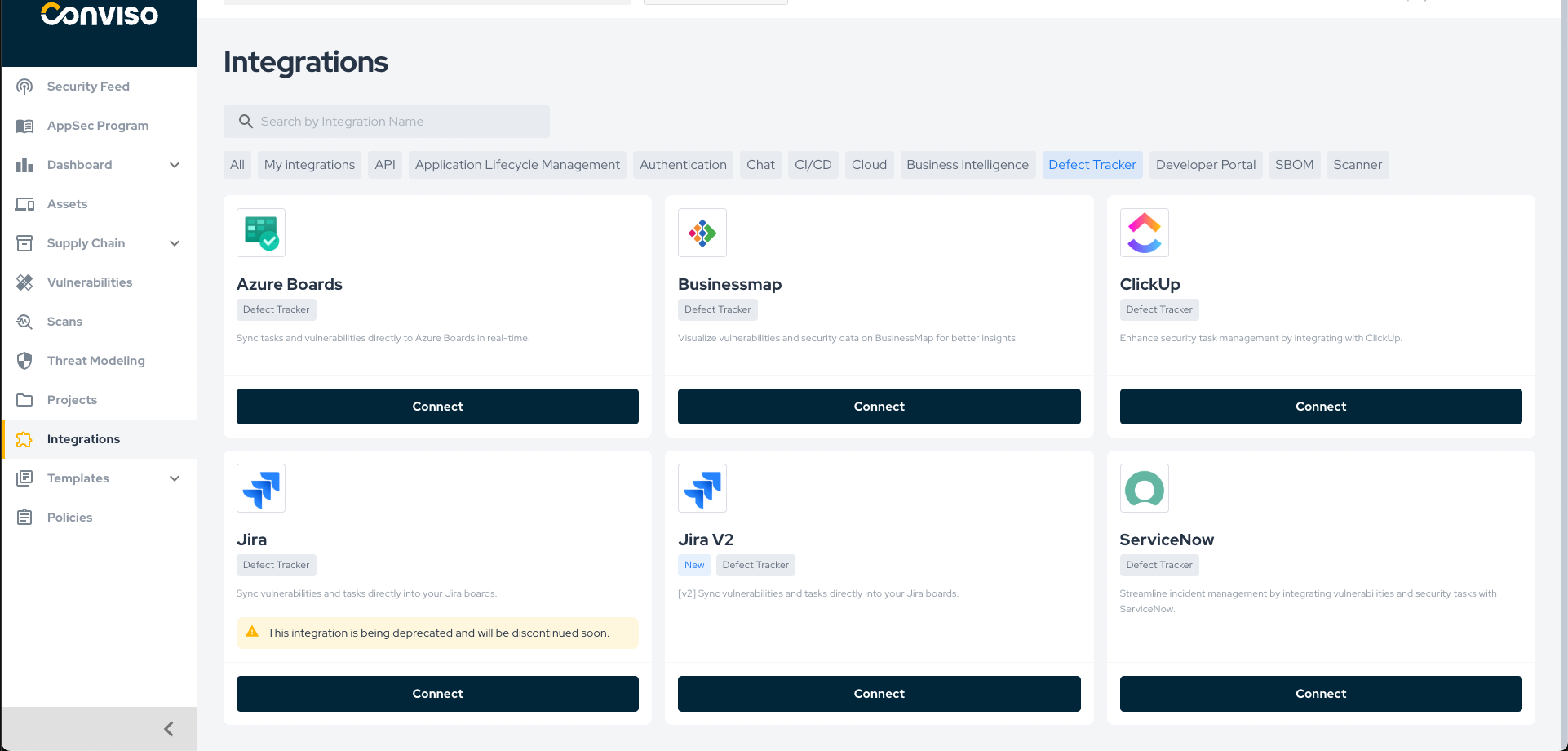
Step 1 - Access the Conviso Platform, look for Integrations on the left-side menu, select Defect Tracking, and finally, click the Connect button located just below the ServiceNow card, as shown in the example image below:
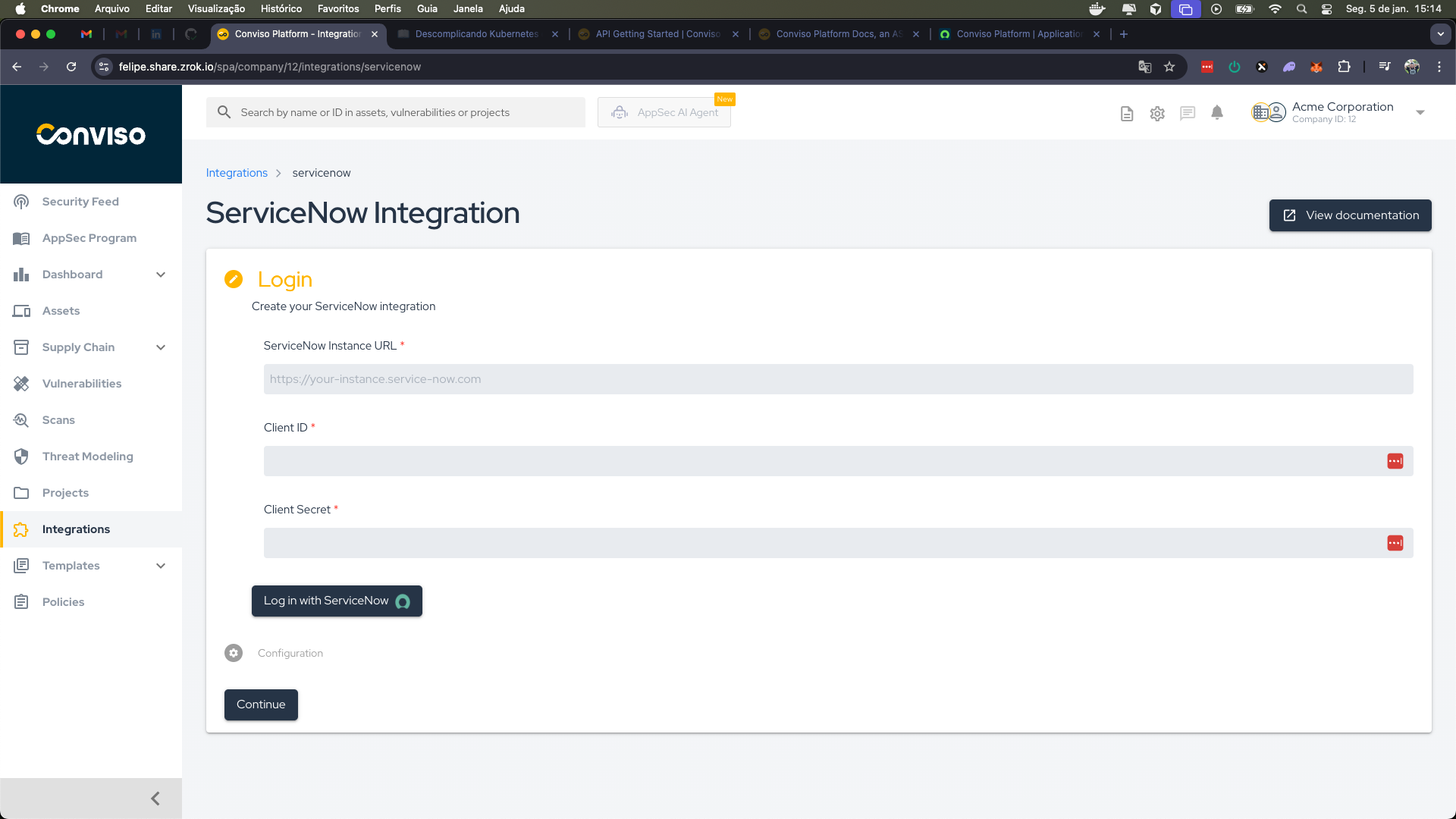
Step 2 - In the Login section, enter your ServiceNow Instance URL (e.g., https://your-instance.service-now.com), Client ID, and Client Secret that you obtained from the OAuth application configuration in ServiceNow. Then, click the Log in with ServiceNow button to authenticate:
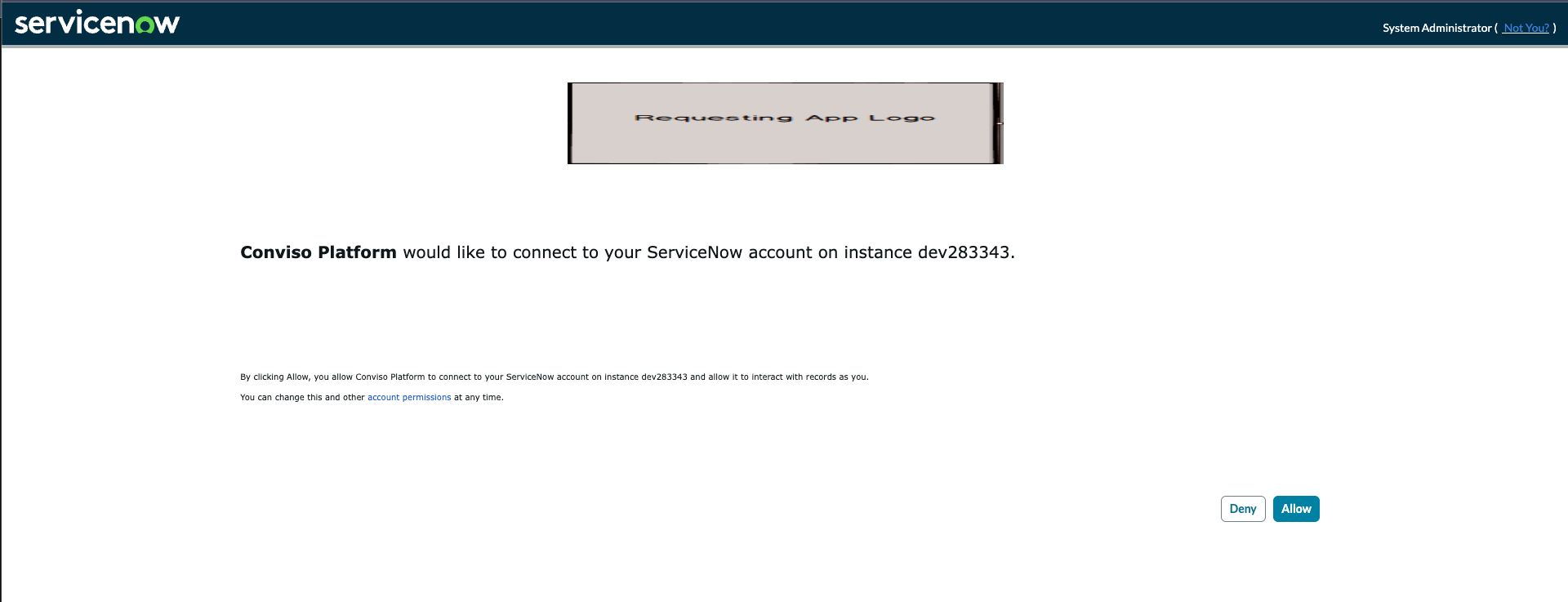
Step 3 - On the ServiceNow authorization page, grant the necessary permissions so the Conviso Platform application can perform the required actions on your ServiceNow instance:
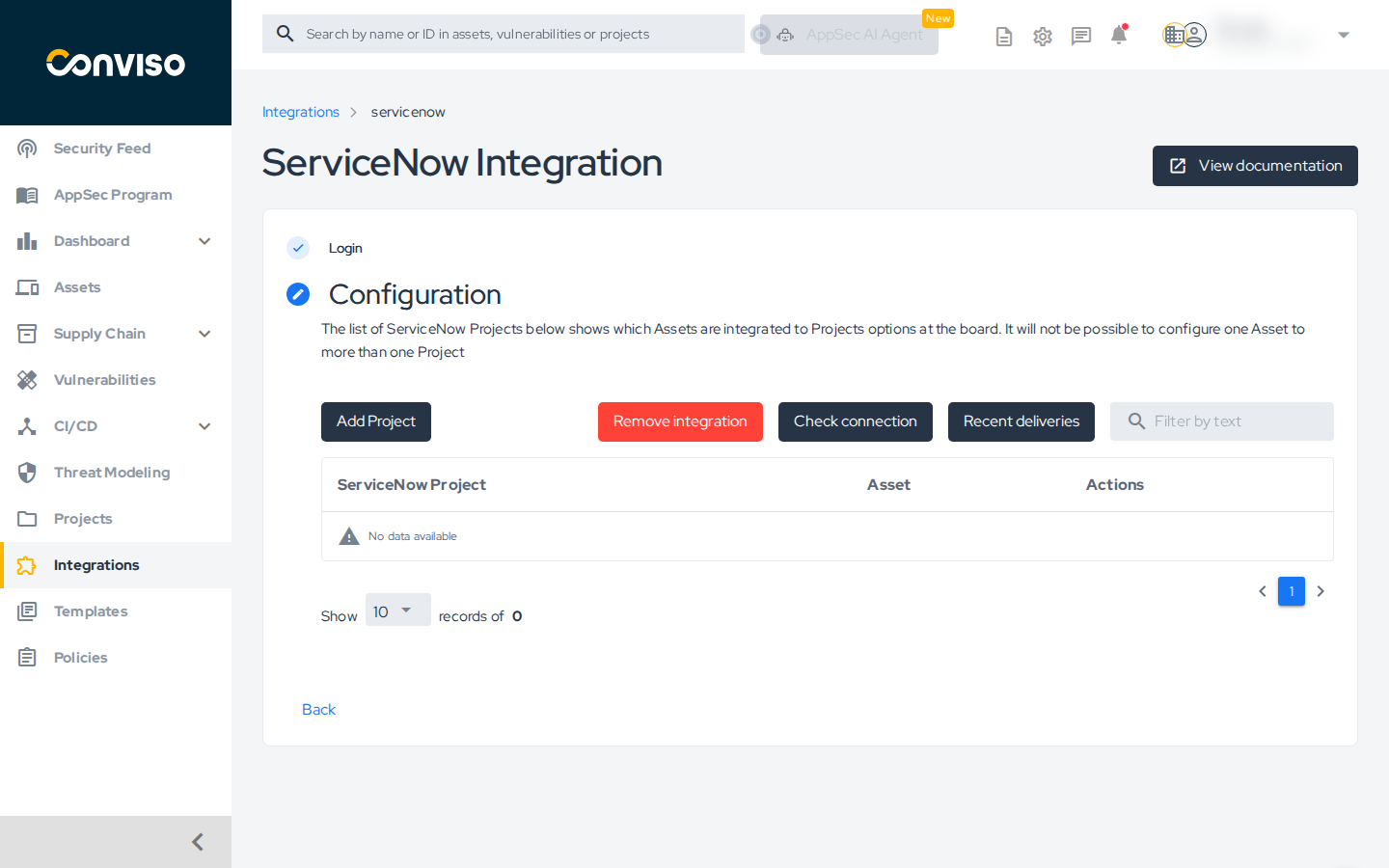
Step 4 - After successful authentication, you will be redirected back to Conviso Platform. The Login step will show a checkmark, and you'll see the Configuration section. This section displays the list of ServiceNow Projects that are paired with Conviso Platform Assets. Initially, this list may be empty:
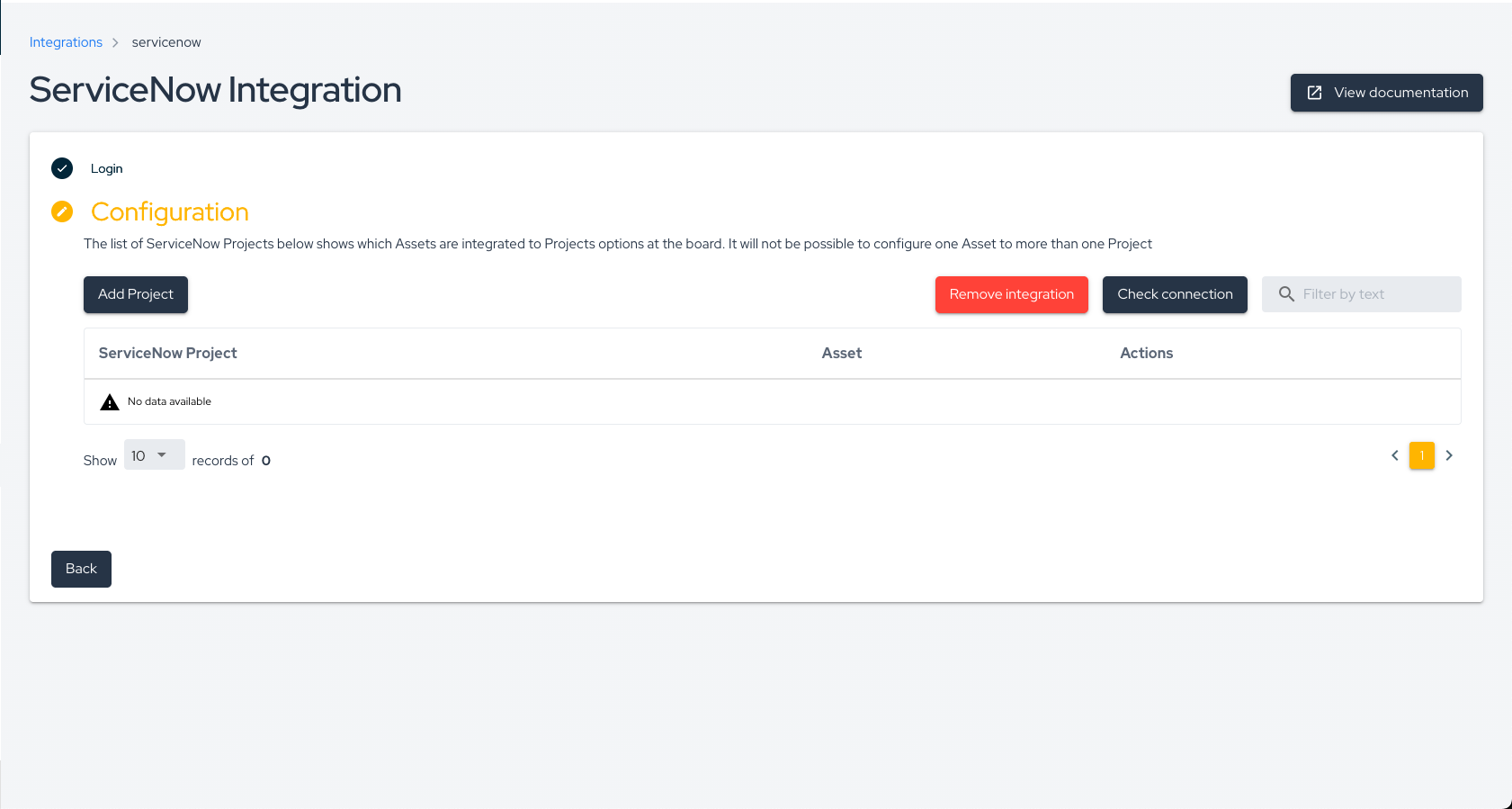
Step 5 - Click on the Add Project button to start pairing a Conviso Platform Asset with a ServiceNow project:
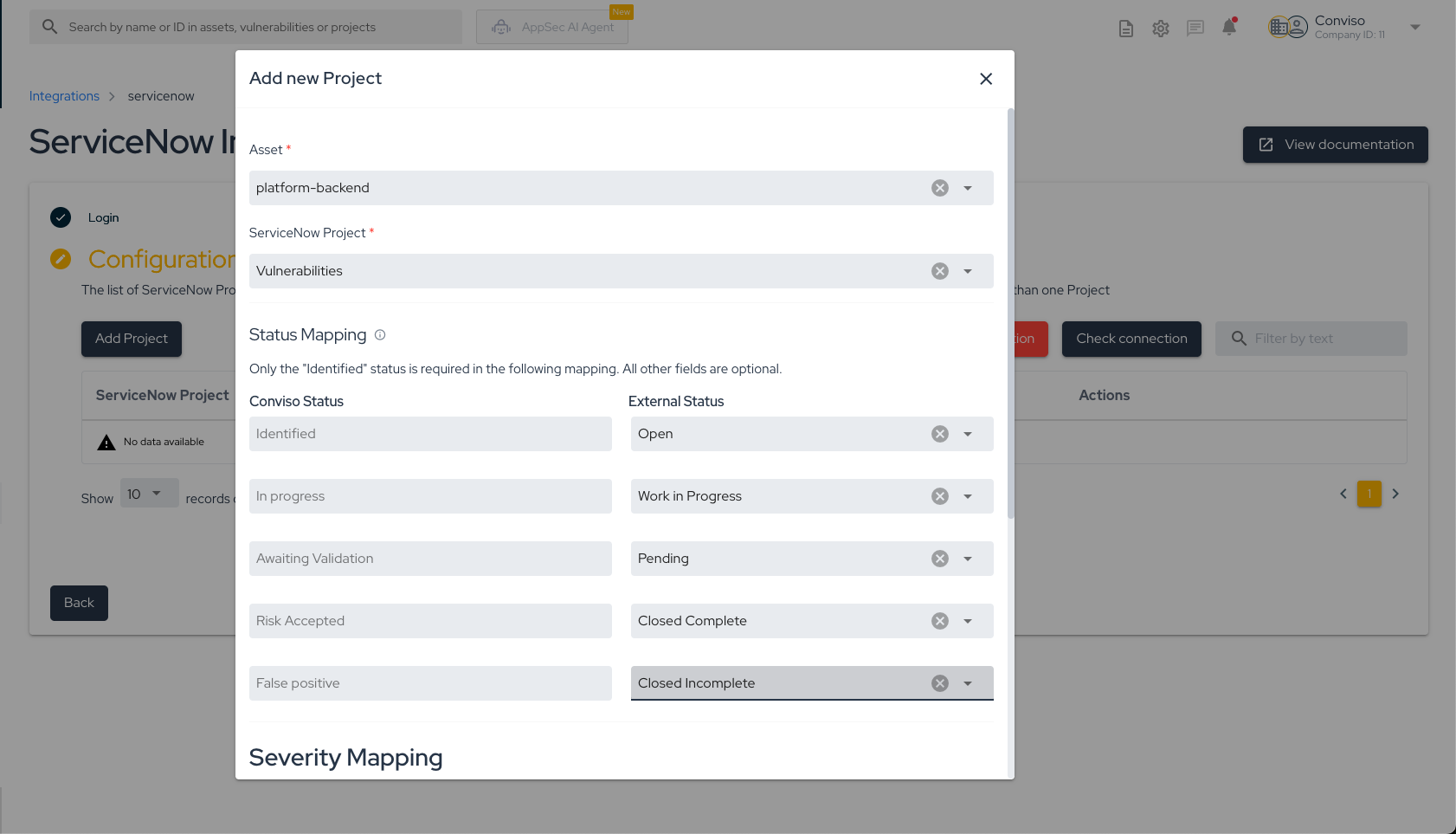
Step 6 - In the Add new Project modal, configure the following fields in order:
-
Asset: Select the Asset in Conviso Platform that you want to associate with a ServiceNow project.
-
ServiceNow Project: Select the ServiceNow project (e.g., Incident, Problem, Change Request, or custom projects that extend the
tasktable). -
Status Mapping: Map Conviso Platform statuses to corresponding ServiceNow statuses. Only the Identified status is required; all other fields are optional:
- Identified → Map to the initial ServiceNow status (e.g., "Open")
- In progress → Map to a work-in-progress status (e.g., "Work in Progress")
- Awaiting Validation → Map to a pending status (e.g., "Pending")
- Risk Accepted → Map to a closed status (e.g., "Closed Complete")
- False positive → Map to a closed incomplete status (e.g., "Closed Incomplete")
For the official Conviso status definitions used in this mapping, see Workflow Status.
-
Severity Mapping: Configure how vulnerability severities map to ServiceNow priorities. ServiceNow has its own built-in rule for calculating priority based on Impact and Urgency values. When you select a severity (e.g., "Critical"), the system automatically saves the corresponding Impact and Urgency values so that ServiceNow calculates the priority correctly:
- Critical: Impact 1, Urgency 1
- High: Impact 1, Urgency 2
- Medium: Impact 2, Urgency 2
- Low: Impact 3, Urgency 2
This mapping ensures that when a vulnerability with "Critical" severity is created in ServiceNow, the Impact and Urgency fields are automatically set to the values that result in a "Critical" priority according to ServiceNow's own calculation rules. You can customize these mappings according to your organization's needs.
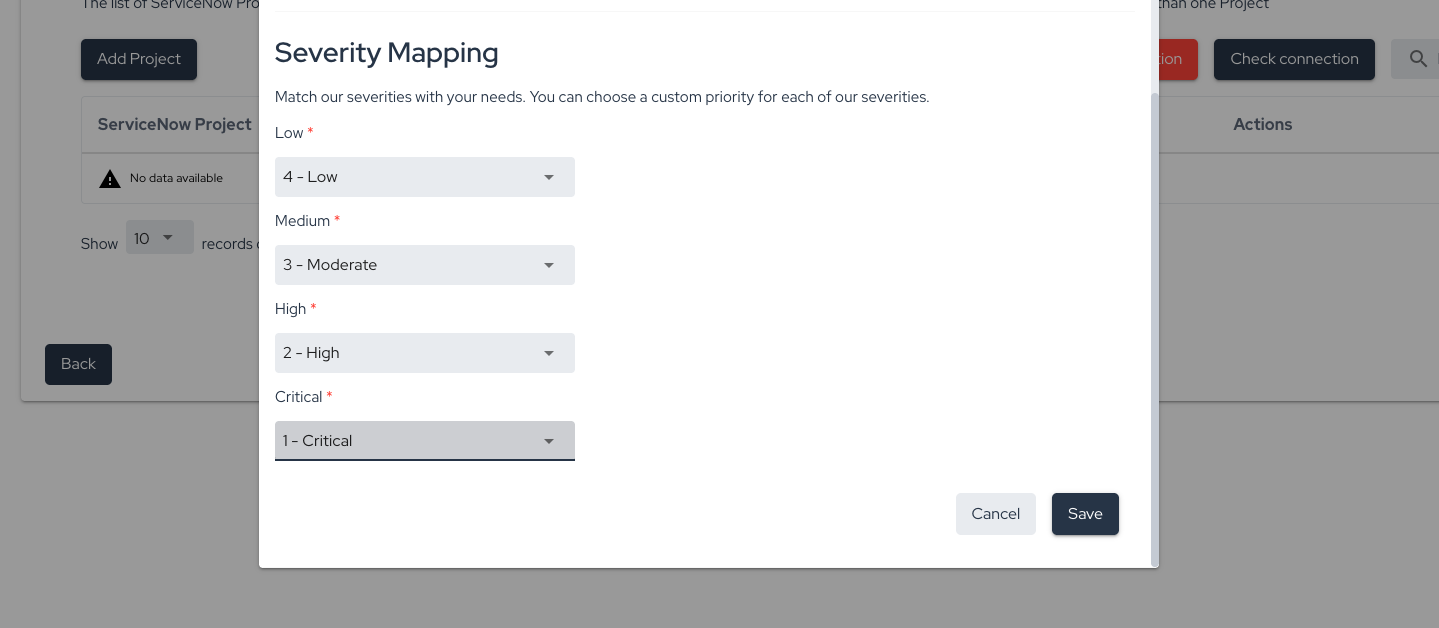
Once everything is configured, click Save:
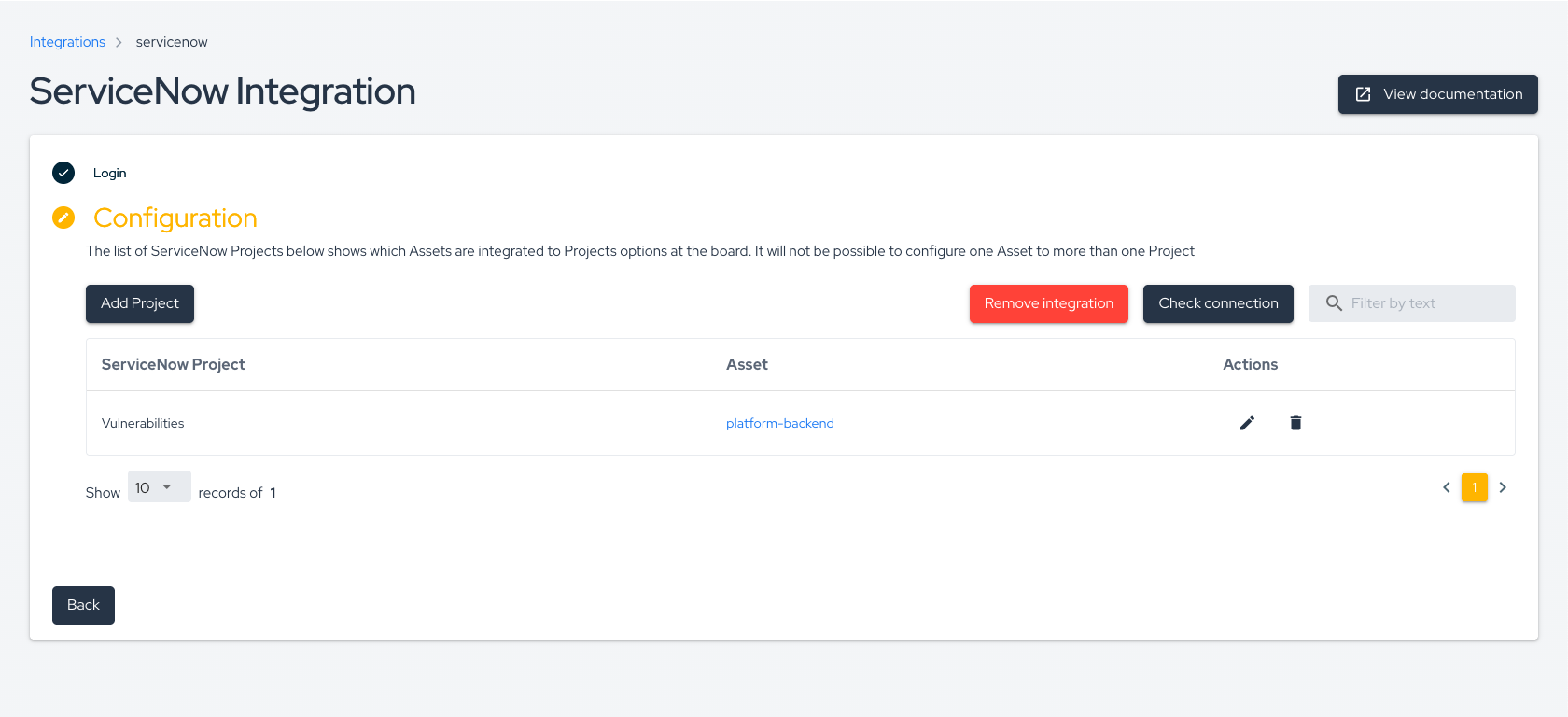
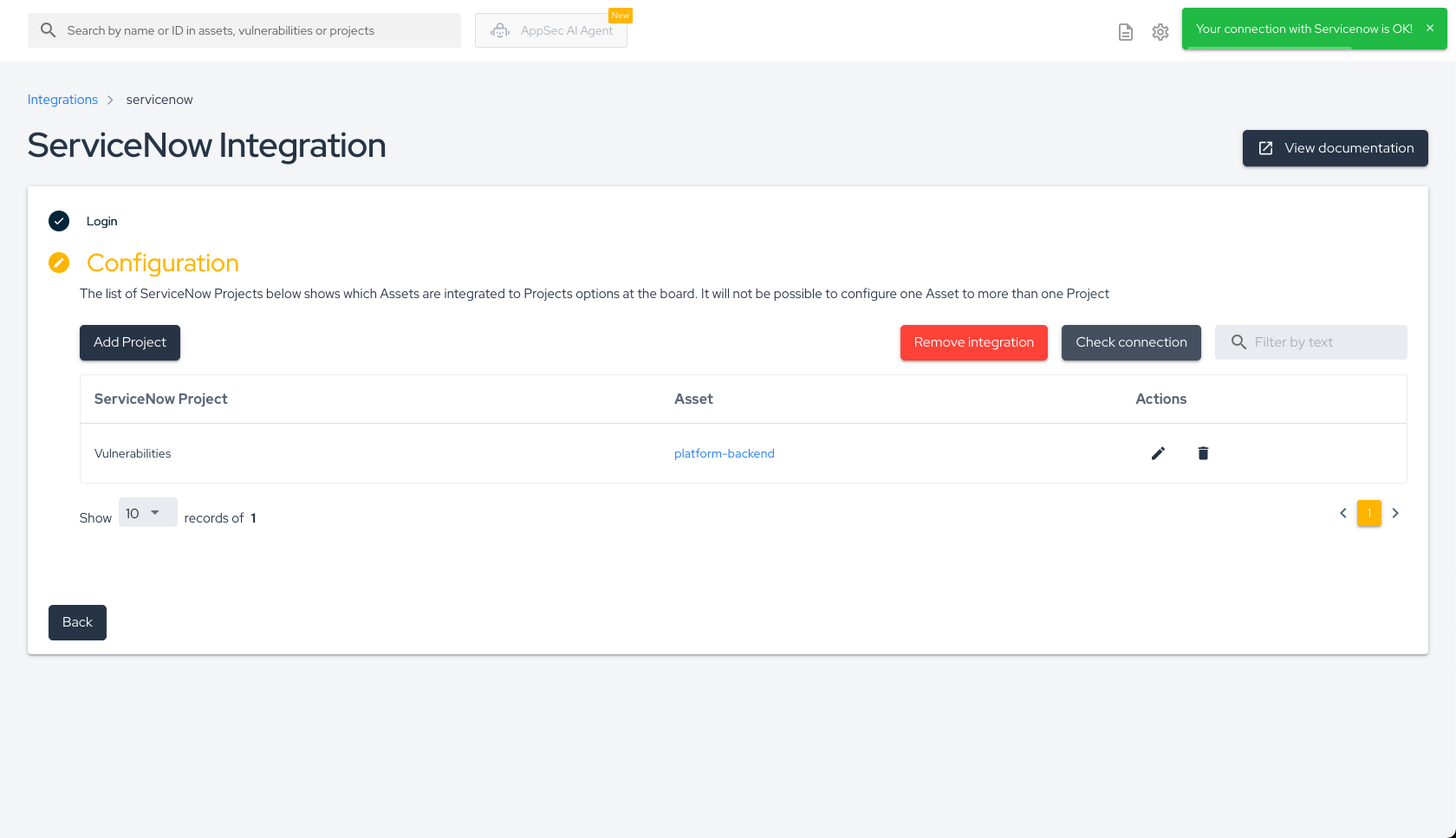
Step 7 - After saving your integration settings, you will see the newly configured project in the list. You can review, update, or delete the configuration by clicking the Edit icon (pencil) to make changes, or the Trash icon to permanently delete the integration:
Step 8 - Whenever a new vulnerability is detected, it will be automatically sent to the linked ServiceNow project. The issue will be created with the format [CONVISO] {Issue ID} - {Vulnerability Title} in the short description. You can view all created vulnerabilities in your ServiceNow instance:

Step 9 - You can verify the connection status at any time by clicking the Check connection button in the Configuration section. This will test the connection between Conviso Platform and your ServiceNow instance to ensure everything is working correctly:
Recent Deliveries
The Recent Deliveries feature provides a detailed log of the interactions between Conviso Platform and ServiceNow. This allows users to monitor the status of data transfers and identify any potential issues in the integration process.
To access and navigate the Recent Deliveries page, follow these steps:
Step 1 - In the integration configuration panel for ServiceNow, locate and click the Recent Deliveries button:
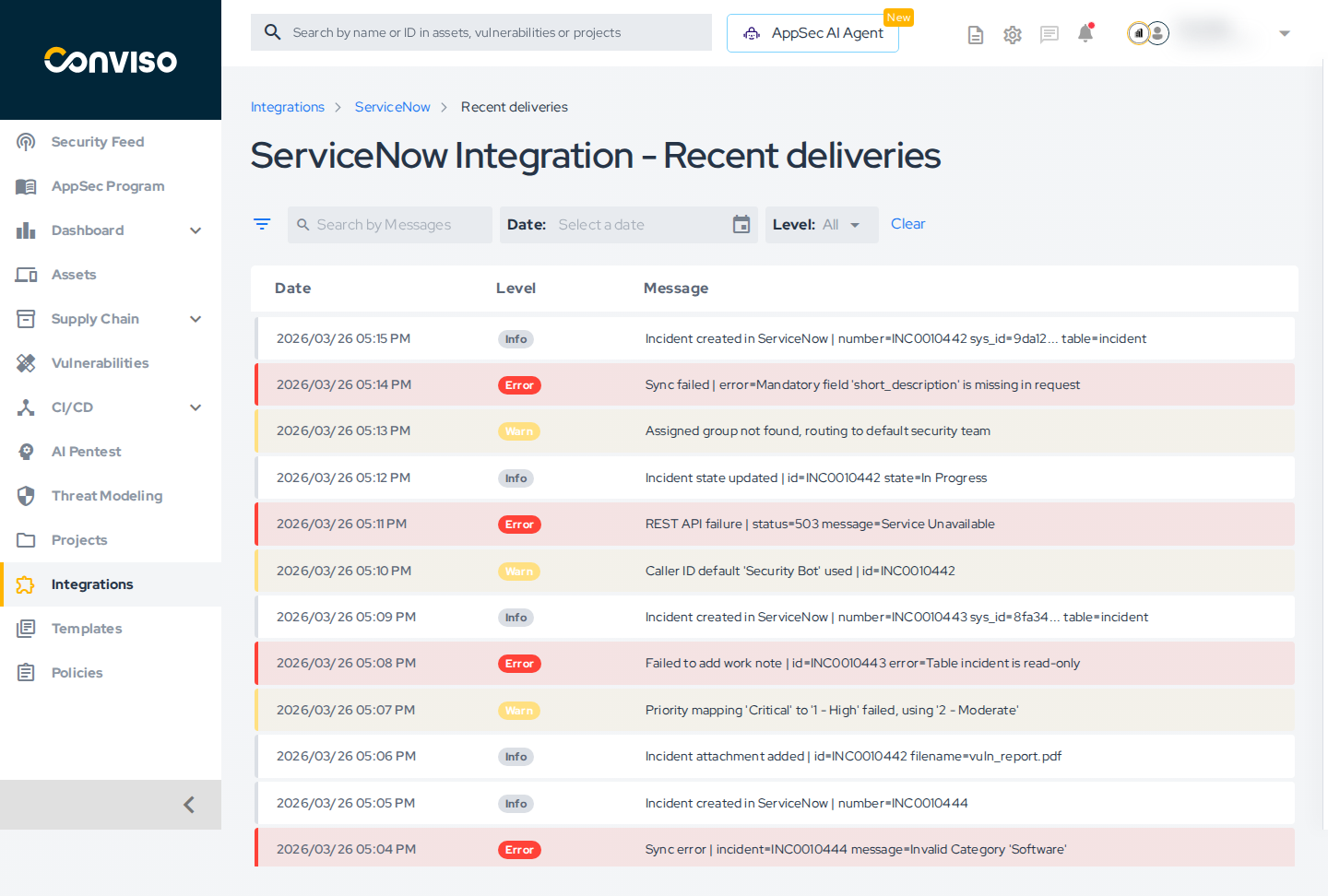
Step 2 - You will be directed to the Recent Deliveries page, which displays a table with the following columns:
- Date: The timestamp of the delivery attempt.
- Level: The severity level of the log entry (info, error, or warn).
- Message: A detailed description of the communication or event.
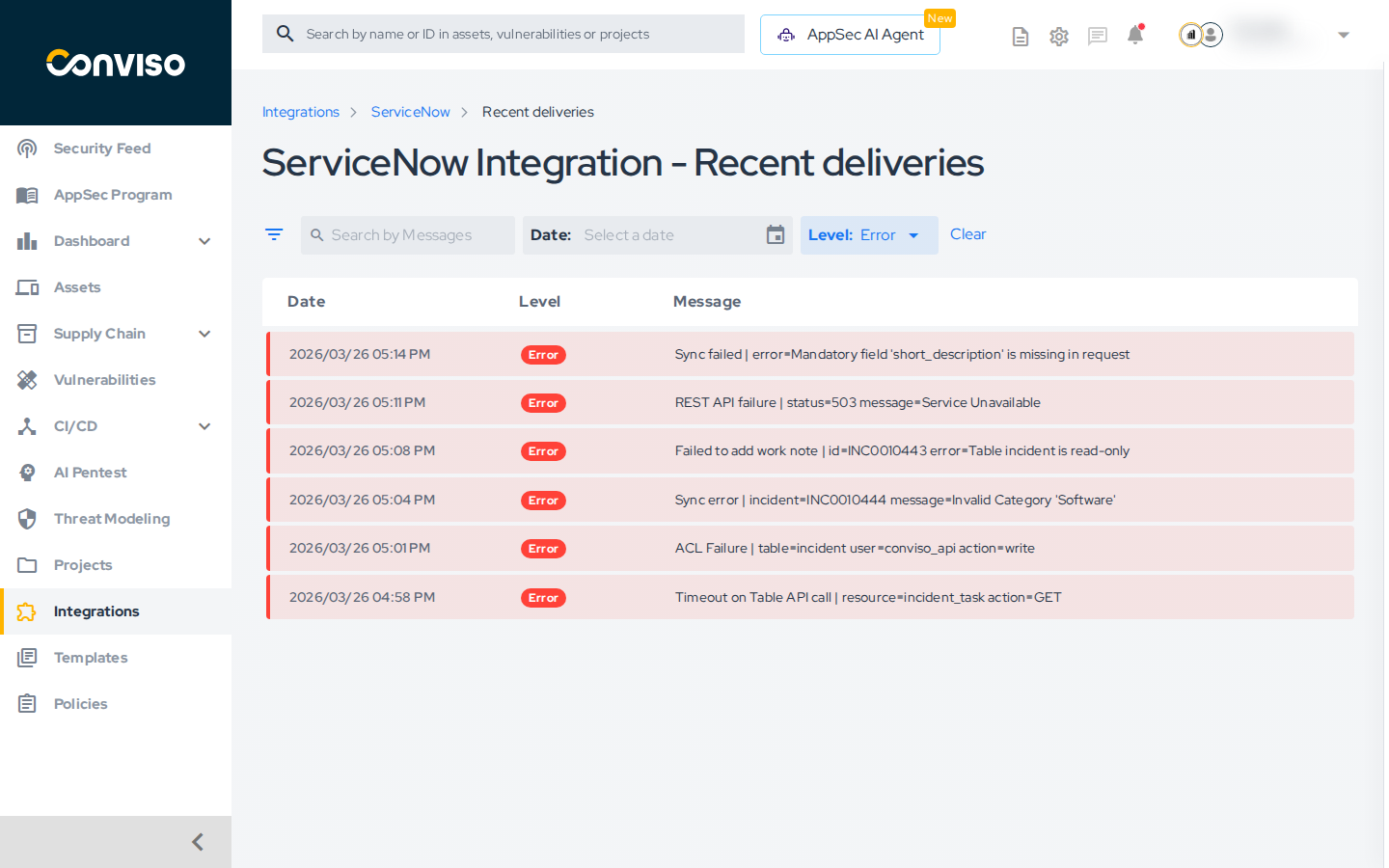
Step 3 - Use the available filters to refine the log list:
- Date Range: Filter logs by a specific time period.
- Level: Filter by log severity (Info, Warning, or Error).
- Search Box: Enter text or keywords to search for specific messages.
Support
Should you have any questions or require assistance while using the Conviso Platform, feel free to contact our dedicated support team.
Contribute to the Docs
Found something outdated or missing? Help us improve the documentation with a quick suggestion or edit.
How to contributeResources
By exploring our content, you'll find resources that will enhance your understanding of the importance of a Security Application Program.
Conviso Blog: Explore our blog, which offers a collection of articles and posts covering a wide range of AppSec topics. The content on the blog is primarily in English.
Conviso's YouTube Channel: Access a wealth of informative videos covering various topics related to AppSec. Please note that the content is primarily in Portuguese.