Read the Artifact and Its Versions
An artifact is the living record of one threat model. It is not a report you archive — it evolves with your system. Each time the architecture changes you generate a new version, and the platform keeps the full history.
Objective
By the end of this guide, you will have:
- Read an artifact and understood what each part of the page means.
- Reviewed exactly what changed between two versions.
- Generated a new version after an architecture change.
Prerequisites
- An existing threat modeling artifact. See Create a Threat Model.
- For generating a new version with AI: the AppSec AI Agent enabled, and the updated architecture file (up to 10 MB).
Steps
Step 1 – Open the artifact
- In the left-hand menu, click Threat Modeling.
- Click the name of the artifact you want to review.
Step 1: Artifact page with details on the left and the version history on the right.
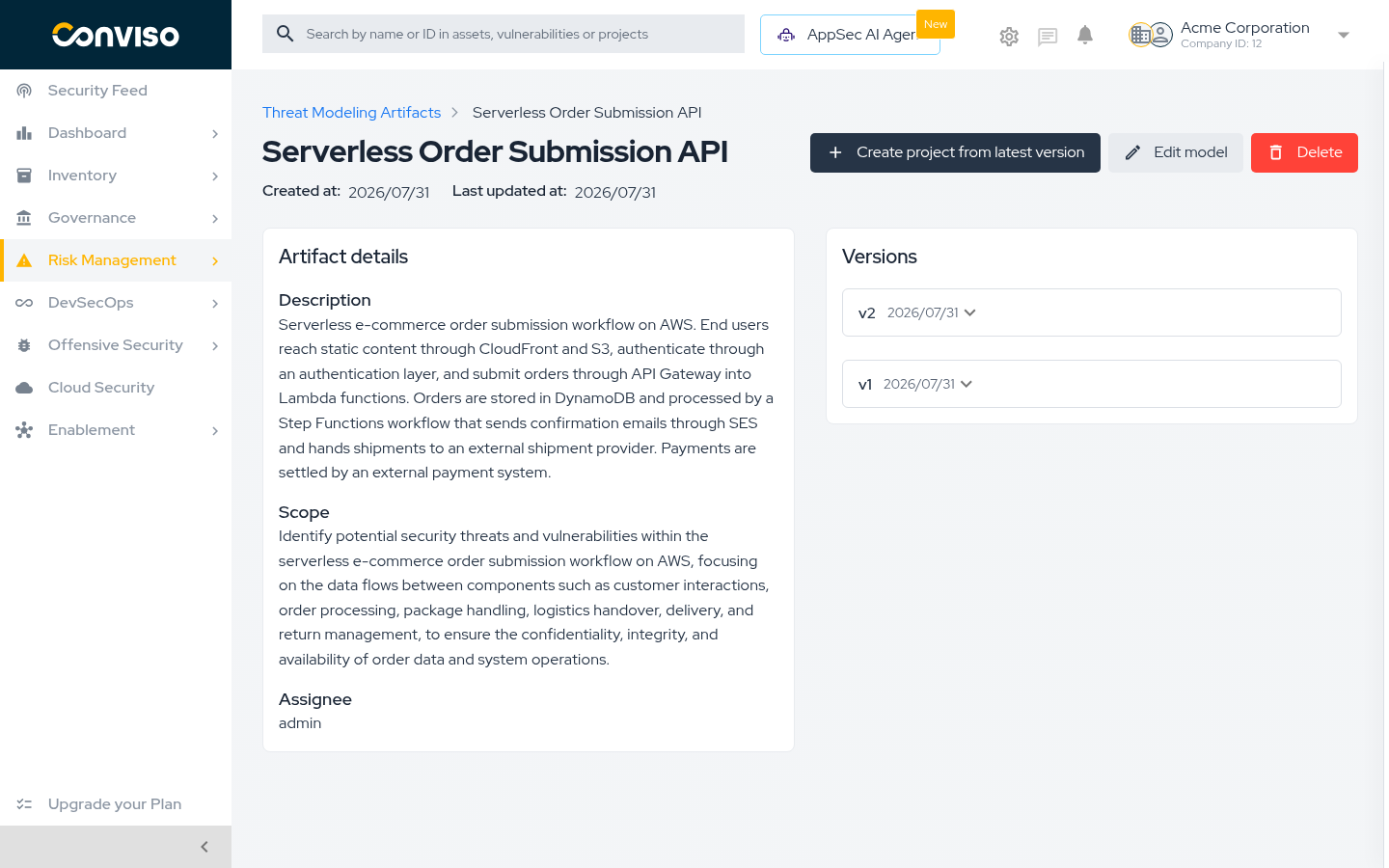
The left panel holds the current state of the model:
- Description — the system as you described it.
- Scope — what this threat model covers and protects.
- Assignee — who is responsible for it.
The right panel is the version history, most recent first.
The actions at the top of the page are:
| Action | What it does |
|---|---|
| Create project from latest version | Turns the newest version's requirements into an executable project. See Turn Requirements into a Project. |
| Edit model | Reopens the model so you can generate a new version. |
| Delete | Removes the artifact. |
Step 2 – Review what changed in a version
- Click a version in the Versions panel to expand it.
- Read the change summary.
Step 2: Expanded version showing diagram changes, scope changes, and the requirement groups added.
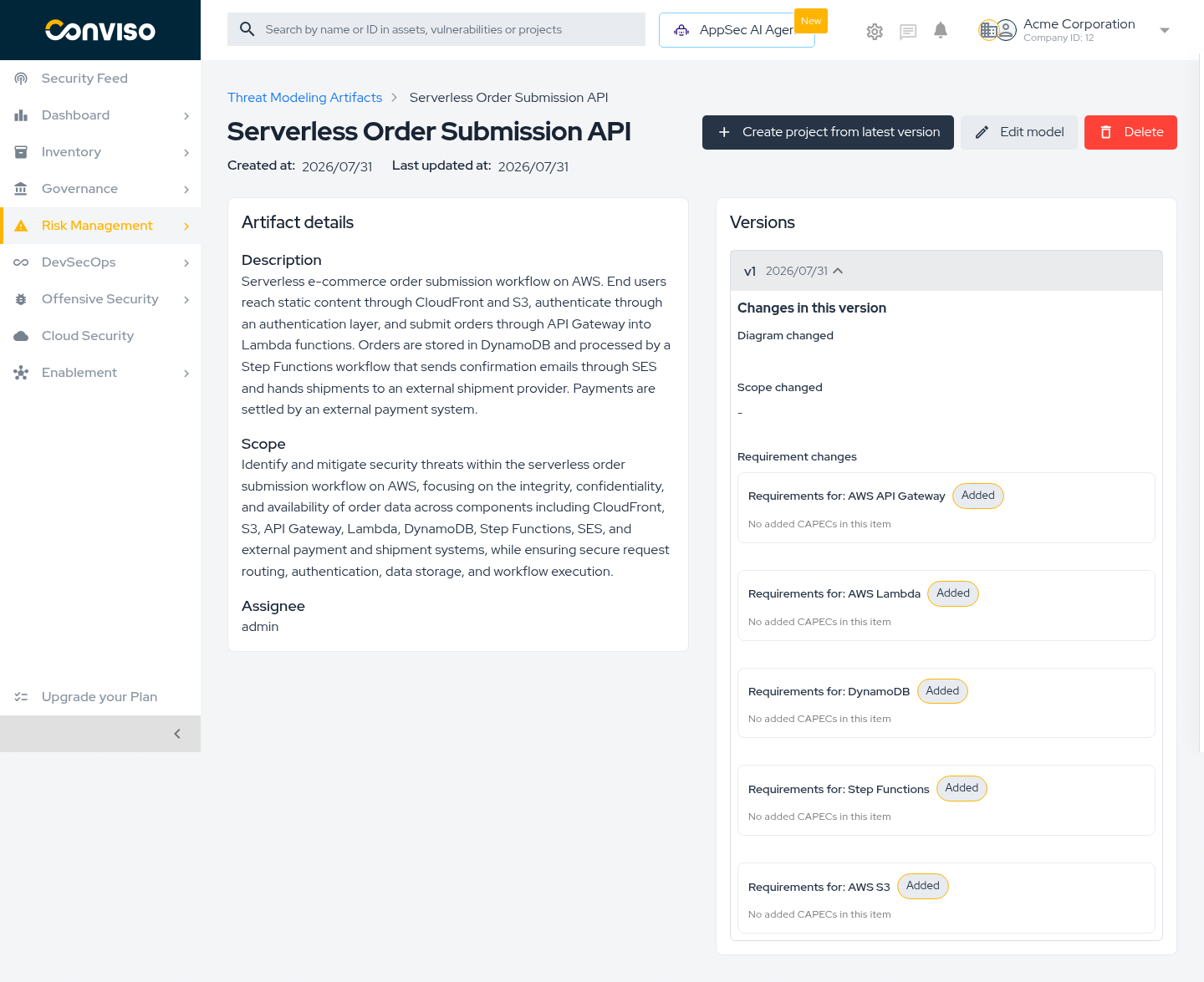
The expanded version reports:
- Diagram changed — whether the architecture diagram differs from the previous version.
- Scope changed — whether the scope was rewritten.
- Requirement changes — which requirement groups were added or removed, one entry per architecture item.
This is what makes the history auditable: instead of comparing documents by hand, you see which parts of your security posture moved between versions.
Step 3 – Generate a new version
When the architecture changes, add a version to the existing artifact instead of creating a new model, so the history stays in one place.
- Click Edit model. The form reopens with your original data.
- Update the description or technologies if they changed.
- Click Browse files and attach the updated architecture file.
- Click Generate new version with AI and wait about one minute.
Step 3: Edit form with the current diagram linked and a new architecture file attached.
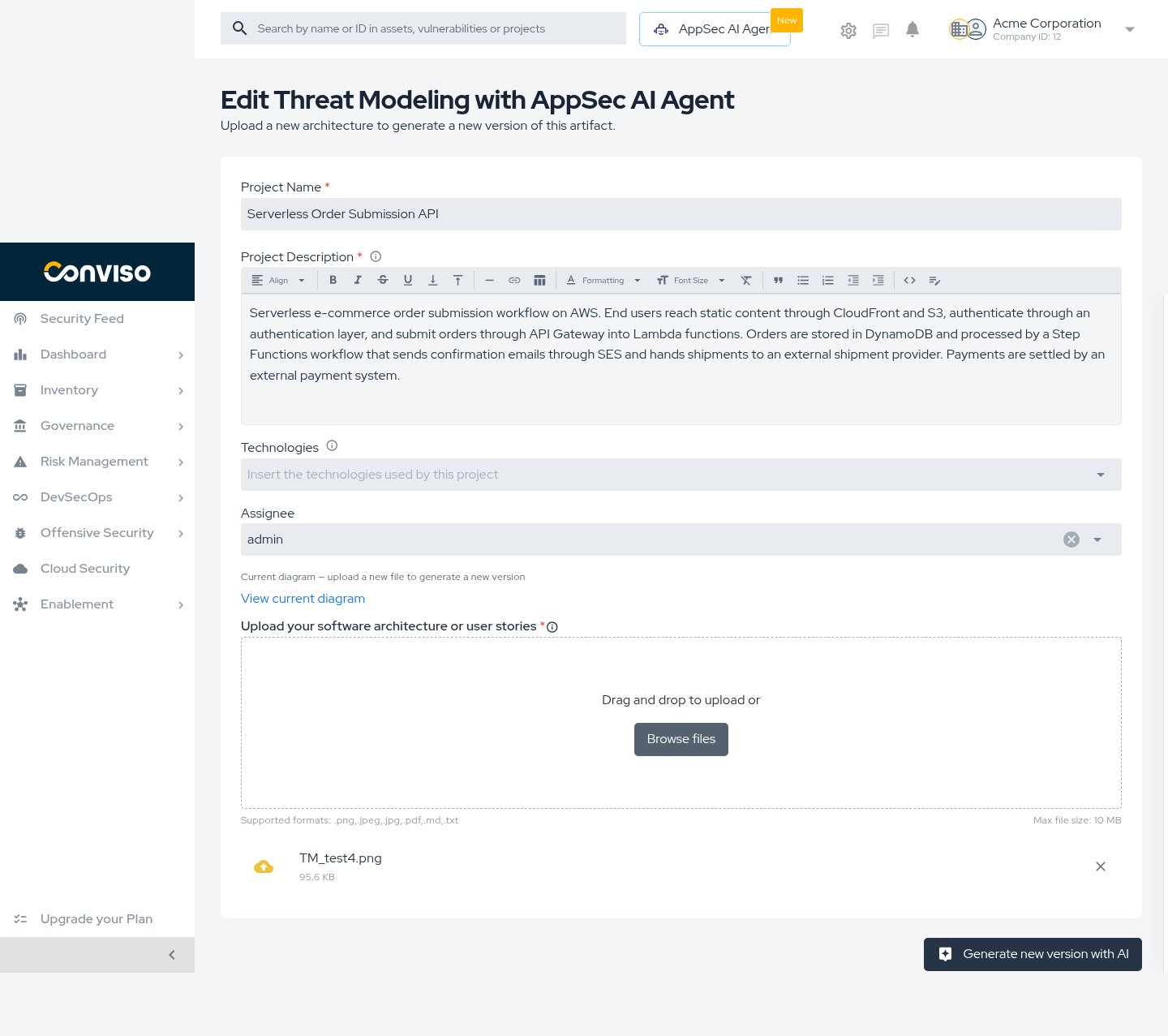
Two things differ from the first generation: a Current diagram section with a link to the file already attached, and the button labelled Generate new version with AI.
Generate a new version whenever the architecture actually changes — a new integration, a new data store, a new external provider. A stale threat model quietly stops protecting you.
Validation
| Check | Expected result |
|---|---|
| After generating | You return to the artifact page. |
| Versions panel | Shows v2 above v1. |
| Expanding v2 | Reports the diagram and scope changes, and the requirement groups added. |
| Last updated at | Shows today's date. |
Troubleshooting
| Problem | What to do |
|---|---|
| Edit model does not open the form | Reload the page and try again. |
| Error message after generating | The agent could not complete the analysis, or the connection was not ready. Reload the page, reattach the file, and generate again. |
| The new version reports no changes | The uploaded diagram is identical to the previous one. Attach the updated file. |
| The scope no longer matches your system | Update the description as well as the diagram, then generate another version. |
Next steps
Support
Should you have any questions or require assistance while using the Conviso Platform, feel free to reach out to our dedicated support team.
Contribute to the Docs
Found something outdated or missing? Help us improve the documentation with a quick suggestion or edit.
How to contributeResources
By exploring our content, you'll find resources that will enhance your understanding of the importance of a Security Application Program.
Conviso Blog: Explore our blog, which offers a collection of articles and posts covering a wide range of AppSec topics. The content on the blog is primarily in English.
Conviso's YouTube Channel: Access a wealth of informative videos covering various topics related to AppSec. Please note that the content is primarily in Portuguese.