AST Rules
The Rules tab is the SAST rule catalog. It is where you decide which rules run, silence the ones that do not fit your codebase, and add rules of your own.
Reach it from AST defaults → SAST for the company baseline, or from a Scan Config's SAST → Configure panel to override the catalog for one asset.
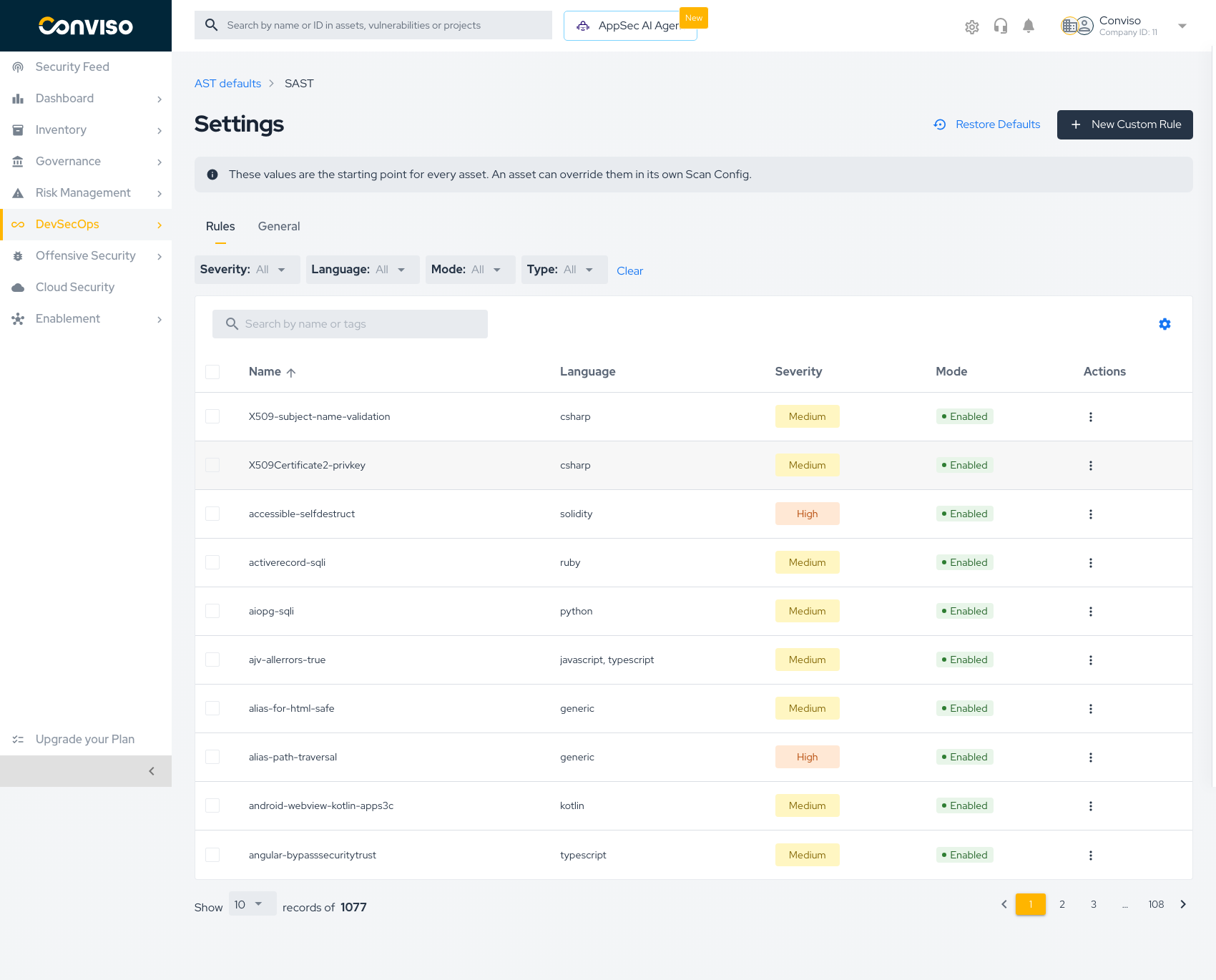
Reading the catalog
| Column | Meaning |
|---|---|
| Name | Rule identifier, e.g. alias-path-traversal |
| Language | Languages the rule applies to. Some rules are generic and match any file |
| Severity | Critical, High, Medium, Low, or Info — the severity a finding gets |
| Mode | Enabled or Disabled — whether the rule runs |
| Actions | Per-rule menu |
The catalog is large — over a thousand rules ship by default — so it is paginated. Use the search box (Search by name or tags) and the filters rather than scrolling.
Filters
Four dropdowns narrow the list, and Clear resets them all:
| Filter | Use it to |
|---|---|
| Severity | Focus on the severities you actually gate on |
| Language | Show only rules relevant to your stack |
| Mode | Audit what you have already disabled, or confirm what is enabled |
| Type | Separate Conviso-managed rules from your custom ones |
Filtering by Mode → Disabled is the fastest way to review the silencing decisions your team accumulated. Rules disabled during an incident and never revisited are a common blind spot.
Enabling and disabling a rule
Every rule row carries an Actions menu (⋮) with the action that applies to its current state.
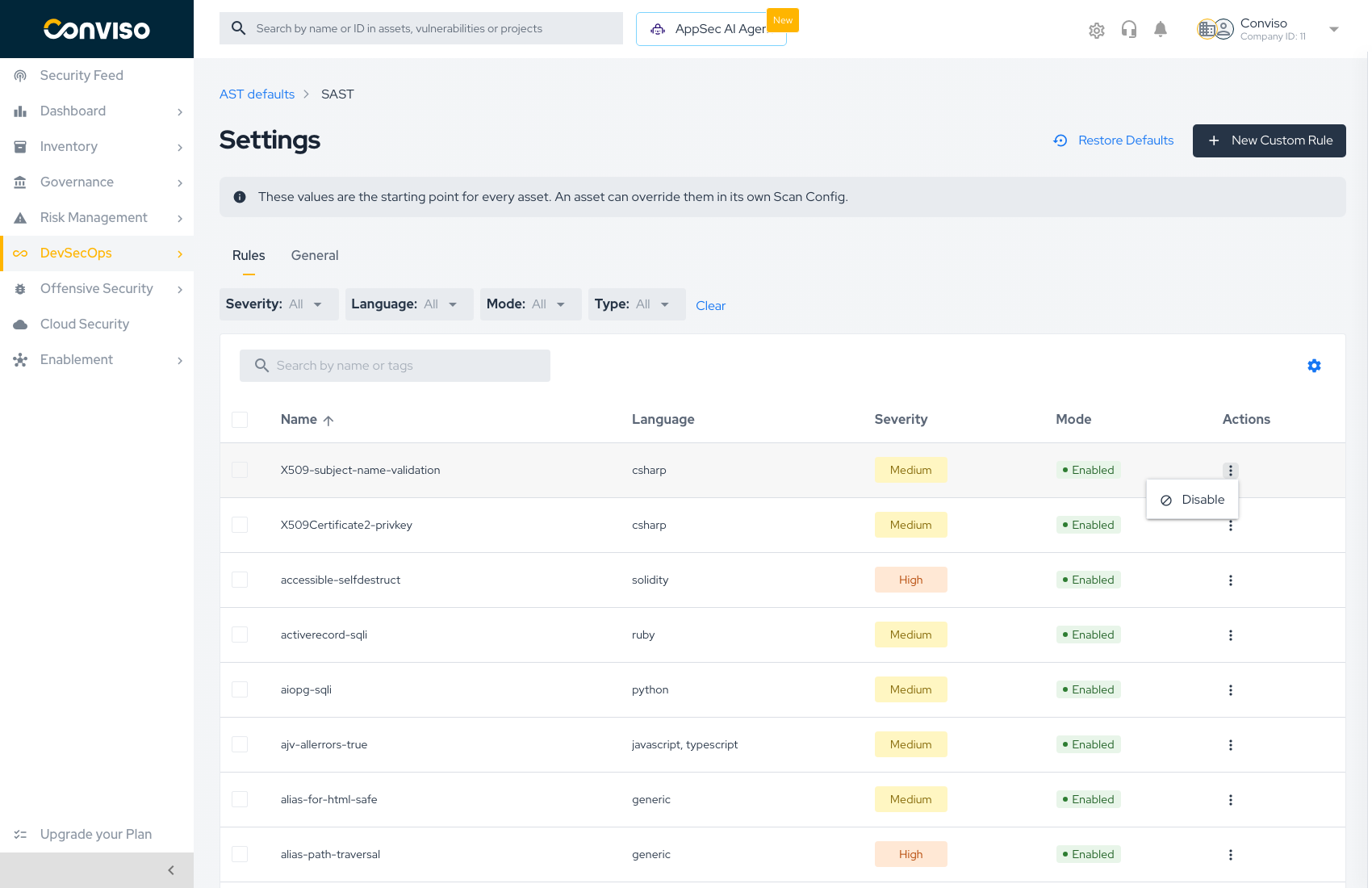
| Action | Available when | Effect |
|---|---|---|
| Disable | The rule is Enabled | The rule stops running. Existing findings are not deleted |
| Enable | The rule is Disabled | The rule runs again on the next scan |
| Delete | The rule is a custom rule | Removes the rule permanently |
Rule mode is saved as you change it, for the configuration you are editing — there is no separate Save step for the Rules tab. A banner on the screen states this explicitly.
Disabling a rule affects future scans. Findings already reported stay in Vulnerability Management until they are triaged there. Silencing a rule is not a way to close findings.
Bulk changes
Each row has a checkbox, and the header checkbox selects the whole page. With rules selected, apply Enable or Disable to all of them at once.
This is the practical way to act on a filter: filter by language or severity, select all, and disable in one step — for example, silencing every Info rule for a language you only vendor.
Bulk selection applies to the currently filtered page. Change the filter or the page before applying, and you act on a different set than you intended. Confirm the filter still reads what you expect before pressing the action.
Creating a custom rule
Press New Custom Rule to open the editor.
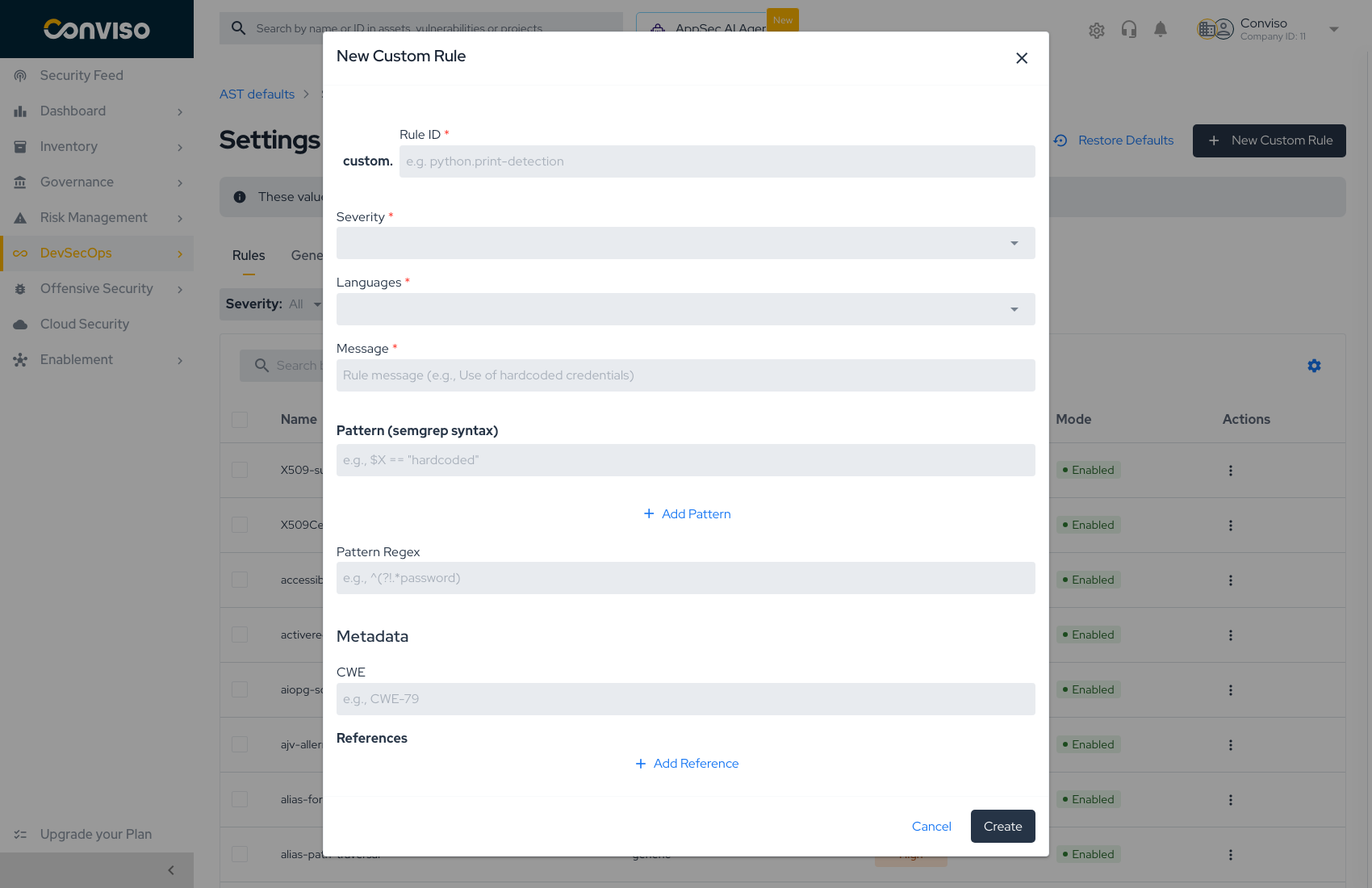
Identification
| Field | Required | Notes |
|---|---|---|
| Rule ID | Yes | Automatically prefixed with custom. — you supply the rest, e.g. python.print-detection. Use a stable, descriptive id; it appears on every finding |
| Severity | Yes | The severity findings from this rule receive. This is what your Security Gate thresholds compare against |
| Languages | Yes | Which languages the rule is evaluated against. Scoping it narrowly keeps scan time down and avoids false matches |
| Message | Yes | The text shown on the finding, e.g. Use of hardcoded credentials. Write it for the developer who will read it in a pull request |
Detection logic
A rule matches through patterns. You can combine both mechanisms:
| Field | Syntax | Use for |
|---|---|---|
| Pattern | semgrep | Structural matches that understand code, e.g. $X == "hardcoded" |
| Pattern Regex | regular expression | Textual matches, e.g. ^(?!.*password) |
Add Pattern appends more patterns to the same rule. Multiple patterns broaden what the rule catches.
Prefer a semgrep pattern over a regex whenever the thing you are matching is code. Semgrep understands syntax, so $X == "secret" matches regardless of whitespace, variable names, or formatting — a regex for the same idea will drift out of date with your codebase.
Metadata
| Field | Notes |
|---|---|
| CWE | The CWE identifier, e.g. CWE-79. Feeds classification and compliance reporting |
| References | Links backing the rule — advisories, internal standards, documentation. Add Reference appends more |
| Short description | One line explaining what the rule looks for |
Filling CWE is worth the extra few seconds: it is what lets custom findings appear alongside managed ones in classification views and compliance reports, instead of sitting in an uncategorized bucket.
Press Create to save the rule. It appears in the catalog immediately, marked as a custom rule by the Type filter, and runs on the next scan.
Where a custom rule lives
A custom rule belongs to the configuration you created it in:
- Created under AST defaults → available to every asset that inherits SAST.
- Created inside an asset's Scan Config → that asset overrides SAST, and the rule applies to that asset only.
Restoring the catalog
Restore Defaults discards every rule customization for the module you are viewing and returns the catalog to what Conviso ships.
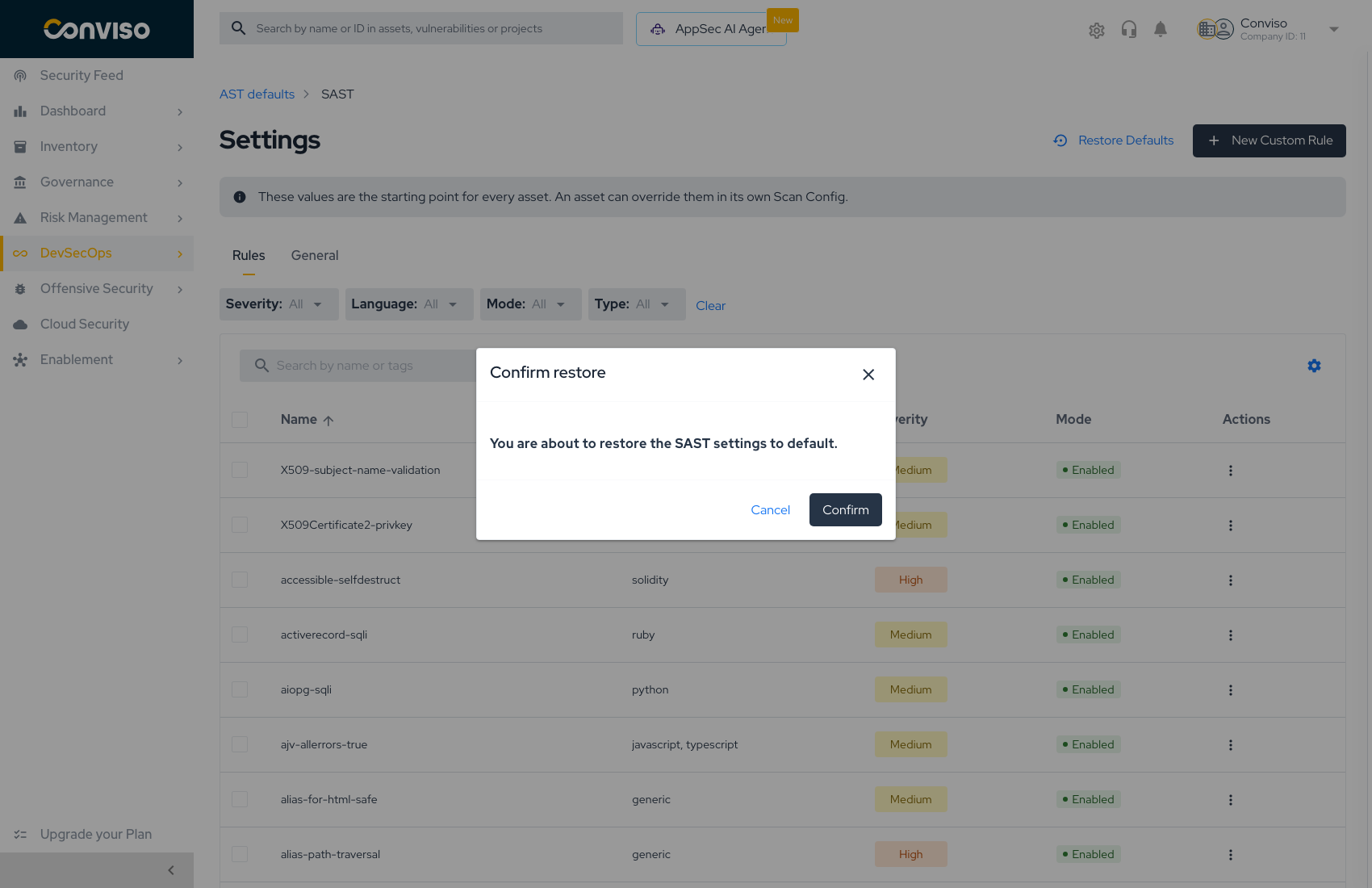
Restore discards every enable/disable decision and every custom rule for that module at that level. There is no undo. Before restoring a catalog your team has curated over time, export or record the disabled list — filter by Mode → Disabled to see it.
A practical workflow
- Run a scan with the defaults and see what comes back.
- Filter the findings that are noise for your codebase, and disable those rules at the company defaults level — noise is rarely specific to one repository.
- Where one asset genuinely differs, override SAST in that asset's Scan Config instead of bending the company baseline.
- Add custom rules for the patterns your team cares about that no managed rule covers — internal APIs, deprecated helpers, forbidden imports.
- Revisit Mode → Disabled periodically so temporary silencing does not become permanent.
Related
- AST Defaults — the company baseline and the General settings
- Creating Scan Configs — overriding a module for one asset
- Running Scans — putting the configuration to work
Contribute to the Docs
Found something outdated or missing? Help us improve the documentation with a quick suggestion or edit.
How to contributeResources
By exploring our content, you'll find resources that will enhance your understanding of the importance of a Security Application Program.
Conviso Blog: Explore our blog, which offers a collection of articles and posts covering a wide range of AppSec topics. The content on the blog is primarily in English.
Conviso's YouTube Channel: Access a wealth of informative videos covering various topics related to AppSec. Please note that the content is primarily in Portuguese.