Google Chat

Objective
Connect one Google Chat space to Conviso Platform. The space then receives the chat notifications you enable: the Vulnerability Daily Digest, Environment Compromised, and New Project Created.
The connection is an incoming webhook. Conviso Platform posts messages into the space. The space cannot reply, and the webhook cannot read messages already there.
Prerequisites
- A Google Workspace account. A personal
@gmail.comaccount can open Chat, but it cannot create an incoming webhook. - Permission, from a Workspace administrator, to add incoming webhooks. In the Google Admin console, the setting is Apps → Google Workspace → Google Chat → Chat apps → Allow users to add and use incoming webhooks. Google documents it in Allow users to install Chat apps.
- A Chat space where you can add a webhook. A direct message does not offer this option. Create a space for the notifications if you do not want them in an existing one.
- Access to Integrations in Conviso Platform for the company that should send the notifications.
Create the webhook in Google Chat
Use Chat in a browser. The mobile app cannot add a webhook. Google Chat follows the language of the Google account. The screens below are in Portuguese. In English, the same actions are Create a space, Apps & integrations, Add webhooks, and Save.
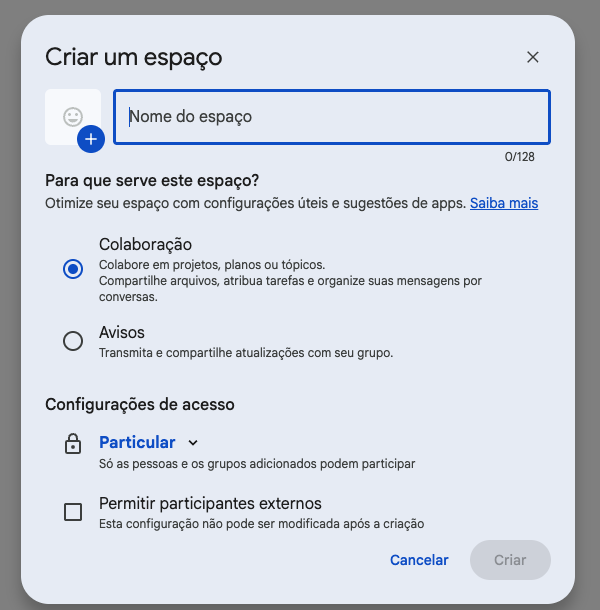
- Open Google Chat. From New chat, select Create a space. Name the space, keep it private, and create it. A direct message cannot host this webhook.
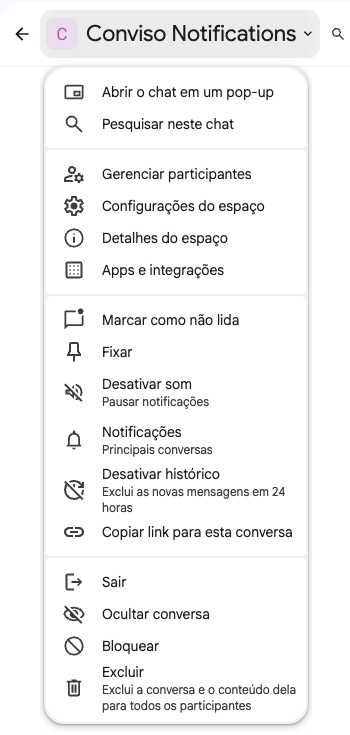
- Next to the space name, open the space menu and select Apps & integrations.
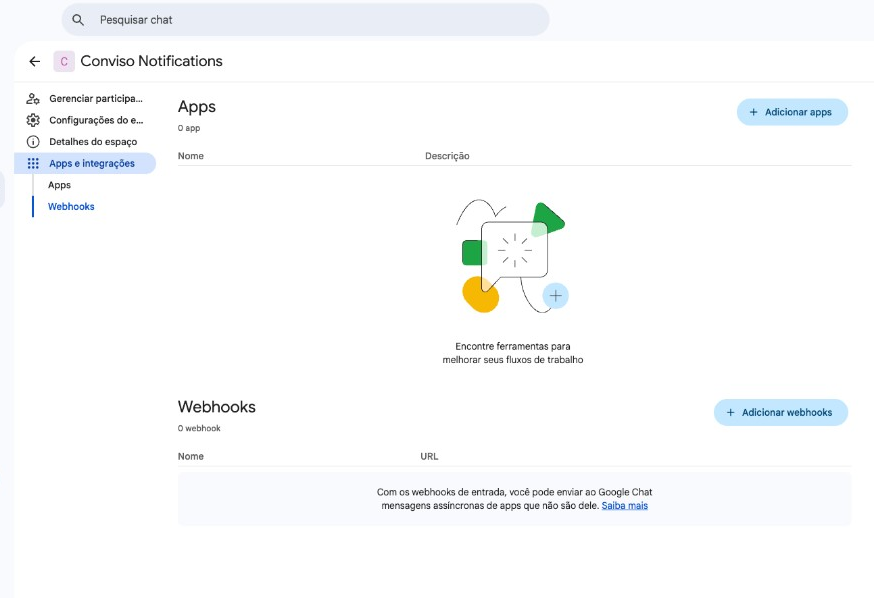
- Under Webhooks, select Add webhooks.
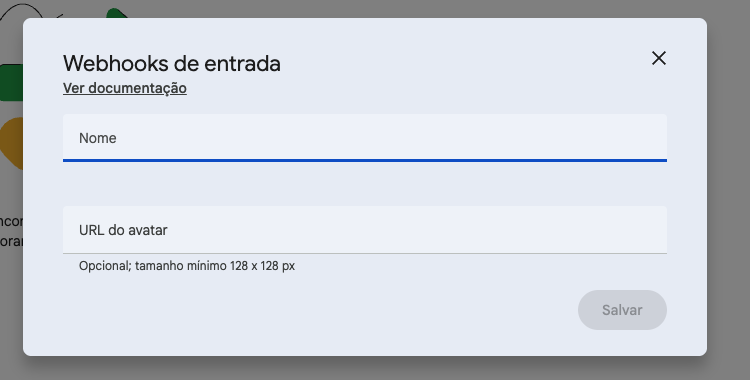
- Enter a name, such as
Conviso Platform. Leave Avatar URL empty. Select Save.
- The webhook is listed in the space. Open its more menu and select Copy link.
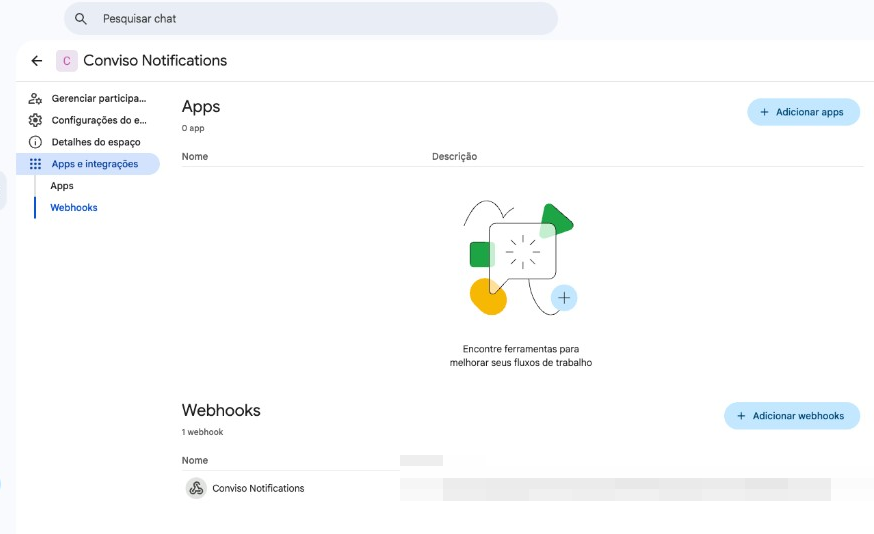
The link looks like this:
https://chat.googleapis.com/v1/spaces/SPACE_ID/messages?key=KEY&token=TOKEN
Anyone who has the link can post messages in that space. Do not paste it into chat, email, or a ticket. Each link belongs to one space. Another space needs its own webhook.
Connect the webhook in Conviso Platform
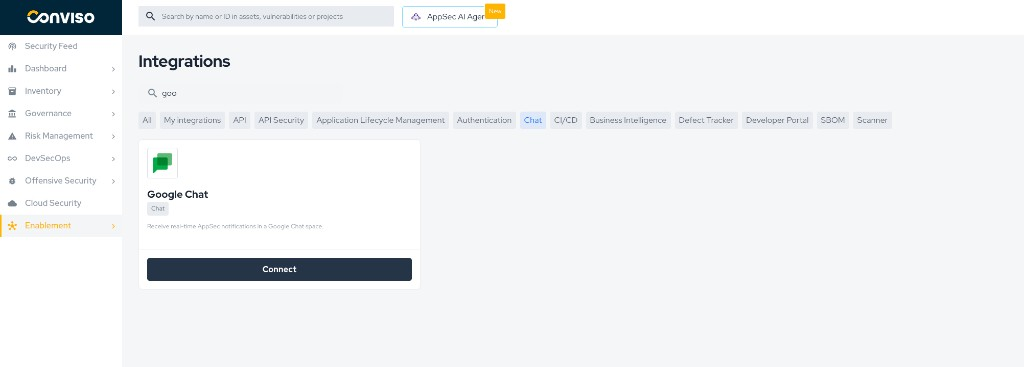
- In Conviso Platform, open Integrations, filter by Chat, and select Connect on the Google Chat card.
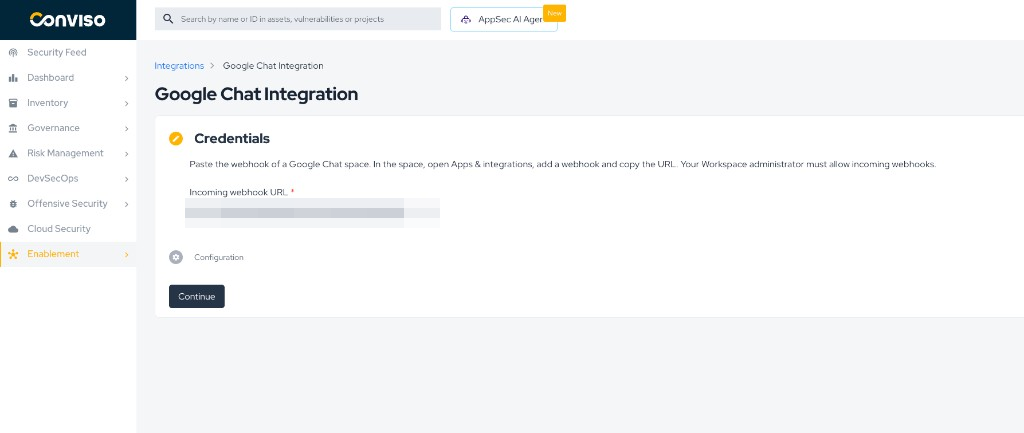
- Paste the link into Incoming webhook URL and select Continue. The field accepts only an
httpslink onchat.googleapis.comwhose path is/v1/spaces/SPACE_ID/messages.
-
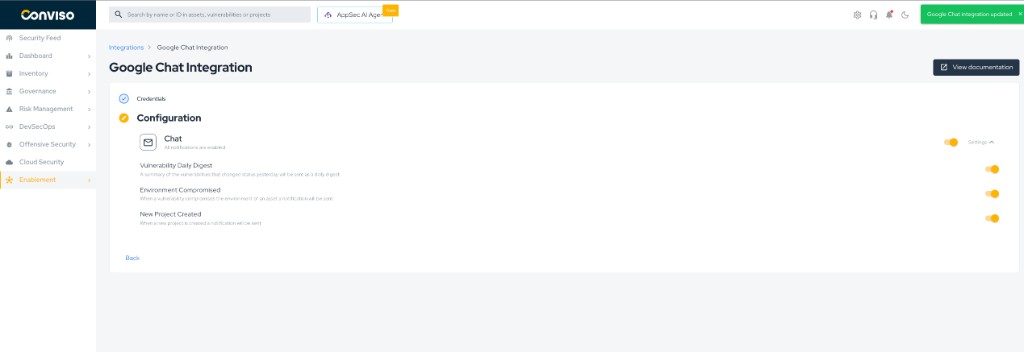
Open Settings and enable the notifications the space should receive:
- Vulnerability Daily Digest — one message each morning, around 7:30 (Brasília time), covering the previous day. See Vulnerability Daily Digest.
- Environment Compromised — sent when a vulnerability compromises an asset's environment.
- New Project Created — sent when a project is created.
A switch turns off that notification for this integration. The choice is saved as you change it.
The webhook is tied to the account that saved the integration. The space receives that account's notifications, and the digest only includes what that person is allowed to see. If the account is deactivated or loses access to the company, the space goes quiet.
Validation
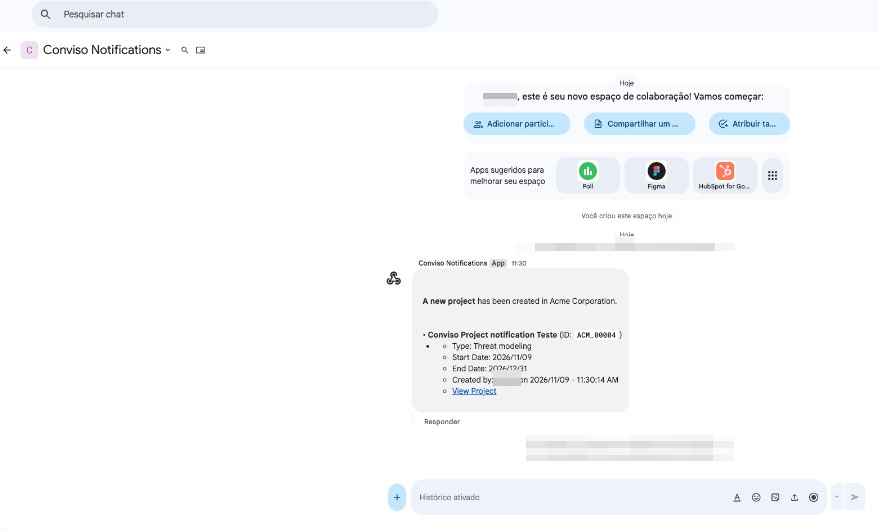
Create a project in the company. With New Project Created enabled, the space receives a message for that project, including a link back to the platform.
The digest does not arrive at setup time. It is sent the next morning, and a day with nothing to report produces no message.
Replace or remove the webhook
To point the integration at another space, create a webhook in that space and copy the new link. In Conviso Platform, open the Google Chat integration. If the page opens on Configuration, select Back. The page shows the saved address without its key and token, and leaves New webhook URL empty. Leave that field empty and select Continue to keep the saved webhook. Paste a new full link, then select Continue, to point the integration at another space. The notification switches stay as they are.
To stop delivery, open Credentials and select Remove integration, then confirm. The space keeps its webhook until someone deletes it in Google Chat. Deleting the webhook in Chat also stops delivery, because the saved link no longer accepts messages.
Troubleshooting
Add webhooks is missing or cannot be clicked. The signed-in account is a personal Gmail account, or the Workspace administrator has not turned on Allow users to add and use incoming webhooks. Installing an app from Add apps does not create this webhook.
Continue rejects the link. Copy the link again from the webhook's more menu. It must be https://chat.googleapis.com/v1/spaces/SPACE_ID/messages, with the key and token Google added. A shortened link or a link from another product is rejected.
No message arrives. Confirm the switch for that event is on, and that you are acting in the same company where you saved the integration. New Project Created is the check you can run immediately. The digest waits until the next morning, and a quiet day sends nothing. If the account that connected the integration lost access, reconnect with an account that still has it.
The message arrived in the wrong space. The link posts only to the space where it was created. Replace it with the webhook of the space you want.
Support
If you have any questions or need help using our product, please contact our support team.
Contribute to the Docs
Found something outdated or missing? Help us improve the documentation with a quick suggestion or edit.
How to contributeResources
By exploring our content, you'll find resources that will enhance your understanding of the importance of a Security Application Program.
Conviso Blog: Explore our blog, which offers a collection of articles and posts covering a wide range of AppSec topics. The content on the blog is primarily in English.
Conviso's YouTube Channel: Access a wealth of informative videos covering various topics related to AppSec. Please note that the content is primarily in Portuguese.