Conviso Platform for Visual Studio Code
Objective
Use Conviso Platform in Visual Studio Code to review security data, analyze code with AI assistance, and run local repository scans without leaving the editor.
Prerequisites
- Visual Studio Code 1.90 or later
- A Conviso Platform account with access to the required company
- A Conviso Platform API key
- An open workspace folder
- Docker installed and running to use local SAST, SCA, or AST scans
AI features depend on the capabilities enabled for your Conviso Platform account.
Install the Extension
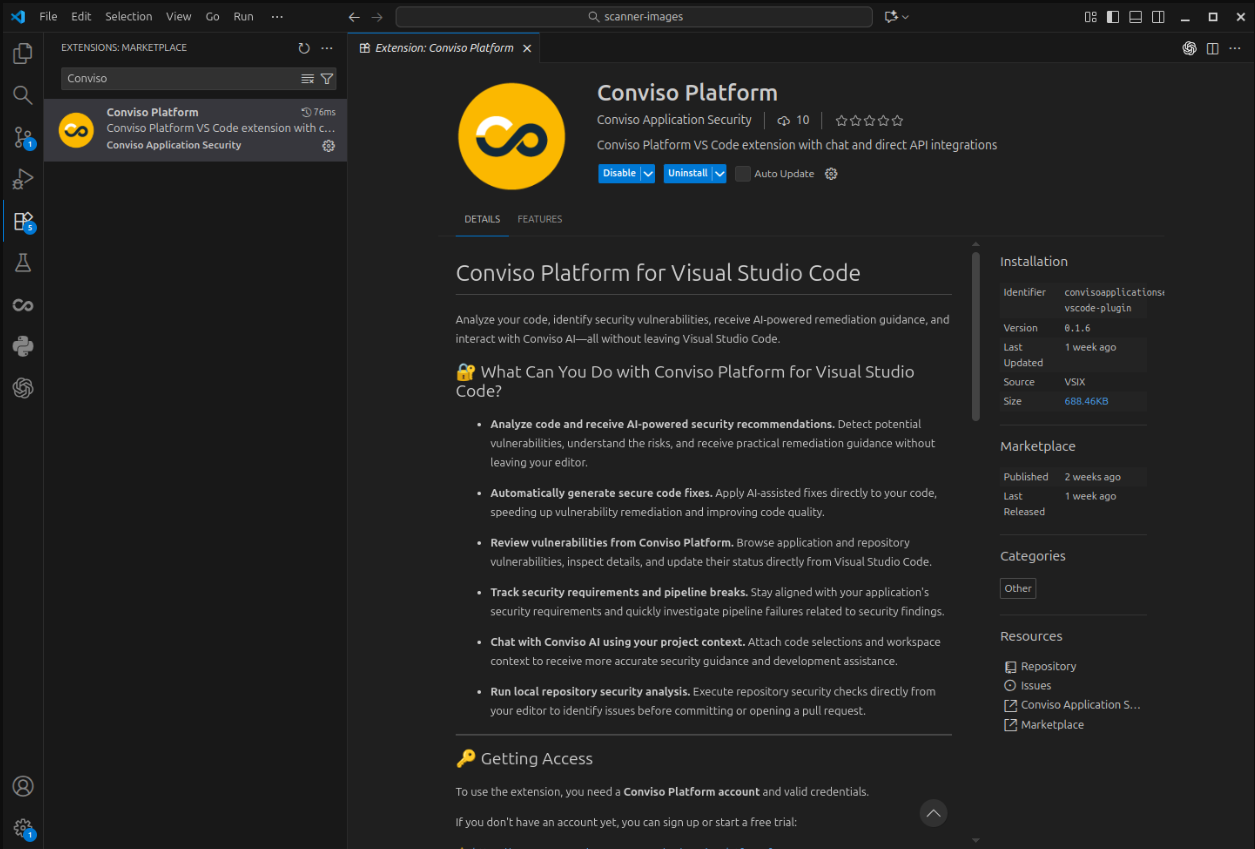
- Open Extensions in Visual Studio Code.
- Search for Conviso Platform.
- Select the extension published by Conviso Application Security.
- Click Install.
- Reload Visual Studio Code if prompted.
Configure Access
- Open the Command Palette.
- Run Conviso Platform: Configure API Access.
- Enter your Conviso Platform API key.
- Select one of the companies available to your account.
- Open the Conviso Platform icon in the Activity Bar.
The extension stores the API key in Visual Studio Code's secret storage. To change only the active company later, run Conviso Platform: Configure Company ID.
Use Conviso Platform
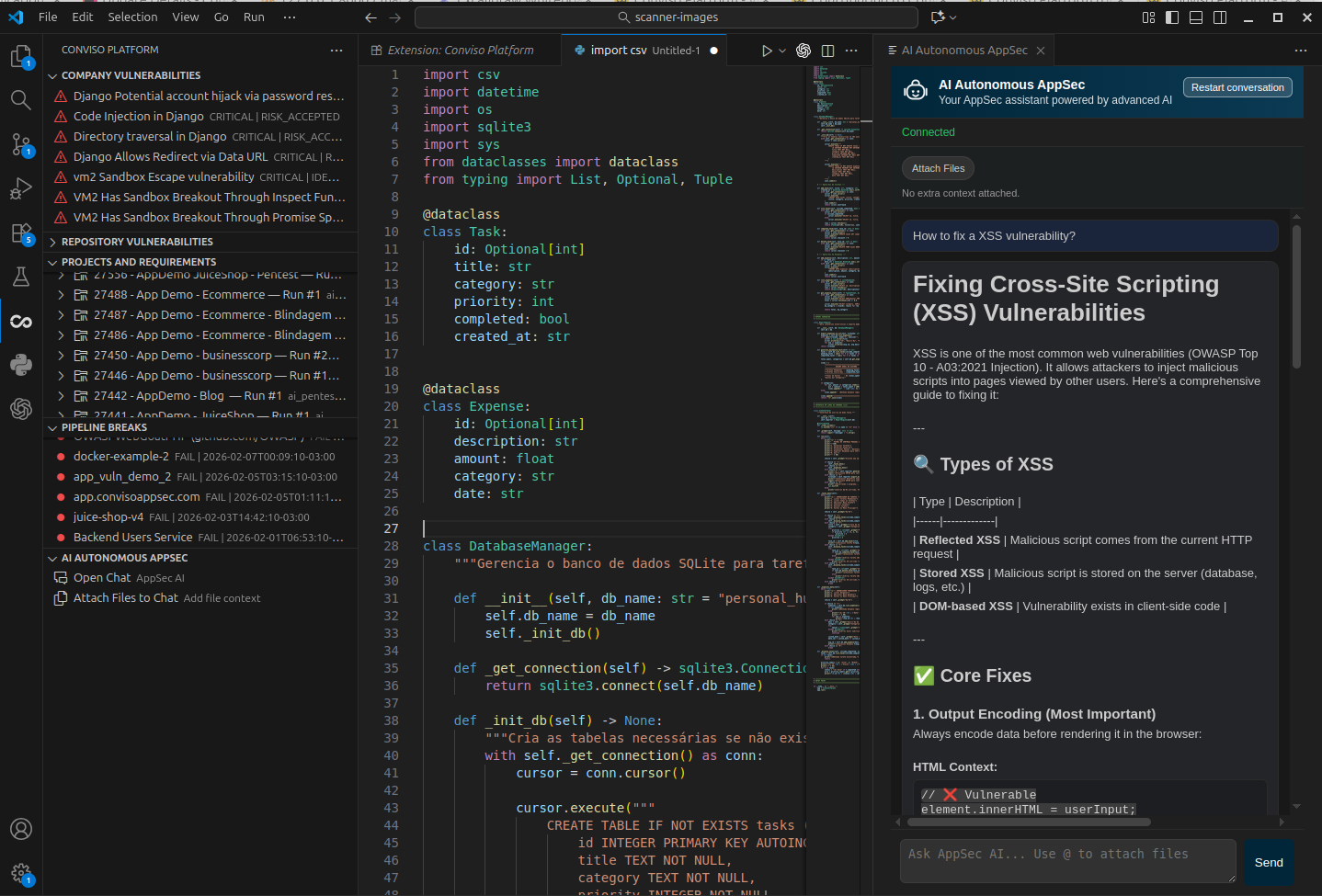
The Conviso Platform view provides:
- Company Vulnerabilities — review findings, inspect details, filter results, and update a vulnerability's status.
- Repository Vulnerabilities — review findings from the latest local repository scan.
- Projects and Requirements — browse projects, requirements, and activities; update statuses and attach activity evidence.
- Pipeline Breaks — investigate failed security gate executions and their failure reasons.
- AI Autonomous AppSec — chat about security, attach code or files as context, analyze selected code, and review suggested fixes.
Analyze Selected Code
- Select the relevant code in the editor.
- Right-click the selection.
- Open Conviso Platform and select Analyze Security and Suggest Fix.
- Review the explanation and suggested code in AI Autonomous AppSec.
- Apply the suggested fix only after reviewing the proposed change.
You can also use Attach Selection to AI Chat or Attach Files to AI Chat when you want to ask a broader question with additional context.
Run a Local Repository Scan
- Confirm Docker is running.
- Open the repository as a workspace folder.
- Open the Command Palette.
- Run one of the following commands:
- Run Repository SAST
- Run Repository SCA
- Run Repository AST
- Open Repository Vulnerabilities to review the detected issues.
Local scans run as dry runs and do not upload a new scan result to Conviso Platform.
Validation
- The Conviso Platform views load data for the selected company.
- Opening an item displays its details.
- AI Autonomous AppSec returns a response when AI access is enabled.
- A local scan populates Repository Vulnerabilities.
Troubleshooting
Platform Views Do Not Load
Run Conviso Platform: Configure API Access again and confirm that the API key has access to the selected company.
AI Chat Does Not Connect
Confirm that the API key is valid and that AI capabilities are enabled for your account. Then run Conviso Platform: Connect.
Contribute to the Docs
Found something outdated or missing? Help us improve the documentation with a quick suggestion or edit.
How to contributeResources
By exploring our content, you'll find resources that will enhance your understanding of the importance of a Security Application Program.
Conviso Blog: Explore our blog, which offers a collection of articles and posts covering a wide range of AppSec topics. The content on the blog is primarily in English.
Conviso's YouTube Channel: Access a wealth of informative videos covering various topics related to AppSec. Please note that the content is primarily in Portuguese.