Security Gate
Overview
The Security Gate ensures that your applications meet specific security criteria before proceeding in the deployment pipeline. By defining policies based on vulnerability severity and counts, you can automatically block builds that don't meet your security standards.
In the Conviso Platform, this feature allows you to:
- monitor Security Gate executions across assets;
- review the reason a pipeline passed, failed, or generated a warning;
- understand which rule was applied to the execution.
For the complete setup flow, policy options, YAML configuration, and CI/CD execution commands, see the Security Gate guide.
Access the Screen
You can monitor all Security Gate runs across your company from the CI/CD > Security Gate menu.
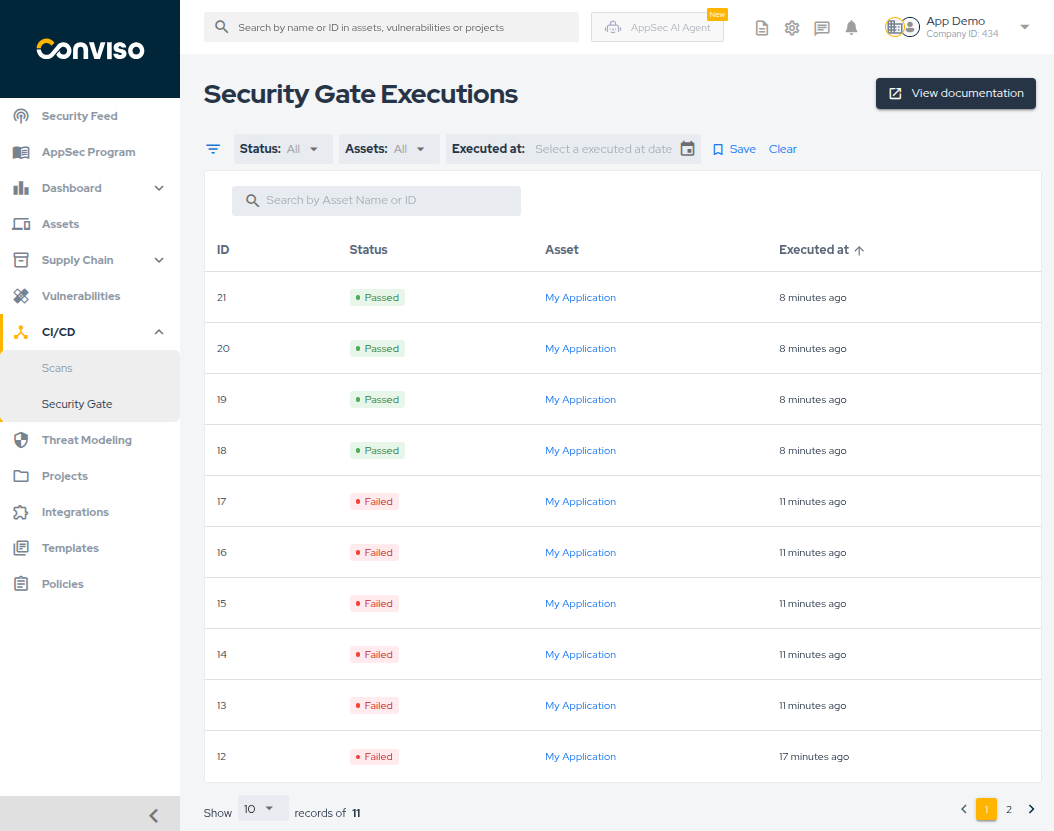
This page lists all executions, showing the status, asset, and execution date.
What You Can Do on This Screen
The main screen supports:
- filtering by Status, Asset, and Executed at date;
- searching by ID or Asset Name;
- sorting by ID, status, or execution date;
- saving the current filter as the default view.
Execution Statuses
Execution results are shown with the following statuses:
- Passed: all vulnerability counts are within the configured limits.
- Failed: at least one vulnerability has exceeded the
Max days to fixdeadline. - Warning: at least one vulnerability exceeds the
Max vulnerabilities allowedthreshold, but none have exceeded theMax days to fixdeadline yet.
Vulnerabilities Considered
The Security Gate evaluates and counts vulnerabilities that are in any of the following statuses, as they represent risks that have been validated or are still pending final resolution:
- Identified
- In Progress
- Awaiting Validation
Vulnerabilities marked as Fixed, Risk Accepted, or False Positive are not counted toward policy thresholds and will not block the pipeline.
For the platform's vulnerability status definitions, see Workflow Status.
Execution Details
Clicking on any execution in the list opens the Execution Details page:
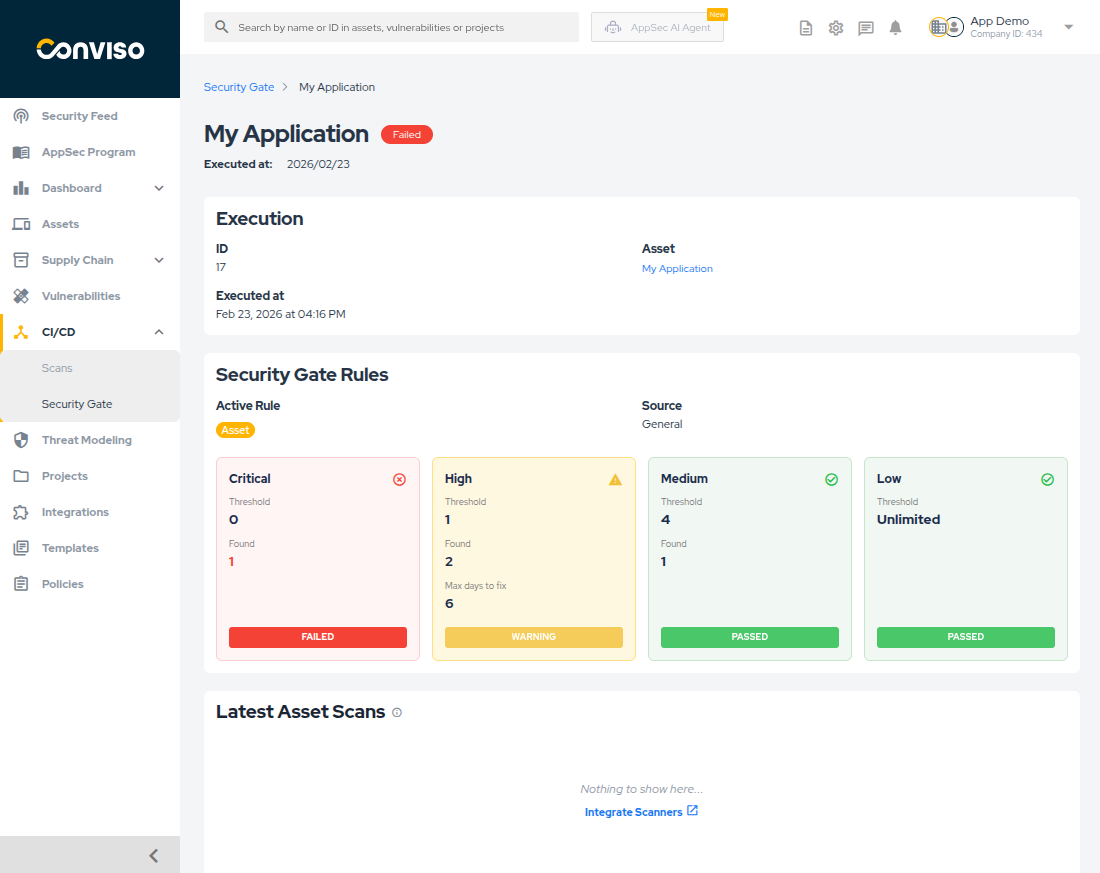
This view helps you understand:
- execution ID, asset, and timestamp;
- which rule type was applied:
- Global
- Asset
- Custom
- threshold versus found vulnerabilities by severity;
- expired vulnerabilities that exceeded the configured days to fix;
- latest scans for the asset, to help explain the outcome.
Learn More
Use the detailed guide when you need to:
- configure global or asset-level rules;
- create YAML-based policies in the repository;
- run Security Gate in CI/CD with Conviso AST;
- understand enriched CLI failure output, JSON export with
--output, and GraphQL access; - understand command responses and policy behavior.
Contribute to the Docs
Found something outdated or missing? Help us improve the documentation with a quick suggestion or edit.
How to contributeResources
By exploring our content, you'll find resources that will enhance your understanding of the importance of a Security Application Program.
Conviso Blog: Explore our blog, which offers a collection of articles and posts covering a wide range of AppSec topics. The content on the blog is primarily in English.
Conviso's YouTube Channel: Access a wealth of informative videos covering various topics related to AppSec. Please note that the content is primarily in Portuguese.