Conviso Platform for Visual Studio
Objective
Use Conviso Platform in Visual Studio to analyze selected code, review security findings, and follow projects and security gate executions without leaving the IDE.
Prerequisites
- Visual Studio 2022 version 17.x on a 64-bit Windows system
- Community, Professional, or Enterprise edition
- A Conviso Platform account with access to the required company
- A Conviso Platform API token
AI features depend on the capabilities enabled for your Conviso Platform account.
Install the Extension
- In Visual Studio, open Extensions > Manage Extensions.
- Select Online.
- Search for Conviso Platform.
- Click Install.
- Close Visual Studio and complete the installation when prompted.
- Reopen Visual Studio.
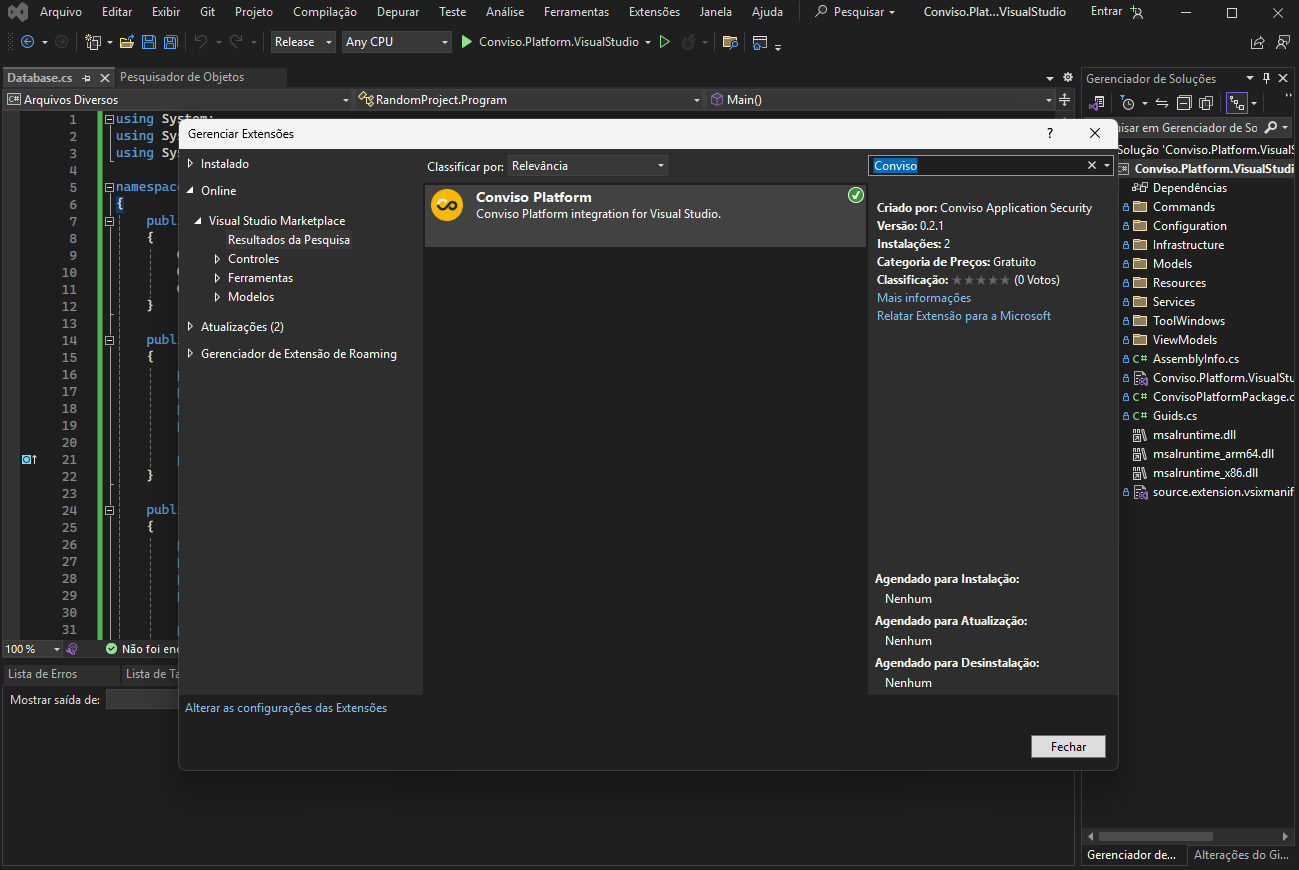
Configure Access
- Open Tools > Conviso Settings.
- On the Platform API tab, enter your API token.
- Click Test API.
- To use AI features, click Test Chat.
- Open the Scope tab and select a company.
- Click Save Settings.
The API token is protected with Windows user-level data protection.
Use Conviso Platform
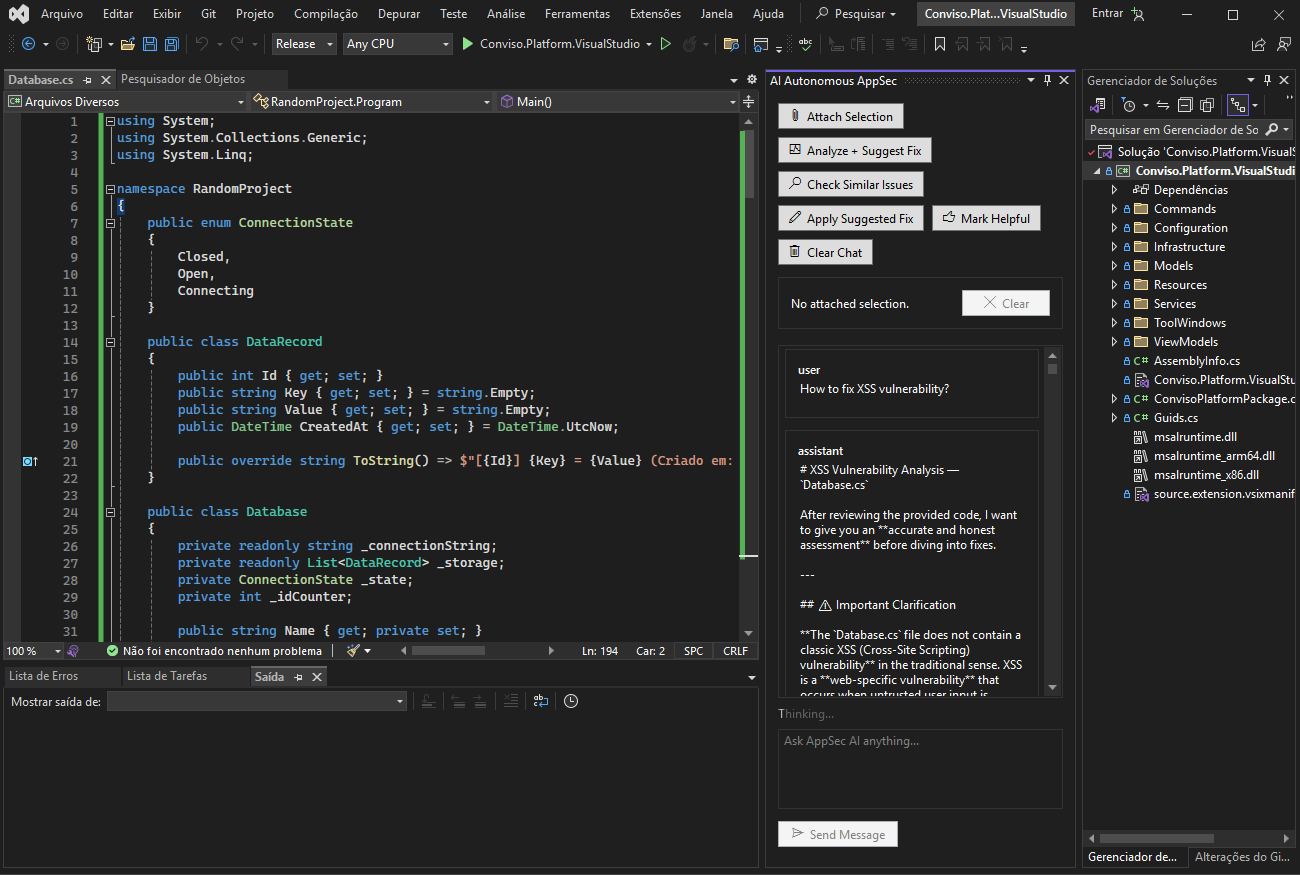
Open the following windows from the Tools menu:
- Conviso Chat — ask security questions, analyze selected code, attach editor context, search the workspace for similar issues, and review suggested fixes.
- Conviso Vulnerabilities — filter findings by asset, inspect details, generate an AI-assisted fix, and update status.
- Conviso Requirements — browse projects, requirements, and activities and update project or activity status.
- Conviso Pipeline Breaks — inspect failed security gate executions, including the source, asset, trigger, and failure reasons.
Analyze Selected Code
- Open a source file and select the relevant code.
- Choose Tools > Analyze + Suggest Fix.
- Review the response in AI Autonomous AppSec.
- If a code block is suggested, select the code to replace.
- Click Apply Suggested Fix.
- Confirm the replacement after reviewing it.
The extension does not replace code without confirmation.
Review and Update a Vulnerability
- Open Tools > Conviso Vulnerabilities.
- Optionally select an asset or enter a text filter.
- Select a vulnerability to view its details.
- Click Generate Fix to request AI-assisted remediation guidance.
- Enter an allowed status and click Update Status when the finding must be changed.
Validation
- Test API and Test Chat succeed in Conviso Settings.
- The selected company's data appears in the Conviso windows.
- Selecting a vulnerability, requirement, or pipeline break displays its details.
- An analyzed selection produces a response in AI Autonomous AppSec.
Troubleshooting
Company List Is Empty
Confirm the API token with Test API and verify that the account has access to at least one company.
Contribute to the Docs
Found something outdated or missing? Help us improve the documentation with a quick suggestion or edit.
How to contributeResources
By exploring our content, you'll find resources that will enhance your understanding of the importance of a Security Application Program.
Conviso Blog: Explore our blog, which offers a collection of articles and posts covering a wide range of AppSec topics. The content on the blog is primarily in English.
Conviso's YouTube Channel: Access a wealth of informative videos covering various topics related to AppSec. Please note that the content is primarily in Portuguese.