Azure DevOps Service Principal
Connect Azure DevOps using a service principal: an app registration in Microsoft Entra ID with a client secret, instead of signing in with OAuth.
On Login, Conviso sends the tenant ID, client ID and client secret to Microsoft Entra ID and stores them encrypted. The secret is not shown again in the UI. Azure DevOps does not list organizations for a service principal, so on Authorization you type each organization name (or paste https://dev.azure.com/{organization}). Conviso checks that the principal can access that organization before saving it.
For OAuth (interactive sign-in), see Azure DevOps Integration.
Prerequisites
- Azure DevOps Services.
- Permission in Microsoft Entra ID to create an app registration and a client secret.
- Permission in each Azure DevOps organization to add the application as a user.
- On that organization, an access level of Basic or higher for the application. Azure Repos is not available at Stakeholder. Basic is the access level; it does not by itself allow Service Hooks.
- On each Azure DevOps project whose repositories you import: project access, plus View subscriptions and Edit subscriptions (see Service Hooks). Project Administrators have those two permissions by default.
- A Conviso Platform company where the Azure DevOps integration is available.
Part A – Microsoft Entra ID
Create the app that Conviso will use on Login. Microsoft documents the Azure DevOps side of service principals here: Service principals and managed identities.
A1 – Create the app registration
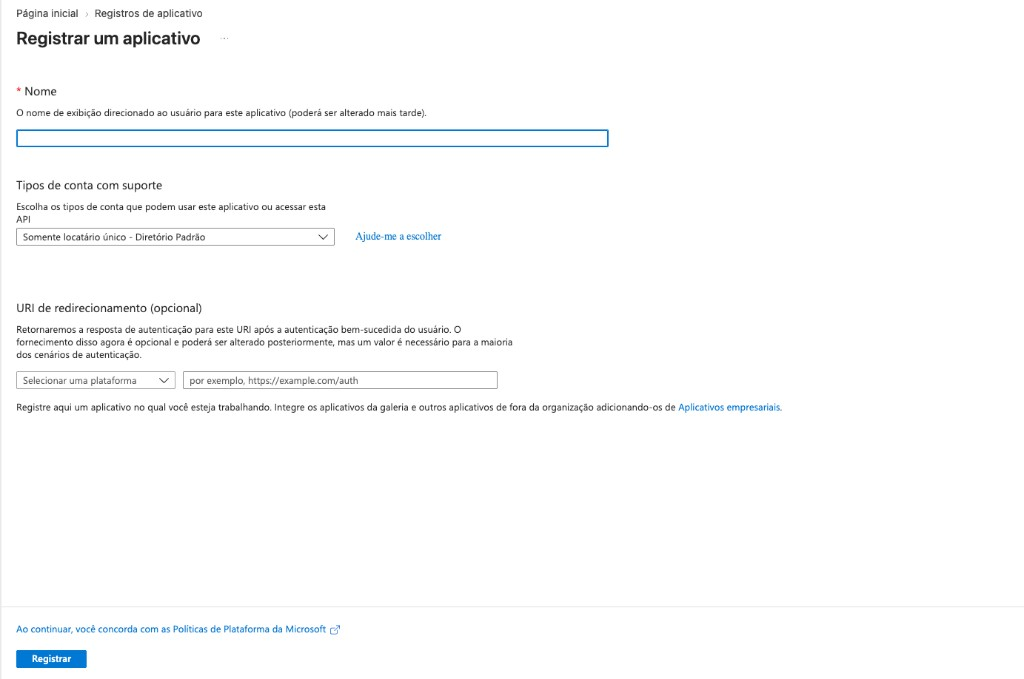
- Open the Microsoft Entra admin center → Identity → Applications → App registrations → New registration.
- Name the application.
- Register the app. A redirect URI is not required for this Conviso flow.
Register an application in Microsoft Entra ID.
A2 – Copy Directory (tenant) ID and Application (client) ID
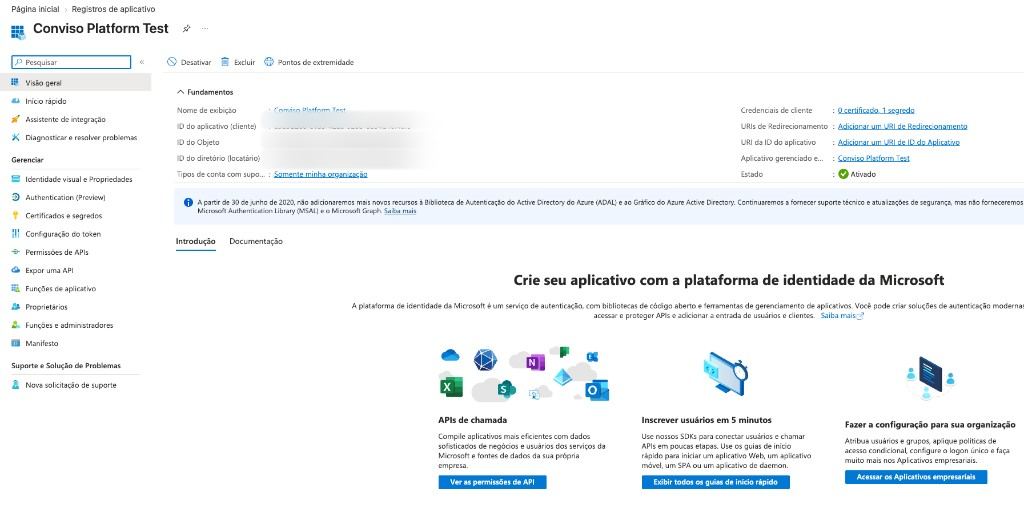
On the app’s Overview page, copy:
- Directory (tenant) ID
- Application (client) ID
These are the values you paste into Conviso on Login.
Overview – copy Directory (tenant) ID and Application (client) ID.
A3 – Create a client secret
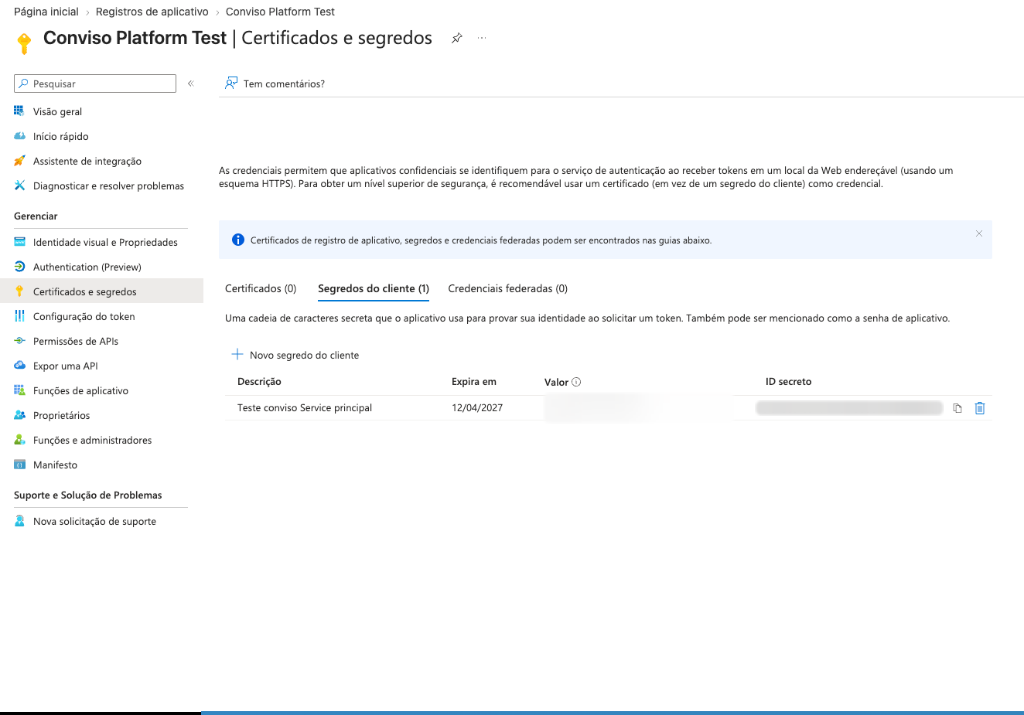
- Open Certificates & secrets → Client secrets → New client secret.
- Create the secret and copy the Value immediately. You cannot view it again later.
In Conviso paste the secret Value, not the Secret ID.
Certificates & secrets – use the Value column, not Secret ID.
Part B – Azure DevOps
The Entra app must be added to every Azure DevOps organization you will enter in Conviso. Conviso cannot add the application for you — Azure DevOps only allows an organization administrator to grant that membership.
For each organization (https://dev.azure.com/{organization}):
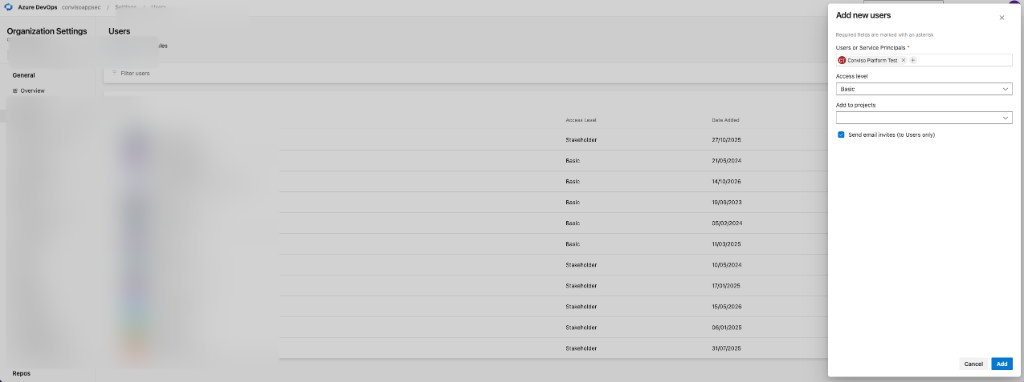
- Open Organization settings → Users → Add users.
- Select the application (service principal) from Entra.
- Set the access level to Basic or Basic + Test Plans. Stakeholder cannot use Azure Repos, so Conviso cannot list or import repositories. Visual Studio subscription benefits do not apply to an application identity — do not assign Visual Studio Subscriber.
- Choose which projects that already exist the application can access (see Project access). All projects adds every project present at that moment. It does not cover projects created later.
- On each project you will import, grant View subscriptions and Edit subscriptions (see Service Hooks). Adding the application to Project Administrators on that project is the default way Microsoft grants both. Project or repository access alone does not.
- Save.
Organization settings → Users → Add new users (service principal).
Use the organization name from the URL ({organization}) in Conviso. You can paste the full https://dev.azure.com/{organization} URL; Conviso extracts the name.
Service Hooks
After you authorize repositories, Conviso calls Azure DevOps _apis/hooks/subscriptions on each project to register Service Hooks for:
- a new repository (
git.repo.created) - a pull request created or updated (PR scans)
- a pull request merged (AST on merge)
Microsoft documents that listing and creating those subscriptions requires View subscriptions and Edit subscriptions. Both default to Project Administrators only. They are project permissions, separate from the organization access level (Basic) and from Contributors / Readers on the repo.
A principal with Basic access and project membership can still pass Conviso Login and import assets. Hook creation then fails without blocking the import, so Project settings → Service hooks stays empty and later PR or merge events never reach Conviso.
On every project you import, do one of the following:
- Add the Entra application to the Project Administrators group, or
- Open Project settings → Permissions, select the application (or a group it belongs to), and set View subscriptions and Edit subscriptions to Allow.
Same requirement as OAuth. How to confirm the Web Hooks exist: Service hook permissions.
Project access (important for new projects)
When you add the application as a user, Azure DevOps asks which projects it may use.
| Choice in Azure DevOps | What it grants |
|---|---|
| All projects | Membership on every project that exists when you save. Azure stores one project entitlement per project id. A project created after that is not included. |
| Specific projects only | Membership only on the projects you pick. Same rule for anything created later. |
A new Azure DevOps project always needs a follow-up, whichever option you used:
- Organization settings → Users → edit the application → add that project.
- On the new project, grant View subscriptions and Edit subscriptions (or add the application to Project Administrators). Project membership alone does not create Service Hooks.
This is an Azure DevOps permission boundary, not a Conviso setting. The repository picker in Authorization only shows projects the service principal is already entitled to.
A new Azure DevOps organization is different: you must run Part B again for that organization (Add users), then type the organization name on Authorization in Conviso.
Part C – Conviso Platform
C1 – Open the integration
- Open Integrations.
- Open Azure DevOps and click Connect (or open an existing integration to reconnect).
C2 – Login
- Under Authentication, select Service Principal.
- Fill in Directory (tenant) ID, Application (client) ID, and Client secret value.
- Click Connect to Azure DevOps.
Login – Service Principal credentials.
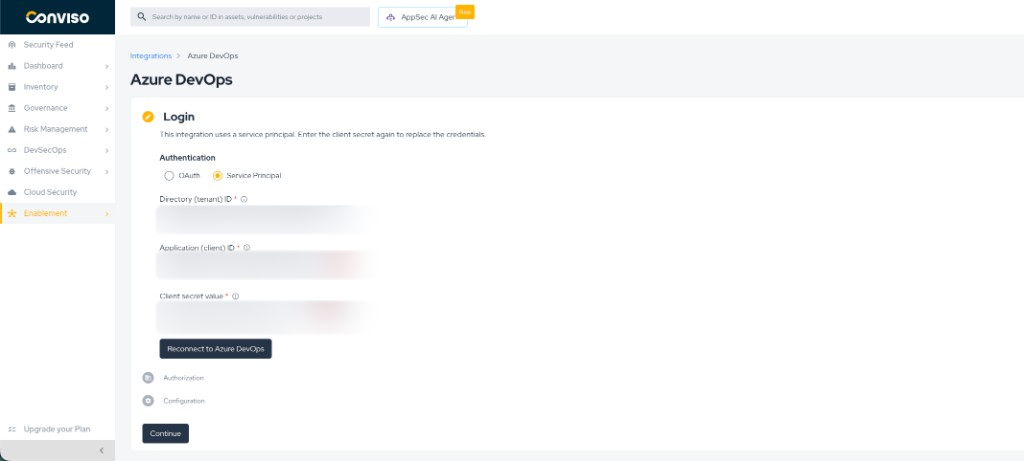
On success, Conviso moves to Authorization.
If the company already had an Azure DevOps integration (for example OAuth) and you connect with a service principal, Conviso keeps only the organizations already stored that this principal can still access. Review the list on Authorization.
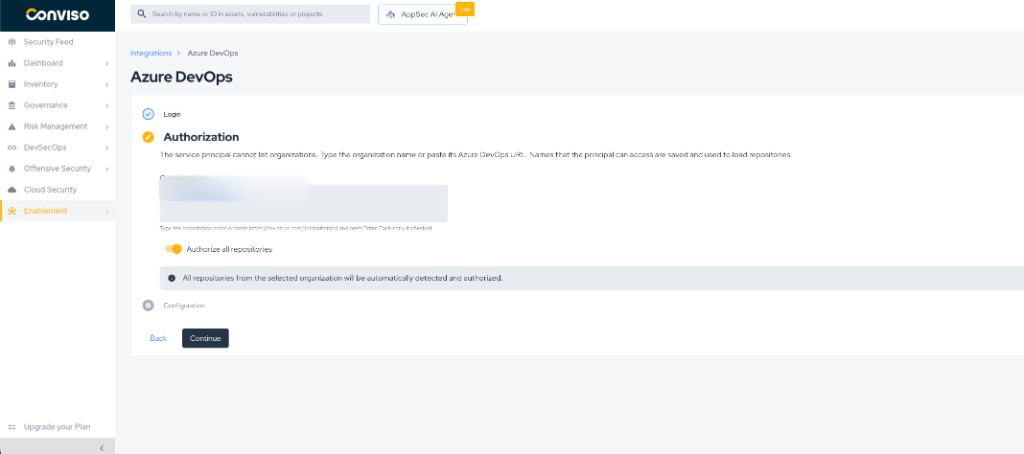
C3 – Authorization
- In Organizations, type the organization name or paste its Azure DevOps URL and press Enter.
- Conviso verifies each name. Accepted names are saved; a name the principal cannot access stays on the field with an error.
- Choose Authorize all repositories or select specific repositories. If a repository or project is missing from the list, the application usually does not have access to that Azure DevOps project yet — fix project access in Part B, then open the repository select again.
- Click Continue. Conviso then imports assets and attempts to create Service Hooks on each project. If the application is not a Project Administrator (or lacks Edit/View subscriptions), the import can succeed while no hooks appear in Azure.
Authorization – type organization names (chips).
C4 – Configuration
On Configuration you can review imported assets, use Check connection, and Remove integration.
Check connection renews the application token with Entra and checks each configured organization. It fails if no organizations are configured.
Rotating the client secret
- In Entra, create a new client secret and copy the Value.
- In Conviso, open the Azure DevOps integration → Login → Service Principal.
- Paste the new secret (and the same tenant ID and client ID if needed) and connect again.
- Confirm the organizations on Authorization, then use Check connection if you want to verify.
Troubleshooting
| Problem | What to do |
|---|---|
| Connect fails / credentials rejected | Check tenant ID, client ID, and the secret Value (not Secret ID). Confirm the secret has not expired and the app is in the correct tenant. |
| Organization access denied when adding a name | Add the service principal to that Azure DevOps organization (Part B) and ensure it can access the organization, then try again. |
| New Azure DevOps project / repos missing in Conviso | The application has no entitlement on that project yet, including when All projects was chosen before the project existed. Edit the application under Organization settings → Users, add the project, and grant View subscriptions / Edit subscriptions on it. Conviso cannot grant that access. |
| Assets imported, but no PR scan, merge AST, or new-repo import — and Service hooks is empty | Hook creation failed silently. The application has project access but not View subscriptions and Edit subscriptions. Add it to Project Administrators (or set both to Allow) on that project, then re-import so Conviso can register the subscriptions. See Service Hooks. |
| No organization dropdown | Expected for Service Principal. Type the organization names instead. |
| Check connection fails with no organizations | Add at least one organization on Authorization. |
| After switching from OAuth, organizations disappeared | Those names were not accessible with the new principal and were removed. Fix membership in Azure DevOps, then add the names again on Authorization. |
Related guides
Contribute to the Docs
Found something outdated or missing? Help us improve the documentation with a quick suggestion or edit.
How to contributeResources
By exploring our content, you'll find resources that will enhance your understanding of the importance of a Security Application Program.
Conviso Blog: Explore our blog, which offers a collection of articles and posts covering a wide range of AppSec topics. The content on the blog is primarily in English.
Conviso's YouTube Channel: Access a wealth of informative videos covering various topics related to AppSec. Please note that the content is primarily in Portuguese.