
GitLab Integration
The Conviso Platform integration with GitLab connects your GitLab namespaces (personal projects and/or groups) to the platform. Once connected, you can import repositories as assets and enable automated security scanning on merge requests and after merges.
Setup has three steps: Login (OAuth with GitLab), Authorization (select scopes and repositories), and Configuration (manage assets and scan toggles).
This guide covers the Application Lifecycle Management (ALM) integration (GitLab / repository manager).
For running Conviso AST directly inside a project’s own .gitlab-ci.yml, see the GitLab CI/CD pipeline guide.
Objective
By the end of this guide, you will have:
- Connected a GitLab account to Conviso Platform via OAuth.
- Authorized personal projects and/or groups and imported repositories as assets.
- Understood how to enable Scans on merge requests and AST scans on merge.
Prerequisites
- This integration is supported only for GitLab.com; for GitLab Self-Managed (self-hosted) instances, use the GitLab CI/CD integration instead.
- A GitLab account with access to the projects/groups you want to connect (Maintainer or Owner recommended for webhook creation).
- Permission to authorize the Conviso Platform OAuth application on the GitLab consent screen.
- Your Conviso Platform company has the GitLab ALM integration available.
OAuth permissions (why api)
GitLab OAuth does not provide a narrow “write webhooks / commit status only” scope. Write operations required by this integration use the GitLab REST API and therefore need the api scope.
| Need | GitLab API usage | Required OAuth scope |
|---|---|---|
| List user, groups, projects | GET /user, groups, projects | Covered by api (or read_api alone for read) |
| Create/delete project & group webhooks | Project/group hooks API | api (write) |
| Commit status on MR commits | Commit statuses API | api (write) |
| Comments on merge requests | MR notes API | api (write) |
| Trigger orchestrator pipeline | Pipelines API | api (write) |
read_api alone is not enough: webhooks, commit statuses, MR notes, and pipeline triggers would fail.
The Conviso OAuth application requests only what GitLab exposes for these operations today: api. We do not request unrelated scopes (e.g. registry, sudo, runner management).
If your organization restricts OAuth apps, an administrator may need to approve the Conviso application. After reconnecting, existing tokens keep their scopes until users re-authorize.
Steps
Step 1 – Open the GitLab integration
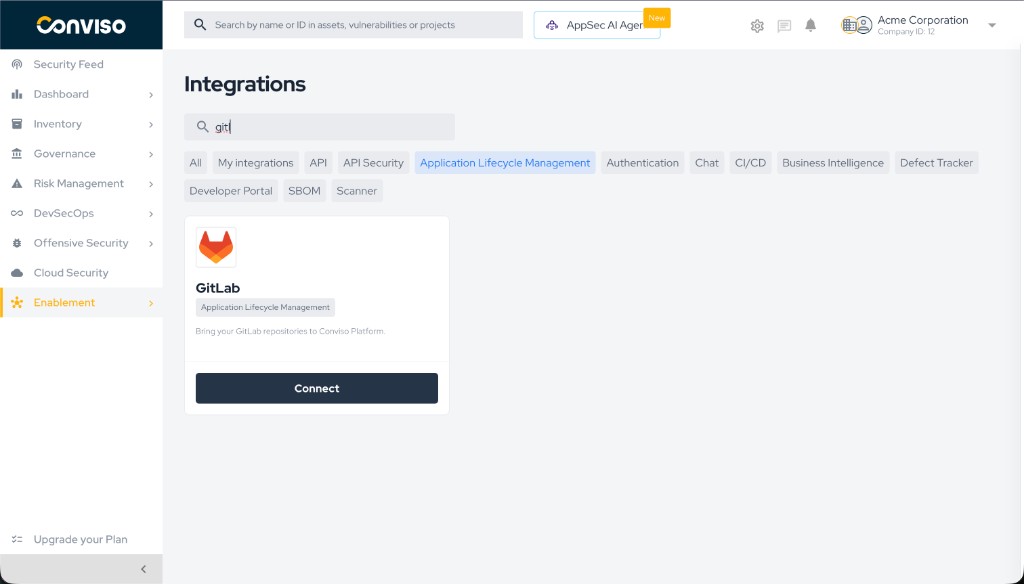
- In Conviso Platform, go to Integrations.
- Filter by Application Lifecycle Management if needed.
- Find the GitLab card (repository manager) and click Connect.
Step 1: Integrations page with the GitLab card and Connect button.
Step 2 – Connect to GitLab (Login)
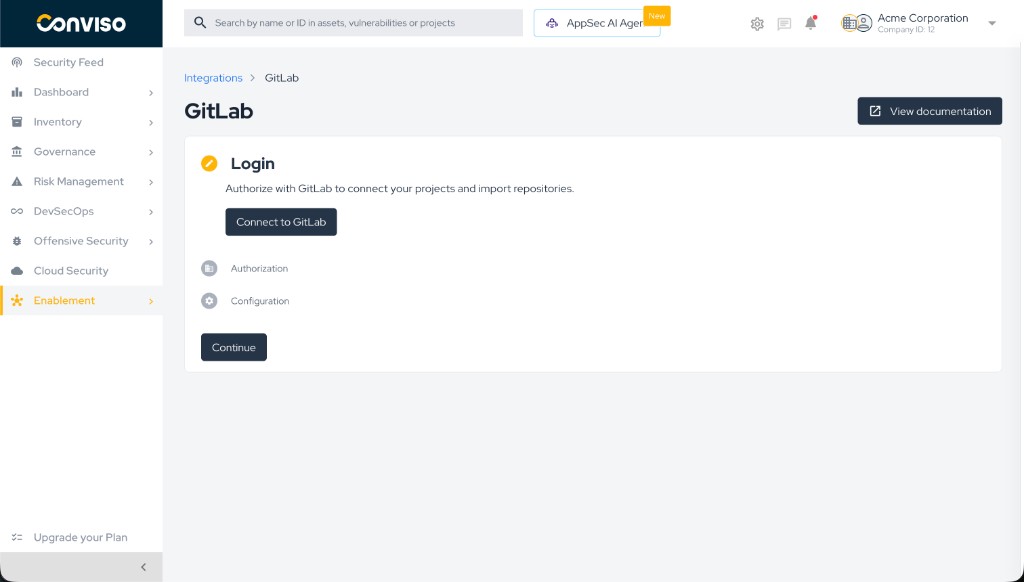
- On the Login step, click Connect to GitLab.
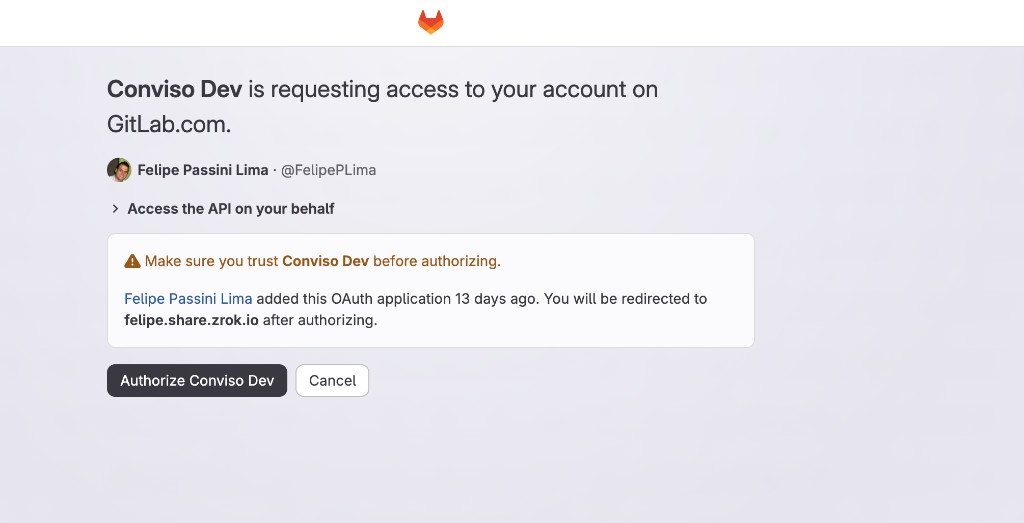
- Sign in to GitLab if prompted and review the permissions (OAuth scope
api). - Click Authorize / Accept.
- You are redirected back to Conviso Platform and moved to Authorization.
Step 2: Login step with Connect to GitLab.
You are redirected to GitLab’s OAuth consent screen. Review the requested permission (Access the API on your behalf / scope api) and click Authorize.
GitLab OAuth consent – authorize the Conviso application.
Step 3 – Authorize scopes and import repositories
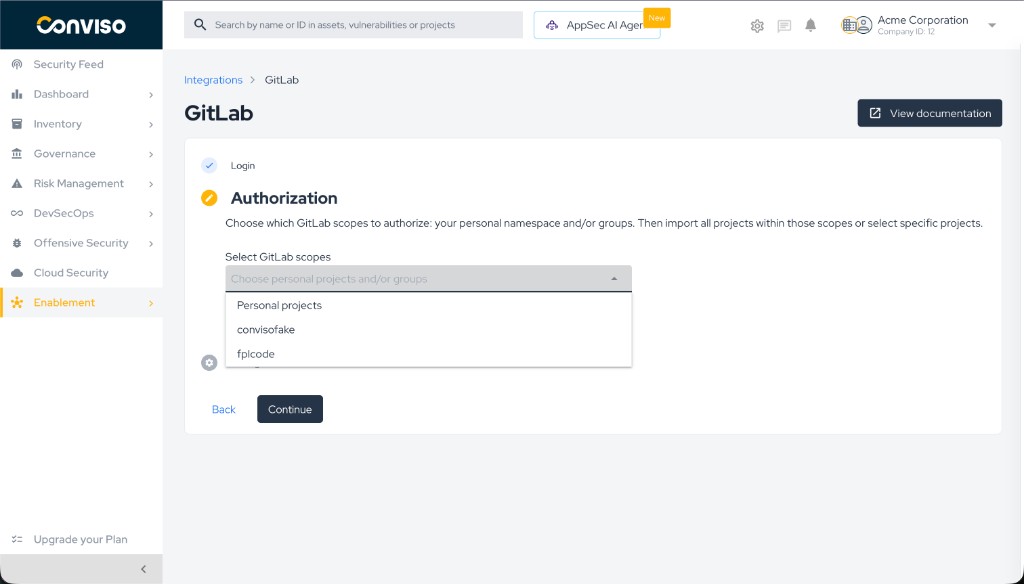
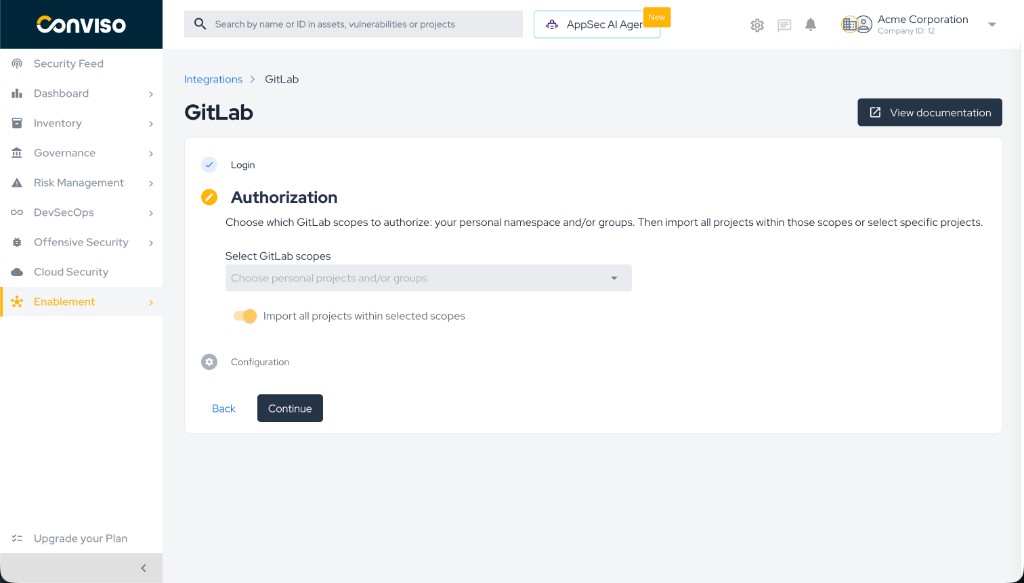
- In Select GitLab scopes, choose:
- Personal projects (your personal namespace), and/or
- One or more groups.
- Choose how to import repositories:
- Import all projects within selected scopes (on): import everything under those scopes and keep discovery for new projects when webhooks allow it.
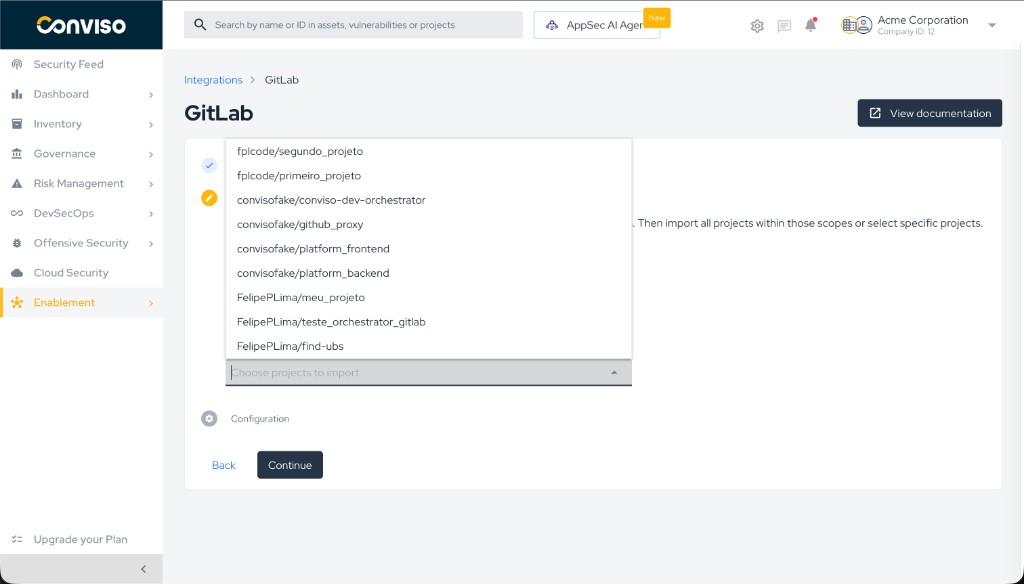
- Toggle off to select specific projects from the dropdown.
- Click Continue. Import runs in the background; assets appear on Configuration shortly after.
Step 3: Select GitLab scopes (Personal projects and/or groups).
Step 3b: Import all projects within selected scopes.
If you turn Import all… off, pick repositories manually:
Step 3c: Choose specific projects to import.
If you see a warning about group webhooks after import, configuration still succeeded, but auto-discovery of new repositories in those groups may be limited until hooks are fixed (permissions / secret / network).
Step 4 – Configuration
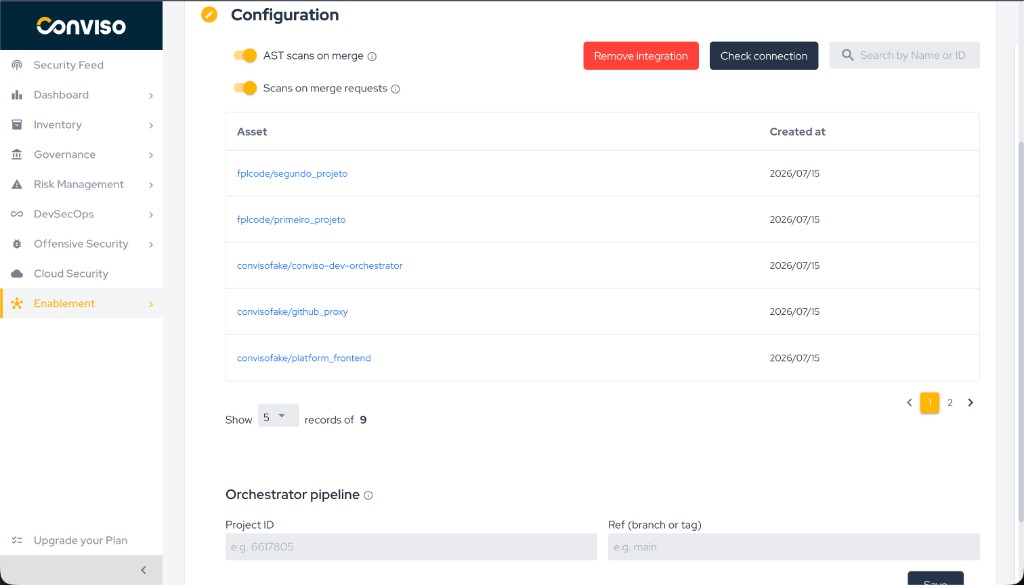
On Configuration you can:
- Browse imported assets (search by name or ID).
- Enable Scans on merge requests (differential scan when an MR is opened/updated).
- Enable AST scans on merge and set the Orchestrator project ID + ref (see GitLab AST Orchestrator).
- Use Check connection or Remove integration.
Step 4: Configuration – assets, scan toggles, and orchestrator fields.
Authorize all projects – how new repos are included
If Import all projects within selected scopes is on:
- Group scopes: Conviso creates group webhooks (
project_events/ merge request events as configured). New projects under those groups can be auto-imported when GitLab notifies the platform. - Personal projects: There is no group webhook for personal namespaces; Conviso uses a scheduled sync (similar pattern to other ALMs) when personal scope + import-all are enabled.
If you selected specific projects only, only those repositories are imported; new ones are not auto-added.
Scans on merge requests
Scans on merge requests give security feedback when a GitLab merge request is opened or updated. The scan runs in an environment managed by Conviso — no .gitlab-ci.yml is required in the target repository.
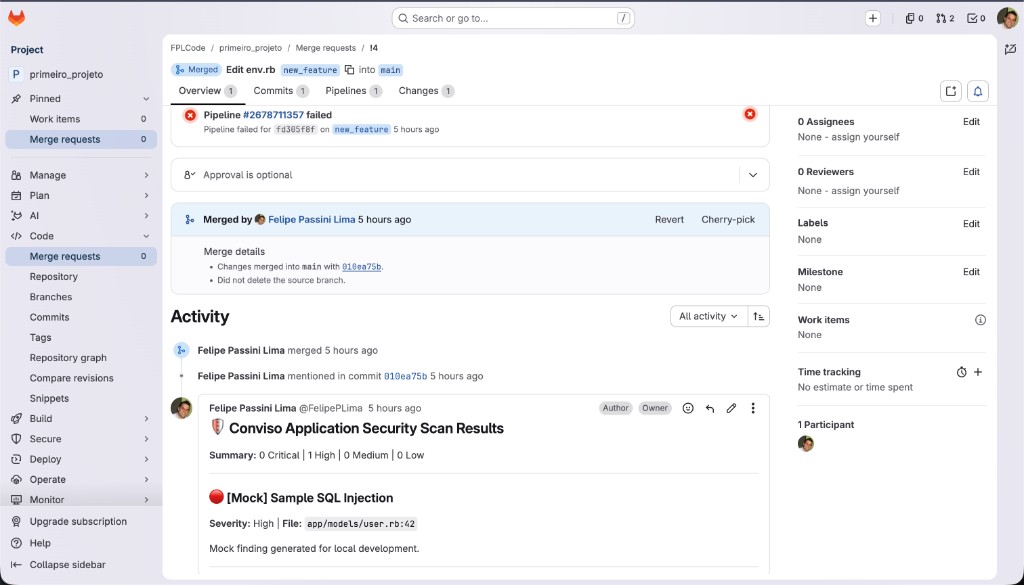
Findings are reflected as commit status and, when applicable, an MR note so developers see results in the merge request.
Enabling MR scans
- Open Integrations → GitLab → Configuration.
- Turn Scans on merge requests on.
- Ensure the relevant assets remain active in the assets table.
- Open or update a merge request in an imported project to validate.
Changes apply to new MR events (open/update/reopen). Existing MRs update on the next push/sync event.
How it works
- GitLab sends a Merge request webhook to Conviso.
- Conviso enqueues a differential scan for the head commit.
- Results are reported back to the merge request (status / notes).
Example – feedback on the merge request
After the scan finishes, Conviso can post an MR note with a summary of findings:
AST Orchestrator (on merge)
For full AST after merge via a central GitLab CI project (Project ID, ref, CONVISO_API_KEY, clone token), see the dedicated guide:
Configure the GitLab AST Orchestrator
Validation
| Step | Expected result |
|---|---|
| Login | OAuth completes; Authorization step unlocks |
| Authorization | Import starts; Configuration shows assets |
| MR scans | Opening an MR shows Conviso commit status / feedback |
| AST on merge | Merge into the configured branch triggers the orchestrator pipeline |
Troubleshooting
| Problem | What to do |
|---|---|
| GitLab OAuth is not configured | Platform missing OAUTH_GITLAB_CLIENT_ID / SECRET / REDIRECT_URI. Contact your administrator. |
| Invalid or expired OAuth state | Restart Connect to GitLab without editing the callback URL. |
| No groups / projects in the dropdown | Confirm OAuth succeeded and your user can see those groups in GitLab. Reconnect if needed. |
| Import finished but assets missing | Wait and refresh Configuration (async import). Use Check connection. |
| No feedback on the MR | Confirm Scans on merge requests is on, asset active, and the project webhook includes Merge request events. |
| Webhook delivery failing | Check GitLab Settings → Webhooks recent deliveries; ensure Conviso callback URL is reachable from GitLab. |
| MR scan / AST not triggering | Confirm toggles, asset active, webhooks on the target project, and reachable APP_URL + webhook secret. |
| Orchestrator: Insufficient permissions to set pipeline variables | On the orchestrator project: CI/CD settings → allow Developer/Maintainer to set pipeline variables; user must have that role. |
Support
Contact Conviso support if you need help with the GitLab ALM integration.
Related guides
Contribute to the Docs
Found something outdated or missing? Help us improve the documentation with a quick suggestion or edit.
How to contributeResources
By exploring our content, you'll find resources that will enhance your understanding of the importance of a Security Application Program.
Conviso Blog: Explore our blog, which offers a collection of articles and posts covering a wide range of AppSec topics. The content on the blog is primarily in English.
Conviso's YouTube Channel: Access a wealth of informative videos covering various topics related to AppSec. Please note that the content is primarily in Portuguese.