Jira Requirements Integration

Introduction
Jira Requirements is the Jira provider for Requirements Sync. It synchronizes Conviso Platform projects, requirements, and activities with Jira issues, so development teams can follow Secure by Design work directly in their existing backlog.
While the standard Jira Integration focuses on vulnerability management, Jira Requirements focuses on your project's requirements and activities.
With Jira Requirements enabled, Conviso Platform creates and updates Jira issues using the following hierarchy:
| Conviso Platform entity | Jira issue type |
|---|---|
| Project | Epic |
| Requirement | Story |
| Activity | Sub-task |
This produces a clear backlog structure in Jira: one Epic for the Conviso project, a Story for each requirement, and a Sub-task for each activity. Stories are linked to their Epic and Sub-tasks to their Story using the Jira parent relationship. This is the default Hierarchical sync mode; see Sync modes for the alternative.
Sync Modes
Jira Requirements supports two sync modes, chosen per configuration:
| Sync mode | How issues are created | When to use it |
|---|---|---|
| Hierarchical (default) | Project, Requirement, and Activity become an Epic, Story, and Sub-task, linked through the Jira parent relationship. | Jira projects that provide the Epic, Story, and Sub-task hierarchy levels (most company-managed software projects). |
| Metadata | Project, Requirement, and Activity are each created as independent top-level issues (no parent). Their relationship is preserved through reference labels. | Jira projects that do not offer an Epic and/or Sub-task level, such as Jira Service Management or team-managed projects. |
In both modes, Conviso Platform stays the source of truth, status mapping works the same way across the three entity types, and correlation is canonical through the Conviso entity id. The difference is only how the three issues relate to each other in Jira: parent links (Hierarchical) versus reference labels (Metadata).
The sync mode is defined per configuration and cannot be changed after the configuration has created issues in Jira. Choose the mode that matches the target Jira project before the first sync. To switch modes, remove the integration and configure it again.
Each configuration shows its mode in the Sync type column of the configuration list:
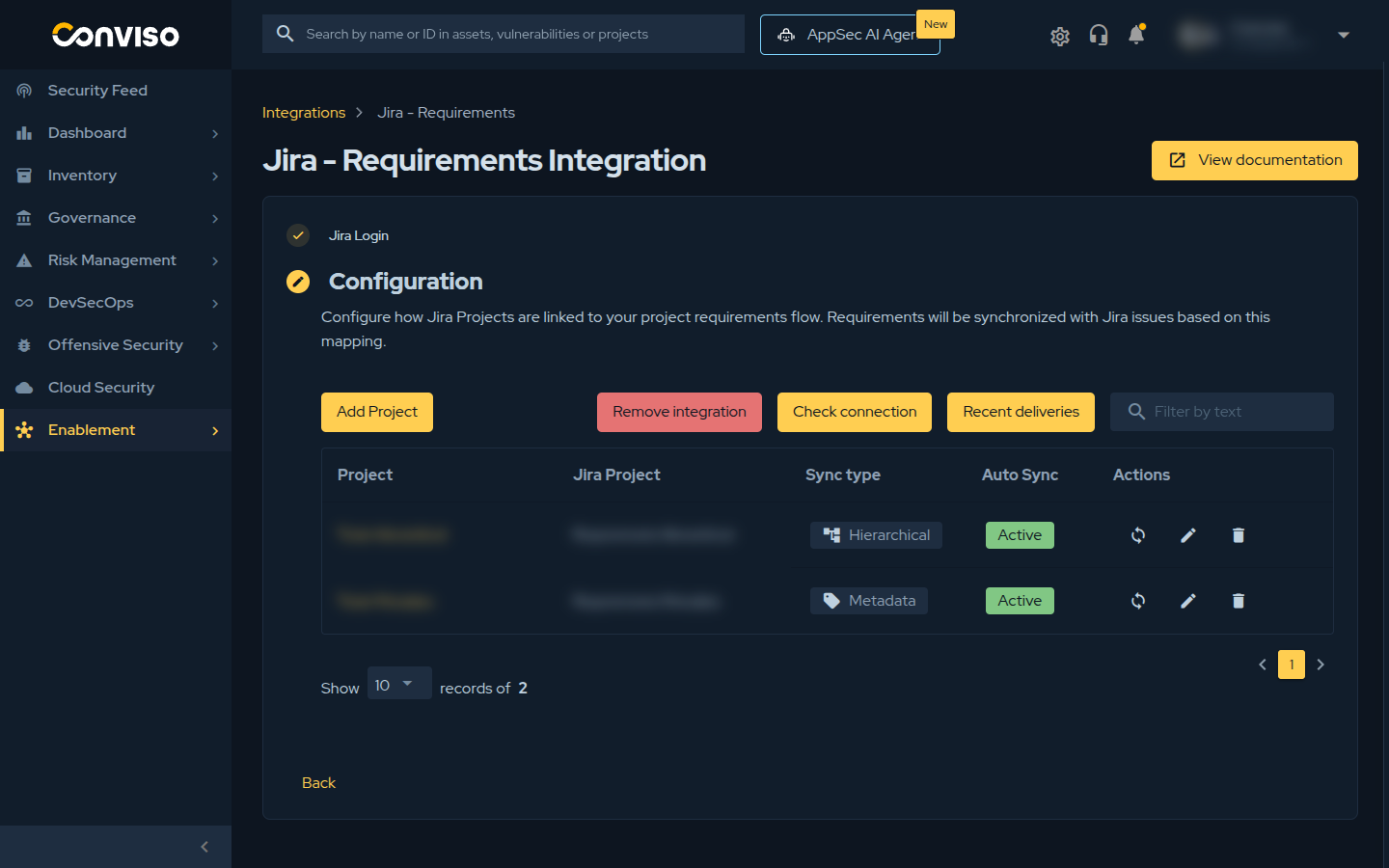
Key Concepts
Before configuring the integration, it helps to understand how Conviso Platform and Jira share responsibilities.
- Conviso Platform remains the source of truth for security requirements, activities, evidence, and Secure by Design governance.
- Jira becomes the execution workspace where development teams follow and update the work in their existing backlog.
- Status mappings define how Conviso Platform statuses and Jira workflow statuses communicate with each other, per entity type (project, requirement, and activity).
- Automatic synchronization controls whether changes in Conviso Platform are automatically sent to Jira.
- Manual sync creates or refreshes the Jira hierarchy on demand.
The integration works in both directions:
| Direction | What happens |
|---|---|
| Conviso Platform to Jira | Projects, requirements, and activities are created or updated as Epic, Story, and Sub-task issues, and their statuses are transitioned according to the mapping. |
| Jira to Conviso Platform | Jira status changes are received through webhooks and applied to the mapped Conviso entity when a valid status mapping exists. |
Jira workflow movement does not replace the security governance defined in Conviso Platform. Statuses are synchronized according to the configured mapping, but requirements and activities should still be reviewed in Conviso Platform according to your internal AppSec process.
Prerequisites
To configure Jira Requirements, you need:
- A user with permission to manage integrations in Conviso Platform.
- A Jira Cloud account with permission to authorize the Conviso Platform application.
- Permission in Jira to create and update issues in the target Jira project.
- A Jira project whose issue types match your chosen sync mode: Hierarchical requires issue types at the Epic, Story, and Sub-task hierarchy levels, while Metadata has no hierarchy requirement (any non-sub-task issue types work, since all three entities are created as top-level issues).
- A Conviso Platform project that already has requirements and activities.
If your organization already uses Jira for vulnerability synchronization, you can keep that integration. When the Jira vulnerability integration and Jira Requirements use the same Jira Cloud instance, Conviso Platform routes incoming webhooks to the correct flow so both can coexist.
Usage
To configure Jira Requirements, follow these steps:
1 - Connect the Jira Requirements integration
4 - Enable automatic sync or run a manual sync
5 - Monitor synchronized issues
Connect the Jira Requirements Integration
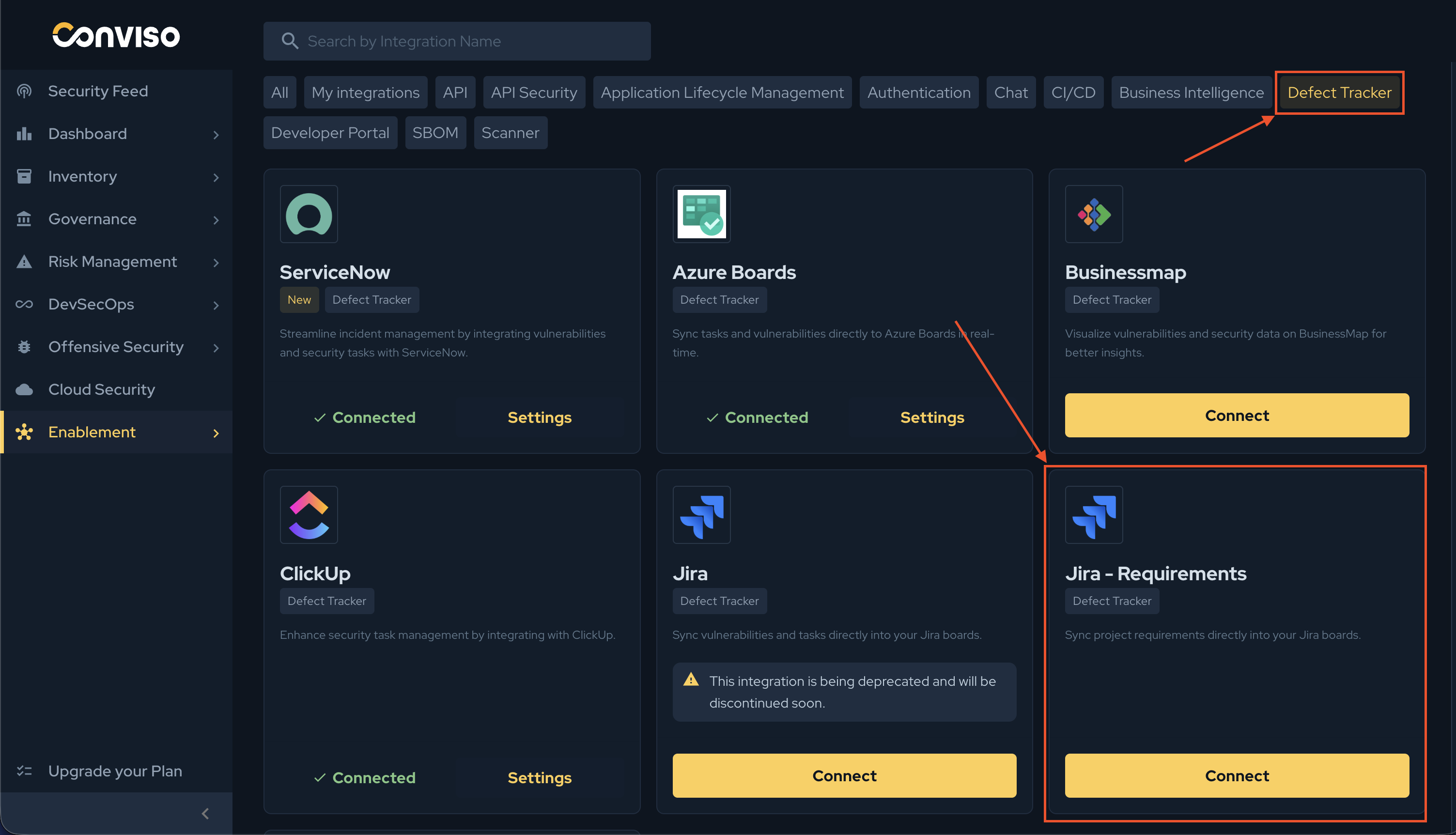
Step 1 - Access the Conviso Platform, look for Integrations on the left-side menu, select the Defect Tracker category, and click the Connect button on the Jira - Requirements card:
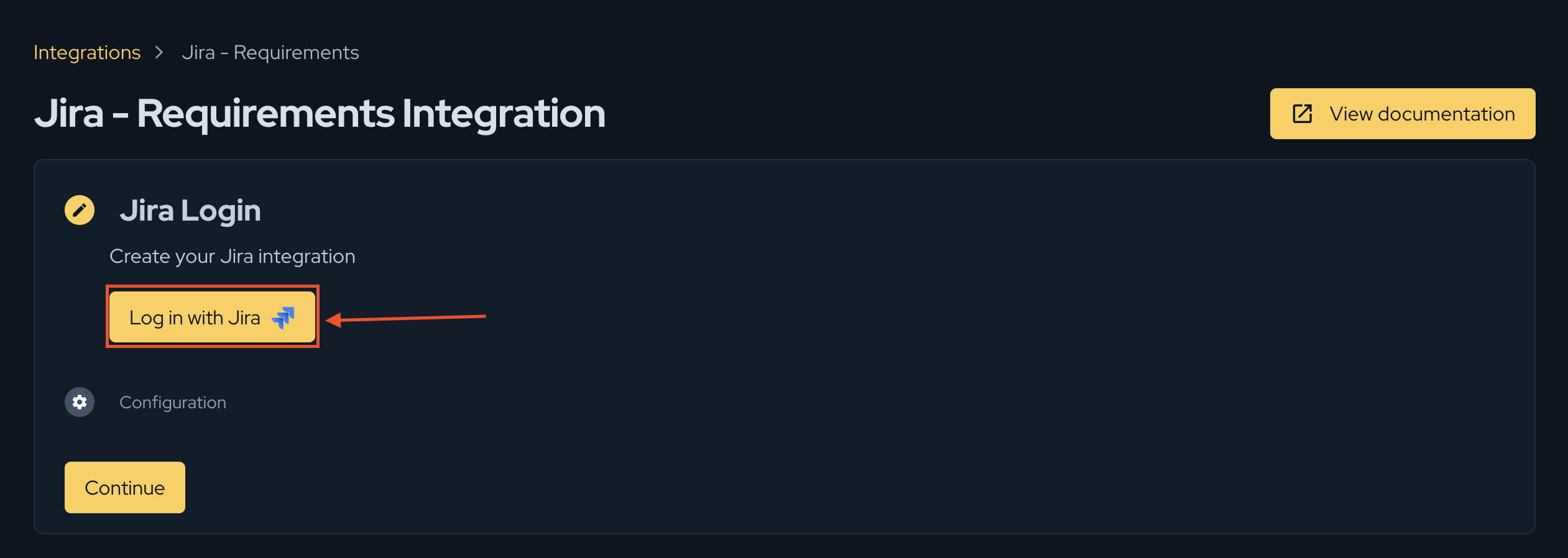
Step 2 - On the Jira Login step, click Log in with Jira to authenticate:
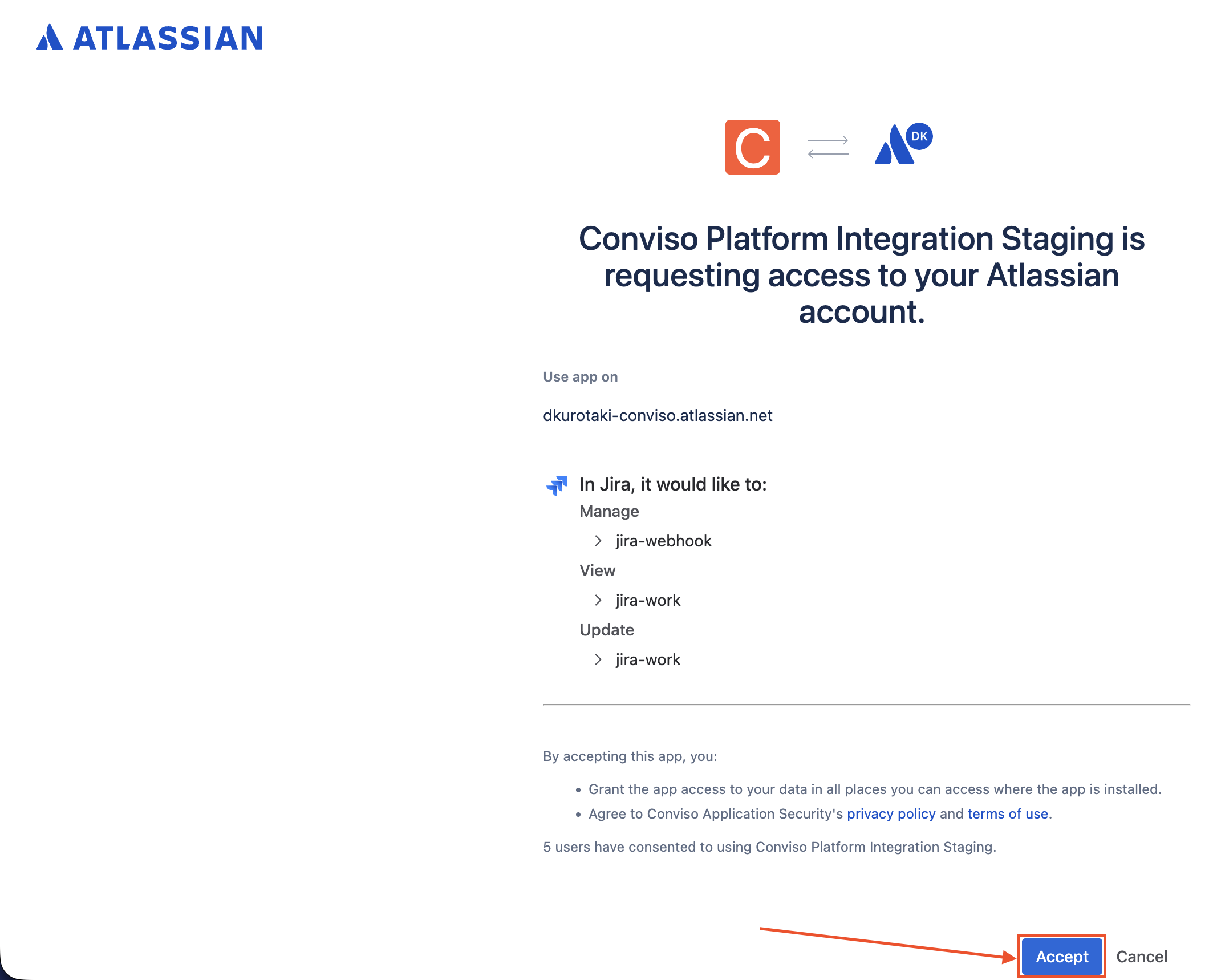
Step 3 - Grant the requested permissions on the Jira authorization screen so the Conviso Platform application can create and update issues, then return to Conviso Platform:
After authenticating, you land on the Configuration step, where you can create one or more configurations between Conviso projects and Jira projects.
Add a Configuration
A configuration defines which Conviso project is synchronized, where its issues are created in Jira, and which Jira issue types represent each level of the hierarchy.
Step 1 - On the Configuration step, click Add Project:
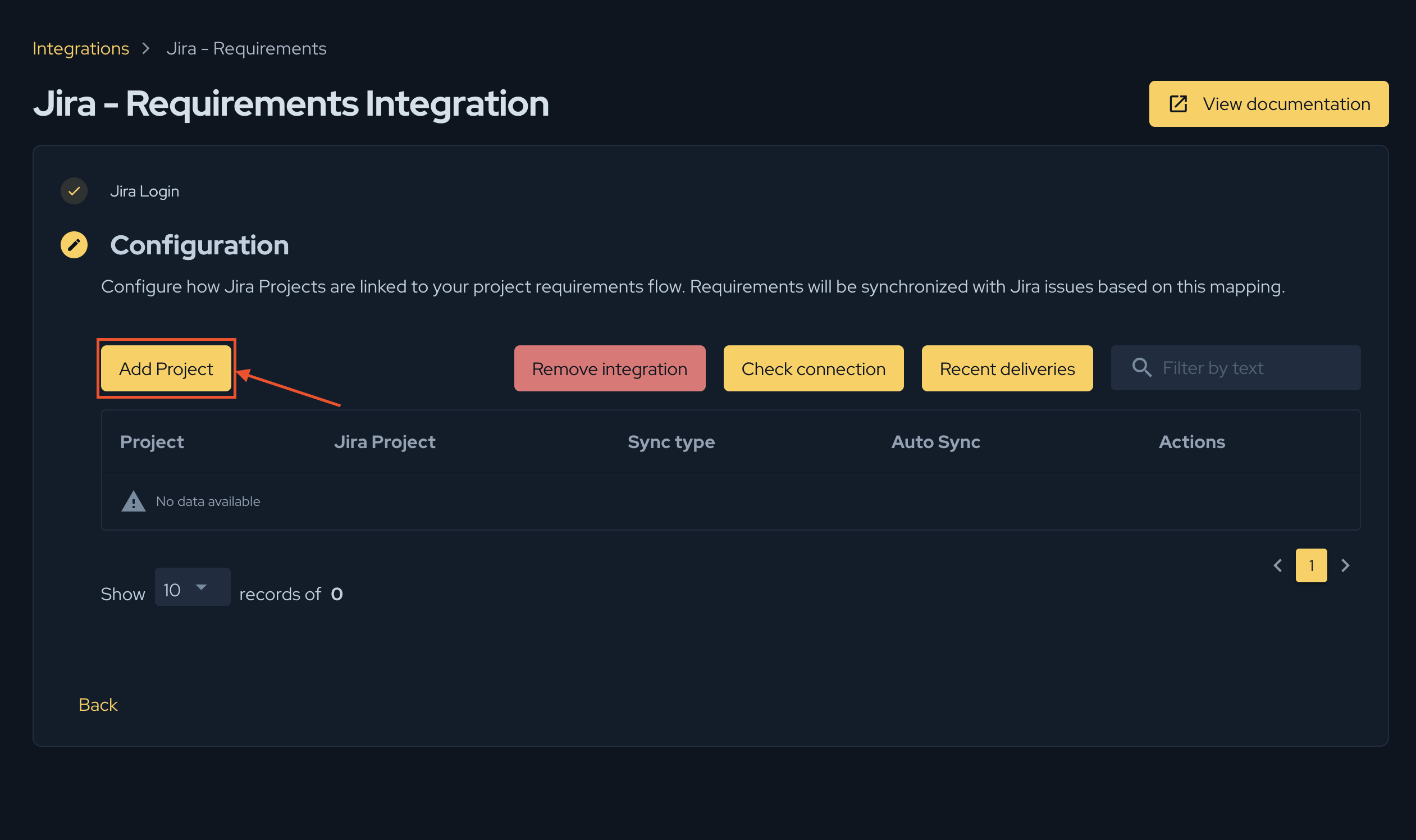
The Add new Project dialog opens a four-step wizard: Project, Project Status Mapping, Requirement Status Mapping, and Activity Status Mapping.
Step 2 - On the Project step, fill in:
| Field | Description |
|---|---|
| Project | One or more Conviso Platform projects whose requirements will be synchronized. |
| Jira Project | The target Jira project where the issues will be created. |
| Automatic synchronization | Toggle that enables Auto Sync for this configuration (enabled by default). |
| Sync mode | Whether issues are created as a Hierarchical Epic/Story/Sub-task tree or as flat Metadata cards (see Sync modes). |
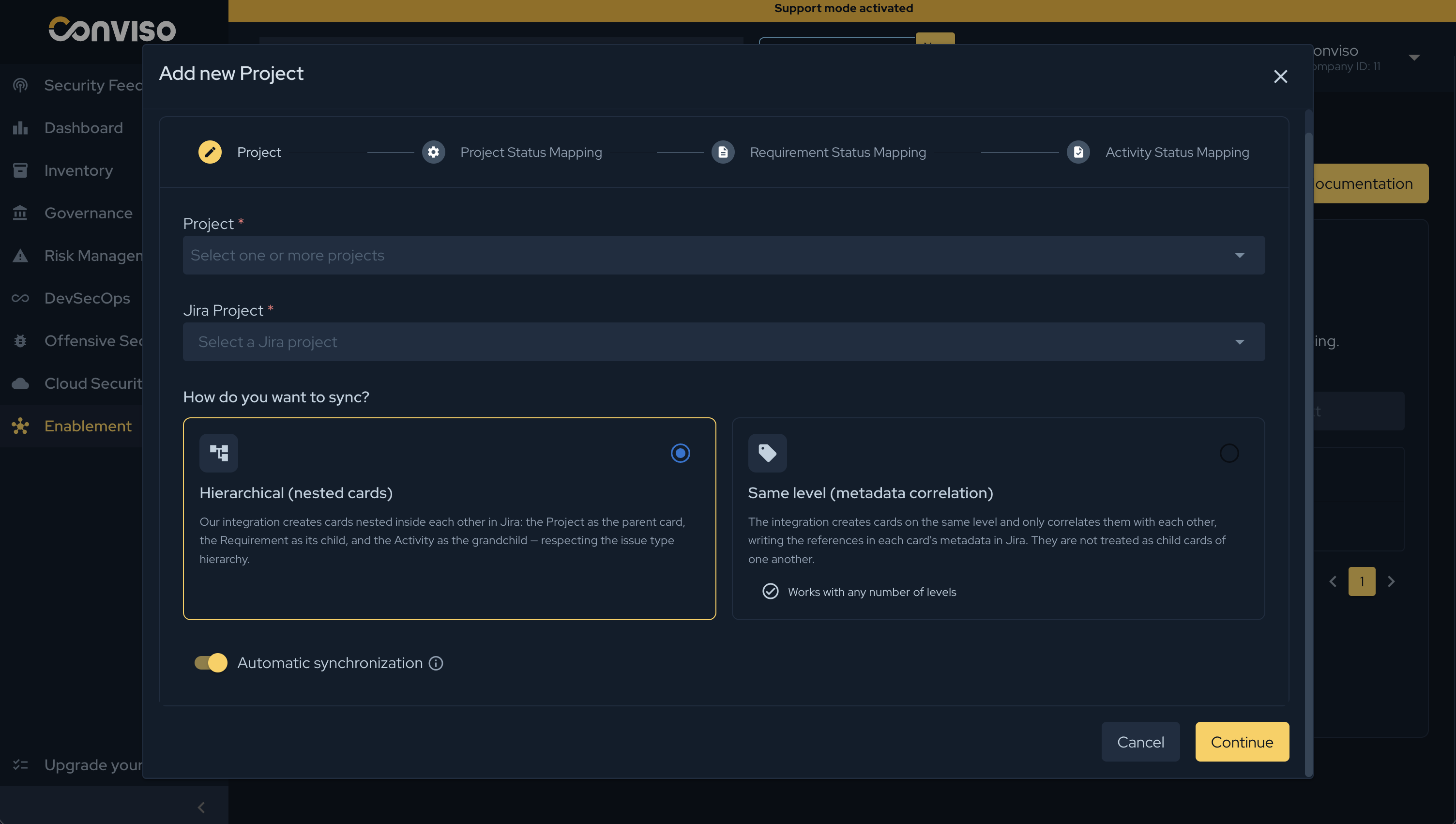
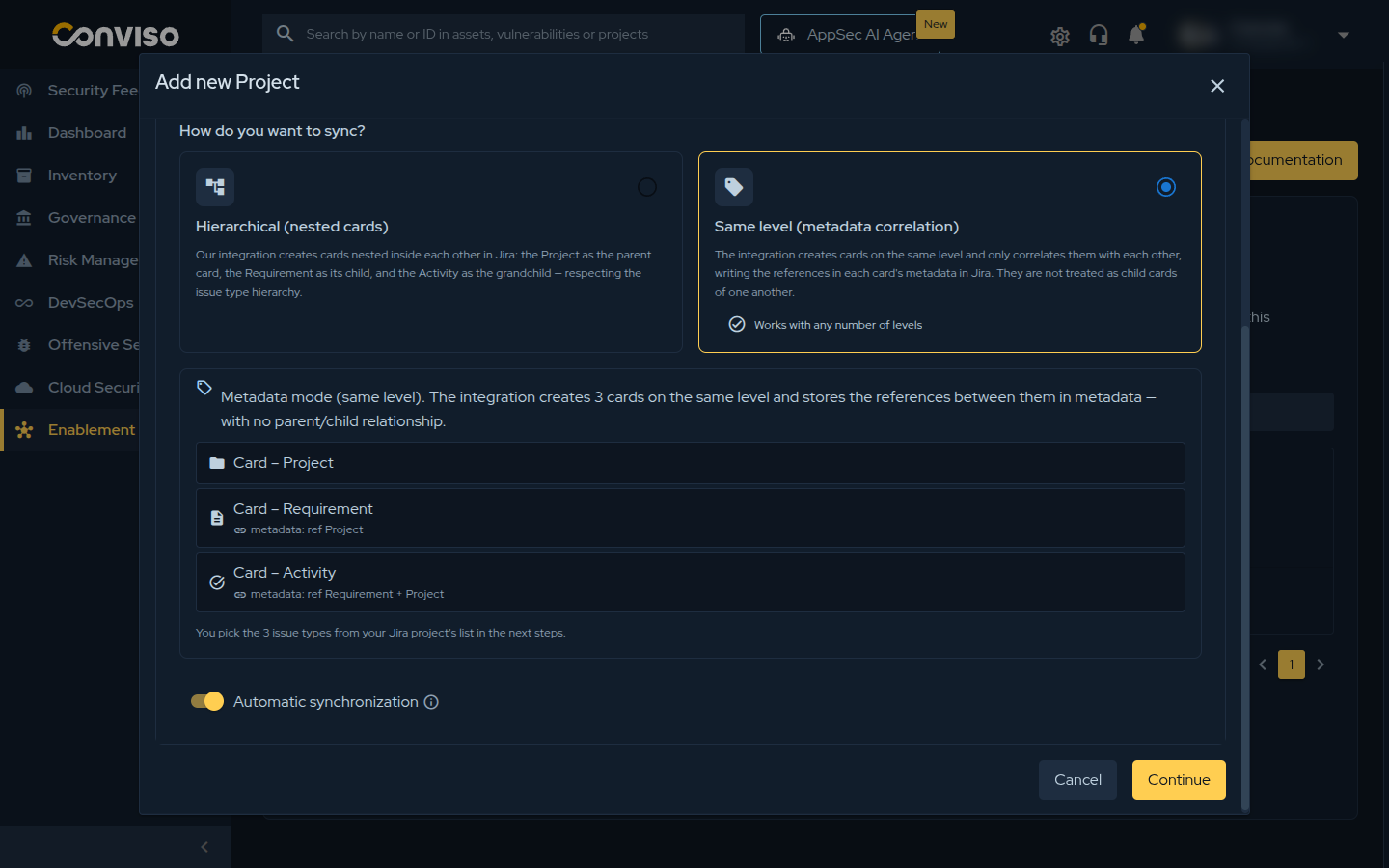
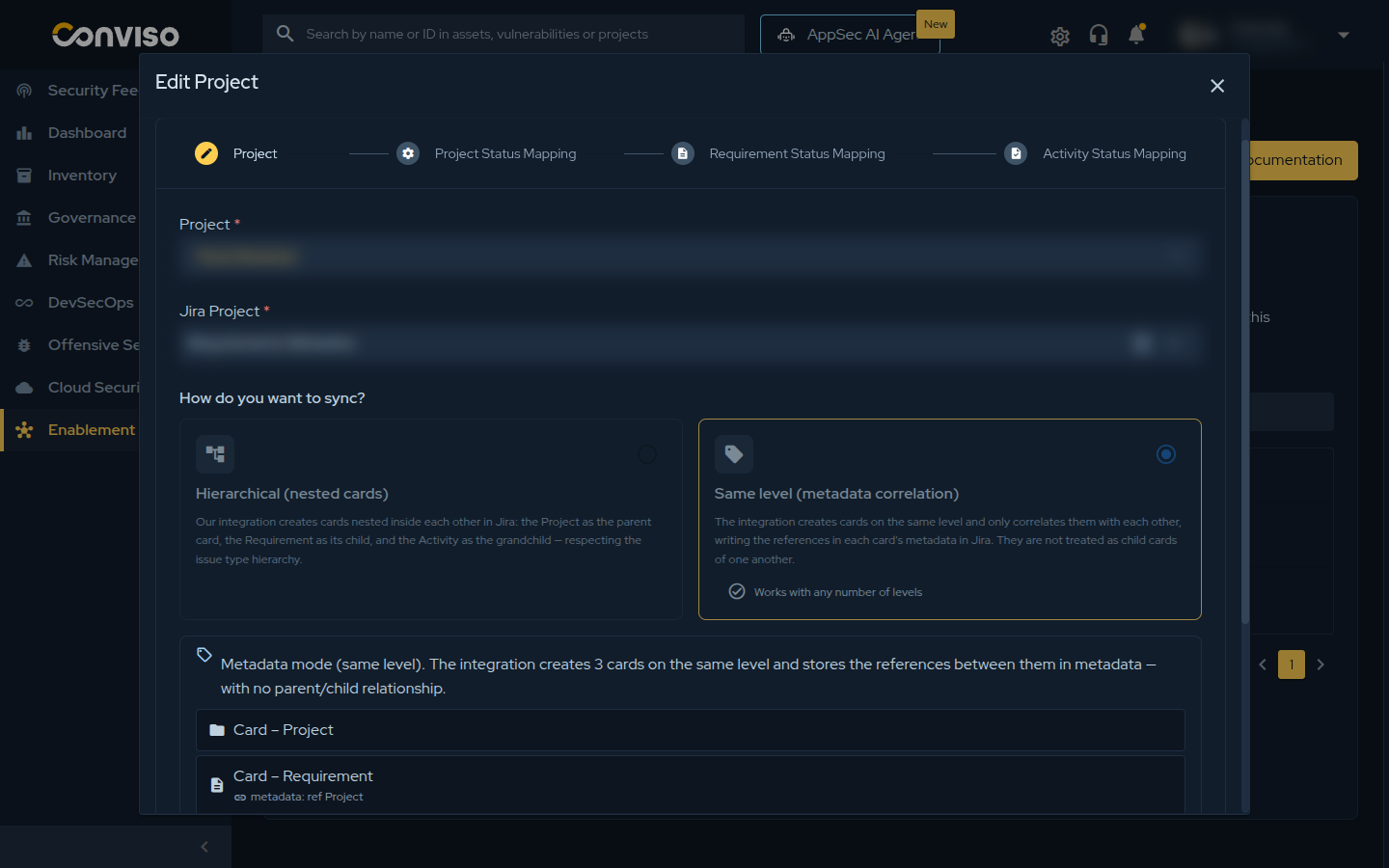
When choosing the Sync mode:
- Select Hierarchical or Metadata according to the target Jira project.
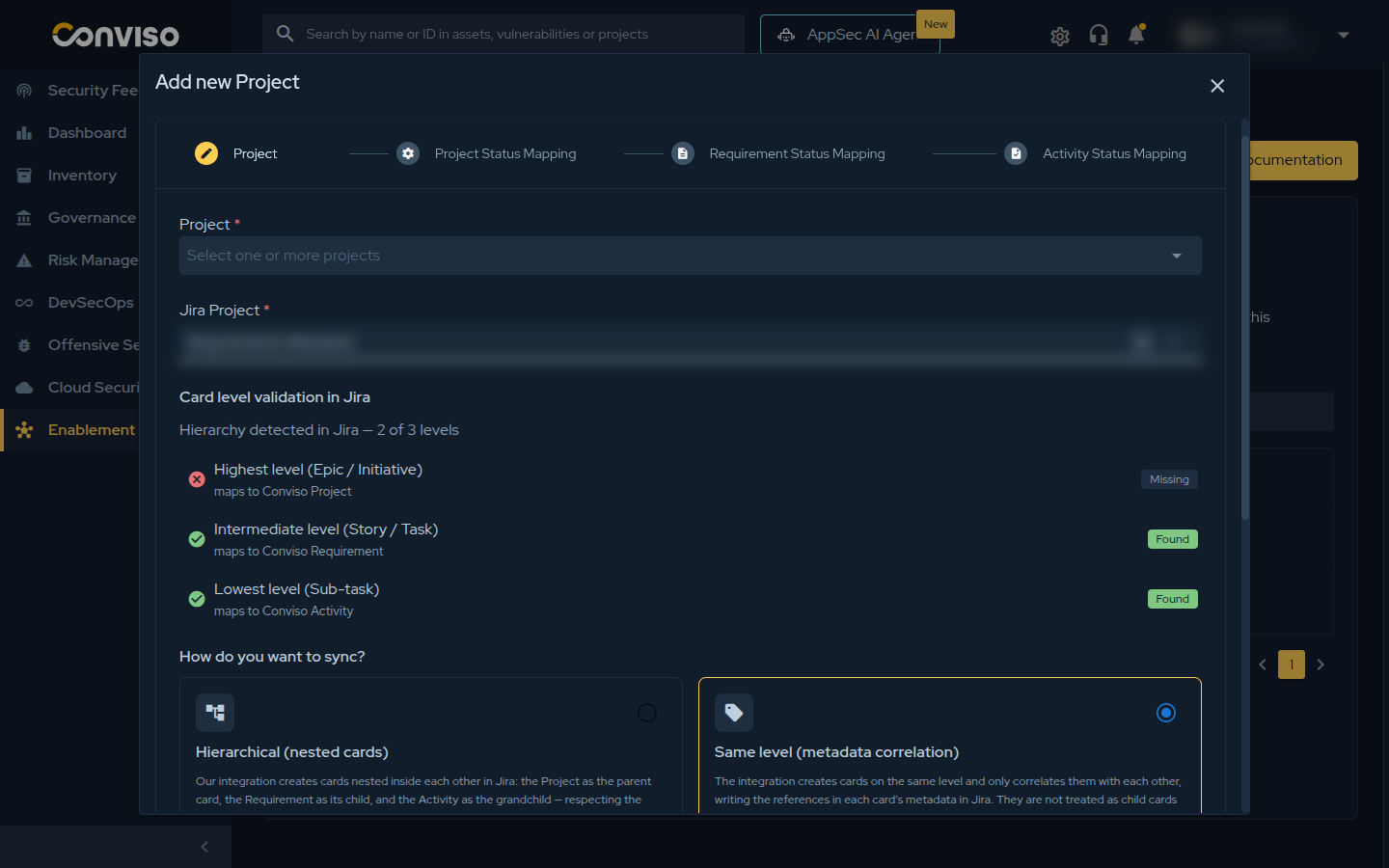
- When you pick a Jira project, Conviso Platform inspects its issue-type levels and recommends a mode — for example, it recommends Metadata when the project has no Epic level. The recommendation is advisory; you can override it.
- In Metadata mode, the issue-type options for each mapping step exclude sub-task types, because a top-level card cannot use a sub-task issue type.
When you pick a Jira project, Conviso Platform detects its issue-type levels and recommends a mode. In the example below the Epic level is missing, so Metadata is recommended and the Hierarchical card is flagged:
When you edit an existing configuration, the sync mode selector is disabled. The mode is fixed once the configuration exists, so editing lets you change status mappings and Auto Sync, but not the sync mode.
Step 3 - Continue through the three status-mapping steps. Each one asks you to choose the Jira Issue Type for that level of the hierarchy and then map the statuses (described in Map statuses):
| Wizard step | Jira issue type to select | Hierarchy level |
|---|---|---|
| Project Status Mapping | Epic issue type | Highest |
| Requirement Status Mapping | Story issue type | Intermediate |
| Activity Status Mapping | Sub-task issue type | Lowest |
In Hierarchical mode, the Epic, Story, and Sub-task issue types are required. In Metadata mode, you still choose an issue type for each of the three steps, but any non-sub-task type is accepted (the cards are top-level). In both modes the wizard only lets you finish a step after you select its issue type and map at least one status, and the configuration is not saved until all three are defined.
Step 4 - On the last step, click Confirm to save. Synchronization runs asynchronously, so the created issues may take a moment to appear in Jira.
Map Statuses
Status mappings control how status changes move between Conviso Platform and Jira. You map statuses separately for each entity type, inside its wizard step.
Each mapping step shows a Conviso Status column with the platform statuses on the left, and an External Status column on the right where you pick the corresponding Jira status. The Jira statuses become available after you select the Jira Issue Type for that step.
| Wizard step | Conviso statuses you map |
|---|---|
| Project Status Mapping | To do, Running, Paused, Done, Discontinued |
| Requirement Status Mapping | To do, Running, Done |
| Activity Status Mapping | To do, Running, Not according, Not applicable, Done |
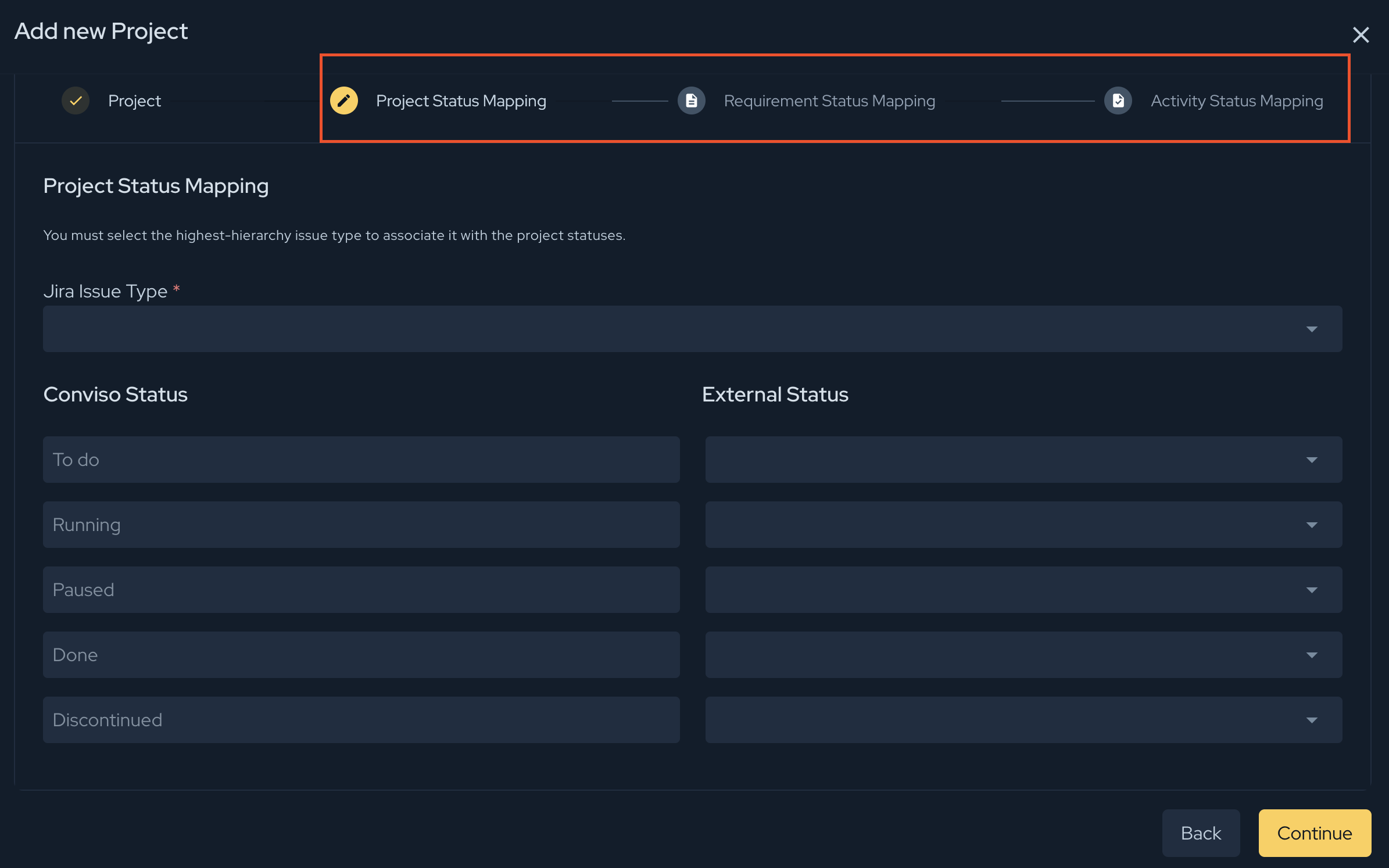
Inbound status changes are applied only when there is a matching mapping. If a Jira issue moves to an unmapped status, Conviso Platform keeps the current status and records the event in the integration logs. Requirement (Story) statuses in Conviso Platform are derived from their activities, so a Story status change in Jira is acknowledged but does not overwrite the requirement — update the underlying activities instead.
Enable Automatic Sync or Run a Manual Sync
When the configuration is saved, choose how it should synchronize.
Automatic synchronization
When Automatic synchronization is enabled, Conviso Platform sends changes to Jira automatically. Auto Sync reacts to events such as:
- a project is updated or its status changes;
- a requirement is created, updated, or removed;
- an activity is updated, has its status changed, or is removed;
- a project is deleted (its Jira issues are removed as well).
Outbound changes create the corresponding Jira issue when it does not exist yet, update the summary and description when the Conviso entity changes, and transition the issue to the mapped status.
Manual sync
You can trigger a manual sync at any time — it runs even when Automatic synchronization is disabled. A manual sync is a full reconcile: it creates missing issues, updates outdated ones, transitions statuses, and removes issues whose Conviso entities no longer exist.
There are two ways to start it:
- From the integration: on the Configuration step, click the Manual sync (sync) icon on the configuration's row.
- From a project: open the project in Conviso Platform and click the Sync button in its header to run a manual sync of the project's Jira Requirements configuration. If the project does not have a configuration yet, the Sync menu offers Jira Requirements, which opens the configuration dialog so you can create one.
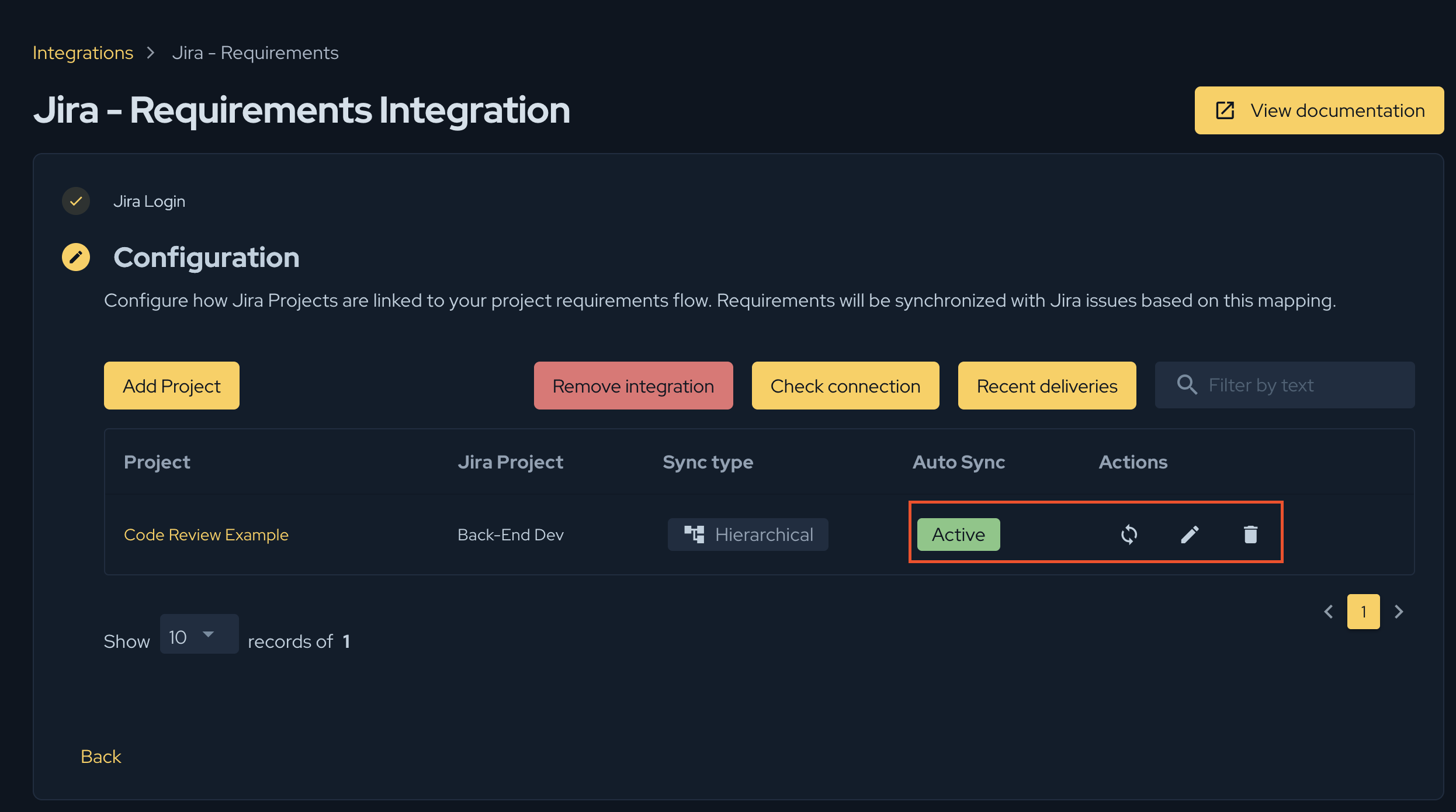
You can review, edit, or delete a configuration from the configuration table at any time. Editing reopens the same wizard (the Conviso project cannot be changed), and deleting requires typing DELETE to confirm — it also removes the configuration's issues in Jira.
Monitor Synchronized Issues
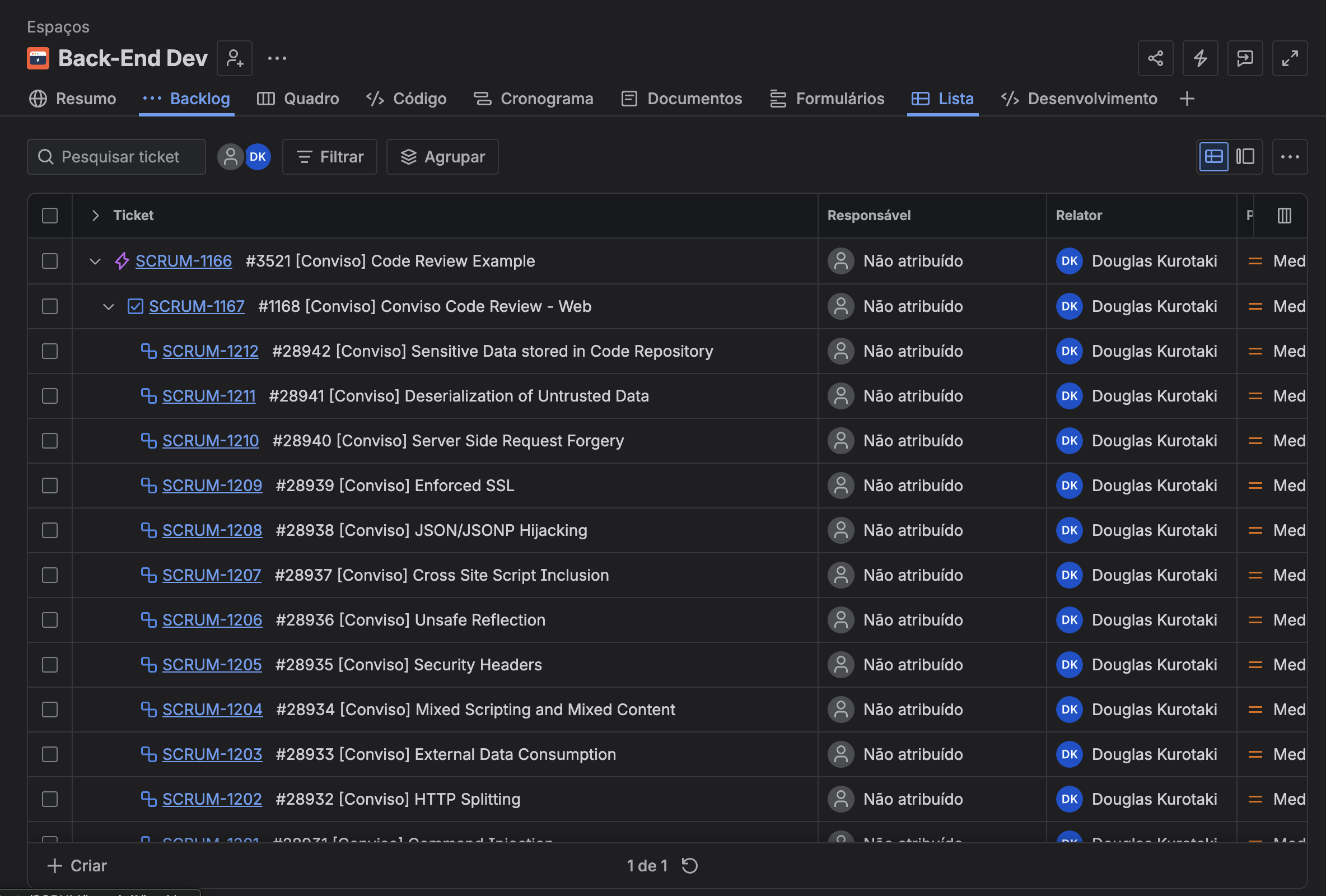
Jira issues created by Conviso Platform are linked back to their original Conviso entities and follow a consistent naming pattern.
The issue summaries follow this pattern, where <id> is the Conviso entity id (kept at the front so it survives Jira's board truncation of long summaries):
| Jira issue | Summary pattern |
|---|---|
| Epic | #<id> [Conviso] {Project name} |
| Story | #<id> [Conviso] {Requirement name} |
| Sub-task | #<id> [Conviso] {Activity title} |
The issue descriptions are populated automatically — for example, the Epic includes the project's goal, scope, dates, and assets, while Stories and Sub-tasks carry the requirement and activity descriptions.
Every created issue also receives labels you can use in Jira filters, dashboards, and queues. Besides the shared conviso label, each issue carries a static type label identifying which kind of Conviso entity it represents (the same labels apply in both sync modes):
| Label | Applied to | Purpose |
|---|---|---|
conviso | Every issue | Identifies all issues created by Conviso Platform in this flow. |
conviso_project | Epics (and Metadata Project cards) | Identifies the project issue. |
conviso_requirement | Stories (and Metadata Requirement cards) | Identifies the requirement issue. |
conviso_activity | Sub-tasks (and Metadata Activity cards) | Identifies the activity issue. |
The type labels are static — they carry no entity id — so they group issues by kind without adding a new Jira label for every synced entity. Use conviso to filter every Conviso-created issue, and a type label to target one category:
labels = "conviso"
labels = "conviso_project"
Jira Service Management queues are views based on JQL filters. The integration does not send an issue directly to a queue; use the labels above to build filters or queues for Conviso-created issues.
Reference labels (Metadata mode)
In Metadata mode the three issues are top-level (no parent link), so Conviso Platform adds reference labels that point each card to its logical parent's Conviso id:
| Label pattern | Applied to | Meaning |
|---|---|---|
<project id>_conviso_ref_project | Requirement and Activity cards | Links the card to its Conviso project. |
<requirement id>_conviso_ref_requirement | Activity cards | Links the activity to its Conviso requirement. |
Use them to group all Metadata cards of a given project or requirement in a JQL filter:
labels = "42_conviso_ref_project"
labels = "57_conviso_ref_requirement"
Reference labels exist only in Metadata mode. In Hierarchical mode the same relationship is expressed by the Jira parent link between Epic, Story, and Sub-task.
Recent Deliveries
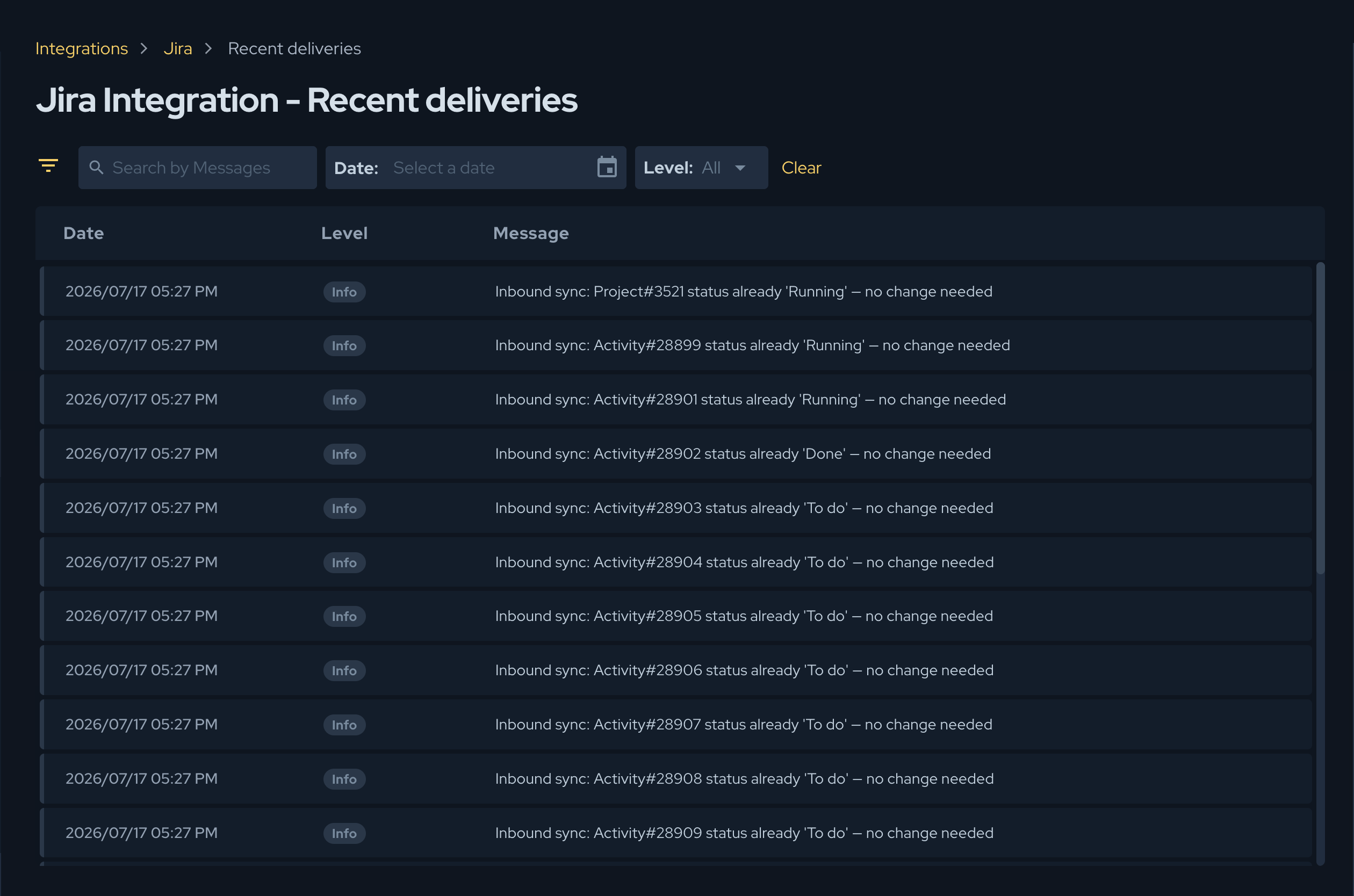
Jira Requirements records the important synchronization events so you can audit them. On the Configuration step, click Recent deliveries to open the integration logs.
The logs table shows:
- Date — the timestamp of the event.
- Level — the severity of the entry (info, warn, or error).
- Message — a description of the communication or event.
Use the logs to investigate cases such as:
- a Jira issue was not created;
- a Jira status change did not update the Conviso entity;
- a Jira status has no matching status mapping (logged as a skipped update);
- Jira returned an authorization or network error.
API Reference Example
Most users configure this integration through the Conviso Platform interface. API users can create a configuration with a GraphQL mutation similar to the example below.
mutation {
  createRequirementSyncConfiguration(input: {
    integrationId: 123,
    projectIds: [456],
    autoSync: true,
    syncMode: HIERARCHICAL,
    configEntries: [
      { configType: PROJECT_ID, externalId: "10001", externalName: "Security Backlog" },
      { configType: EPIC_ISSUE_TYPE_ID, externalId: "10000", externalName: "Epic" },
      { configType: STORY_ISSUE_TYPE_ID, externalId: "10001", externalName: "Story" },
      { configType: SUBTASK_ISSUE_TYPE_ID, externalId: "10002", externalName: "Sub-task" }
    ],
    statusMappings: [
      {
        entityType: PROJECT_REQUIREMENT_ITEM,
        internalStatus: "done",
        externalStatus: "10002",
        externalStatusName: "Done"
      }
    ]
  }) {
    requirementSyncConfigurations {
      id
      autoSync
      syncMode
      configEntries {
        configType
        externalId
        externalName
      }
    }
  }
}
The configType values are PROJECT_ID, EPIC_ISSUE_TYPE_ID, STORY_ISSUE_TYPE_ID, and SUBTASK_ISSUE_TYPE_ID (the Epic, Story, and Sub-task types are required). The entityType values are PROJECT, PROJECT_REQUIREMENT, and PROJECT_REQUIREMENT_ITEM. The internalStatus values are the Conviso Platform statuses in lowercase (for example, planned, analysis, done for a project; not_started, in_progress, done for a requirement; and additionally not_applicable, not_according for an activity), while externalStatus is the Jira status ID and externalStatusName its name.
The syncMode argument selects HIERARCHICAL (Epic/Story/Sub-task with parent links) or METADATA (three top-level issues correlated by reference labels); it defaults to HIERARCHICAL when omitted. In Metadata mode the three issue-type slots may reuse the same non-sub-task issue type, since the cards are not parented.
For a Metadata configuration, set syncMode: METADATA and point the three issue-type slots at a top-level (non-sub-task) issue type — they can all be the same one:
mutation {
  createRequirementSyncConfiguration(input: {
    integrationId: 123,
    projectIds: [456],
    autoSync: true,
    syncMode: METADATA,
    configEntries: [
      { configType: PROJECT_ID, externalId: "10001", externalName: "Support Board" },
      { configType: EPIC_ISSUE_TYPE_ID, externalId: "10010", externalName: "Task" },
      { configType: STORY_ISSUE_TYPE_ID, externalId: "10010", externalName: "Task" },
      { configType: SUBTASK_ISSUE_TYPE_ID, externalId: "10010", externalName: "Task" }
    ]
  }) {
    requirementSyncConfigurations {
      id
      syncMode
    }
  }
}
The configType keys (EPIC_ISSUE_TYPE_ID, STORY_ISSUE_TYPE_ID, SUBTASK_ISSUE_TYPE_ID) are kept for both modes and act as the three slots for the Project, Requirement, and Activity issues. In Metadata mode they do not need to be Epic/Story/Sub-task hierarchy levels — any non-sub-task issue type is accepted, and reusing a single type (as above) is common when the Jira project offers only one relevant type.
To trigger a manual sync through the API:
mutation {
  syncRequirementsWithTracker(input: {
    projectId: 456,
    integrationId: 123
  }) {
    jobId
  }
}
The Jira project ID, issue type IDs, and status IDs depend on your Jira project configuration. Always copy these values from the Jira project that will receive the synchronized issues. If you need help using our API, click here.
Metadata mode is released gradually and may require enablement by Conviso for your account. If the syncMode option is not available in your configuration wizard, contact the Conviso support team.
Support
If you have questions or need help configuring Jira Requirements, contact the Conviso support team.
Contribute to the Docs
Found something outdated or missing? Help us improve the documentation with a quick suggestion or edit.
How to contributeResources
By exploring our content, you'll find resources that will enhance your understanding of the importance of a Security Application Program.
Conviso Blog: Explore our blog, which offers a collection of articles and posts covering a wide range of AppSec topics. The content on the blog is primarily in English.
Conviso's YouTube Channel: Access a wealth of informative videos covering various topics related to AppSec. Please note that the content is primarily in Portuguese.