Snyk

First time using Snyk? Please refer to the Snyk documentation.
Introduction
This integration consolidates Snyk scan results into the Conviso Platform, keeping both platforms synchronized.
It supports a two-way integration for vulnerabilities and status mapping. Vulnerabilities discovered by Snyk are imported into Conviso Platform as SCA findings, and status transitions performed in Conviso Platform (False Positive, Risk Accepted, Identified) are pushed back to Snyk as ignore/unignore operations.
Aggregating Snyk results alongside the other security tools you use with Conviso Platform gives you a centralized view for prioritization and security risk management across your applications.
Requirements
To integrate Snyk with the Conviso Platform, you will need:
- A Snyk Service Account API token with permission to read organizations, targets, projects, and to manage issue ignores.
- Knowledge of the Snyk region your account belongs to (US-1, US-2, EU-1, or AU-1).
Supported Snyk regions
The integration connects to the Snyk region you select during setup. The available regions and the base URLs used internally are:
| Region | Base URL |
|---|---|
| US-1 | https://api.snyk.io |
| US-2 | https://api.us.snyk.io |
| EU-1 | https://api.eu.snyk.io |
| AU-1 | https://api.au.snyk.io |
If you are unsure which region applies to your account, check the URL of your Snyk web console.
Conviso Platform Setup
The Snyk integration is configured in three steps: Login, Severity Mapping, and Configuration. After logging into the Conviso Platform:
- Click on Integrations in the side menu.
- Find the Snyk card and click Connect.
Step 1 — Login
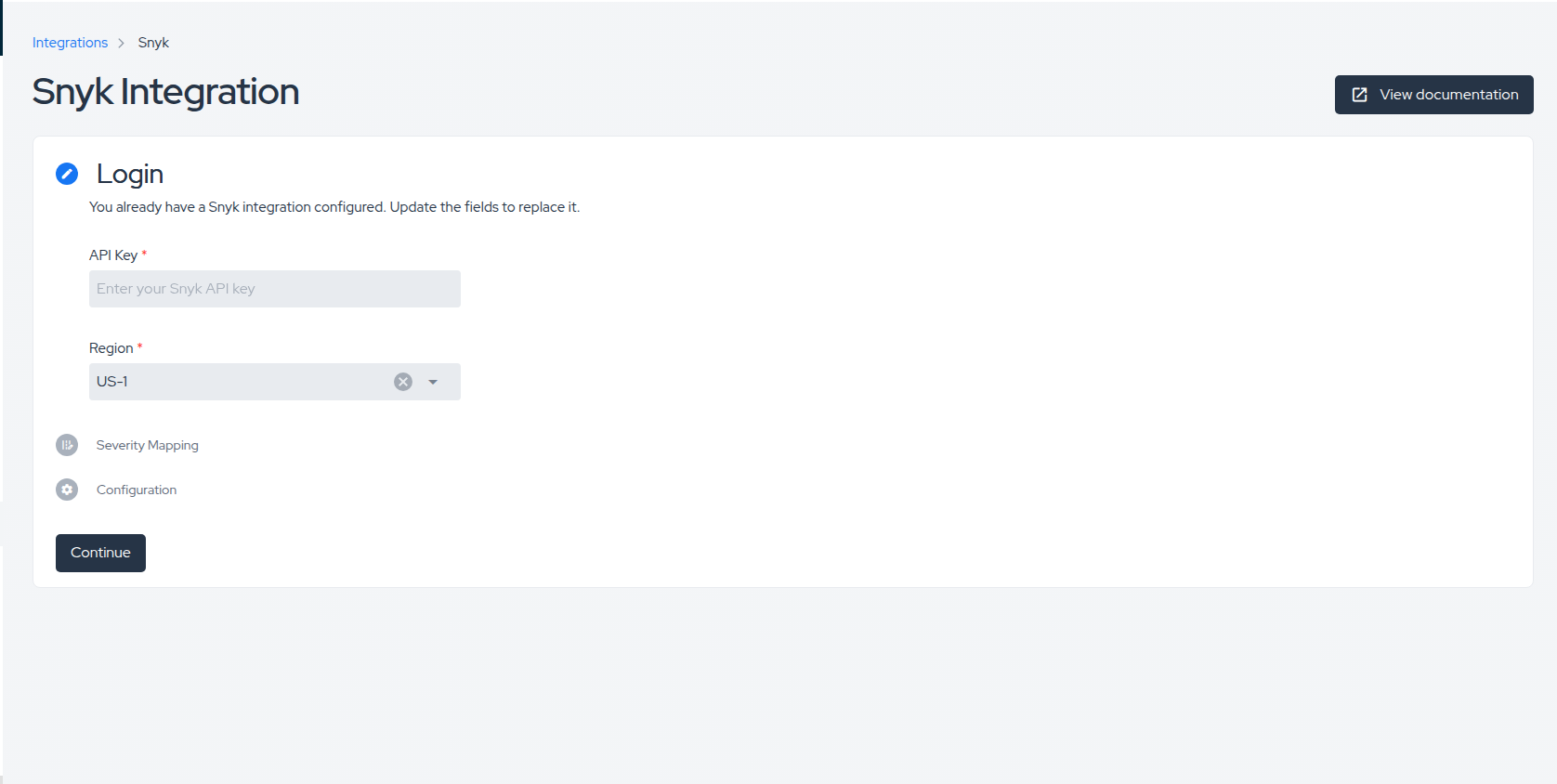
You will be taken to the Snyk integration page, starting on the Login step.
- Paste your Snyk API key into the API Key field.
- Select your Snyk Region from the dropdown (US-1, US-2, EU-1, AU-1).
- Click Continue.
The platform validates the API key against Snyk. If the key is invalid or the region is wrong, the form will not advance.
If a Snyk integration already exists for this company, the Login step shows the message "You already have a Snyk integration configured. Update the fields to replace it." Submitting will replace the stored credentials.
Step 2 — Severity Mapping
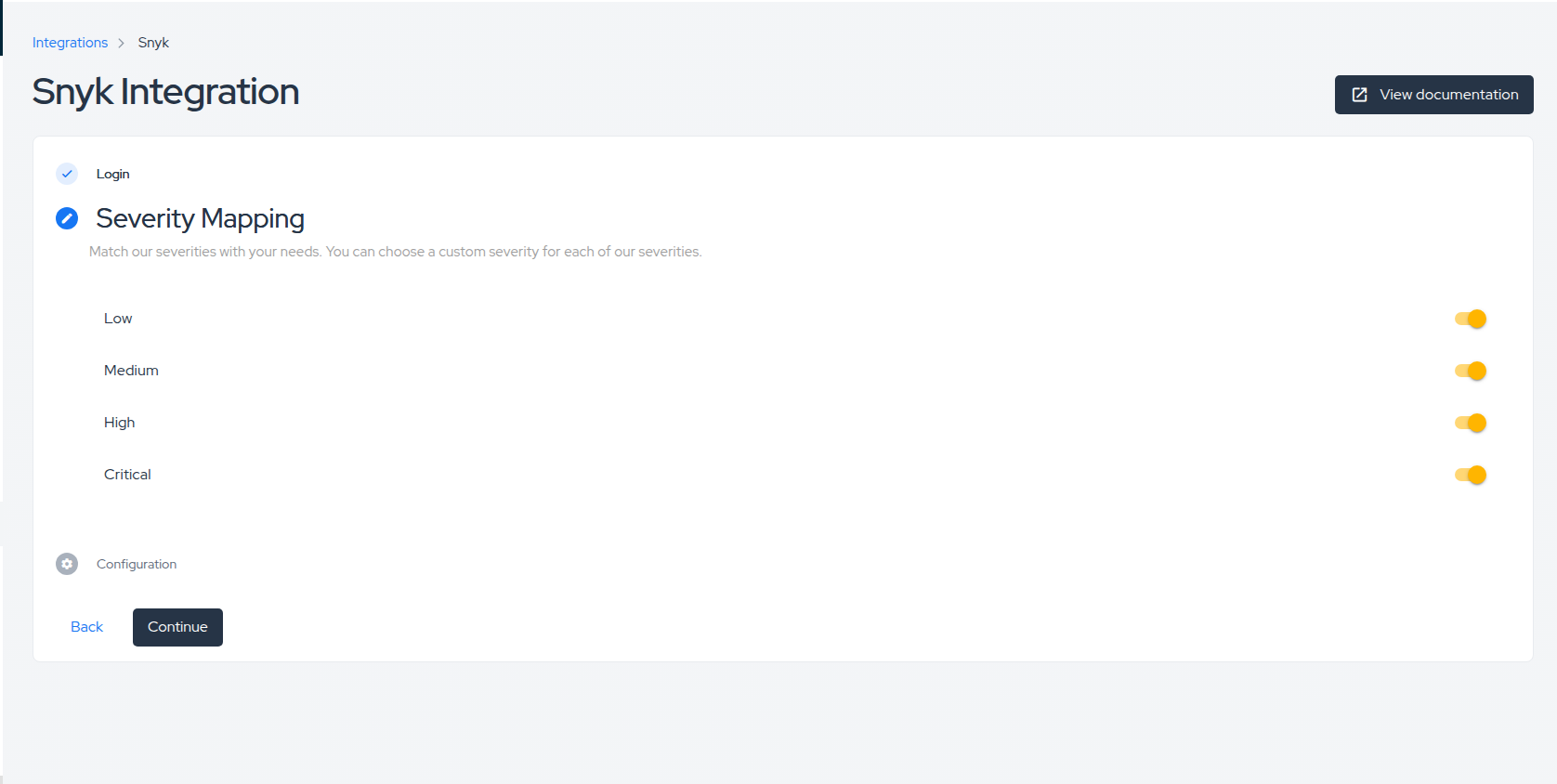
In this step you choose which severities to import from Snyk into Conviso Platform.
Available severities: Low, Medium, High, Critical.
Select the severities you want to track and click Continue. The platform persists the integration (creating the record on first save) and shows a success toast: "Integration created successfully" or "Integration updated successfully".
You can return to this step at any time from the Settings page of the Snyk integration to adjust the severity filter.
Step 3 — Configuration
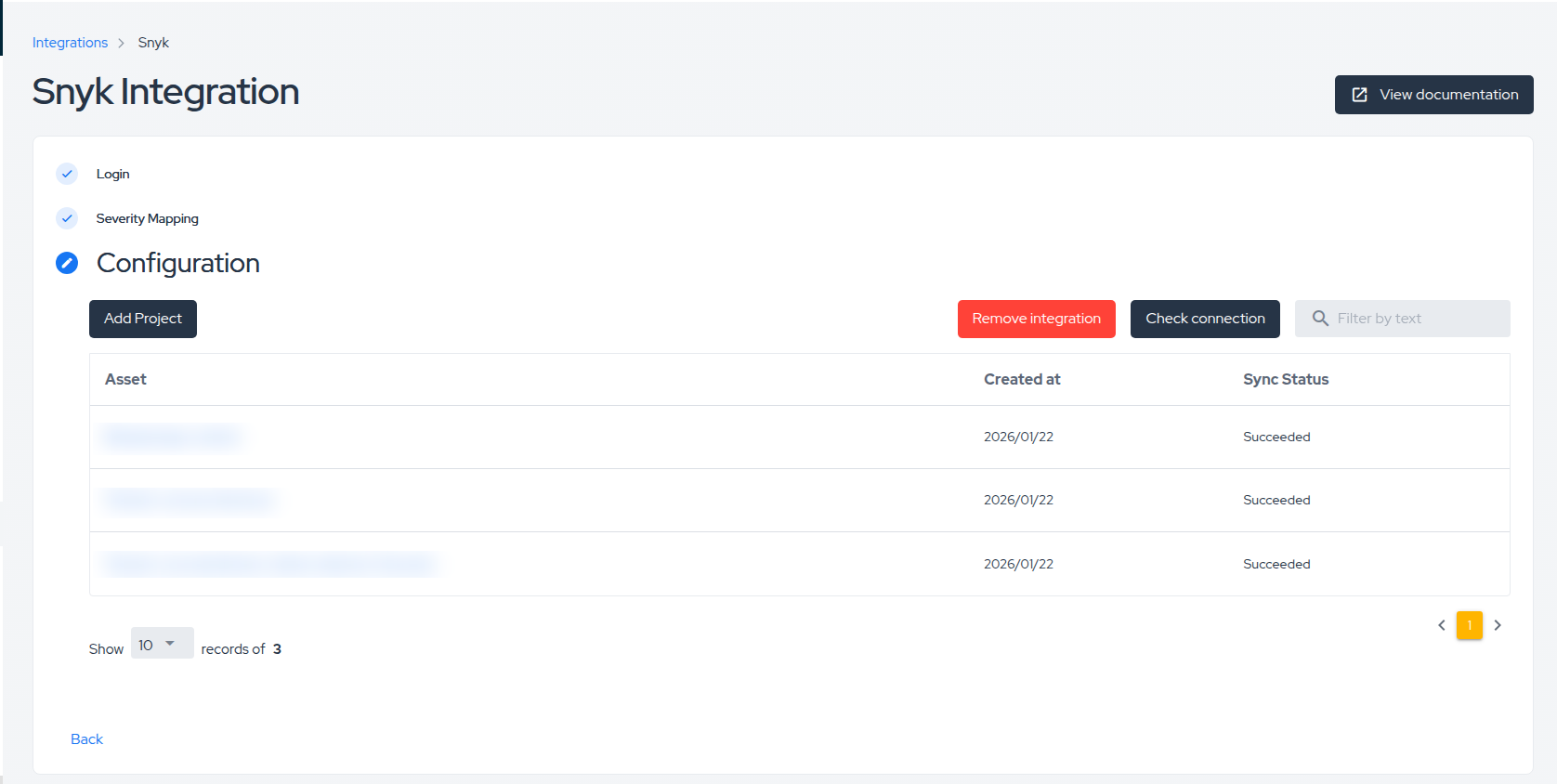
The Configuration step is where you associate Snyk targets/projects with Conviso Platform assets and manage the integration.
From this screen you can:
- Add Project — open the project import dialog (see below).
- Remove integration — disconnect Snyk from this company.
- Check connection — verify the API key is still valid and reachable.
- Filter by text — search the table of imported assets.
The table shows all assets linked to Snyk targets, with columns for Asset, Created at, and Sync Status (Succeeded, Pending, or Failed).
Importing Projects from Snyk
To link Snyk targets to Conviso Platform assets:
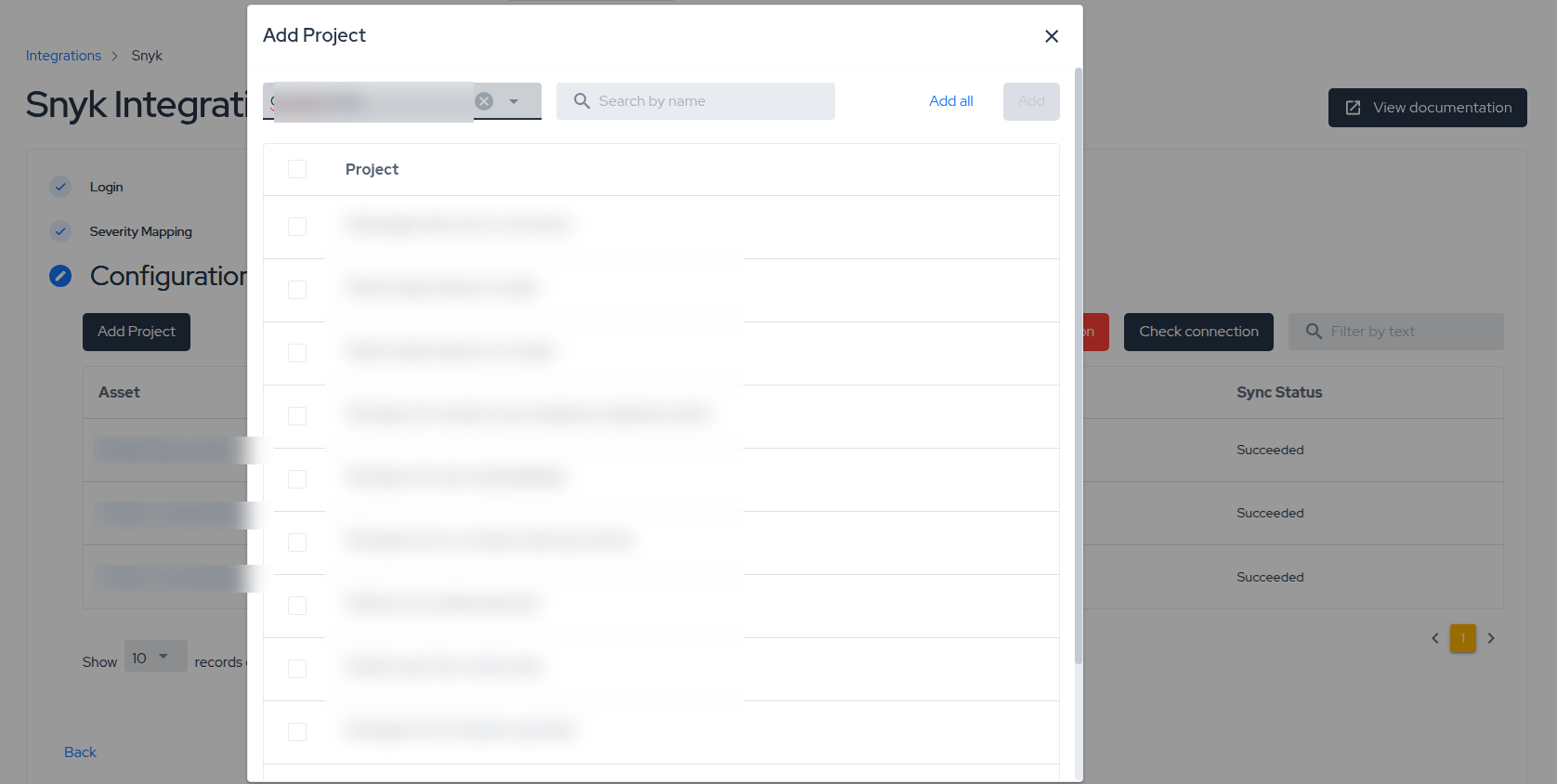
- On the Configuration step, click Add Project.
- In the dialog, select a Snyk Organization from the dropdown. The list is loaded directly from Snyk.
- Optionally, search by project name to filter the list.
- Select one or more projects using the checkboxes, then click Add. Or click Add all to import every project in the selected organization (the import runs page-by-page in the background).
The import runs asynchronously in the background. You will see the toast: "Your configurations are saving. This process is asynchronous."
For each Snyk project, the platform:
- Creates (or finds) a Conviso Asset matching the project's name.
- Links it to the corresponding Snyk project.
- Immediately triggers a sync to fetch issues from Snyk.
The imported assets appear in the Configuration table as soon as the background job processes them.
General Information on Operation
Vulnerabilities imported
Snyk findings are imported as SCA vulnerabilities in Conviso Platform. Only the severities you enabled during the Severity Mapping step are imported.
Status Mapping
The integration synchronizes vulnerability status between the two platforms.
For the official Conviso status definitions used in this mapping, see Workflow Status.
Conviso Platform → Snyk
| Conviso Platform | Snyk action | Snyk reason |
|---|---|---|
| False positive | Ignore | not-vulnerable |
| Risk accepted | Ignore | temporary-ignore (with expiration date) |
| Identified | Unignore | — |
When a finding is moved to Risk accepted in Conviso Platform, the expiration date is taken from the issue's status history and forwarded to Snyk as the ignore expiration.
Snyk → Conviso Platform
| Snyk state | Conviso Platform |
|---|---|
Ignored with reason not-vulnerable | False positive |
Ignored with reason temporary-ignore | Risk accepted |
Ignored with reason wont-fix | Won't fix |
| Resolved | Resolved |
| Open | Open |
The modifications are bidirectional: changes made in Conviso Platform are pushed to Snyk immediately, while changes made in Snyk are reflected in Conviso Platform after the next synchronization.
Synchronization
A synchronization fetches the current set of issues from Snyk for a linked project and applies them to the Conviso Asset.
A sync is triggered automatically when:
- A new project is imported via Add Project.
- A user clicks the Sync button on the asset's integration modal.
- An external trigger (CI/CD pipeline) calls the
syncAssetmutation — see Pipeline integration.
To start a manual synchronization from the UI:
- Go to Assets Management and open the asset linked to Snyk.
- Click View All next to Integration.
- In the modal, find the Snyk row and click Sync.
The modal shows the time of the last sync, a progress bar while a sync is in progress, the current status, and any failure reason. A new sync can only be started after the previous one has finished.
Sync flow
A sync is a one-way pull from Snyk into Conviso Platform: the trigger (UI, import, or syncAsset mutation) starts an asynchronous job that fetches the current issues for the linked Snyk project and updates the Conviso Asset.
        ┌────────────────────────────────────────┐
        │  Trigger                               │
        │  • Add Project (auto on import)        │
        │  • Manual "Sync" button (UI)           │
        │  • syncAsset mutation (CI/CD pipeline) │
        └──────────────────┬─────────────────────┘
                           │ enqueues sync job
                           ▼
        ┌────────────────────────────────────────┐
        │  Conviso Platform — Sync worker        │
        │  status: Pending                       │
        └──────────────────┬─────────────────────┘
                           │ fetch issues
                           ▼
        ┌────────────────────────────────────────┐
        │  Snyk (linked project)                 │
        │  returns current issues + ignores      │
        └──────────────────┬─────────────────────┘
                           │ map severities & statuses
                           ▼
        ┌────────────────────────────────────────┐
        │  Conviso Asset                         │
        │  • SCA findings created / updated      │
        │  • status reflects Snyk state          │
        │  status: Succeeded (or Failed)         │
        └────────────────────────────────────────┘
Status changes made in Conviso Platform are pushed back to Snyk immediately (ignore / unignore), independently of this sync — they do not wait for the next pull.
   Conviso Platform                                       Snyk
   ────────────────                                       ────
   False positive / Risk accepted / Identified
                  │
                  │  (immediate, per-finding)
                  ▼
            ignore / unignore  ──────────────────────►  Snyk issue
                                                         updated
Pipeline integration
For users who run Snyk scans from a CI/CD pipeline, the recommended approach is to trigger a Conviso Platform sync at the end of each pipeline run so that the latest Snyk results are pulled in immediately.
The mutation to call is syncAsset:
mutation SyncSnyk($assetId: ID!) {
  syncAsset(input: { assetId: $assetId, integration: SNYK }) {
    assetId
    integration
    failureReason
  }
}
Variables:
assetId— the Conviso Platform Asset ID linked to the Snyk project.integration— must beSNYK.
The mutation enqueues an asynchronous sync (same flow as the Sync button) and returns immediately. The updated issues appear on the asset once the job completes.
Pre-requisite: the asset must already be linked to a Snyk project via the Add Project flow described above. syncAsset does not create the association.
How to get the necessary information for the integration
Generating a Snyk API token
- Log in to your Snyk account.
- Click your avatar and select Account settings.
- Under General Account Settings → KEY, generate or reveal your API token. For team usage, prefer a Service Account token (Group settings → Service accounts) with the minimum role required.
- Copy the token — this is the value you paste into the API Key field in Conviso Platform.
Finding your region
Inspect the URL of the Snyk web console:
app.snyk.io→ US-1app.us.snyk.io→ US-2app.eu.snyk.io→ EU-1app.au.snyk.io→ AU-1
Troubleshooting
- "Check connection" fails after configuration. The API token is invalid, expired, or does not have access to the region selected. Regenerate the token in Snyk and re-run Step 1.
- Add Project shows no organizations. The token has no access to any Snyk organizations, or the wrong region was selected. Verify the token in Snyk and reconfigure.
- Sync status stays as Pending. Background processing may be delayed. If the status does not progress after a few minutes, check the asset's integration modal for a failure reason and contact support.
- Issues are missing after import. Confirm that the relevant severities are enabled in the Severity Mapping step. Severities outside the enabled set are not imported.
Contribute to the Docs
Found something outdated or missing? Help us improve the documentation with a quick suggestion or edit.
How to contributeResources
By exploring our content, you'll find resources that will enhance your understanding of the importance of a Security Application Program.
Conviso Blog: Explore our blog, which offers a collection of articles and posts covering a wide range of AppSec topics. The content on the blog is primarily in English.
Conviso's YouTube Channel: Access a wealth of informative videos covering various topics related to AppSec. Please note that the content is primarily in Portuguese.