Tenable
First time using Tenable? Please refer to the following documentation.
Introduction
This integration enables the automatic import of vulnerabilities identified by Tenable into the Conviso Platform, allowing you to manage them using all Conviso Platform features. The integration supports both WAS (Web Application Scanning) and VM (Vulnerability Management) project types from Tenable.
Objective
Configure the integration between your Tenable account and the Conviso Platform to synchronize vulnerabilities automatically.
Prerequisites
- An active Tenable account.
- An Access Key and a Secret Key generated from your Tenable console.
Steps
1. Access the Integrations page
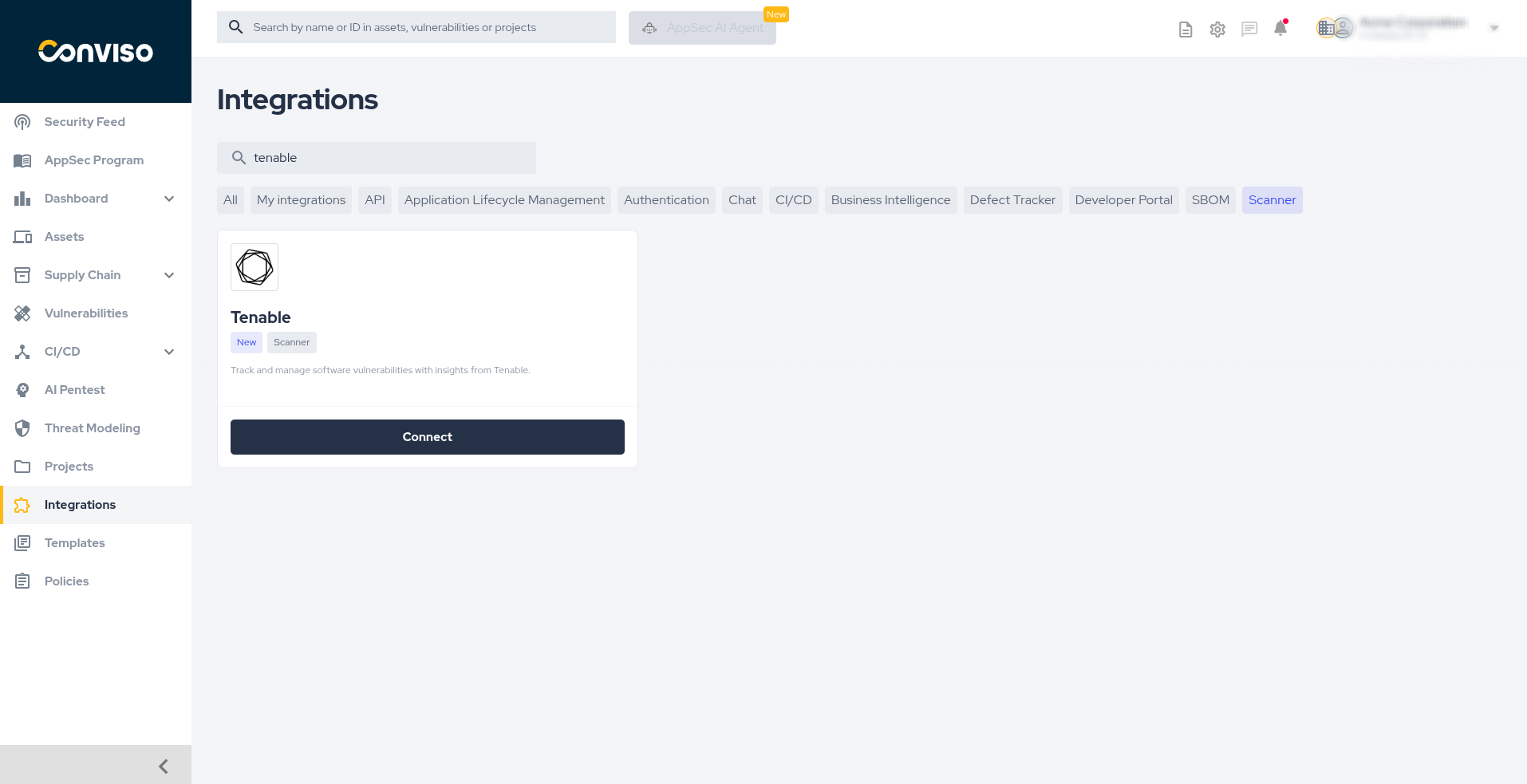
In the left sidebar, click Integrations. Use the search bar to find Tenable and click the Connect button on the Tenable card.
2. Enter your credentials
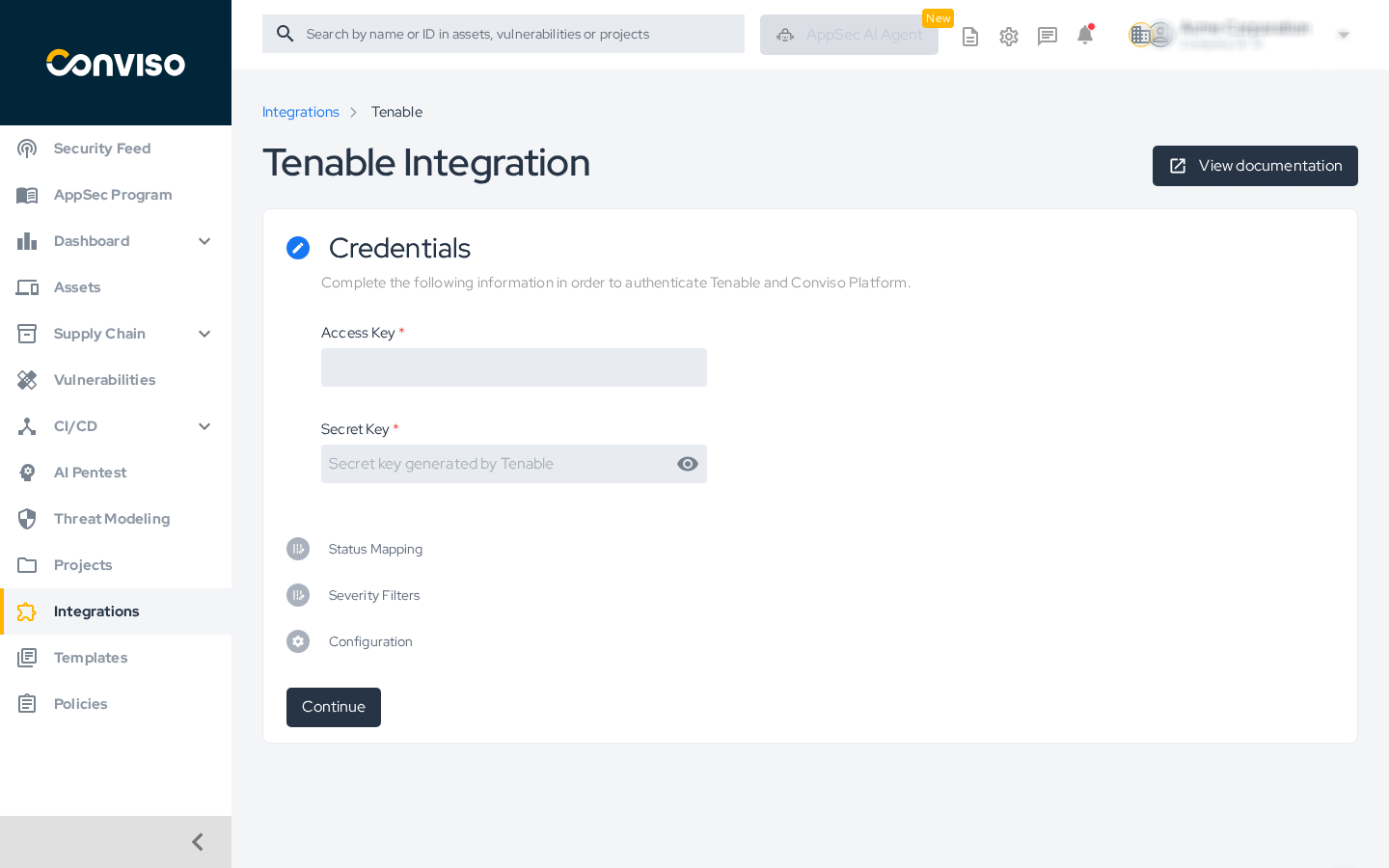
On the Credentials step, enter your Access Key and Secret Key in the respective fields, then click Continue.
3. Configure Status Mapping
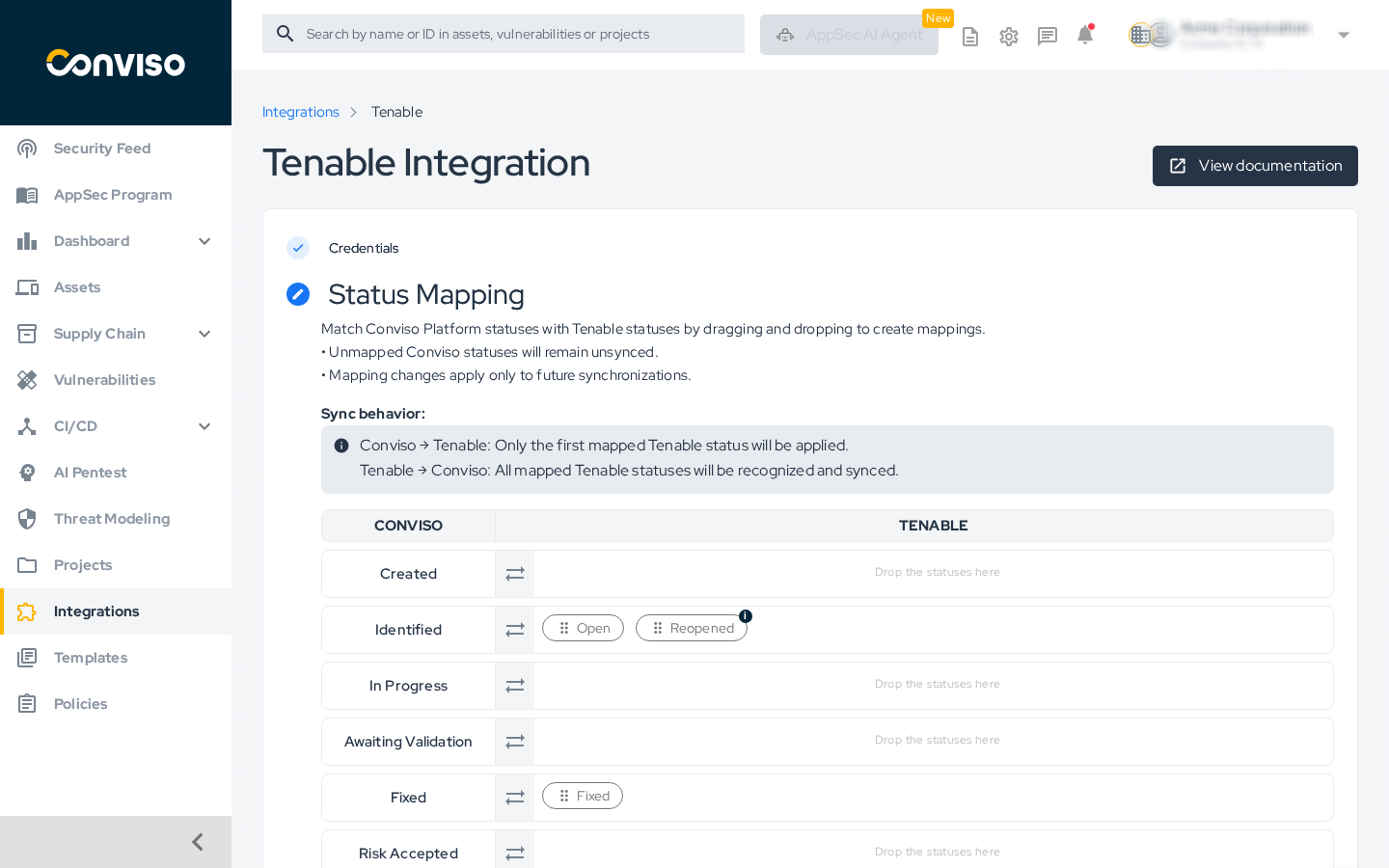
On the Status Mapping step, drag Tenable statuses from the available list and drop them onto the corresponding Conviso Platform status rows to define how statuses are synchronized between the two platforms.
Sync behavior:
- Conviso → Tenable: Only the first mapped Tenable status will be applied.
- Tenable → Conviso: All mapped Tenable statuses will be recognized and synced.
The default mapping is:
- Identified ← Open, Reopened
- Fixed ← Fixed
Unmapped Conviso statuses will remain unsynced. Mapping changes apply only to future synchronizations.
Click Continue when done.
4. Select Severity Filters
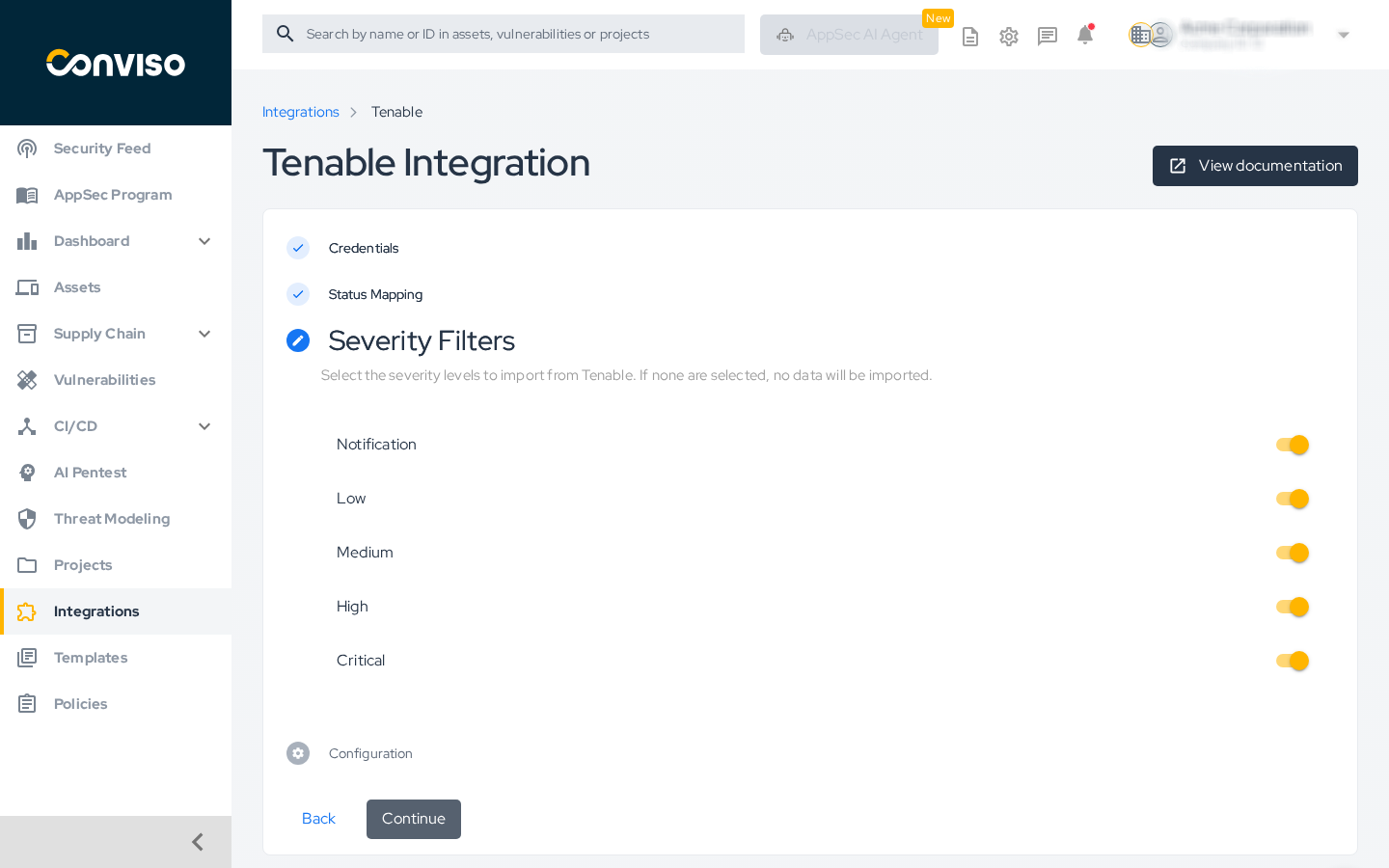
On the Severity Filters step, enable the severity levels you want to import from Tenable. All levels are enabled by default: Notification, Low, Medium, High, and Critical.
If no severity level is selected, no data will be imported.
Click Continue.
5. Add projects
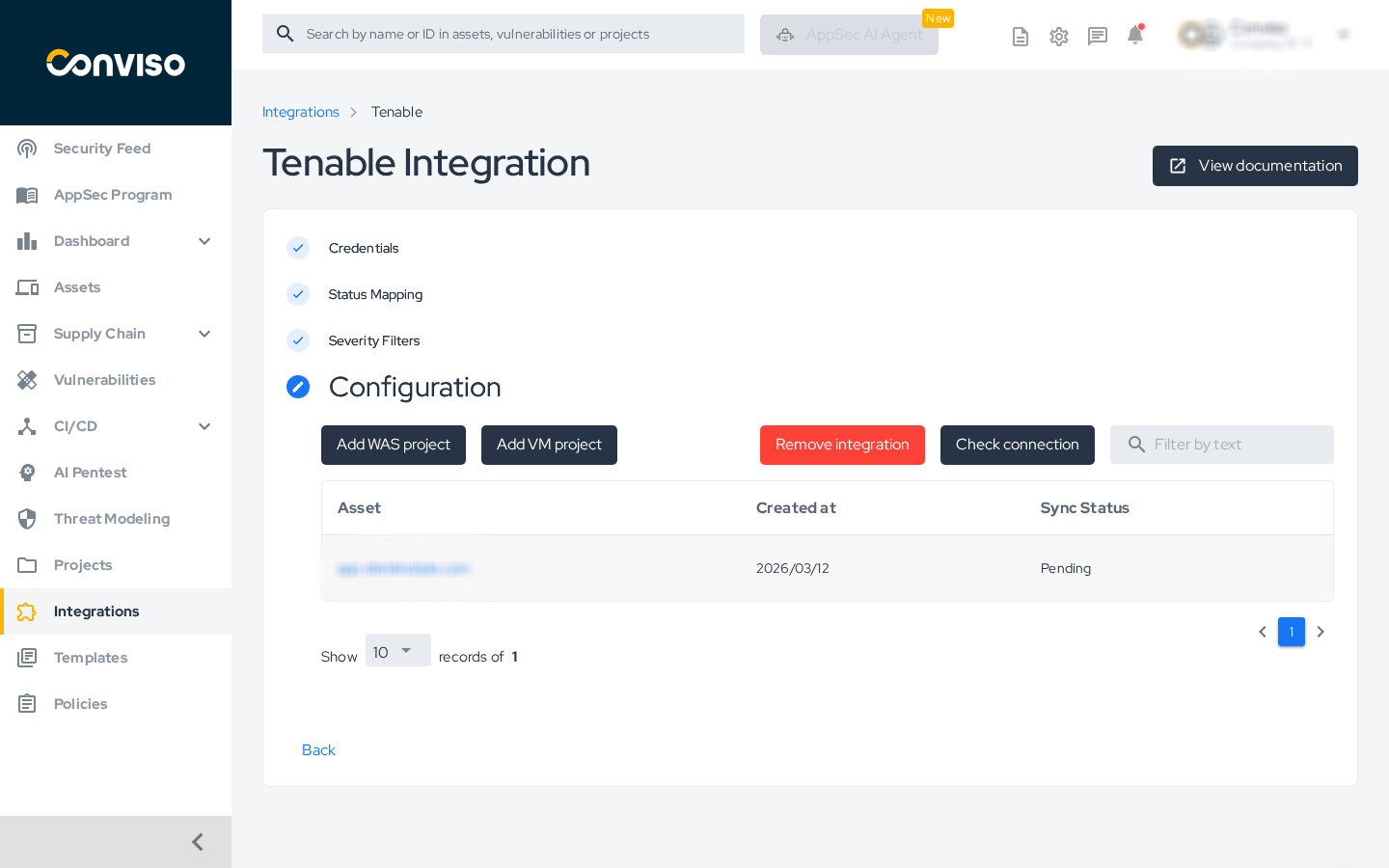
On the Configuration step, add the assets you want to monitor. Tenable supports two project types:
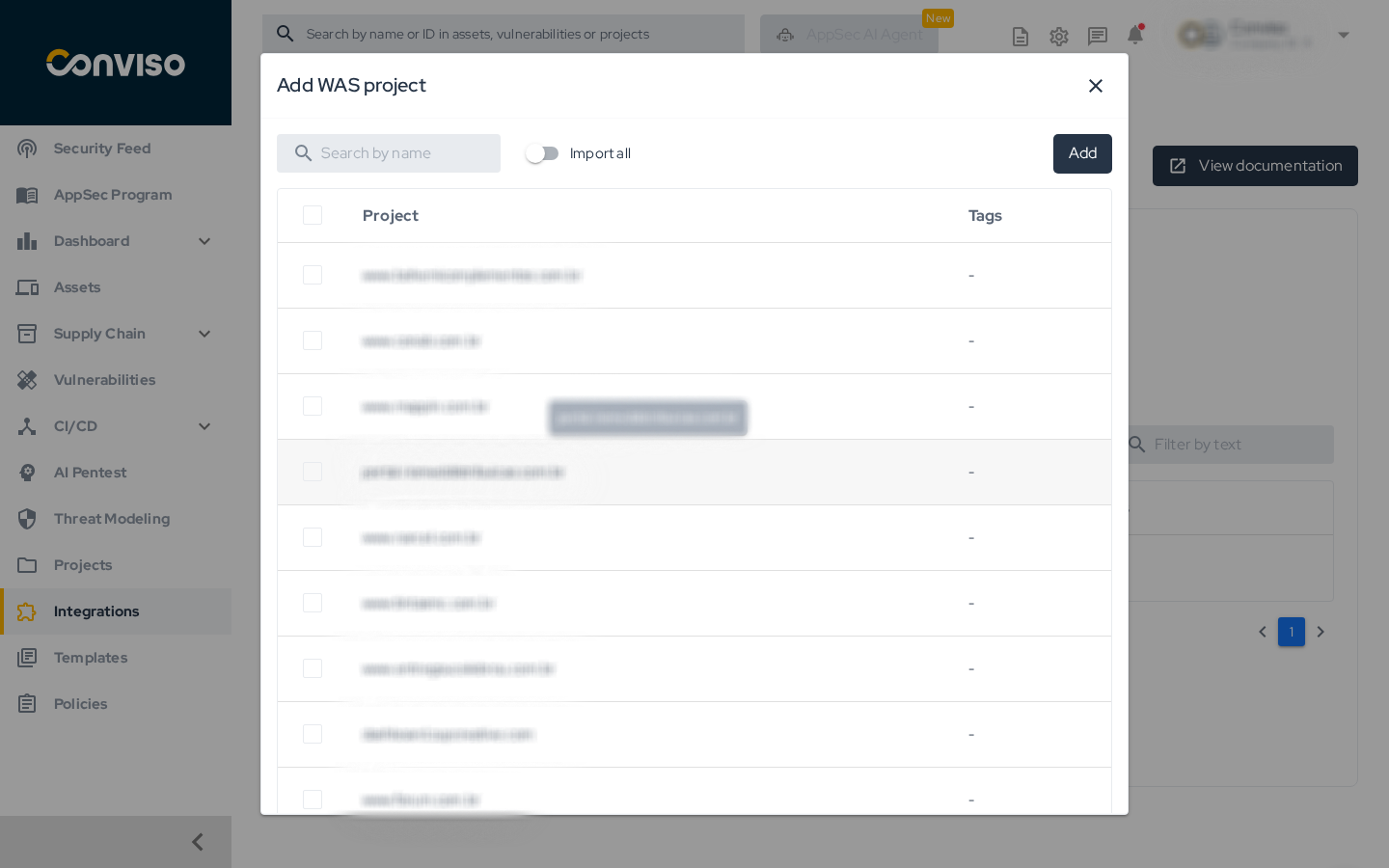
- Click Add WAS project to import Web Application Scanning assets.
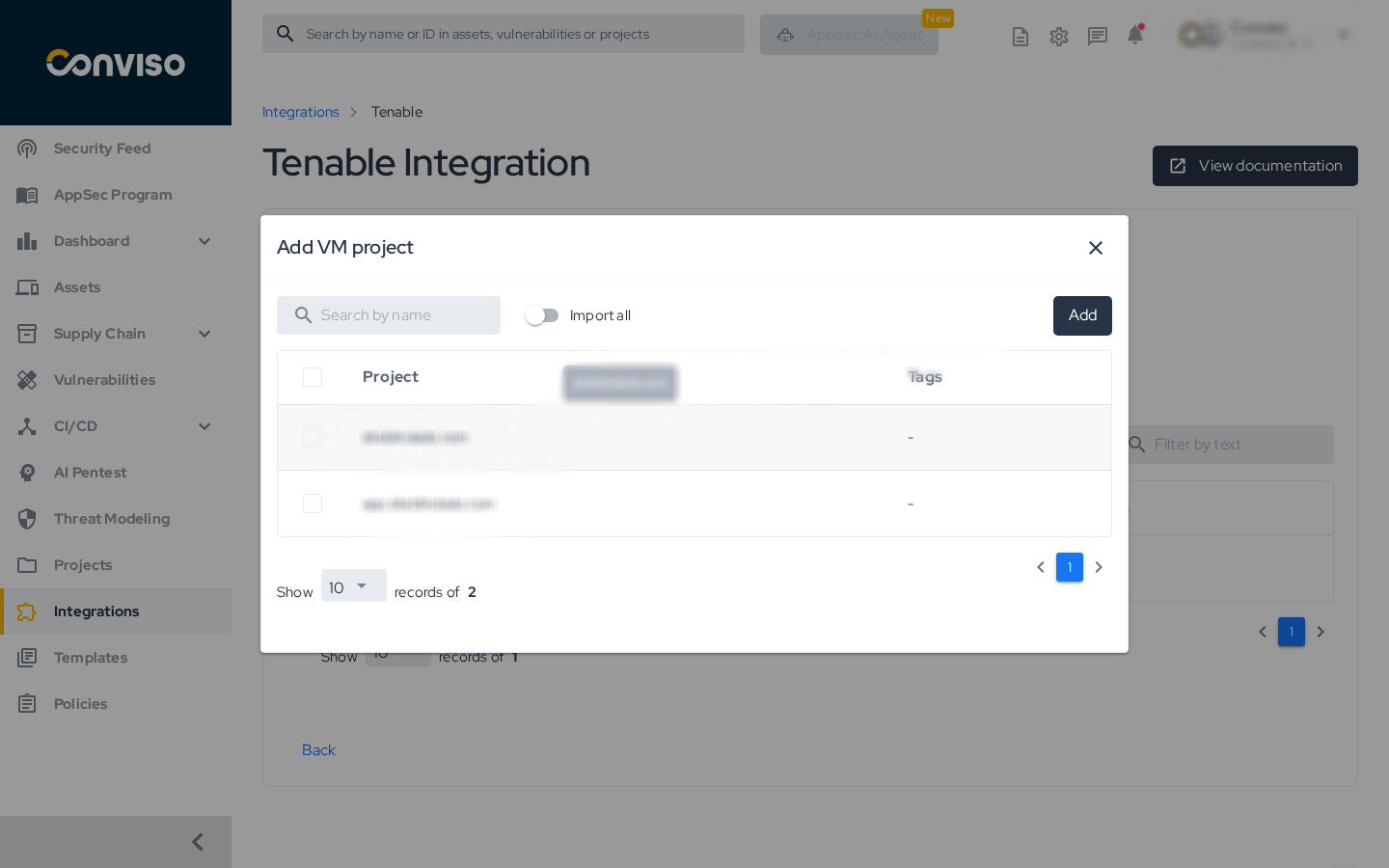
- Click Add VM project to import Vulnerability Management assets.
In the modal that opens, use the Search by name field to find specific projects, or enable the Import all toggle to import all available projects. Select the desired projects and click Add.
After adding projects, the import process starts automatically. Depending on the number of assets, this may take a few minutes.
Validation
To verify the integration is working correctly:
- On the Configuration step, click Check connection.
- A confirmation message should appear indicating the connection with Tenable is active.
General Information on Operation
Status Mapping
Status changes are bidirectional:
- Changes made in the Conviso Platform are immediately replicated to Tenable.
- Changes made in Tenable are replicated to the Conviso Platform only after the next synchronization cycle.
Sync Status
The assets table on the Configuration step displays each imported asset with its Sync Status (e.g., Pending, Synced, Error). Use this table to monitor the synchronization state of each asset.
Troubleshooting
- Invalid credentials error: Verify that the Access Key and Secret Key were copied correctly from your Tenable console and that the associated user has the required permissions.
- No projects available: Ensure the API keys have visibility over the relevant projects in Tenable. Check that the correct Tenable module (WAS or VM) is licensed and accessible.
- Assets stuck in Pending: The first synchronization may take several minutes. If the status does not change after a long period, click Check connection to verify the integration is still active.
Support
If you have any questions or need help with our product, please contact our support team according to your SLA.

Contribute to the Docs
Found something outdated or missing? Help us improve the documentation with a quick suggestion or edit.
How to contributeResources
By exploring our content, you'll find resources that will enhance your understanding of the importance of a Security Application Program.
Conviso Blog: Explore our blog, which offers a collection of articles and posts covering a wide range of AppSec topics. The content on the blog is primarily in English.
Conviso's YouTube Channel: Access a wealth of informative videos covering various topics related to AppSec. Please note that the content is primarily in Portuguese.