Bitbucket AST Orchestrator
The Conviso Platform Bitbucket AST Orchestrator runs Conviso AST from one Bitbucket repository (the orchestrator). Application repositories do not need a Conviso Pipelines file.
When an eligible pull request is merged, Conviso triggers a custom pipeline (run-ast-scan) on the orchestrator and passes the target repository and branch. The job obtains a short-lived clone credential from the Platform (using your API key), clones the target repository, runs conviso ast run, and sends findings to the mapped asset.
You do not store a Bitbucket App password or OAuth token for clone — only CONVISO_API_KEY.
How it works
What Conviso checks before dispatching:
- The event is a pull request that was merged.
- AST scans on merge is enabled on the Bitbucket integration.
- The repository is an imported asset that is enabled.
- The PR destination branch matches the configured merge target (see Merge target branch below).
The pipeline always appears on the orchestrator repository (not on the application repository).
Execution costs: Pipelines run in your Bitbucket Pipelines environment and consume your Bitbucket build minutes.
Before you begin
Work in this order: Bitbucket setup first, then Conviso Platform.
You need:
- Bitbucket ALM integration connected (OAuth), with repositories imported as assets.
- At least one application repository imported as an asset and enabled.
- A dedicated orchestrator repository (or an empty repo you will use only for this). Example / template: convisoappsec/pipeline-orchestrator.
- Permission to enable Pipelines and set Repository variables on the orchestrator.
- A Conviso API key for the same environment you will scan against (production or staging). Its profile needs Integrations → Manage and Write results to the platform; an Admin has both. See Required permissions.
| Term | Exact meaning |
|---|---|
| Orchestrator repository | Bitbucket repo that contains bitbucket-pipelines.yml. Conviso triggers this repo only. |
| Target repository | Application repo imported as an asset. It must not rely on a local Conviso Pipelines file for this flow. |
| Ref | Branch or tag of the orchestrator where Bitbucket loads bitbucket-pipelines.yml when Conviso starts the custom pipeline. |
| Merge target branch | The PR destination branch on the target repo that is allowed to trigger a scan (for example main). See below. |
| Custom pipeline | Entry under pipelines.custom that Conviso triggers by name (run-ast-scan). |
| Asset | Imported repository in Conviso (workspace/repo) where findings are stored. |
Merge target branch
Conviso compares the merged PR’s destination branch to:
- The asset’s configured AST / branch mapping, if set; otherwise
- The integration Ref (
orchestrator_ref).
| Configuration | What triggers a scan |
|---|---|
Asset branch = master, Ref = main | Only merges into master on that asset |
Asset branch empty, Ref = main | Only merges into main on that asset |
| Asset branch empty and Ref empty | No branch filter (any destination branch can trigger). Prefer setting Ref explicitly. |
Ref is still the orchestrator branch that holds bitbucket-pipelines.yml. It is reused as the default merge-target filter when the asset has no branch of its own. Those are two roles of the same field — do not confuse “where the Pipelines file lives” with “any branch on the target”.
Part 1 – Bitbucket setup
Step 1 – Create the orchestrator repository
- Create a Bitbucket repository (recommended name:
conviso-ast-orchestrator), or copy from convisoappsec/pipeline-orchestrator and keep onlybitbucket-pipelines.yml. - Enable Pipelines for that repository (Repository settings → Pipelines → Settings).
- Choose the branch that will contain the Pipelines file (almost always
main). That value is what you will set as Ref in Conviso.
Step 2 – Create the CONVISO_API_KEY variable
In the orchestrator repository (not the target):
- Open Repository settings → Repository variables.
- Create:
| Name | Secured? | Required |
|---|---|---|
CONVISO_API_KEY | Yes (secured) | Yes |
Use the API key for the same Conviso environment as the Platform you configured (production vs staging).
You may add CONVISO_COMPANY_ID. The pipeline uses it only when the company_id input is empty (typical for a manual Run pipeline). When Conviso dispatches after a merge, it sends company_id in the variables, so this fallback is not required for Platform-triggered runs.
Do not create a Bitbucket App password or OAuth token for clone. The job calls conviso-ast-repository-token --provider bitbucket, and the Platform returns the Bitbucket integration’s OAuth credential for that run.
Step 3 – Add bitbucket-pipelines.yml
Public template: convisoappsec/pipeline-orchestrator
Pipelines file: bitbucket-pipelines.yml
On the orchestrator branch you will set as Ref (usually main):
- Create
bitbucket-pipelines.ymlat the repository root. - Paste the YAML below (or copy it from the example repo).
image: convisoappsec/convisoast:latest

pipelines:
  custom:
    run-ast-scan:
      - variables:
          - name: repo_full_name
          - name: branch
          - name: commit_sha
            default: ""
          - name: pr_id
            default: ""
          - name: api_url
            default: https://api.convisoappsec.com
          - name: company_id
            default: ""
          - name: asset_id
            default: ""
          - name: scan_run_id
            default: ""
      - step:
          name: Run Conviso AST
          clone:
            enabled: false
          script:
            - export CONVISO_API_KEY="$CONVISO_API_KEY"
            - |
              export CONVISO_API_URL="${api_url:-https://api.convisoappsec.com}"
              CONVISO_API_URL="${CONVISO_API_URL%/}"
              case "$CONVISO_API_URL" in
                https://app.convisoappsec.com)
                  export CONVISO_API_URL="https://api.convisoappsec.com"
                  ;;
                https://staging.convisoappsec.com)
                  export CONVISO_API_URL="https://api.staging.convisoappsec.com"
                  ;;
              esac
            - export CONVISO_REPO_FULL_NAME="$repo_full_name"
            - |
              case "${asset_id:-}" in
                ""|none|0) unset CONVISO_ASSET_ID || true ;;
                *) export CONVISO_ASSET_ID="$asset_id" ;;
              esac
              case "${scan_run_id:-}" in
                ""|none|0) unset CONVISO_SCAN_RUN_ID || true ;;
                *) export CONVISO_SCAN_RUN_ID="$scan_run_id" ;;
              esac
            - umask 077 && conviso-ast-repository-token --provider bitbucket > repo_token
            - |
              git clone --branch "$branch" \
                "https://x-token-auth:$(cat repo_token)@bitbucket.org/${repo_full_name}.git" target
            - rm -f repo_token
            - cd target
            - export GIT_CONFIG_COUNT=1 GIT_CONFIG_KEY_0=safe.directory GIT_CONFIG_VALUE_0='*'
            - export CONVISO_COMPANY_ID="${company_id:-$CONVISO_COMPANY_ID}"
            - export CONVISO_BRANCH="$branch"
            - conviso ast run --repository-dir . --output "$BITBUCKET_CLONE_DIR/conviso-ast-session.zip"
          artifacts:
            - conviso-ast-session.zip
- Commit and push to that Ref branch.
Step 3: bitbucket-pipelines.yml with run-ast-scan, and secured CONVISO_API_KEY in repository variables.
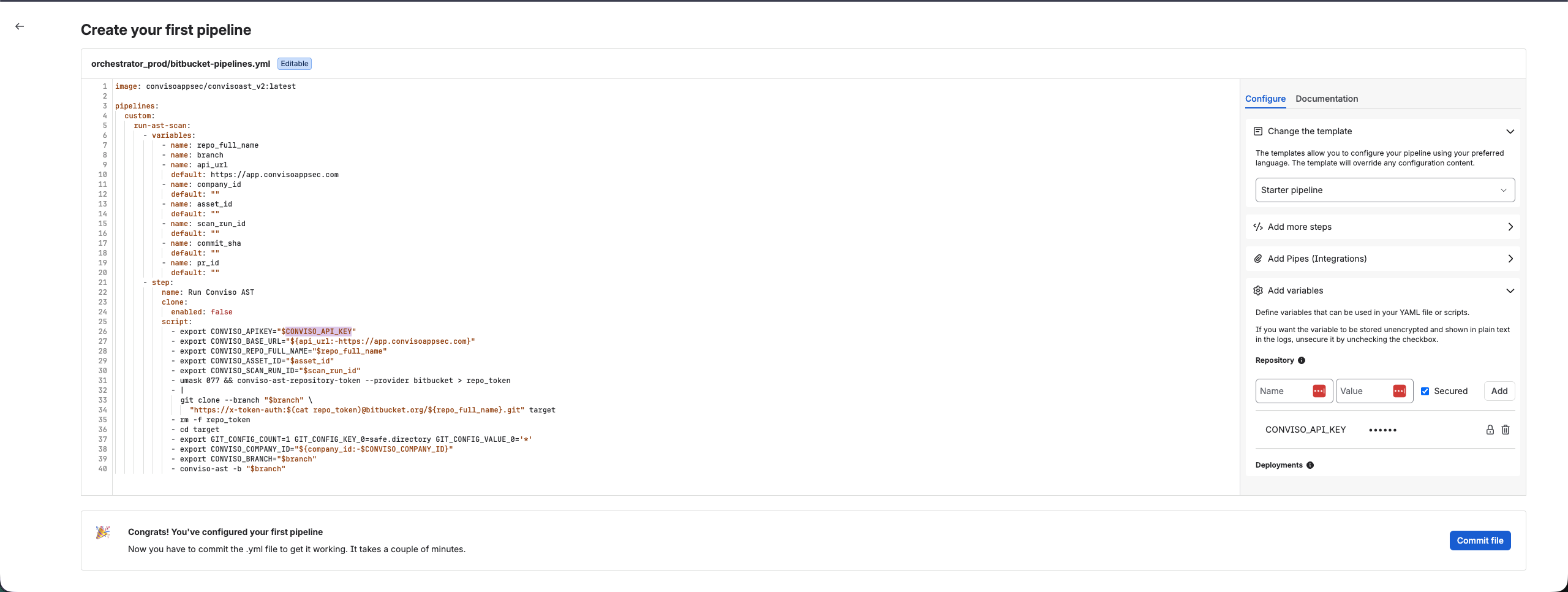
- The custom pipeline name must be exactly
run-ast-scan— that is the selector Conviso triggers. - This template clones
branch(the PR destination branch after merge). Conviso also sendscommit_shaandpr_idfor correlation.
Part 2 – Conviso Platform setup
Step 4 – Configure the orchestrator
- Open Integrations → Bitbucket → Configuration.
- Turn AST scans on merge on.
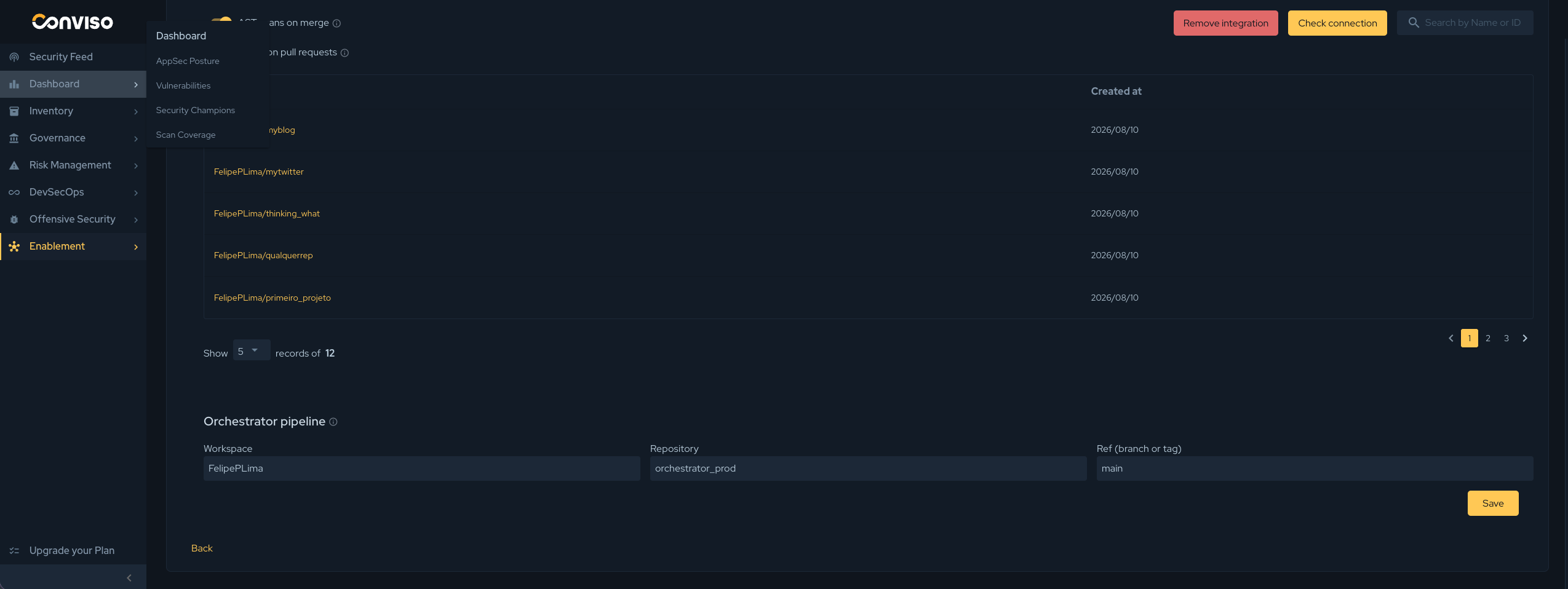
- Under Orchestrator pipeline, fill:
- Workspace — Bitbucket workspace slug of the orchestrator repository.
- Repository — repository slug (not the full URL).
- Ref — orchestrator branch/tag that contains
bitbucket-pipelines.yml(e.g.main).
- Save.
Step 4: Orchestrator workspace, repository, ref, and AST scans toggle.
Step 5 – Assets and merge target
- Confirm each application repository is imported and enabled.
- Set the asset branch mapping when the merge target is not the same as Ref (example: Ref
mainon the orchestrator, merges intomasteron the asset → map the asset tomaster). - If the asset has no branch mapping, merges must go into the branch named by Ref (or any branch only if Ref is also empty — avoid that setup).
End-to-end flow (after setup)
- Developer merges a PR into the configured merge target on an imported, enabled asset.
- Conviso validates the event and configuration, then starts custom pipeline
run-ast-scanon the orchestrator / Ref. - Variables include at least:
repo_full_name,branch(PR destination),commit_sha,pr_id,api_url,company_id,asset_id(blank values may be omitted). - Job steps: issue repository token → clone target at
branch→ runconviso ast run→ upload session artifact. - Findings appear on the asset in Conviso Platform.
- In Bitbucket, open the orchestrator → Pipelines → run
run-ast-scanto inspect the job.
Validation checklist
| Check | Expected |
|---|---|
| Variable | CONVISO_API_KEY exists on the orchestrator (secured) |
| Path | bitbucket-pipelines.yml with pipelines.custom.run-ast-scan is on the Ref branch |
| Conviso | Workspace + repository + Ref saved; AST scans on merge on |
| Asset | Target repo imported, enabled; merge target branch matches mapping or Ref |
| After merge | New Pipelines run on the orchestrator for run-ast-scan; findings (or a clean result) on the asset |
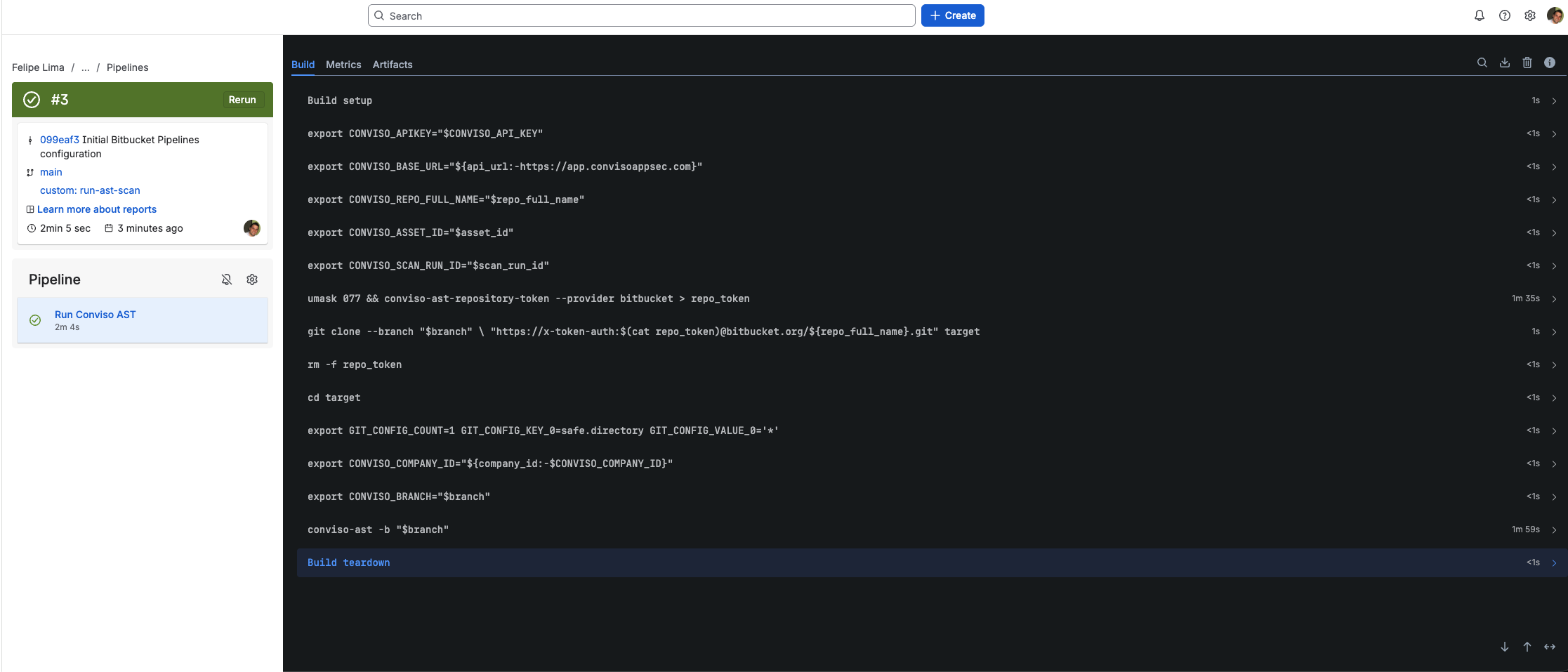
Validation: successful orchestrator pipeline run.
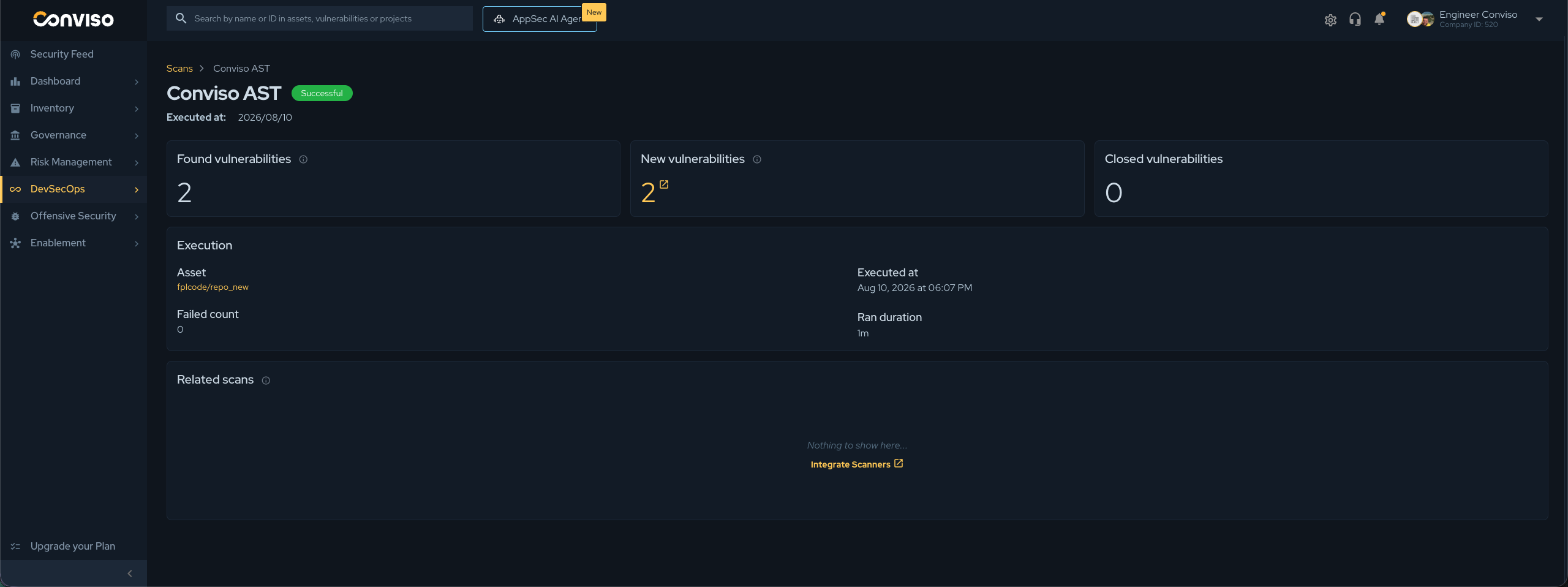
Validation: findings visible on the asset in Conviso Platform (Conviso AST).
Manual test (optional): on the orchestrator, Run pipeline → custom pipeline run-ast-scan. Set repo_full_name and branch to an imported asset. Leave api_url empty for production (https://api.convisoappsec.com). Set company_id or define CONVISO_COMPANY_ID.
Troubleshooting
| Symptom | Cause / fix |
|---|---|
| Merge done, no pipeline | AST scans on merge off; workspace/repository/Ref incomplete; asset disabled or not imported; PR destination ≠ asset branch / Ref; webhooks unhealthy |
Requested selector is not found | pipelines.custom.run-ast-scan missing on the exact Ref configured in Conviso |
| Token / clone fails (HTTP 4xx) | repo_full_name not an imported asset for that API key/company; wrong environment (CONVISO_API_KEY vs api_url); Bitbucket integration not authorized / OAuth user lacks access |
| Unreadable / HTML response from Platform | Use the API host (api.*), not app.* / staging.*. The template normalizes those hosts automatically |
Scanner missing CONVISO_COMPANY_ID | Manual run without company_id and without variable CONVISO_COMPANY_ID |
| Wrong code scanned | Merge target / branch mismatch; confirm you merged into the configured destination branch |
Related guides
Contribute to the Docs
Found something outdated or missing? Help us improve the documentation with a quick suggestion or edit.
How to contributeResources
By exploring our content, you'll find resources that will enhance your understanding of the importance of a Security Application Program.
Conviso Blog: Explore our blog, which offers a collection of articles and posts covering a wide range of AppSec topics. The content on the blog is primarily in English.
Conviso's YouTube Channel: Access a wealth of informative videos covering various topics related to AppSec. Please note that the content is primarily in Portuguese.