Report Customization
Introduction
Report Customization lets you apply your company's identity to the PDF reports generated on the Conviso Platform. You can change:
- the logo and the cover background;
- the colors and the font;
- the report title, page header, page footer, confidentiality notice and back cover;
- which sections appear, and in which order;
- whether the Conviso brand appears.
The settings apply to every report your company generates from the moment you save them. Reports generated earlier are not changed.
Prerequisites
- You must be an administrator of the company.
- Your company's plan must include Report Customization. If it does not, the Reports card does not appear in Settings. Contact your account manager to add it.
Open the report settings
- In the top bar, click the Settings icon.
- Under General, click the Reports card.
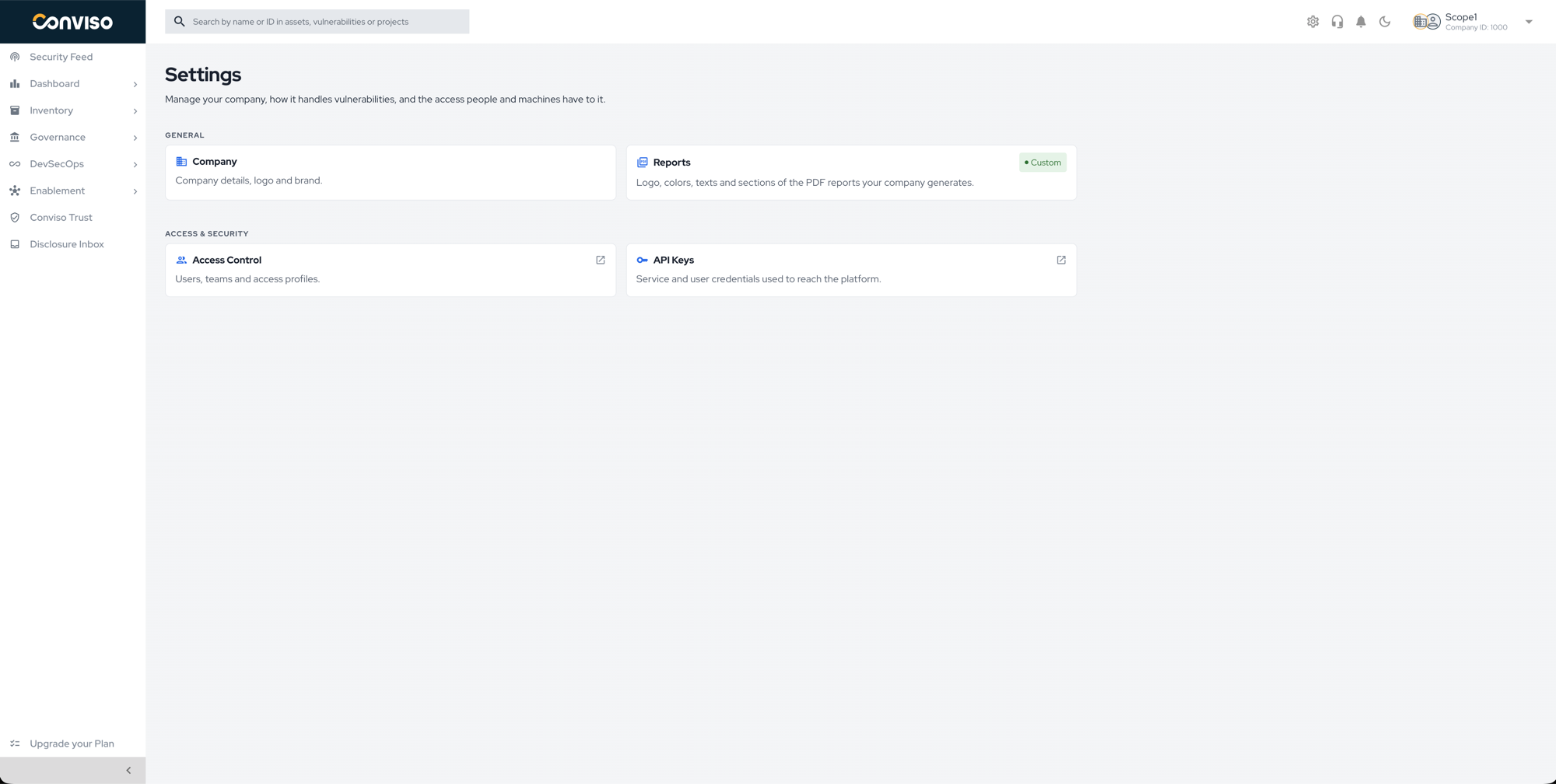
The card shows Default while your company uses the Conviso layout, and Custom once any setting differs from it.
Customize the reports
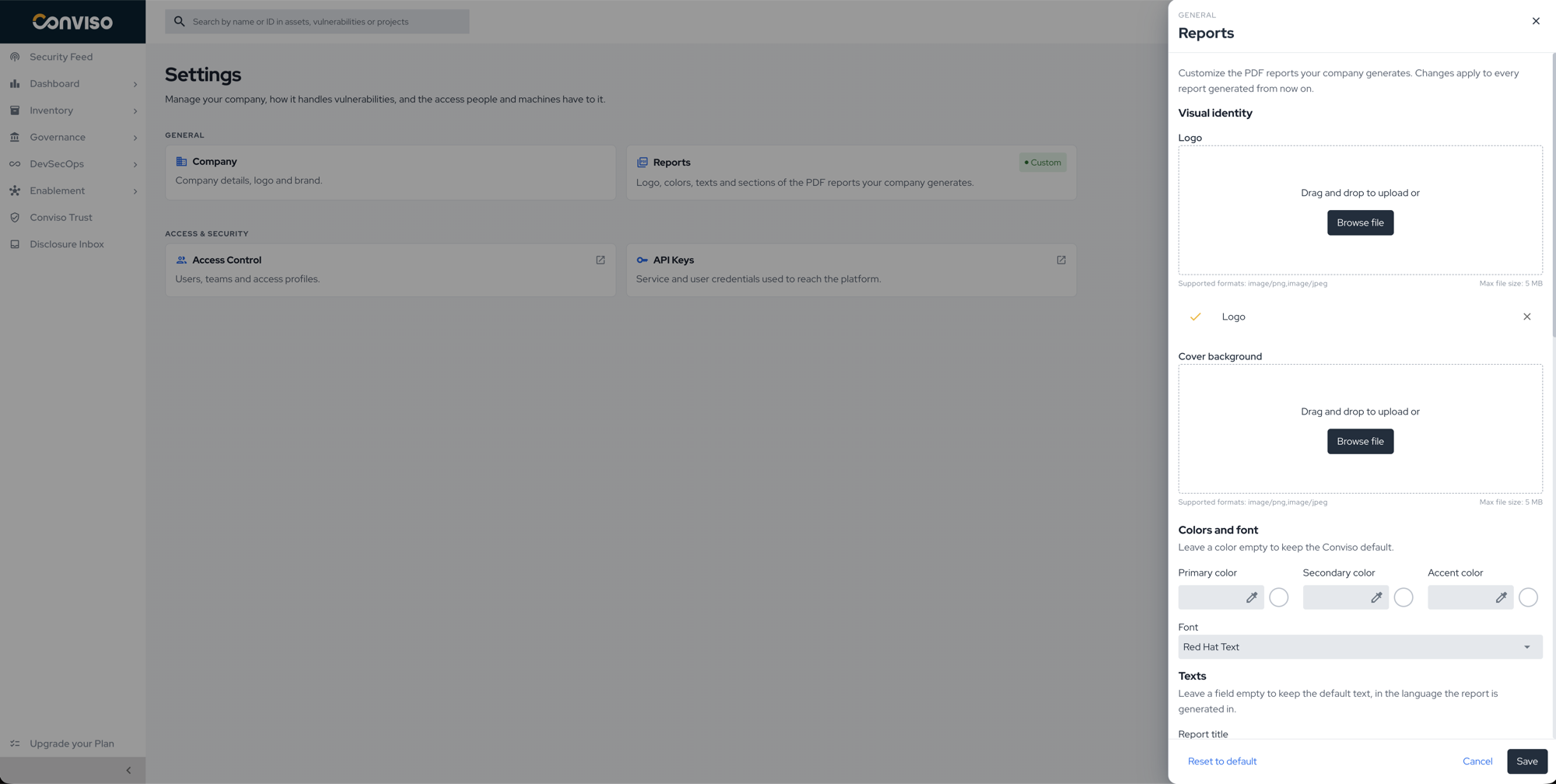
Visual identity
- In Logo, drag an image or click Browse file. The logo replaces the Conviso logo on the cover and on the back cover.
- In Cover background, drag an image or click Browse file. The image fills the background of the cover.
Both accept PNG or JPEG files up to 5 MB. To remove an image, click the X next to it.
Colors and font
- Enter the Primary color, Secondary color and Accent color in the
#RRGGBBformat, or pick them with the color picker. - Select a Font: Red Hat Text (default), Inter, Roboto, Open Sans, Lato, Montserrat, Source Sans 3 or Merriweather.
Leave a color empty to keep the Conviso default.
Texts
Fill in the texts you want to replace. Leave a field empty to keep the default text, in the language the report is generated in.
| Field | Where it appears | Limit |
|---|---|---|
| Report title | Cover and document title | 120 characters |
| Page header | Top of each page | 120 characters |
| Page footer | Bottom of each page | 120 characters |
| Confidentiality notice on the cover | Bottom of the cover | 500 characters |
| Back cover text | Back cover | 500 characters |
| Back cover link | Back cover | Must start with https:// |
Conviso brand
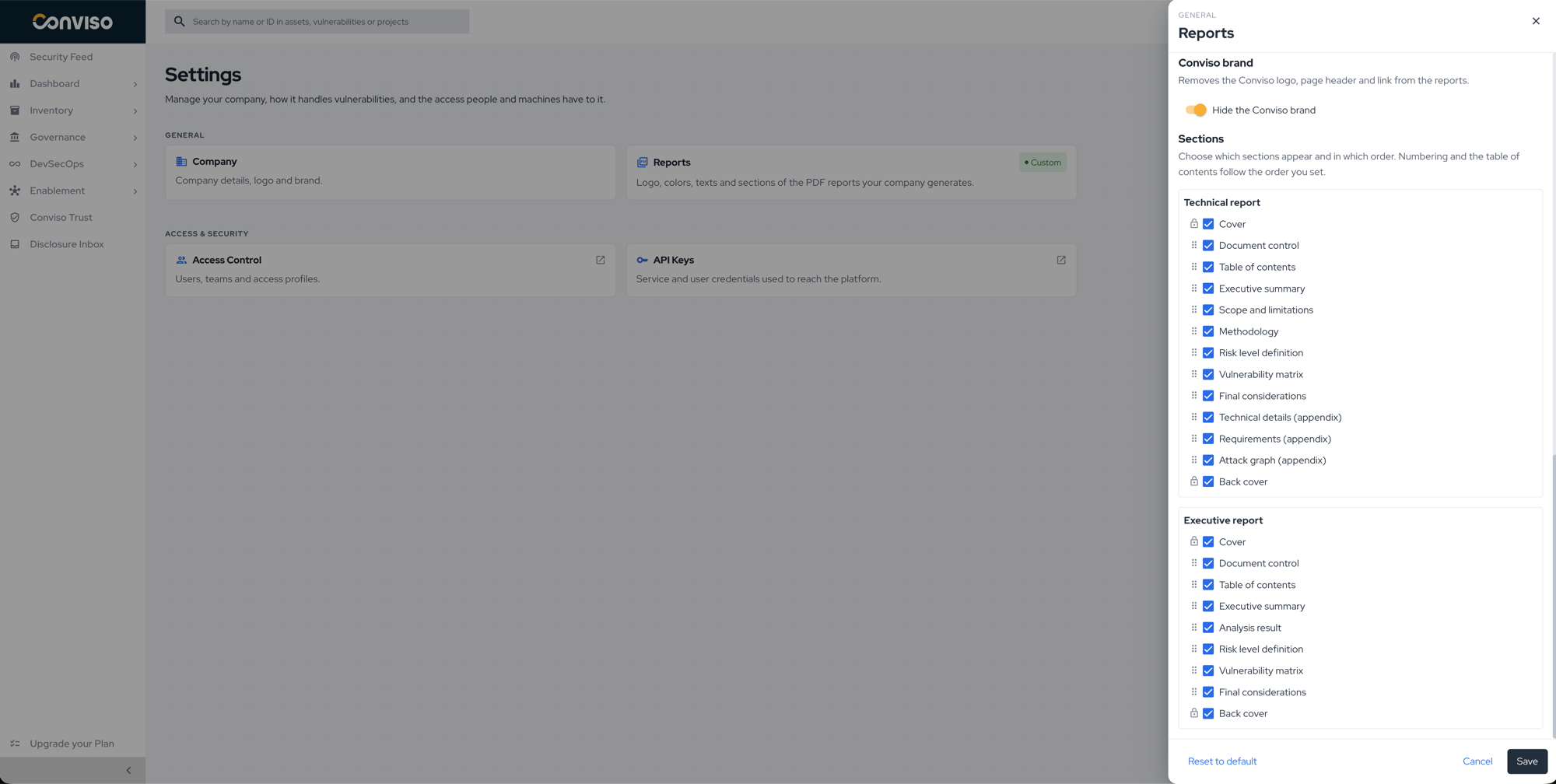
Turn on Hide the Conviso brand to remove the Conviso logo, the Conviso page header and the Conviso link from the reports.
A small Powered by Conviso credit stays at the bottom right of every page.
Sections
Choose which sections appear in the Technical report and in the Executive report, and in which order:
- Clear the checkbox of a section to hide it.
- Drag a section by its handle to change its position.
The numbering and the table of contents follow the order you set. Cover and Back cover always stay first and last; they can be hidden but not moved. Keep at least one section visible.
Save
Click Save. The message Report settings saved confirms the change.
Restore the Conviso defaults
- Click Reset to default. The panel fills in every default value and removes the images.
- Click Save to apply it.
The Reports card goes back to Default.
Validation
Generate a report from a project. The PDF shows your logo, colors, font, texts and section order.
Troubleshooting
| Problem | Cause | Solution |
|---|---|---|
| The Reports card does not appear | The plan does not include Report Customization | Contact your account manager |
| The card shows You do not have permission to access this setting | Your user is not an administrator of the company | Ask a company administrator |
| An image is refused | It is not PNG or JPEG, or it is larger than 5 MB | Use a PNG or JPEG file up to 5 MB |
| Use an address starting with https:// under the back cover link | The link does not use https | Use an https:// address |
| Keep at least one section visible | Every section of a report is hidden | Select at least one section |
| Reports went back to the Conviso layout | The plan no longer includes Report Customization | Your settings are kept and apply again once the plan includes it |
Support
Should you have any questions or require assistance while using the Conviso Platform, feel free to reach out to our dedicated support team.
Contribute to the Docs
Found something outdated or missing? Help us improve the documentation with a quick suggestion or edit.
How to contributeResources
By exploring our content, you'll find resources that will enhance your understanding of the importance of a Security Application Program.
Conviso Blog: Explore our blog, which offers a collection of articles and posts covering a wide range of AppSec topics. The content on the blog is primarily in English.
Conviso's YouTube Channel: Access a wealth of informative videos covering various topics related to AppSec. Please note that the content is primarily in Portuguese.