Salt Security Integration
Introduction
The Salt Security integration connects your Salt Security tenant to Conviso Platform in a bidirectional sync:
- Inbound (Salt → Conviso): Salt discovers your APIs and detects posture gaps (API vulnerabilities). Conviso imports discovered APIs as assets and posture gaps as issues, keeping them up to date via webhooks and manual sync.
- Outbound (Conviso → Salt): When you update an issue status in Conviso (e.g., mark as Fixed or Risk Accepted), that change is written back to the corresponding posture gap in Salt Security automatically.
Asset model
Salt Security surfaces two levels of assets in Conviso Platform:
| Asset type | Conviso section | Description |
|---|---|---|
| FQDN (Domain) | Assets → FQDNs | One per Salt-discovered host. Acts as the sync anchor. |
| API (Endpoint) | Assets → APIs | One per endpoint (method + path) under a domain. Issues (posture gaps) attach here. |
Each FQDN asset has an APIs tab that lists all its child API endpoint assets. API assets link back to their parent domain via a breadcrumb.
Prerequisites
- An active Salt Security account with at least one configured environment.
- A Salt Security API key (Dashboard → Settings → Access → API Keys). The key must have
perm-viewerscope for read operations andperm-executorfor write-back. - Your Salt tenant region: US (
api.secured-api.com) or EU (api.secured-api-eu.com). - A Conviso Platform account with permission to manage integrations.
Setup
1. Find Salt Security in Integrations
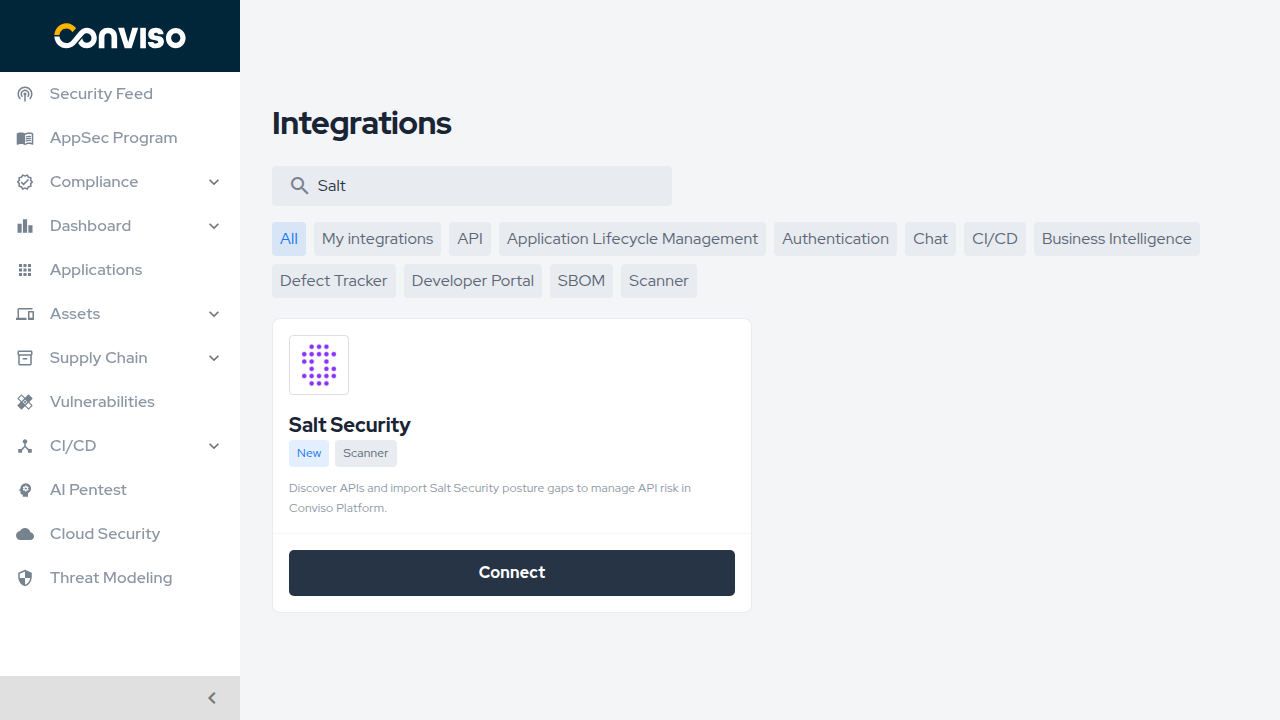
In the left sidebar, click Integrations. Search for Salt Security and click Connect on the card.
2. Enter credentials
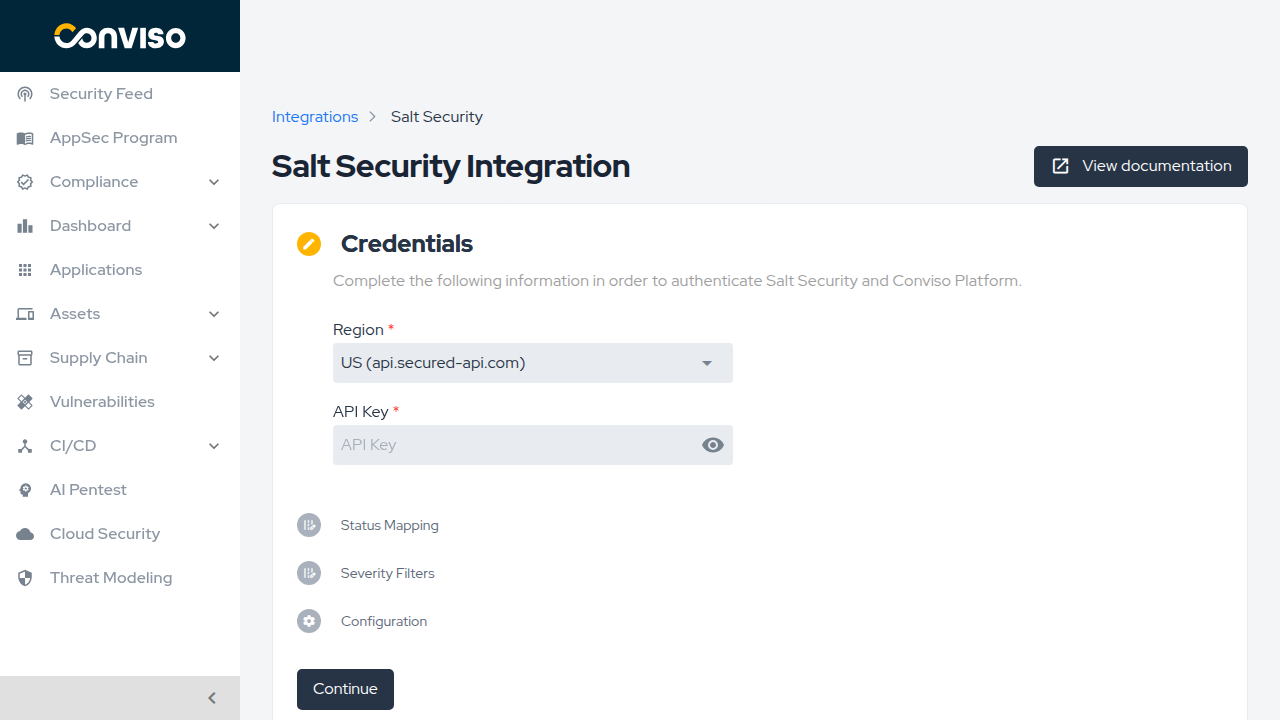
On the Credentials step:
- Select your Region — US (
api.secured-api.com) or EU (api.secured-api-eu.com). - Paste your Salt Security API Key.
- Click Continue. Conviso validates the key before proceeding.
3. Configure Status Mapping
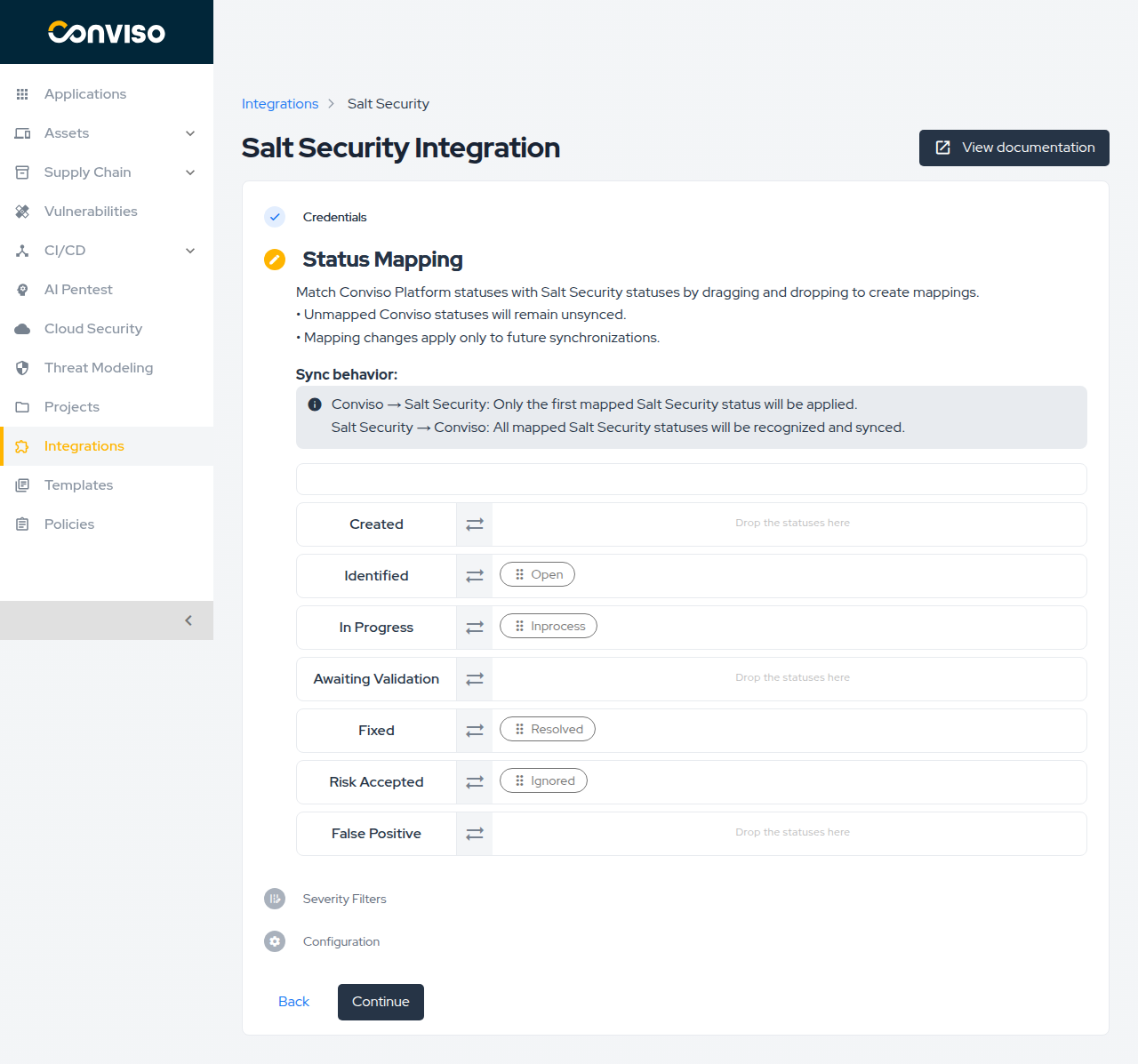
On the Status Mapping step, drag Salt Security statuses onto Conviso Platform status rows to define how statuses are translated between the two systems.
Sync behavior:
- Conviso → Salt Security: Only the first mapped Salt Security status in a row is applied on write-back.
- Salt Security → Conviso: All mapped Salt Security statuses in a row are recognized on inbound sync.
Unmapped Conviso statuses are not synced. Changes apply only to future synchronizations.
The default mapping is:
| Conviso status | Salt Security status |
|---|---|
| Identified | Open |
| In Progress | Inprocess |
| Fixed | Resolved |
| Risk Accepted | Ignored |
Click Continue when done.
4. Select Severity Filters
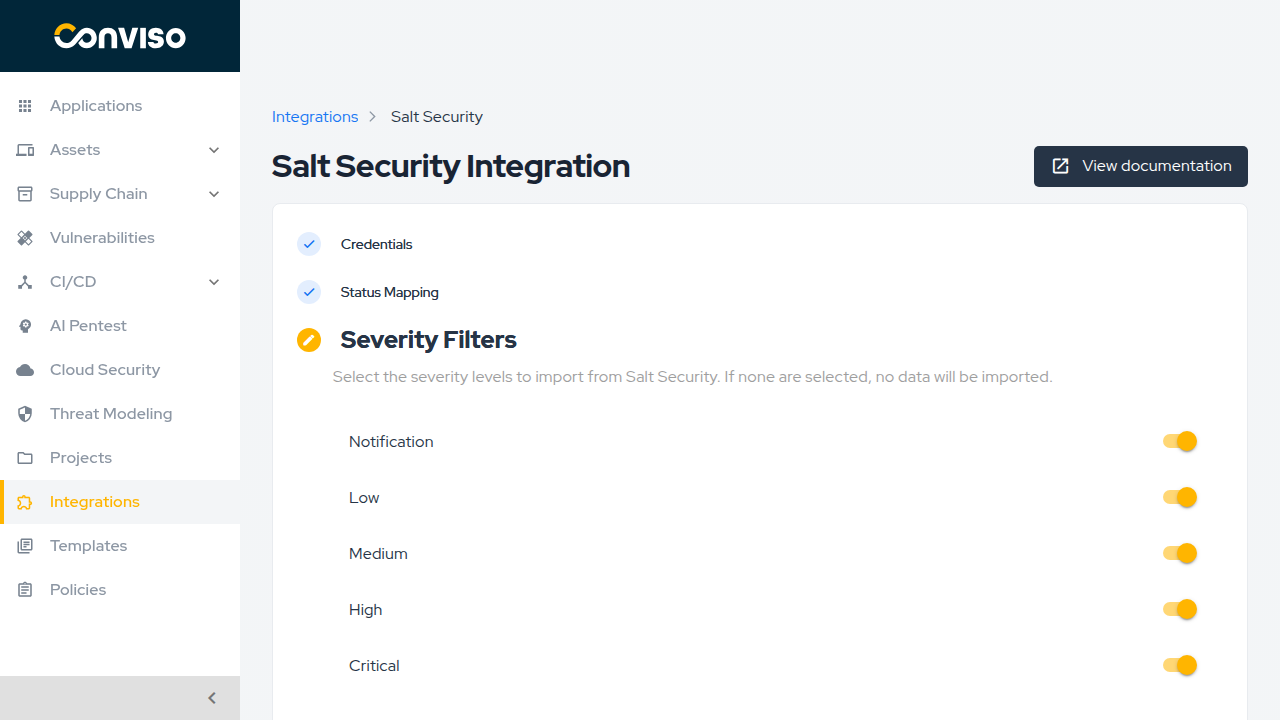
On the Severity Filters step, enable the severity levels you want to import from Salt Security. All levels are enabled by default: Notification (maps from Salt's Info), Low, Medium, High, and Critical.
If no severity level is selected, no findings will be imported.
Click Continue.
5. Associate domains (Configuration step)
On the Configuration step, click Add project to open the domain picker. The picker lists all hosts discovered in your Salt Security environment. Select the domains you want to track in Conviso and click Add.
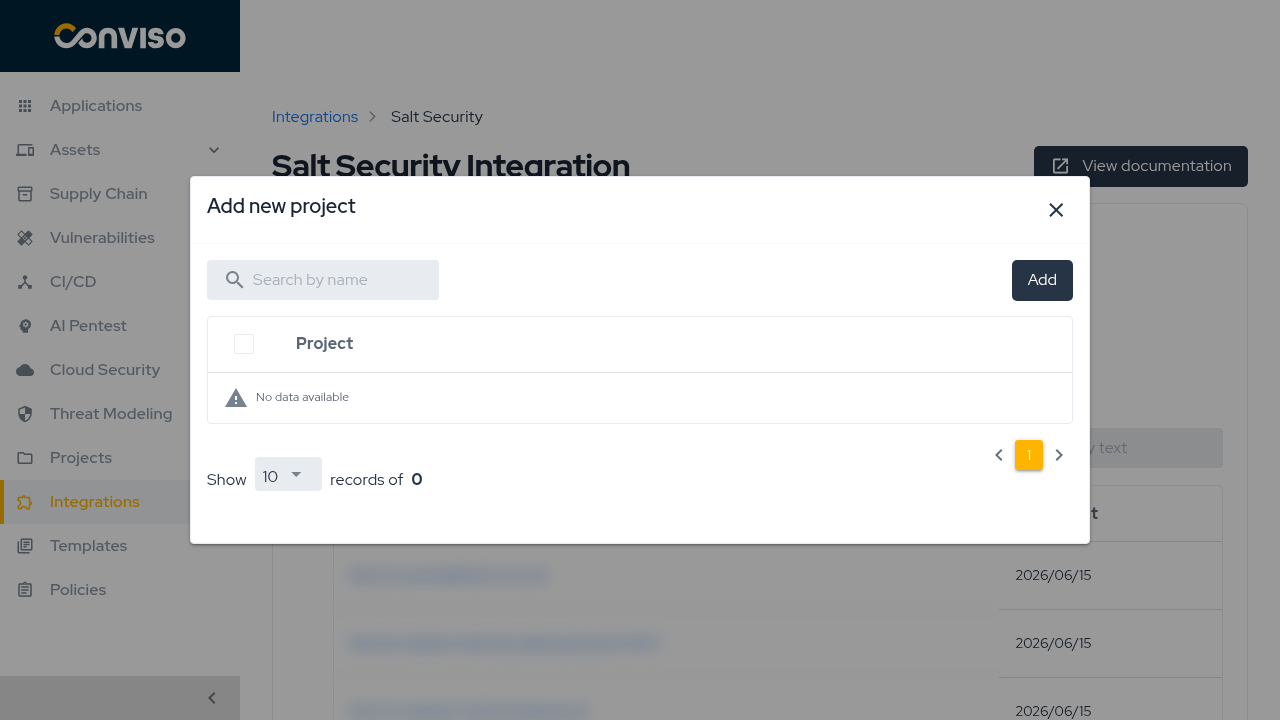
For each associated domain, Conviso:
- Creates an FQDN asset with
asset_type = domain. - Eagerly imports all endpoint assets under that domain as API assets (
asset_type = api). - Links the domain to any Salt Security labels as Conviso Applications and asset tags.
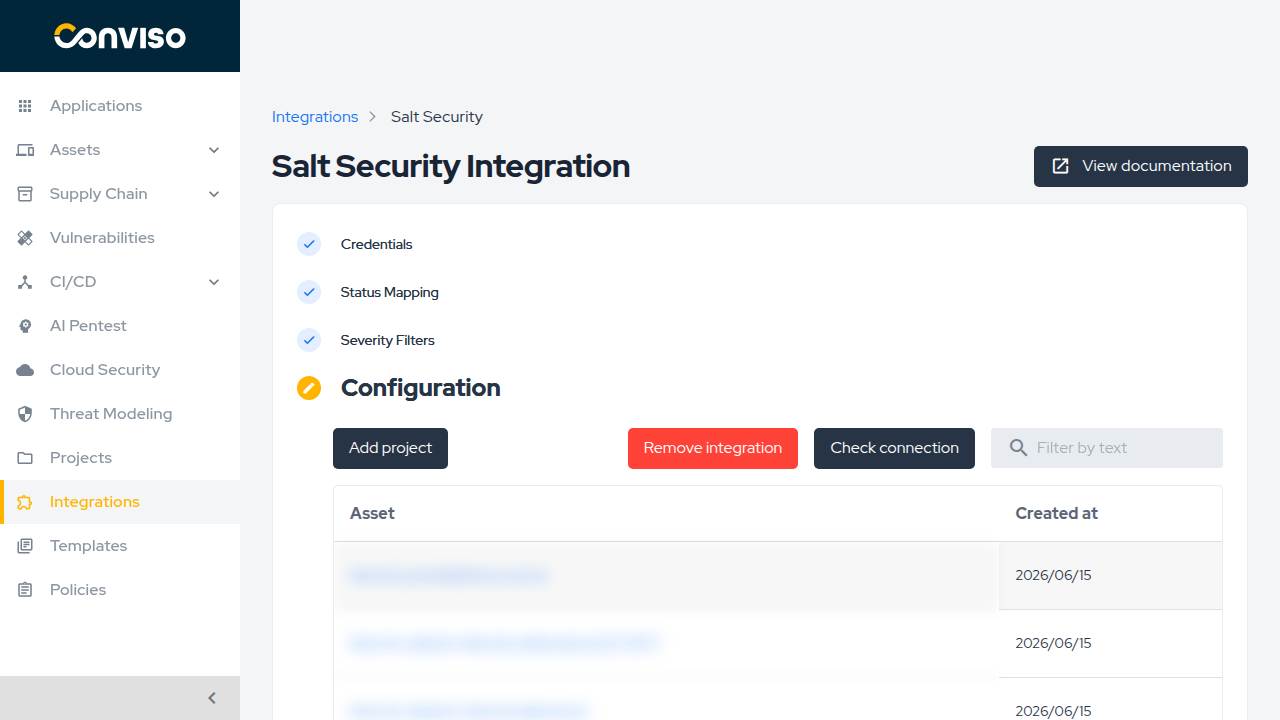
After adding domains, the first sync runs automatically. Depending on the number of endpoints and posture gaps, this may take a few minutes.
Viewing assets
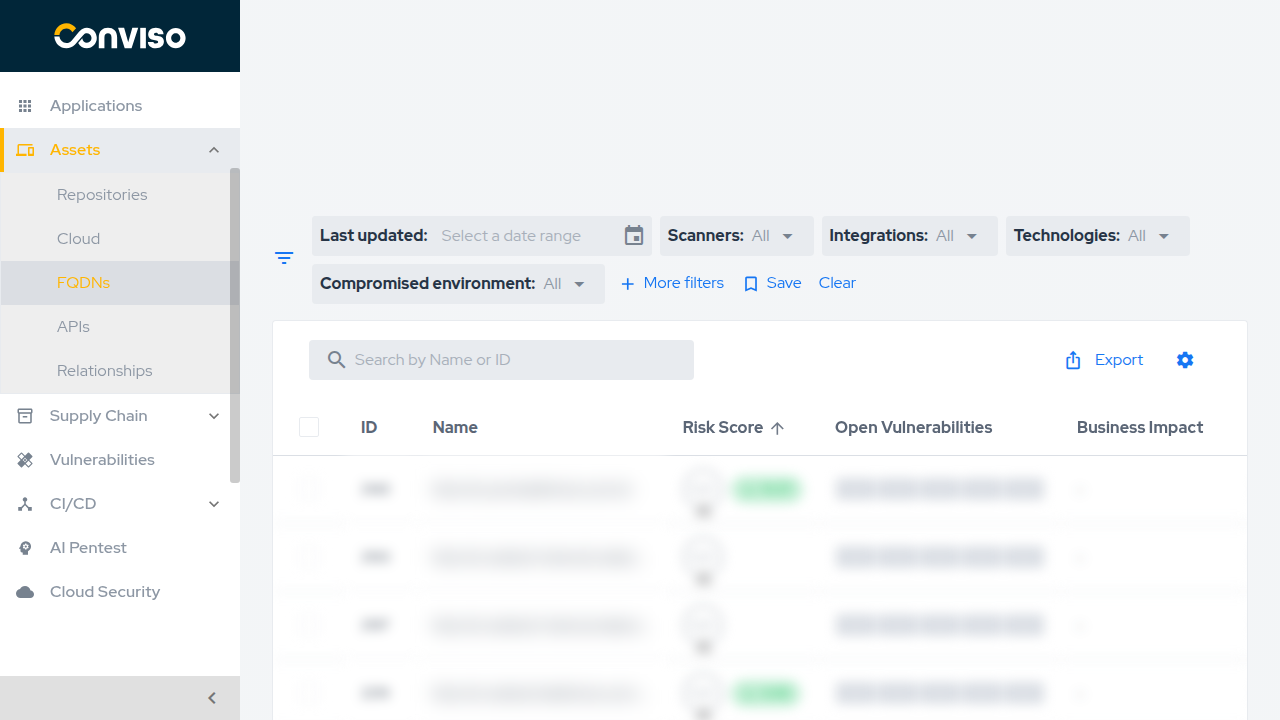
FQDNs
Go to Assets → FQDNs to see all Salt Security-discovered domain assets. Each row shows the domain name, risk score, open vulnerabilities count, and business impact.
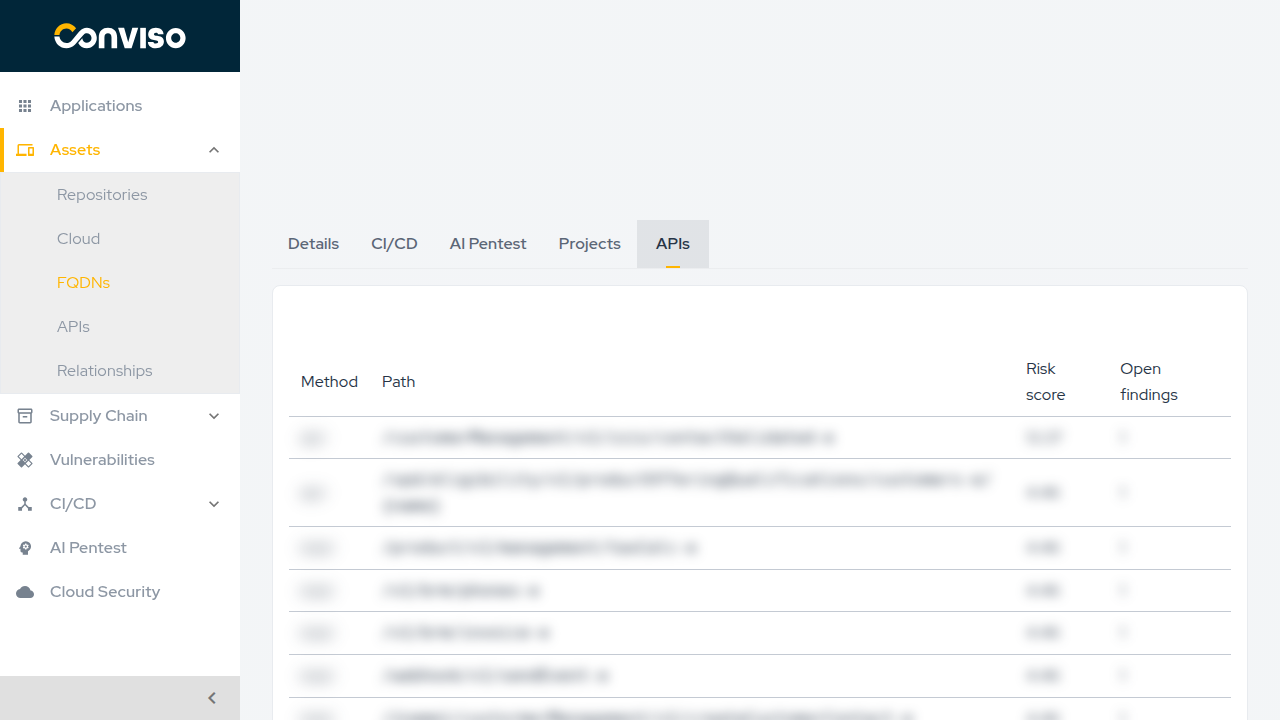
Click a domain to open its detail page. The APIs tab lists all child API endpoint assets under that domain, along with their method, path, risk score, and open findings count.
APIs
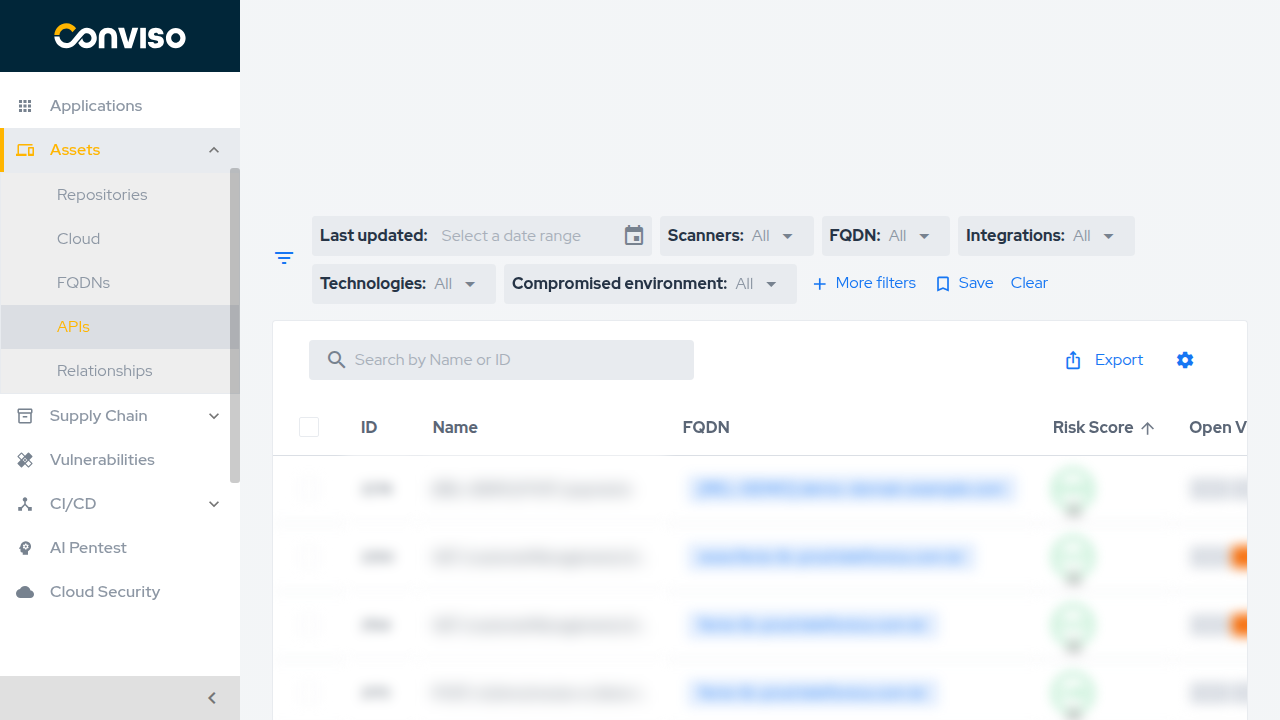
Go to Assets → APIs to see all imported API endpoint assets across all associated domains. Each row shows the endpoint name, its parent FQDN, risk score, and open vulnerabilities. Use the FQDN filter to scope the list to a specific domain.
Managing an existing integration
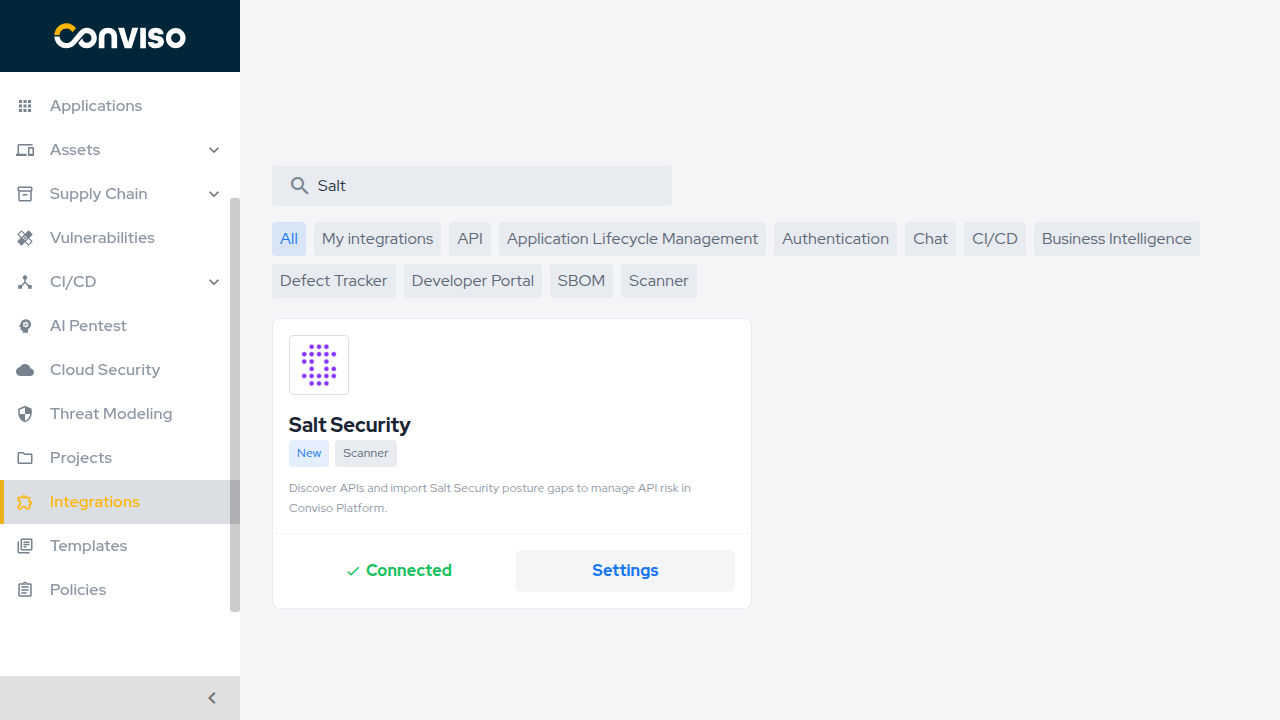
To update credentials, status mappings, severity filters, or add/remove domains, go to Integrations, search for Salt Security, and click Settings on the card.
The Configuration step shows all currently associated domains with their creation dates. From here you can:
- Add project — associate additional Salt Security domains.
- Remove integration — disconnect Salt Security entirely.
- Check connection — verify the API key is still valid.
Real-time sync (Webhook)
Conviso provides a webhook endpoint that Salt Security can call whenever a posture gap changes. When a webhook fires, Conviso re-syncs only the affected domain rather than re-pulling all data.
Configure the webhook in your Salt Security dashboard under Settings → Integrations → Custom Webhook using the following template:
{
  "company_id":    "<your Conviso company ID>",
  "webhook_token": "<your integration webhook token>",
  "reference":     "{{host}}",
  "event":         "{{eventType}}"
}
Webhook URL:
https://<your-conviso-host>/api/v3/integrations/scanners/salt_security/webhook
Find your company_id and webhook_token on the Salt Security integration settings page in Conviso Platform.
Note: If the webhook template is misconfigured, real-time sync stops silently. Use Sync integration in the integration settings as a manual recovery path.
Bidirectional status sync
Status changes flow in both directions automatically:
| Direction | Trigger | What happens |
|---|---|---|
| Salt → Conviso | Webhook or manual sync | Posture gap status mapped to Conviso issue status via Status Mapping table. |
| Conviso → Salt | Issue status change in Conviso | First mapped Salt status for that Conviso status is written back to Salt via POST /v1/apigovern/posture/gaps. |
Troubleshooting
- Invalid credentials: Verify the API key was copied correctly and that the Salt region matches your tenant (US vs EU).
- No domains listed in picker: The API key may lack
perm-viewerscope, or no hosts have been discovered yet in your Salt environment. - Zero findings after sync: Salt's host filter may not match the stored domain reference. Use Sync integration to trigger a full re-pull. Check that severity filters include the relevant levels.
- Domains in sync but findings missing: Confirm the Salt API key has access to posture gaps in the selected environment.
- Webhook not triggering re-sync: Verify the template in Salt's dashboard matches the contract above (especially the
referenceandwebhook_tokenfields).
Support
If you have any questions or need help with our product, please contact our support team according to your SLA.

Contribute to the Docs
Found something outdated or missing? Help us improve the documentation with a quick suggestion or edit.
How to contributeResources
By exploring our content, you'll find resources that will enhance your understanding of the importance of a Security Application Program.
Conviso Blog: Explore our blog, which offers a collection of articles and posts covering a wide range of AppSec topics. The content on the blog is primarily in English.
Conviso's YouTube Channel: Access a wealth of informative videos covering various topics related to AppSec. Please note that the content is primarily in Portuguese.