Managing Certificates
Objective
Follow a certificate through its lifecycle after the order is placed: check its status, keep domain control validation moving, download it once issued, renew it with a reissue, and revoke it when it should stop being trusted.
The Certificates List
Inventory > Assets > Certificates lists every certificate in your account:
| Column | Content |
|---|---|
| ID | The certificate's identifier in the platform |
| Common Name | The main domain the certificate covers |
| Type | The product, for example SSL DV or SSL Wildcard OV |
| Status | The current state — see Certificate Statuses |
| Issued | When the certificate authority issued it |
| Expires | The expiry date, with the remaining time below it |
| Actions | Download, Synchronize, Revoke or Reject |
Every column is sortable, and the whole row is clickable — selecting it opens the certificate's
detail page. Dates use the YYYY/MM/DD format, and the line under Expires reads
in {n} days while the certificate is valid, or {n} days ago once it is past due, shown in red.
Narrow the list with the Status and Type filters, or search by Common Name or ID. Your filter selection is remembered between visits.
There is no "expiring soon" status. How close a certificate is to expiry is shown by the relative line under Expires, and the status only changes to Expired once the date has passed. The platform does not send expiry notifications — review the list, sorted by Expires, as part of your routine.
Certificate Statuses
| Status | Meaning |
|---|---|
| Pending Validation | The order is placed and the certificate authority is waiting on domain control validation, or on the EV vetting details |
| Valid | Issued and in force |
| Expired | The expiry date has passed. The platform updates this automatically |
| Revoked | Revoked at the certificate authority; clients no longer trust it |
| Rejected | The issuance was cancelled before the certificate was produced |
| Replaced | Superseded by a reissue. It is kept in the issuance history |
| Error | The issuance failed, or the certificate authority rejected the EV vetting details |
Two situations also show a banner at the top of the detail page:
- EV details error —
The certificate authority rejected the vetting details. Review and resubmit in the form below.Correct the data in the form on the same page and submit again. - Manual reconciliation required —
The certificate authority submission could not be confirmed. Contact support for manual reconciliation.The platform could not confirm what happened to the order, so it will not guess. Contact Conviso Support.
Tracking a Certificate
The detail page opens on the certificate's Common Name, with its type and status underneath, and the actions available for its current state in the header:
| Action | Available when |
|---|---|
| Reissue | The certificate is Valid or Expired and its subscription term is still open |
| Synchronize | Almost always — it asks the certificate authority for the order's current state |
| Download | The certificate has been issued |
| Revoke | The certificate is Valid |
| Reject | The certificate is still Pending Validation |
The Certificate details card shows the Issuer, the Validation method, the Issued and Expires dates, and Subscription until — the date up to which reissues are included.
The Lifecycle timeline below it shows how far the certificate has progressed: Requested → Domain validated → (EV details, for EV certificates) → Issued. A certificate that did not complete ends on Rejected, Replaced or Revoked instead.
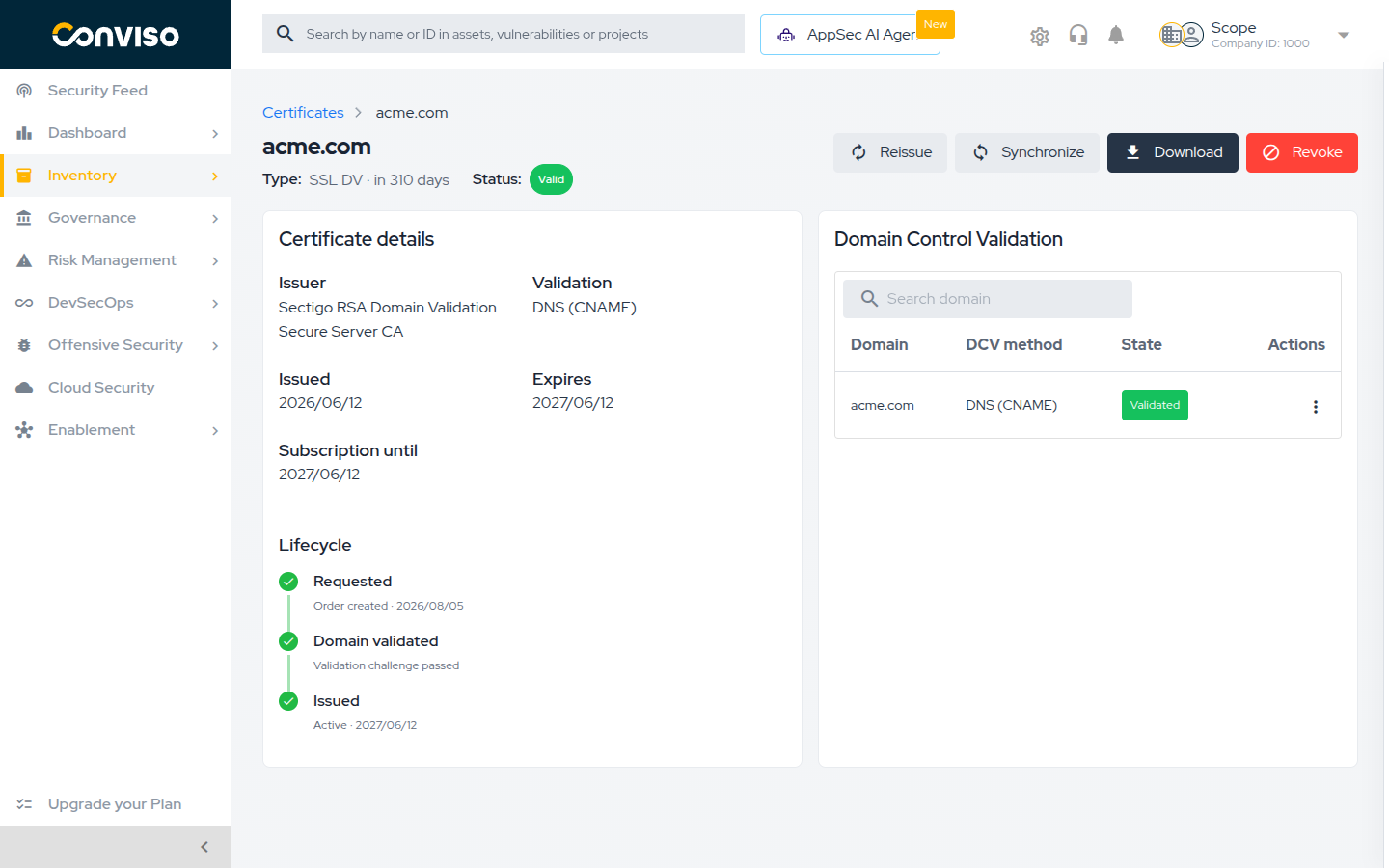
The platform reconciles pending orders with the certificate authority automatically, about once an hour. Use Synchronize when you have just published a validation record and do not want to wait for the next automatic check.
A certificate that has been Pending Validation for over a week is dropped from the automatic check — at that point the order has usually stalled because the validation record was never published, and it will expire at the certificate authority.
The certificate does not disappear and the order is not cancelled: it simply stops refreshing by itself. If you publish the validation record late, select Revalidate on the domain and then Synchronize to bring the certificate up to date manually.
Certificates waiting on EV vetting details are not subject to this and keep updating automatically.
Domain Control Validation
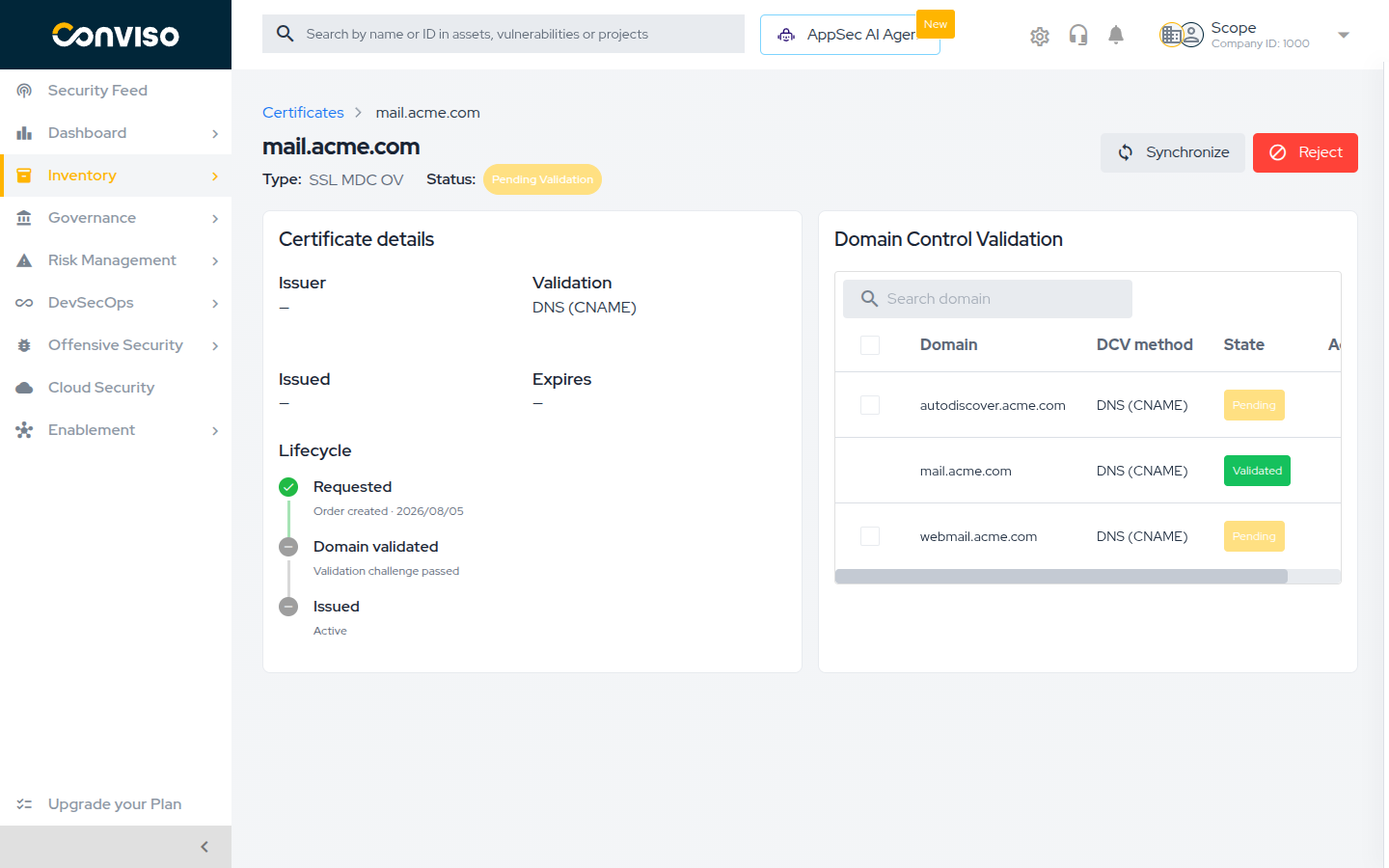
The Domain Control Validation card lists every domain in the certificate and how each one is being validated:
| Column | Content |
|---|---|
| Domain | The domain being validated |
| DCV method | DNS (CNAME), HTTPS or Email |
| State | Validated, Pending, or Cancelled when the certificate is no longer active |
| Actions | View details, change the method, revalidate |
Search by domain name to find one in a long list.
Getting the record to publish
Select View details on a row to open Validation details, which shows the Record name and the Value to publish, each with a copy button. For e-mail validation it shows the address the validation e-mail was sent to.
Changing the validation method
Select Change DCV method on a row to switch a domain between DNS, HTTPS and e-mail — useful when, for example, you cannot upload a file to the server but can create a DNS record. For e-mail you must also pick an approved address.
To change several domains at once, tick their checkboxes and use the Change DCV method button above the table. HTTPS is not offered when any selected domain is a wildcard.
Only domains that are still pending can be changed. A domain that is already Validated, and a certificate that has been revoked or rejected, cannot be edited.
Revalidating
Select Revalidate on a pending row to ask the certificate authority to test the record again. Use it after you have published or corrected a DNS record or a validation file, instead of waiting for the next automatic check.
When the method is e-mail, the same action is labelled Resend validation email and sends the message again.
Downloading the Certificate
Select Download, from the detail page or from the row's actions menu, once the certificate has
been issued. The platform produces a .pem file named after the Common Name, containing the
certificate followed by its CA bundle — which is what most web servers expect.
The download never contains the private key. If you generated the CSR on your own server, the key never left it. If you let the platform generate the CSR, the key was shown once during issuance and was not stored — see Generate CSR.
Downloads are recorded in the certificate's audit trail.
Completing EV Vetting Details
If you chose Fill in later during issuance, or the certificate authority rejected the data you submitted, the detail page shows a Complete extended validation details form.
Fill in the incorporating agency, the main telephone number and the three required contacts — certificate requester, certificate approver and contract signer — then select Submit vetting details. The certificate is only issued after this submission is accepted.
Renewing with Reissue
Reissue is how you renew. It issues a new certificate inside the current subscription, so it consumes no credit, and it is available while the subscription term is still open — the Subscription until date on the details card. The reissued certificate becomes the live one, and the previous one moves to the issuance history with the status Replaced.
Select Reissue and choose one of two modes.
Use the certificate's current CSR
The same CSR is submitted again. You do not need the private key — the one already installed on your server stays valid, so this is the simplest renewal: one confirmation and nothing to reconfigure on the server.
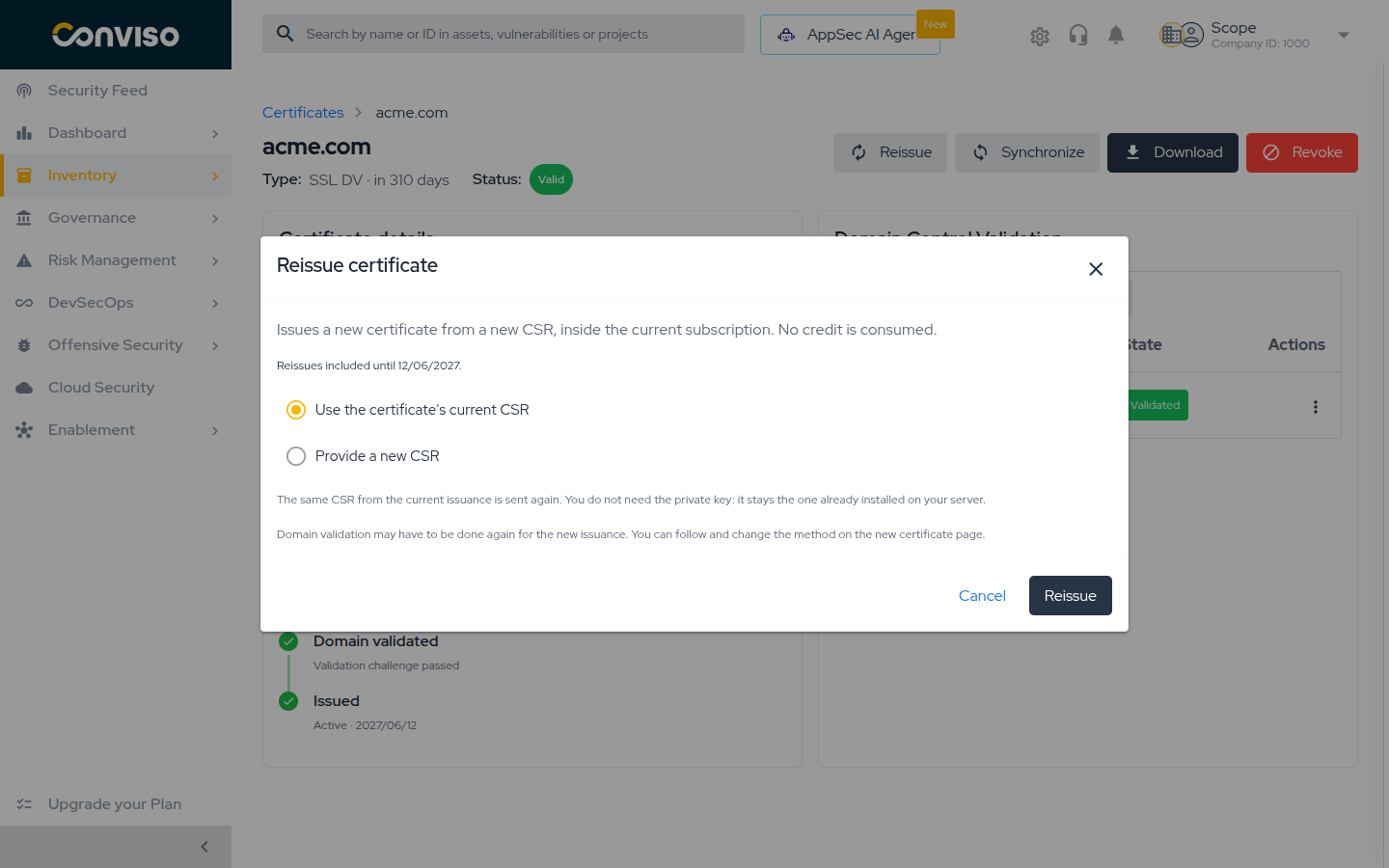
Provide a new CSR
Paste a new CSR and select Verify CSR. The platform shows the Submitted CSR digest and, for multi-domain certificates, compares the domains against the current issuance, tagging each one Kept, New or Dropped. Domains tagged Dropped stop being covered.
This mode requires you to type CONTINUE to confirm.
On a single-domain or wildcard certificate, submitting a CSR for a different primary domain makes the certificate authority revoke the certificates already issued for the old domain. They stop working immediately, wherever they are installed.
On multi-domain certificates this does not happen: previous issuances keep working until they expire and move to the history as replaced.
If you want a certificate for a different domain, issue a new one instead of reissuing this one.
Domain control validation may have to be done again for the new issuance. After confirming, the platform opens the new certificate's page, where you can follow and adjust its validation.
Revoking or Rejecting
Which action you get depends on the certificate's state: an issued certificate is revoked, and an order that has not been issued yet is rejected.
Revoking an issued certificate
Revoking ends the certificate's subscription:
- The certificate stops working immediately, wherever it is installed.
- It cannot be reissued within the contracted term.
- The credit is not returned.
- Earlier generations share the same order at the certificate authority and may be revoked along with it.
Install the replacement certificate before revoking the one it replaces.
Select Revoke, choose a Reason (RFC 5280) — Superseded (replaced by a new certificate) is
the default and the usual answer when you have already replaced it — then type CONTINUE to
confirm and select Revoke Certificate.
Choose Key compromise if the private key may have been exposed. That is the case where revoking is urgent, and where you should issue the replacement first only if you can do so within minutes.
Rejecting a pending issuance
For a certificate still Pending Validation, the action is Reject issuance: it cancels the order at the certificate authority. No typed confirmation is required, but it cannot be undone either.
Issuance History
The Issuance history card appears once a certificate has been reissued at least once. It lists every generation inside the subscription, newest first, starting from the Initial issuance.
Each entry shows its status, its Common Name and its issue and expiry dates, and links to that generation's own detail page — so a replaced certificate remains fully inspectable.
Troubleshooting
| Symptom | Cause and what to do |
|---|---|
| Status stays Pending Validation | The certificate authority has not confirmed your record. Check the record is published and matches Validation details exactly, then select Revalidate. For DNS, allow for propagation. |
| A certificate pending for over a week never updates | It has been dropped from the automatic check. Publish the validation record, then select Revalidate and Synchronize manually. |
| A validated domain, but the certificate is still pending | On a multi-domain certificate, every domain must be validated. Check the DCV table for rows still Pending. |
| Reissue is not offered | The subscription term has ended — check Subscription until. Renewal then requires a new credit and a new issuance. |
| Download is not offered | The certificate has not been issued yet. It is only available once the status is Valid. |
| Status is Error with an EV banner | The certificate authority rejected the vetting details. Correct them in the form on the page and submit again. |
| Status is Manual reconciliation required | The platform could not confirm the submission with the certificate authority. Contact Conviso Support — do not place a second order for the same domain first. |
| The e-mail validation message never arrived | Confirm the address is monitored, check the spam folder, then use Resend validation email. If it still fails, switch the domain to DNS (CNAME). |
Related Areas
- SSL Certificates — certificate types, permissions and credits.
- Issuing a Certificate — the issuance wizard, step by step.
- Asset Management — the asset list your certificates also appear in.
Support
Should you have any questions or require assistance while using the Conviso Platform, feel free to reach out to our dedicated support team.
Contribute to the Docs
Found something outdated or missing? Help us improve the documentation with a quick suggestion or edit.
How to contributeResources
By exploring our content, you'll find resources that will enhance your understanding of the importance of a Security Application Program.
Conviso Blog: Explore our blog, which offers a collection of articles and posts covering a wide range of AppSec topics. The content on the blog is primarily in English.
Conviso's YouTube Channel: Access a wealth of informative videos covering various topics related to AppSec. Please note that the content is primarily in Portuguese.