Automating Certificates with ACME
Objective
Issue and renew Conviso SSL/TLS certificates with the ACME client you already run, such as certbot or cert-manager, without opening the platform for each certificate. You prove control of each domain once, connect each server once, and from then on the client orders and renews certificates on its own. Each new certificate spends a credit, exactly like one issued from the portal; renewals reuse it while its term lasts (see Renewal).
How It Works
- Create the ACME API key. ACME issues on behalf of your company through one service API key, created on the ACME page by a company administrator. See The ACME API Key.
- Verify the domain. Add the domain on the ACME page and create one CNAME record in your DNS. It is done once and covers the domain and all of its subdomains, wildcard included.
- Connect the server. Create a server credential: choose the product, optionally limit the domains, and copy the key into certbot or cert-manager.
- Certificates come out on their own. The client orders the certificate, the platform issues it with your credit, and the client renews it before it expires.
No challenge is answered per order: the CNAME you created in step 2 is what proves control of the domain for every order that follows.
Prerequisites
- The SSL Certificates module enabled for your account and permission to manage certificates. See Before You Start.
- A company administrator for the first step: only administrators select, create, regenerate or switch the ACME API key.
- Credits for a DV product (SSL DV, SSL Wildcard DV, SSL MDC DV, SSL MDC Wildcard DV, SSL SAN DV or SSL SAN Wildcard DV). OV and EV are not issued through ACME. See Certificate Credits.
- Access to create records in the DNS of the domain.
- Two-factor authentication enabled on your user account (or sign-in through your company's SSO) to create server credentials and edit their domains. See Connect a Server.
- An ACME client that supports External Account Binding (EAB), such as certbot or cert-manager.
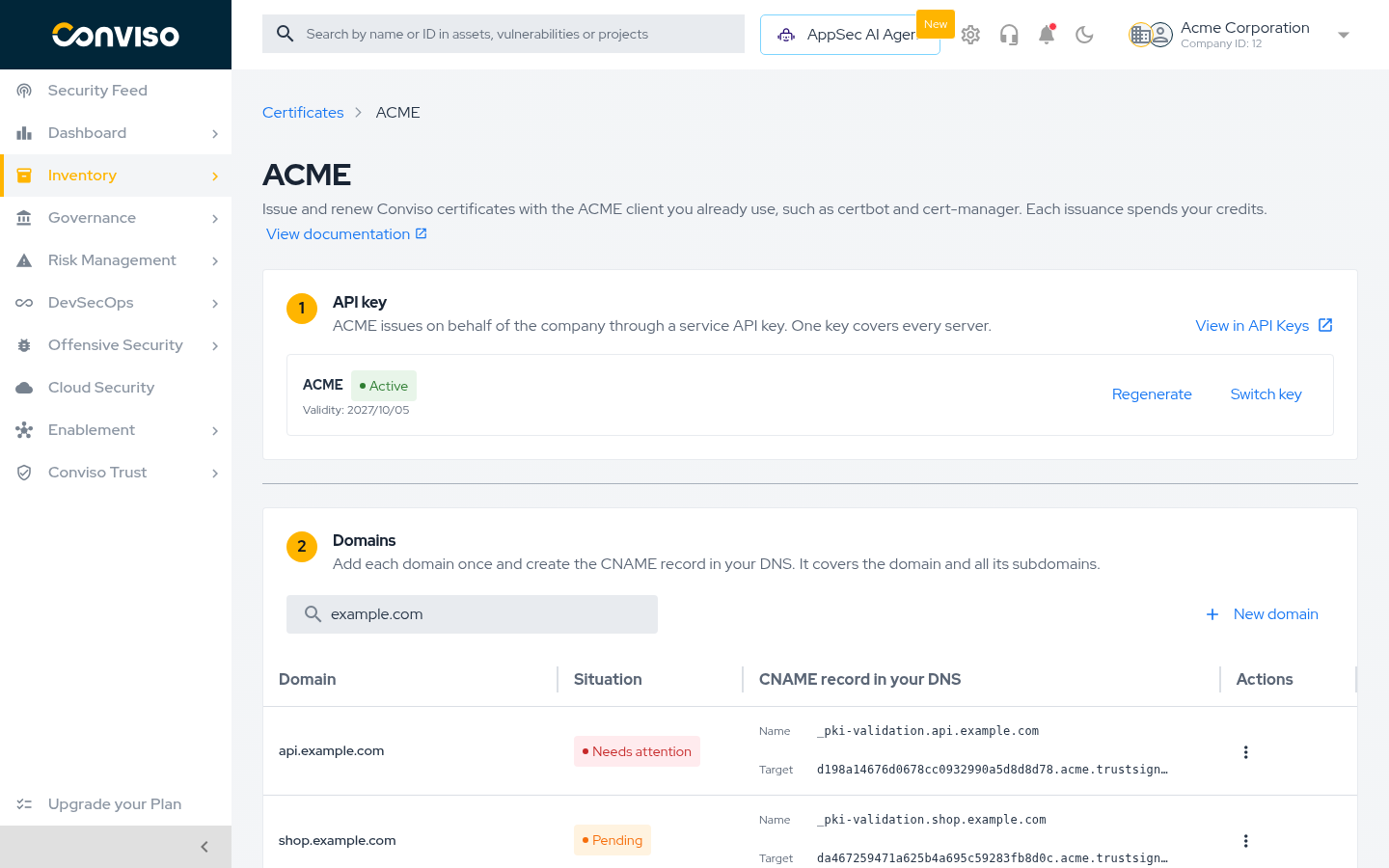
The ACME Page
The ACME page is under Inventory > Assets > Certificates: click Configure ACME in the certificate list toolbar. The page follows the order of the setup, top to bottom:
- API key: the service API key ACME issues through, with its validity and profile.
- Domains: the domains of your company and the CNAME record each one needs.
- Server credentials: the servers and clusters connected to ACME, with their situation.
Until the API key exists, the Domains and Server credentials sections stay locked. The Domains and Server credentials sections are lists with their own search and their own action: New domain and Connect server. While no domain is verified, the Server credentials section warns that servers only issue after a domain is verified. The View documentation link at the top of the page opens this guide.
The ACME API Key
ACME issues certificates on behalf of your company through one Service API key of your account. You create it in the API key section, the first step of the ACME page, and it is also listed with your other keys under Settings > API Keys. Every server credential of the company runs through this one key.
Create the Key
- In the API key section, click Select or create API key.
- To use an existing service key, pick it from the list and click Use this key. To create one, click New API key.
- In the API key form, keep the suggested name (ACME, or ACME 2 and so on if the name is taken) or type another. It must be unique among the company's service keys.
- Choose the Expiration date. One year is suggested.
- Pick at least one team in Teams, or turn on Grant access to all company resources under Access Control; the form requires one of them. This choice does not limit what ACME issues: ACME is authorized by the key's profile, SSL ACME Service.
- Click Create key and copy the token shown. It is shown only once. ACME starts using the new key right away.
The key gets the SSL ACME Service profile, which allows reading and managing certificates and nothing else. Keep this profile on the key: with another profile, issuance fails.
ACME does not use the token: your servers keep the EAB of each server credential. The token gives access to the company's certificate REST API, so keep it as a secret or discard it.
Keep the Key Valid
From 30 days before the expiry date, the API key section warns that the key is about to expire. Click Regenerate and choose a new validity. Regenerating creates a new version of the same key with a new token, shown once; servers, server credentials and accounts stay as they are and nothing changes in certbot or cert-manager. When the key expires, ACME stops for the whole company until it is regenerated.
Switch to Another Key
Switch key lists every service API key of the company and marks which ones have the SSL ACME Service profile. Pick one that has the profile and is within its validity: every server credential moves to it, and nothing changes on the servers. Keys without the profile cannot be picked; change their profile under Settings > API Keys first, after checking that they are not used by another integration. Personal keys are not listed.
The previous key is not revoked. It stays active under Settings > API Keys; revoke it there if it is no longer used.
If the Key Is Revoked
Revoking the ACME key stops ACME for the whole company: new orders and renewals are refused until there is an active key. Certificates already issued stay valid until they expire. A revoked key cannot be regenerated: click Create new key or Switch key in the API key section. Servers start issuing again without any change on their side.
The API key step is for company administrators only, as service keys are in Settings > API Keys: selecting, creating, regenerating and switching the key. Other users, including those who manage certificates, see the key, its validity and the warnings, and are asked to contact the company administrator.
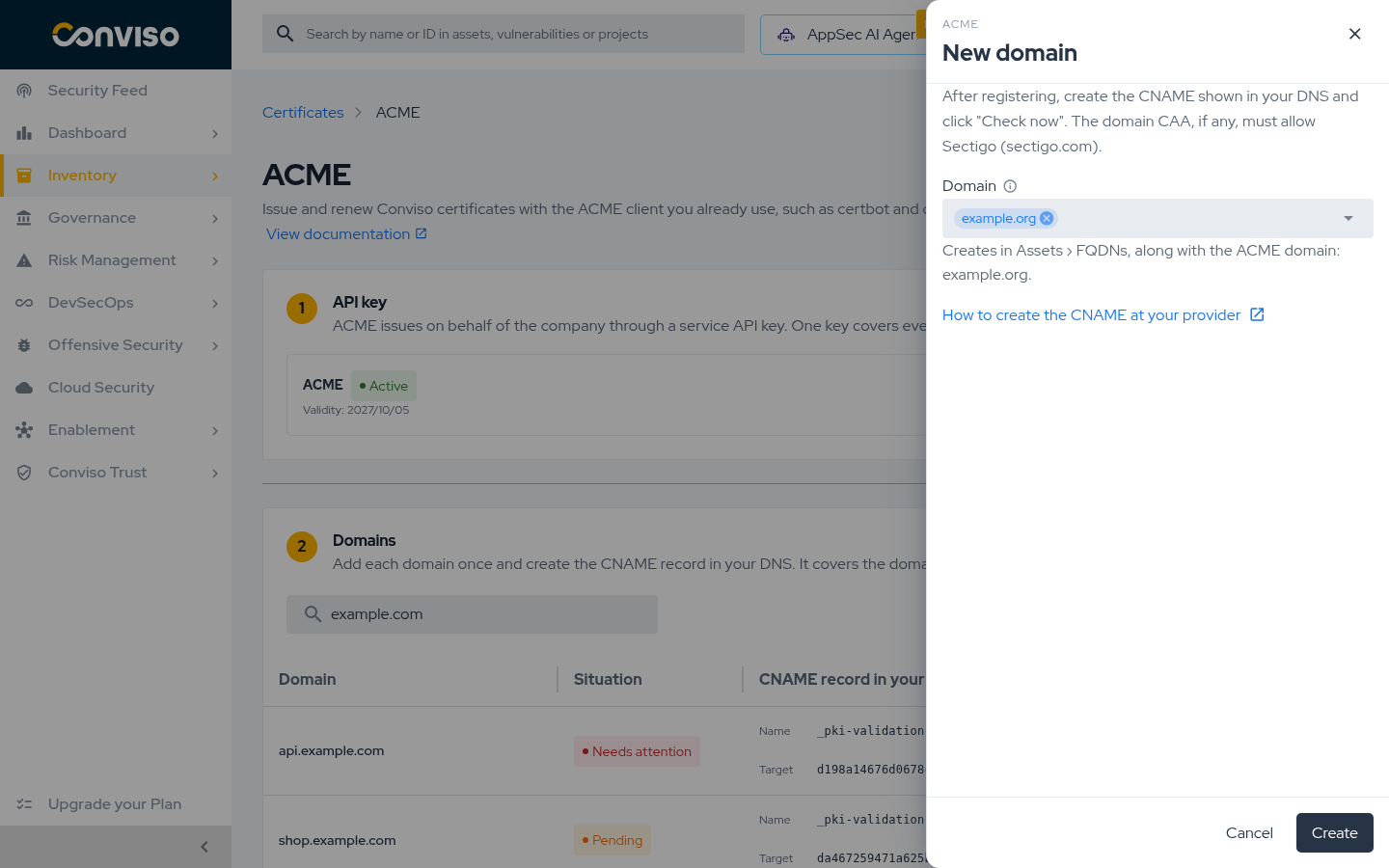
Add a Domain
- In the Domains section, click New domain.
- Pick the domain from the company's FQDNs, or type the registered domain, for example
example.com, and press Enter. Addingexample.comalready coverswww.example.com,app.example.comand*.example.com; there is no need to add subdomains one by one. Several domains can be added at once. - Click Create. The domain appears as Pending, with the CNAME record to create. A typed domain that is not in Assets yet is also created there as an FQDN, which needs permission to create assets.
Create the CNAME Record
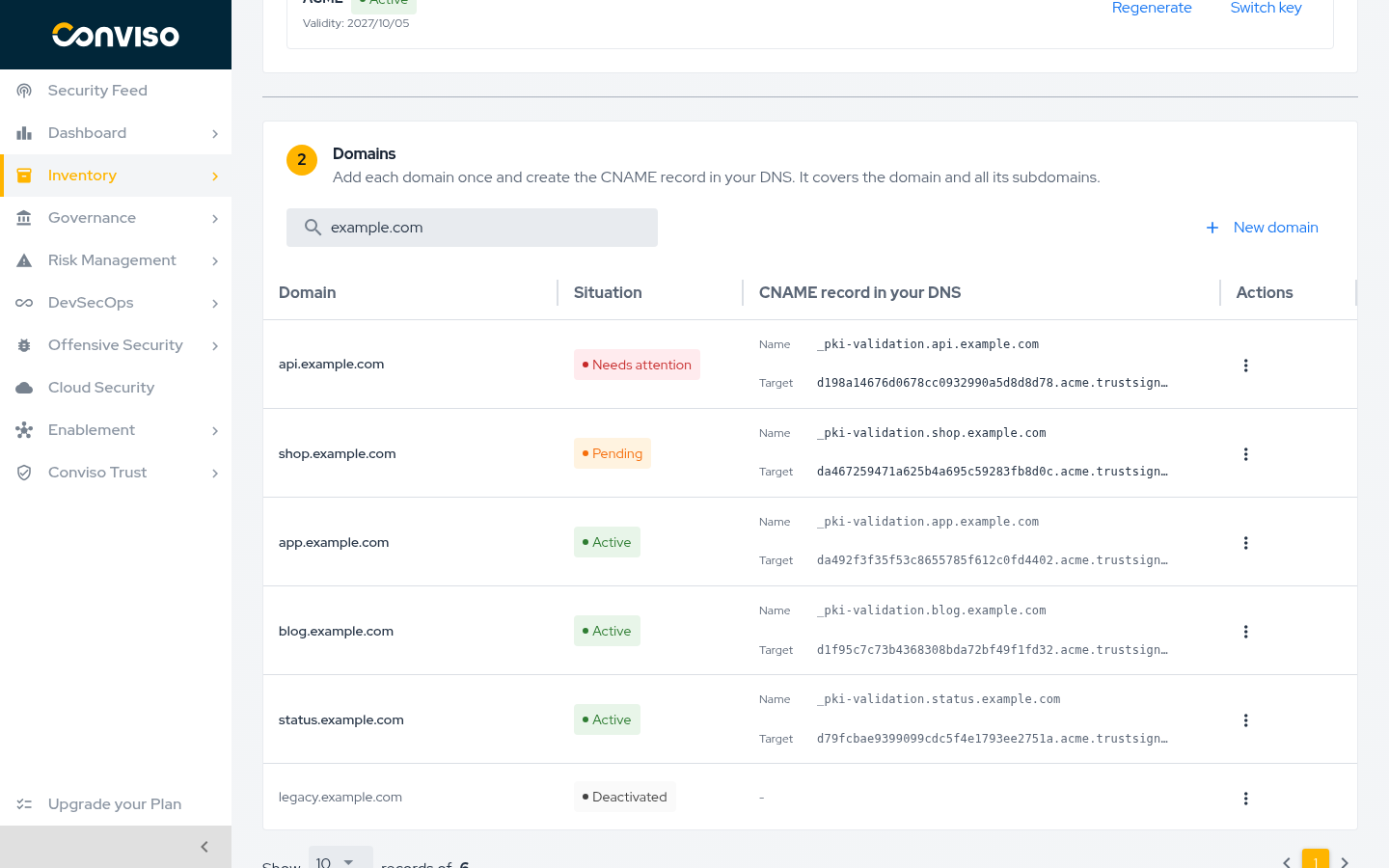
Each domain shows the record to create in your DNS:
| Field | Value |
|---|---|
| Type | CNAME |
| Name | _pki-validation.<your domain>, for example _pki-validation.example.com |
| Target | d48e2ff2023f18696cb8f0a0ff9c4635.acme.trustsign.com.br (example; copy the value shown on the page, unique for each domain) |
After creating the record, open the menu (⋮) on the domain's row and click Check now. When the platform finds the CNAME, the domain turns Active and servers can issue for it.
Keep the record in place. The platform checks every active domain once a day; if the record is removed or changed, the domain turns Needs attention, new orders for it are refused and the users who can see the company's certificates are notified. Once the record is fixed, the domain turns Active again on the next daily check, or right away with Check now. A DNS server that does not answer once does not change the domain; if it still does not answer on a check 12 hours or more later, the domain turns Needs attention as well. A certificate that stops renewing because of it is covered by the usual expiration warnings.
If the domain has CAA records, they must allow Sectigo (sectigo.com), the certificate authority
that issues Conviso certificates.
Common DNS Providers
Most providers ask for the name without the domain at the end. For example.com, type
_pki-validation in the name field and paste the target as the value.
CNAME Troubleshooting
When Check now does not find the record, a new domain stays Pending and an active domain turns Needs attention; hover over the situation to see the reason. The usual causes:
- Record created under the wrong name. Some providers append the domain automatically, which
produces
_pki-validation.example.com.example.com. Use only_pki-validationin the name field. - Record not propagated yet. DNS changes can take a few minutes to become visible, depending on the TTL. Wait and click Check now again.
- Proxy enabled. In providers that offer a proxy (such as Cloudflare), the CNAME must be DNS only.
- CAA does not allow Sectigo. Add a CAA record with
0 issue "sectigo.com"next to your existing ones. If the domain also hasissuewildrecords, add0 issuewild "sectigo.com"as well for wildcard certificates. - Domain marked as Needs attention after working. The daily check stopped finding the CNAME, the CAA now refuses Sectigo, or your DNS servers stopped answering. Fix the record or the DNS service and click Check now.
Deactivating a Domain
Open the menu (⋮) on the domain's row and click Deactivate. The dialog asks you to type
DEACTIVATE to confirm and warns that reactivating the domain later needs a new CNAME.
Deactivating a domain refuses new orders for it; certificates already issued stay valid. Delete
its _pki-validation CNAME from your DNS as well: until you do, the domain stays delegated to
Conviso.
To use a deactivated domain again, click Reactivate in the menu (⋮) of its row. It goes back to Pending with a new CNAME target: create the new CNAME in your DNS (in place of the old one, if it is still there) and click Check now. The old CNAME no longer validates the domain. Registering the same name again under New domain is refused while the deactivated one exists; reactivate it instead.
Names Each Product Accepts
Besides the CNAME, an order is refused when its names do not fit the product of the server credential:
| Product | Names in one order |
|---|---|
| SSL DV | One name, optionally with its www. form. The certificate always carries both, for example example.com and www.example.com. |
| SSL Wildcard DV | *.example.com, optionally with example.com. The certificate always carries both. |
| SSL MDC DV, SSL SAN DV | Several names. |
| SSL MDC Wildcard DV, SSL SAN Wildcard DV | Several names, including *. names. |
Names that do not fit are refused with rejectedIdentifier; for example, certbot -d a.example.com -d b.example.com on an SSL DV server credential. An order with more names than any credit of the
product holds is refused with a message such as no credit of SSL MDC DV holds 3 names; when no
credit of the product is available, the message is no available credit of SSL MDC DV.
Connect a Server
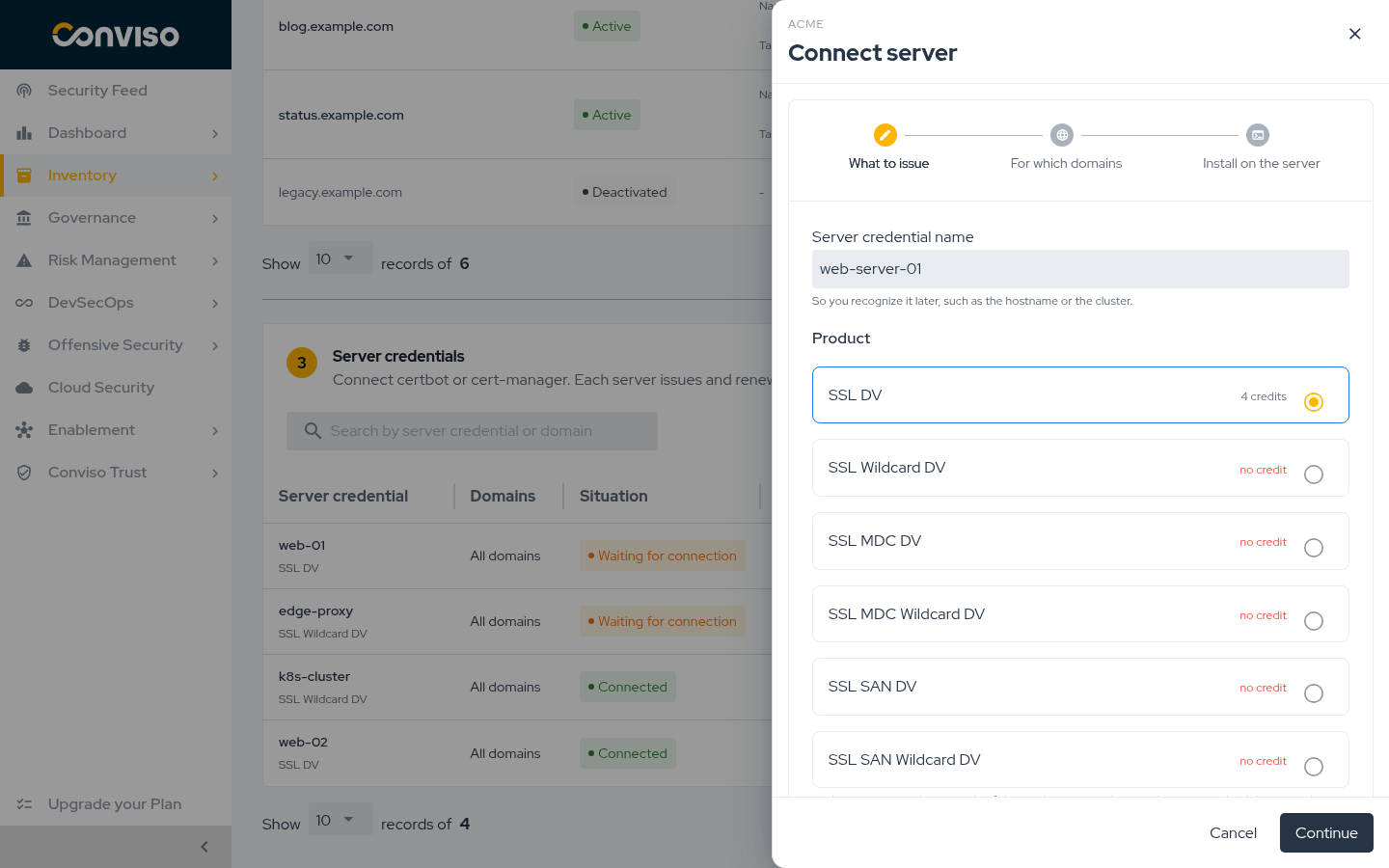
A server credential connects one server or cluster. Create one per server so you can follow and switch off each of them on its own.
- In the Server credentials section, click Connect server.
- What to issue: name the credential (the hostname or the cluster, for example) and choose the product. The product decides the certificate type; each issuance spends one credit of it. Connecting a server needs a usable ACME API key; see The ACME API Key.
- For which domains: optionally limit the domains this server may order. With none selected, it covers every verified domain of the company, including domains verified later. You can change it later with Edit domains. Click Generate key to create the server credential.
- Install on the server: copy the Directory URL, the EAB Key ID and the
EAB HMAC Key, and use them in the client as shown below. The Directory URL is the same for
every company:
https://api.app.convisoappsec.com/acme/directory.
To create a server credential, edit its domains or generate an EAB, your user account must have two-factor authentication enabled, or you must sign in through your company's SSO. Without it, the platform refuses the request with "Managing ACME credentials and EABs requires signing in to the portal with two-factor authentication". Requests made with an API key cannot do it either. Company administrators are notified each time an EAB is generated.
The EAB HMAC Key cannot be displayed again after the panel is closed. It works for one registration and expires after 7 days. If it is lost or expires, use Generate new EAB on the server credential.
The panel waits for the server and shows when it connects; you can also close it and follow the situation in the list. The credential shows Waiting for connection until the client registers with the key, and Connected after that. A link to this guide sits right below the key warning, for the step-by-step setup.
certbot
Request the first certificate with the values copied from the panel:
certbot certonly --standalone \
  --server <Directory URL> \
  --eab-kid <EAB Key ID> \
  --eab-hmac-key <EAB HMAC Key> \
  --issuance-timeout 300 \
  -d example.com
- Issuance is asynchronous and usually takes a few minutes, but an order can stay in processing for
up to 2 hours before it fails. certbot waits 90 seconds by default;
--issuance-timeout 300gives it more room. If certbot gives up waiting, the order keeps going on the platform: wait for the certificate to show up in the certificate list before running the command again. Each run creates a new private key, and a run made while the first order is still processing spends another credit, or is refused when there is none. --standaloneis there only because certbot asks for an authenticator. The authorizations come back already valid, since the domain was verified once through the CNAME, so certbot runs no challenge and does not need port 80. It works on a server that already uses that port.- For a wildcard, quote the name:
-d '*.example.com'. - certbot registers the account on this first run. Later runs on the same server reuse it, so the EAB key is not needed again.
- Renewal uses certbot's own scheduler (systemd timer or cron, installed with certbot). Check that
it is in place with
systemctl list-timers | grep certbotor in the crontab. Do not test it withcertbot renew --dry-run: against the Conviso server the dry run is not simulated, it reissues the certificate for real.
cert-manager
Store the HMAC key in a Secret and create a ClusterIssuer pointing to the Directory URL. The
issuer needs no solvers, because orders come back already authorized:
kubectl -n cert-manager create secret generic conviso-acme-eab \
  --from-literal=hmac=<EAB HMAC Key>
apiVersion: cert-manager.io/v1
kind: ClusterIssuer
metadata:
  name: conviso-acme
spec:
  acme:
    server: <Directory URL>
    privateKeySecretRef:
      name: conviso-acme-account
    externalAccountBinding:
      keyID: <EAB Key ID>
      keySecretRef:
        name: conviso-acme-eab
        key: hmac
Then request certificates as usual:
apiVersion: cert-manager.io/v1
kind: Certificate
metadata:
  name: app
spec:
  secretName: app-tls
  dnsNames:
    - app.example.com
  issuerRef:
    name: conviso-acme
    kind: ClusterIssuer
The product is set by the server credential, so a cluster that needs two products (for example
SSL DV and SSL Wildcard DV) uses two server credentials and two ClusterIssuer resources.
cert-manager renews the certificate on its own before it expires.
Other ACME Clients
Any client with External Account Binding support works with the same three values: the Directory URL as the ACME server, the EAB Key ID and the EAB HMAC Key.
Renewal
The client renews on its own; nothing is done in the platform. A renewal of the same names reuses the credit of the original certificate while that credit's term lasts. Such a renewal is a reissue: the new certificate shows up in the certificate list and the previous one moves to Replaced, as in Renewing with Reissue. A certificate can be reissued up to 10 times in 24 hours; past that, the client is told to retry later. After the term ends, or when the names change, the next issuance spends a new credit. Only certificates issued through ACME are renewed this way: the first ACME issuance always spends a credit, even for names that already have a certificate bought in the platform. Without an available credit for the server credential's product, the order is refused and the client reports an authorization error.
In the last 30 days of a credit's term, a renewal spends a new credit when one is available. The certificate authority ends a renewal with the term, so a certificate renewed then would expire with it and the client would renew it again on every run. Without an available credit, the renewal still uses the original credit and expires when its term ends.
A single-domain certificate always covers both example.com and www.example.com, so ordering
either one renews the same certificate. The renewal keeps the main name of the first issuance: if
the first certificate was ordered for example.com, a renewal ordered for www.example.com still
comes out with example.com as its main name, and covers both. Changing the main name would make
the certificate authority revoke the copies already installed on your other servers.
If an order fails after the certificate was bought, for example because the CNAME was fixed more than two hours later, the next order for the same names continues that purchase without spending another credit, even when the client creates a new private key. If the certificate authority refuses that purchase itself, the order spends an available credit instead. If it refuses only the new private key, the order fails with "the certificate authority refused the CSR; make a new key and order again" and the purchase is kept for the next order. If the certificate authority does not answer, or cannot take the order at that moment, the order fails with "the certificate authority did not answer; place the order again" or "the certificate authority could not take the order now; place the order again later": run the client again, and the next order continues the same purchase.
If the certificate authority never confirmed a purchase, new orders for those names are refused until
the platform checks that purchase with the certificate authority, which happens automatically,
usually within two hours: the purchase either continues or its credit becomes available again. Then
order again. If the purchase is still not settled after a week, its certificate turns to Error and
the names take orders again, spending a new credit; contact Conviso Support about the credit of that
purchase. A scheduled certbot renew and cert-manager retry a failed renewal on their own; a first
issuance with certbot certonly has to be run again.
Revoking a Certificate
A certificate issued through ACME can be revoked by:
-
the ACME account that issued it, usually from the client that requested it:
certbot revoke --cert-name example.com --reason superseded -
another ACME account of the company, when its server credential may order every name in the certificate and each name is under an active domain. Certificates bought in the platform are not reachable this way; revoke them in the platform.
-
a request signed with the certificate's own private key, from any machine that holds it:
certbot revoke --server <Directory URL> \--cert-path /path/to/cert.pem --key-path /path/to/privkey.pem
The accepted reasons are unspecified, keycompromise, affiliationchanged, superseded and
cessationofoperation.
Managing Server Credentials
The Server credentials list shows, for each credential: the product, the domains it may order (All domains when not limited), the situation, the number of Active accounts, the number of Unused EABs and the Last issuance. Click the active accounts count to see the accounts. The actions of each row:
- Generate new EAB: a new key for a server that lost the previous one, or for a new installation.
- Edit domains: change which domains the server may order. Renewals for domains removed from the list are refused from the next order on.
- Accounts: each installation that registered with a key creates an ACME account. Deactivate an account to switch off one installation without touching the others. A deactivated account cannot be used again: to reconnect that installation, register a new ACME account, with a new account key and a new EAB.
- Deactivate: switches the server credential off for good. Its accounts stop on their next request and its unused keys stop working. Certificates already issued stay valid until they expire.
Contribute to the Docs
Found something outdated or missing? Help us improve the documentation with a quick suggestion or edit.
How to contributeResources
By exploring our content, you'll find resources that will enhance your understanding of the importance of a Security Application Program.
Conviso Blog: Explore our blog, which offers a collection of articles and posts covering a wide range of AppSec topics. The content on the blog is primarily in English.
Conviso's YouTube Channel: Access a wealth of informative videos covering various topics related to AppSec. Please note that the content is primarily in Portuguese.